
Introduction
The Microsoft Optical Desktop Elite for Bluetooth provides a wireless keyboard and mouse solution designed for use with Windows PCs. This combo utilizes Bluetooth wireless technology for connectivity, offering enhanced range and reliability. It enables synchronization and information sharing between your PC and other Bluetooth-enabled devices.
Кутуда эмне бар
- Microsoft Bluetooth клавиатурасы
- Microsoft Bluetooth Optical Mouse
- USB Bluetooth Transceiver
- Батареялар (алдын ала орнотулган же өзүнчө камтылган)
- Продукт документациясы

Image: The retail packaging for the Microsoft Optical Desktop Elite for Bluetooth, showing the keyboard, mouse, and USB transceiver.
Жайгашуу
Батареяларды орнотуу
Ensure fresh batteries are installed in both the keyboard and the mouse. Refer to the battery compartment markings for correct polarity.
Connect USB Transceiver
Plug the included USB Bluetooth transceiver into an available USB port on your Windows PC. The system will typically install the necessary drivers automatically.
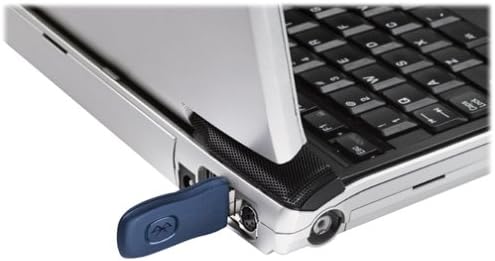
Image: A blue USB Bluetooth transceiver plugged into the side of a laptop computer.
Түзмөктөрдү жупташтыруу
Follow the on-screen prompts or refer to your Windows Bluetooth settings to pair the keyboard and mouse with the transceiver. This usually involves pressing a connect button on the devices and the transceiver.
Install Software (Optional)
For advanced customization of keyboard shortcuts and mouse buttons, install the Microsoft IntelliPoint and IntelliType Pro software from the official Microsoft website or the included CD (if applicable).
Иштөө нускамалары
The Microsoft Optical Desktop Elite for Bluetooth offers a range of features for enhanced productivity.

Image: The Microsoft Optical Desktop Elite keyboard and mouse, showcasing their ergonomic design and wireless nature.
Баскычтоптун өзгөчөлүктөрү:
- Стандарттык QWERTY жайгашуусу: Full-size keyboard with a standard QWERTY layout.
- Programmable Hot Keys: Utilize the customizable hot keys for quick access to applications, documents, or web барактар.
- Медиа башкаруу элементтери: Dedicated keys for volume control, play/pause, and track navigation.
- Капталдан капталга жылдыруу: The keyboard features a scroll wheel or button for horizontal scrolling in documents and web барактар.
Чычкан өзгөчөлүктөрү:
- Оптикалык көз салуу: Ар кандай беттерде курсорду так жана жылмакай башкарууну камсыз кылат.
- Жылдыруу дөңгөлөгү: For vertical scrolling and button functionality.
- Капталдан капталга жылдыруу: The mouse scroll wheel also supports horizontal scrolling.
- Программалануучу баскычтар: Customize side buttons for specific functions using the IntelliPoint software.
- Батареянын узак иштөө мөөнөтү: Designed for extended use between battery replacements.

Image: A detailed diagram highlighting various features and buttons on the Microsoft Optical Desktop Elite keyboard and mouse.
Техникалык тейлөө
Тазалоо:
- Баскычтоп: Бир аз жумшак, түксүз кездемени колдонуңуз dampсуу же жумшак тазалоо эритмеси менен. Ашыкча нымдуулуктан сактаныңыз.
- Чычкан: Clean the optical sensor area on the bottom of the mouse with a dry cotton swab. Wipe the body with a soft, damp кездеме.
- Do not immerse devices in liquid.
Батареяны алмаштыруу:
- When battery indicators on the keyboard or mouse signal low power, replace batteries promptly.
- Open the battery compartment, remove old batteries, and insert new ones, ensuring correct polarity.
- Эски батареяларды жергиликтүү эрежелерге ылайык жок кылыңыз.
Проблемаларды чечүү
- Devices not connecting or frequently disconnecting:
- Ensure the USB Bluetooth transceiver is securely plugged into a working USB port.
- Check battery levels in both the keyboard and mouse. Replace if low.
- Re-pair the devices with the transceiver. Refer to the "Pair Devices" step in the Setup section.
- Ensure no other strong wireless signals (e.g., Wi-Fi routers, other Bluetooth devices) are causing interference. Try moving the transceiver closer to the devices.
- Компьютериңизди өчүрүп күйгүзүңүз.
- Mouse cursor is erratic or unresponsive:
- Чычкандын түбүндөгү оптикалык сенсорду тазалаңыз.
- Ensure you are using the mouse on a suitable surface. Highly reflective or transparent surfaces may cause issues.
- Батареянын деңгээлин текшериңиз.
- Keyboard keys are not responding:
- Батареянын деңгээлин текшериңиз.
- Ensure the keyboard is paired correctly.
- Verify that the keyboard is not in a sleep mode. Press any key to wake it.
- Side-to-side scrolling not working:
- Ensure the IntelliPoint/IntelliType Pro software is installed and configured correctly.
- Verify that the application you are using supports horizontal scrolling.
Техникалык шарттар
| Өзгөчөлүк | Деталь |
|---|---|
| Бренд | Microsoft |
| Модел | Optical Desktop Elite for Bluetooth |
| Байланыш технологиясы | Bluetooth, USB, Зымсыз |
| Шайкеш түзмөктөр | Personal Computer (Windows OS) |
| Кыймылды аныктоо | Optical (Mouse) |
| Баскычтоптун жайгашуусу | QWERTY (105 Keys) |
| Power Source | Батарея менен иштейт |
| Элемент Салмагы | 4 фунт (болжол менен) |
| Түс | Кара/Көк |
Кепилдик жана колдоо
For warranty information and technical support, please refer to the documentation included with your product or visit the official Microsoft support webсайт. Кепилдик дооматтар үчүн сатып алганыңыздын далилин сактаңыз.
Онлайн колдоо: support.microsoft.com