
Microsoft Wireless Optical Desktop Executive Keyboard and Mouse Combo
User Manual
1. Киришүү
This manual provides comprehensive instructions for the Microsoft Wireless Optical Desktop Executive Keyboard and Mouse Combo. Please read this manual thoroughly before use to ensure proper setup and operation. This combo is designed for use with personal computers running Windows or Mac operating systems.
2. Пакеттин мазмуну
- Microsoft Wireless Optical Desktop Executive Keyboard
- Microsoft Wireless Optical Desktop Executive Mouse
- USB зымсыз кабыл алгыч
- 4 AA Batteries (2 for keyboard, 2 for mouse)
- Колдонуучунун колдонмосу (бул документ)
3. Орнотуу
3.1 Батареяны орнотуу
- Баскычтоп: Locate the battery compartment on the underside of the keyboard. Open the cover and insert two AA batteries, ensuring correct polarity (+/-). Close the cover.
- Чычкан: Locate the battery compartment on the underside of the mouse. Open the cover and insert two AA batteries, ensuring correct polarity (+/-). Close the cover.
3.2 Connecting the USB Wireless Receiver
- USB зымсыз кабыл алгычын компьютериңиздеги жеткиликтүү USB портуна сайыңыз.
- Сиздин иштөө тутумуңуз керектүү драйверлерди автоматтык түрдө таап, орнотууга тийиш. Бул процесс бир нече мүнөткө созулушу мүмкүн.
- Once drivers are installed, the keyboard and mouse should be ready for use. If not, press the 'Connect' button on the receiver and then on the keyboard/mouse (if available) to establish a connection.
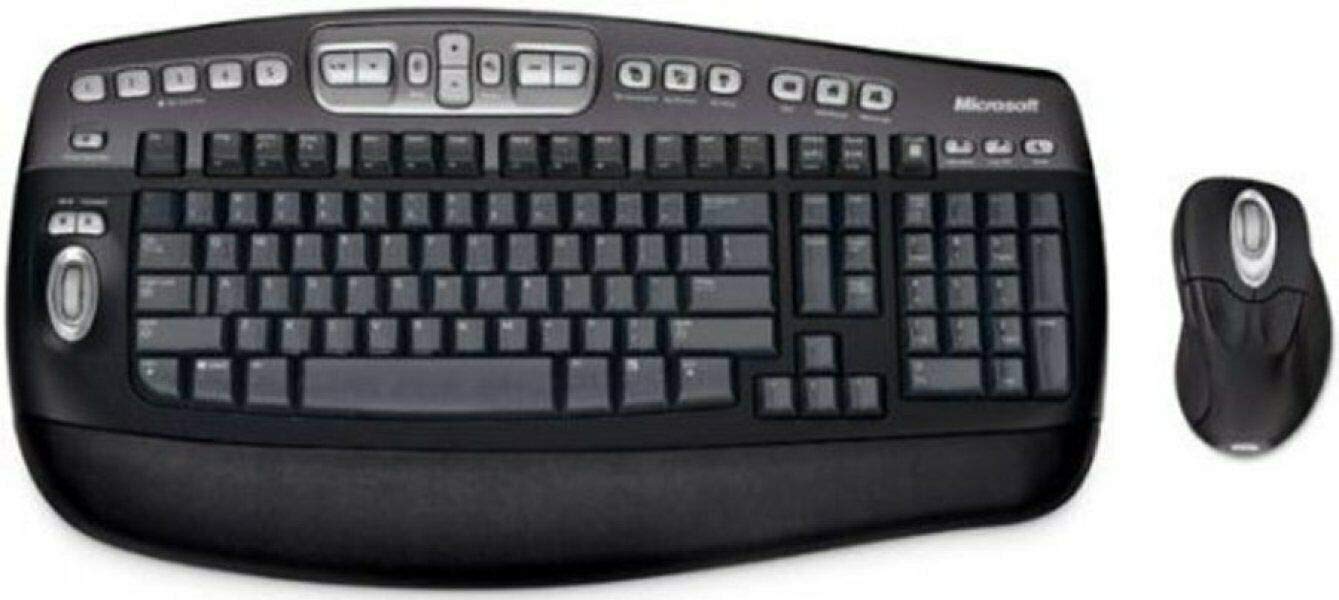
An image showing the Microsoft Wireless Optical Desktop Executive Keyboard and Mouse Combo, highlighting its ergonomic design and wireless components.
4. Операция
4.1 Баскычтоптун өзгөчөлүктөрү
- Wider Keys with Softer Edges: Designed for comfortable typing.
- Ыкчам баскычтар: Provides one-touch access to frequently used computer functions and files such as Mail, Web/Home, Messenger, My Documents, and My Pictures.
- 5 Programmable 'My Favorites' Keys: Customize these keys for one-touch access to your favorite webсайттар же колдонмолор.
4.2 Чычкандын өзгөчөлүктөрү
- High-Performance Optical Technology: Ensures precise control without the need for maintenance.
- Эргономикалык дизайн: Shaped for comfortable use during extended periods.
- Scroll Wheel with Application Switching: Push down on the scroll wheel to easily move between open windows.
- 5 Программалануучу баскычтар: Includes two side buttons for forward/back navigation in web browsers. All five buttons, including the wheel button, can be reassigned to various functions.
4.3 Customizing Keys and Buttons
To customize the programmable keys on the keyboard and buttons on the mouse, you may need to install Microsoft's IntelliType Pro and IntelliPoint software, respectively. These can typically be downloaded from the official Microsoft support website. Follow the on-screen instructions within the software to assign desired functions.
5. Техникалык тейлөө
5.1 Тазалоо
- Баскычтоп: Бир аз жумшак, түксүз кездемени колдонуңуз dampсуу же жумшак тазалоочу эритме менен эритиңиз. Ашыкча нымдуулуктан алыс болуңуз. Тазалоочу каражаттарды түз эле клавиатурага чачпаңыз.
- Чычкан: Сыртын жумшак менен тазалаңыз, гamp cloth. For the optical sensor, use a dry cotton swab to gently remove any dust or debris.
5.2 Батареяны алмаштыруу
Replace the AA batteries in both the keyboard and mouse when performance degrades or the low battery indicator (if present) illuminates. Always use fresh, high-quality AA alkaline batteries. Dispose of old batteries according to local regulations.
6. Кыйынчылыктарды
6.1 Клавиатура же чычкан жооп бербей жатат
- Батареялардын туура орнотулганын жана түгөнүп калбагандыгын текшериңиз. Керек болсо алмаштырыңыз.
- Verify the USB wireless receiver is securely plugged into a working USB port. Try a different USB port.
- Ensure the keyboard and mouse are within range of the receiver (typically up to 30 feet or 10 meters).
- Re-establish the connection: Press the 'Connect' button on the receiver, then on the keyboard and mouse.
- Компьютериңизди өчүрүп күйгүзүңүз.
6.2 Erratic Mouse Movement
- Чычкандын астындагы оптикалык сенсорду тазалаңыз.
- Ensure you are using the mouse on a suitable surface. Highly reflective or transparent surfaces may cause issues. A mouse pad is recommended.
- Башка зымсыз аппараттардын кийлигишүүсүн текшериңиз.
6.3 Hot Keys or Programmable Buttons Not Working
- Ensure Microsoft IntelliType Pro (for keyboard) and IntelliPoint (for mouse) software is installed and up to date.
- Check the software settings to confirm keys/buttons are assigned correctly.
7. Техникалык шарттар
| Бренд | Microsoft |
| Модел | Wireless Optical Desktop Executive |
| Байланыш технологиясы | Радио жыштыгы |
| Өзгөчө өзгөчөлүк | Эргономикалык дизайн |
| Шайкеш түзмөктөр | Personal Computer (Windows/Mac) |
| Батареялар | 4 AA батарейка талап кылынат (кошулган) |
| Элемент Салмагы | 4.75 фунт |
| Пакеттин өлчөмдөрү | 20.4 x 10.9 x 3.5 дюйм |
8. Кепилдик жана колдоо
8.1 Кепилдик маалыматы
For detailed warranty information, please refer to the documentation included with your product packaging or visit the official Microsoft support webсайт. Кепилдиктин шарттары жана шарттары аймакка жана продуктуга жараша өзгөрүшү мүмкүн.
8.2 Кардарларды колдоо
Көбүрөөк жардам, техникалык колдоо же драйверлерди жүктөп алуу үчүн, Microsoftтун расмий колдоо кызматына кайрылыңыз website. You can typically find support resources by searching for your product model on their site.