
1. Бүттүview
The Canon PowerShot SD450 Digital ELPH camera is a compact digital camera designed for ease of use and high-quality imaging. It features a 5.0-megapixel sensor, a 3x optical zoom lens, and a 2.5-inch LCD display. The camera incorporates Canon's DIGIC II processor for efficient image processing and offers various shooting modes to suit different photographic situations.

Сүрөт 1.1: Алдыңкы view of the Canon PowerShot SD450 Digital ELPH camera with its lens retracted.
2. Кутуда эмне бар
Төмөнкү нерселердин баары пакетиңизге камтылганын текшериңиз:
- PowerShot SD450 body
- Lithium battery pack NB-4L
- Battery charger CB-2LV
- 16 MB SD memory card SDC-16M
- Wrist strap WS-600
- Digital Camera Solution CD-ROM
- USB interface cable IFC-400PCU
- Audio-video cable AVC-DC300
3. Орнотуу
3.1. Батареяны заряддоо
- Insert the Lithium battery pack NB-4L into the battery charger CB-2LV.
- Заряддагычты розеткага сайыңыз. Заряддоо индикаторунун жарыгы күйөт.
- Once charging is complete, the indicator light will change or turn off. Remove the battery.
3.2. Батареяны жана SD картаны салуу
- Камеранын ылдый жагында жайгашкан батарейка/карта бөлүмүнүн капкагын ачыңыз.
- Insert the charged battery pack into the compartment, ensuring correct orientation.
- Insert the SD memory card into the card slot until it clicks into place.
- Бөлүмдүн капкагын бекем жабыңыз.
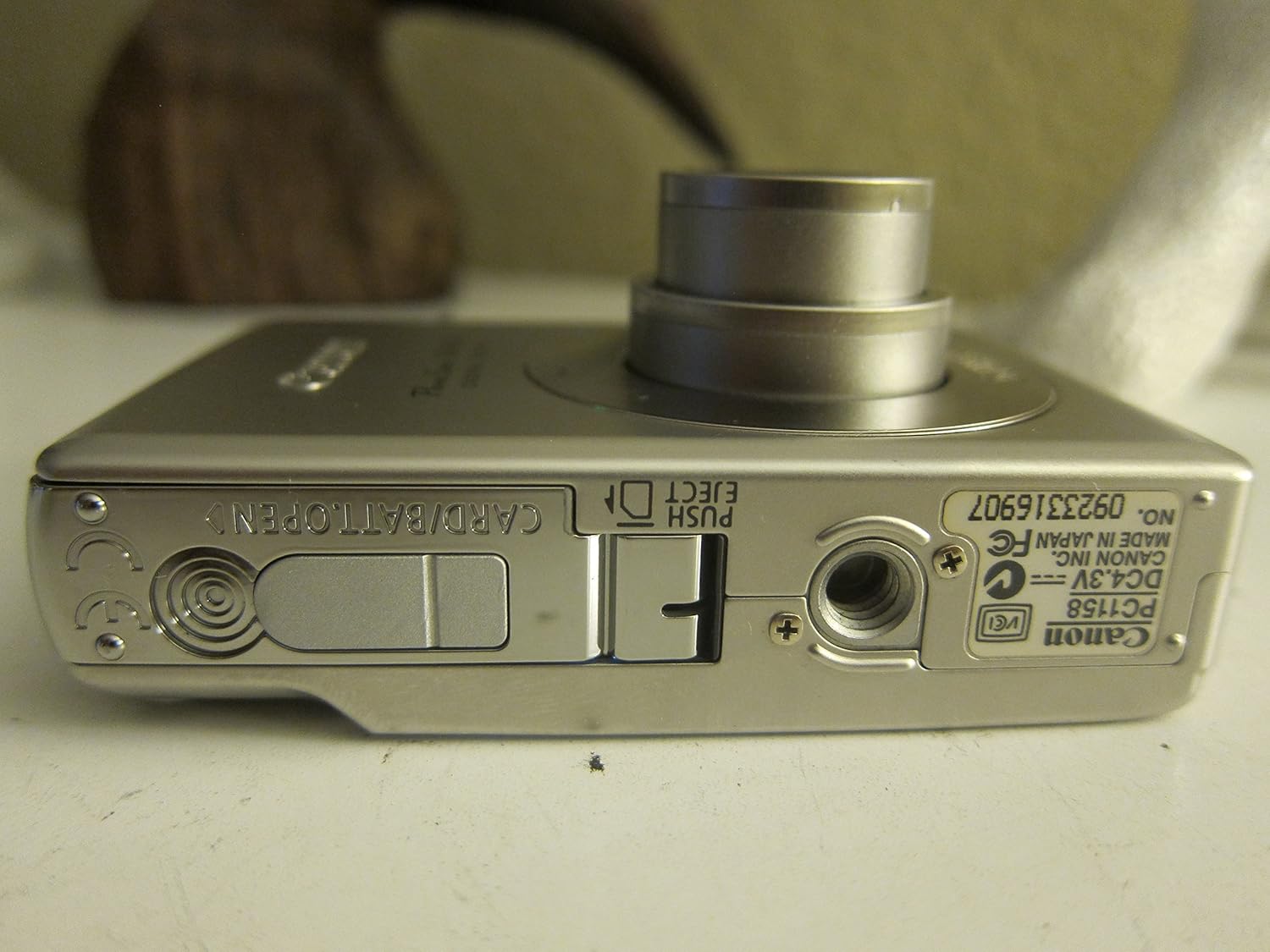
3.1-сүрөт: Төмөнкү view of the camera, illustrating the battery and SD card compartment.
3.3. Баштапкы күйгүзүү жана негизги орнотуулар
- басыңыз КҮЙГҮЗҮҮ/ӨЧҮРҮҮ камераны иштетүү үчүн баскыч.
- Датаны, убакытты жана тилди коюу үчүн экрандагы көрсөтмөлөрдү аткарыңыз.

3.2-сүрөт: Жогорку view of the camera, highlighting the power button and shutter release.
4. Камераны иштетүү
4.1. Негизги сүрөт
- Күйгүзүү/өчүрүү: басыңыз КҮЙГҮЗҮҮ/ӨЧҮРҮҮ баскычы.
- Сүрөт тартуу: Фокустоо үчүн жапкычты жарым басып, андан кийин сүрөткө тартуу үчүн толук басыңыз.
- Чоңойтуу: 3x оптикалык масштабды тууралоо үчүн жапкычтын айланасындагы масштаб рычагын колдонуңуз.

Сүрөт 4.1: Алдыңкы view of the camera with the optical zoom lens extended.
4.2. Атуу режимдери
The PowerShot SD450 offers various shooting modes to optimize settings for different scenes. Rotate the mode dial to select:
- Авто: Camera automatically sets optimal exposure and focus.
- Кол менен: Allows for more control over settings like white balance and color tones (black and white, sepia, vivid, neutral).
- Портрет: Blurs the background to emphasize the subject.
- Пейзаж: Ensures sharp focus on distant subjects.
- Түнкү сүрөт: For shooting in low light conditions.
- Сахна режимдери: Includes specific settings for Kids & Pets, Foliage, Fireworks, Snow, Underwater, Beach, and Indoor.
- Менин түстөрүм: Apply special effects like Color Swap or Custom Color directly in-camera.
4.3. Focusing and Exposure
- AiAF: The 9-point Artificial Intelligence Auto Focus system automatically focuses on subjects, even if off-center.
- Экспозицияны көзөмөлдөө: Select from Evaluative, Center-weighted, or Spot metering.
- ISO сезгичтиги: Adjustable to Auto, 50, 100, 200, or 400 to control light sensitivity.
4.4. Видео жаздыруу
The camera can record high-quality movies:
- Резолюциялар: VGA (640x480) or QVGA (320x240) at 30 or 15 frames per second.
- Fast Frame Rate Movie Mode: Records at 60 frames per second for slow-motion playback.
- Compact Movie Mode (QQVGA): 160x120 at 15 frames per second, suitable for email sharing.
- Continuous filming is available until the file size reaches 1 GB or 60 minutes.
4.5. Ойнотуу жана кайра иштетүүview
Кайраview сүрөттөрүңүз жана видеолоруңуз:
- басыңыз Ойнотуу баскычы.
- Use the directional pad to navigate through images and videos.
- Intelligent Orientation Sensor: Automatically rotates stored images for correct playback when the camera is rotated.
- Slideshow Functions: Create impressive slideshows with transition effects directly on the camera.

4.2-сүрөт: Арткы view of the camera, showing the LCD display during image playback.
4.6. Сүрөттөрдү басып чыгаруу
The PowerShot SD450 supports direct printing:
- PictBridge: Connect directly to PictBridge-compatible printers (e.g., Canon PIXMA printers) for printing without a PC.
- Басып чыгаруу/Бөлүшүү баскычы: Simplifies direct printing and image uploading to Windows XP or Mac OS X.
5. Техникалык тейлөө
5.1. Камераны тазалоо
- Камеранын корпусун тазалоо үчүн жумшак, кургак чүпүрөктү колдонуңуз.
- For the lens and LCD screen, use a lens cleaning cloth and specialized cleaning solution if necessary. Avoid harsh chemicals.
5.2. Батареяга кам көрүү
- Батареяларды колдонбогондо салкын, кургак жерде сактаңыз.
- Батареянын иштөө мөөнөтүн узартуу үчүн бат-баттан толук зарядсыздануудан качыңыз.
- Recharge the battery using only the provided Canon charger.
5.3. Сактоо
- When storing the camera for extended periods, remove the battery.
- Store the camera in a protective case to prevent dust and scratches.
6. Кыйынчылыктарды
| Көйгөй | Чечим |
|---|---|
| "Memory Error" message appears. |
|
| Сүрөттөр бүдөмүк. |
|
| Flash is too strong or washes out subjects. |
|
| Батарея бат эле түгөнөт. |
|
| Камера күйбөйт. |
|
7. Техникалык шарттар
| Бренд | Canon |
| Модель аты | Canon PowerShot SD450 |
| Натыйжалуу дагы эле чечим | 5 мегапиксел |
| Оптикалык масштаб | 3x |
| Screen Size | 2.5 дюйм |
| Image Stabilization | Санариптик, оптикалык |
| ISO диапазону | Авто, 50, 100, 200, 400 |
| Минималдуу жапкыч ылдамдыгы | 15 секунд |
| Макс жапкыч ылдамдыгы | 1/1500 секунд |
| Видео тартуунун резолюциясы | SD VGA 480p |
| Видео тартуу форматы | AVI |
| File Формат | JPEG, RAW |
| Өлчөмдөрү (L x W x Y) | 3.39 x 0.87 x 2.13 дюйм |
| Элемент Салмагы | 5.44 унция |
| Түс | Silver |
| Авто таймери бар | Ооба |
| Сууга туруктуулук деңгээли | Сууга чыдамдуу эмес |
8. Кепилдик жана колдоо
Кепилдик жөнүндө толук маалымат алуу үчүн, өнүмүңүз менен кошо берилген кепилдик картасын караңыз же Canon компаниясынын расмий веб-сайтына кириңиз. website. The camera comes bundled with Canon software (ZoomBrowser EX 5.5, PhotoRecord 2.2, ImageBrowser 5.5, PhotoStitch 3.1, Movie Edit Task) for image management and editing. Purchasers are also eligible for membership to Canon iMAGE Gateway for additional support and services.
For technical support, driver downloads, or service inquiries, please visit the official Canon support webсайтына кириңиз же Canon кардарларды тейлөө кызматына кайрылыңыз.