
ECS Elitegroup P4M800-M7
ECS P4M800-M7 Motherboard User Manual
Model: P4M800-M7
Introduction
This manual provides detailed instructions for the installation, operation, and maintenance of the ECS P4M800-M7 motherboard. The P4M800-M7 is designed to support Socket LGA775 Intel Pentium 4 / Pentium D / Celeron D Processors with FSB 800/533 MHz and Hyper-Threading Technology.
Key features include 64-bit support, FSB 800MHz, RAID0, RAID1, and Serial ATA capabilities.
Продукт бүттүview

Figure 1: ECS P4M800-M7 Motherboard Layout. This image displays the main components of the motherboard, including the CPU socket (LGA 775), two DDR RAM slots, PCI and AGP expansion slots, and various I/O ports.
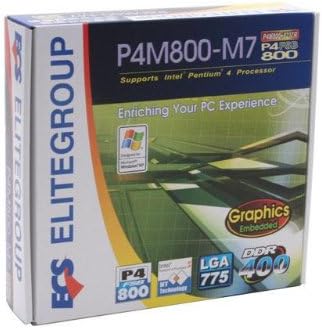
Figure 2: ECS P4M800-M7 Retail Box. The product packaging indicates support for Intel Pentium 4 processors, embedded graphics, and DDR400 memory, along with the LGA 775 socket type.
Орнотуу жана орнотуу
Follow these steps for proper installation of the ECS P4M800-M7 motherboard into your computer system.
1. Системаңызды даярдаңыз
- Кубат менен камсыздооңуз розеткадан ажыратылганын текшериңиз.
- Жерге туташтырылган металл нерсеге тийүү менен статикалык электр энергиясын чыгарыңыз.
2. CPU орнотуу
- CPU розеткасынын рычагын ачыңыз.
- Carefully align the CPU (Intel Pentium 4 / Pentium D / Celeron D) with the socket, ensuring the notches match.
- Gently lower the CPU into the socket. Do not force it.
- CPUну бекитүү үчүн розетка рычагын жабыңыз.
- Apply a thin layer of thermal paste to the CPU surface.
- CPU муздаткычын өндүрүүчүнүн көрсөтмөлөрүнө ылайык орнотуңуз.
3. Install Memory Modules
The motherboard supports DDR memory. Insert DDR modules into the available memory slots (2 slots).
- DIMM уячасынын эки учундагы клиптерди ачыңыз.
- Модулдагы оюк уячадагы ачкычка дал келишин камсыз кылып, эстутум модулун уячага тууралаңыз.
- Клиптер ордуна орнотулганга чейин модулдун эки учун бекем басыңыз.
4. Mount the Motherboard
- Install standoffs in your PC case that align with the motherboard's mounting holes.
- Carefully place the motherboard onto the standoffs, aligning the I/O shield with the case opening.
- Аналык платаны бурамалар менен бекитиңиз.
5. Connect Power and Peripherals
Connect the 20-pin ATX main power connector and the 4-pin ATX 12V power connector from your power supply to the motherboard. Connect SATA and IDE devices, front panel connectors, and expansion cards as needed.
Иштөө нускамалары
Once the motherboard is installed and all components are connected, you can proceed with system operation.
1. Баштапкы жүктөө
After connecting the power supply and monitor, power on your system. The system should display the BIOS POST screen. Press the designated key (usually DEL or F2) to enter the BIOS setup utility.
2. BIOS конфигурациясы
In the BIOS, you can configure various system settings, including boot order, date/time, and hardware parameters. Refer to the BIOS section of the full manual for detailed settings. Save changes and exit the BIOS to continue.
3. Операциялық системаны орнотуу
Insert your operating system installation media (e.g., Windows CD/DVD) and follow the on-screen prompts to install the OS. Ensure all necessary drivers (chipset, audio, network, graphics) are installed after the OS installation for optimal performance. Drivers are typically provided on a CD with the motherboard or can be downloaded from the ECS Elitegroup webсайт.
Техникалык тейлөө
Туура тейлөө сиздин энелик платаңыздын узак жана туруктуу иштешин камсыздайт.
- Чаңды тазалоо: Regularly clean dust from inside your computer case, especially from heatsinks and fans, using compressed air. Ensure the system is powered off and unplugged before cleaning.
- Кабелдик башкаруу: Ensure internal cables are neatly routed to allow for proper airflow.
- BIOS жаңыртуулары: Periodically check the ECS Elitegroup website for BIOS updates. Only update the BIOS if necessary and follow the instructions precisely to avoid system instability.
- Драйвер жаңыртуулары: Keep your device drivers updated to ensure compatibility and performance.
Проблемаларды чечүү
This section addresses common issues you might encounter with the ECS P4M800-M7 motherboard.
| Көйгөй | Мүмкүн себеп | Чечим |
|---|---|---|
| Система күйбөйт. | Power cables not connected, faulty power supply, or short circuit. | Check all power connections (20-pin ATX, 4-pin 12V). Test power supply. Ensure no metal objects are touching the motherboard. |
| Монитордо дисплей жок. | Monitor cable loose, faulty graphics card (if external), or RAM not seated correctly. | Verify monitor cable connection. Reseat RAM modules. If using an external graphics card, ensure it is properly seated and powered. |
| Система катып калат же бузулат. | Overheating, unstable drivers, or faulty RAM. | Check CPU and chipset temperatures. Update drivers. Test RAM modules individually. |
| Операциялык система табылган жок. | Incorrect boot order in BIOS, or hard drive not detected. | Enter BIOS and set the correct boot order. Check SATA/IDE cable connections to the hard drive. |
Техникалык шарттар
| Өзгөчөлүк | Деталь |
|---|---|
| Өндүрүүчү | ECS |
| Модель номери | P4M800-M7 |
| CPU розетка | LGA 775 |
| Шайкеш процессорлор | Intel Celeron D, Intel Pentium 4, Intel Pentium |
| Чипсет түрү | Intel |
| Эстутум Slots Жеткиликтүү | 2 |
| Системалык шина стандарты колдоого алынат | SATA 3 |
| FSB Support | 800/533 МГц |
| Hyper-Threading технологиясы | Колдоого алынган |
| RAID колдоо | RAID0, RAID1 |
| UPC | 881038001678 |
| Дата биринчи жеткиликтүү | 5-апрель, 2006-жыл |
Кепилдик жана колдоо
For warranty information and technical support, please refer to the documentation included with your purchase or visit the official ECS Elitegroup webсайт. Кепилдиктин шарттары аймакка жана сатуучуга жараша өзгөрүшү мүмкүн.
Official ECS Elitegroup Webсайт: ECS Elitegroup Store on Amazon (Note: This link directs to the brand's store page on Amazon, where further support information might be available.)
Ask a question about this manual
Ask about setup, troubleshooting, compatibility, parts, safety, or missing instructions. Manuals+ will review the question and use this page’s manual context to help answer it.