1. Продукт бүтүп калдыview
The D-Link Xtreme N Duo Media Router (DIR-855) is designed to provide high-performance wireless networking for your home or office. Featuring dual-band technology, it operates simultaneously on both 2.4 GHz and 5 GHz frequencies, allowing for flexible network configurations and optimized media streaming.
This router includes four Gigabit Ethernet ports for ultra-fast wired connections and supports the 802.11a/g/n wireless standards.

Сүрөт 1: Алдыңкы view of the D-Link DIR-855 Router.
Негизги өзгөчөлүктөрү:
- Wireless N Connectivity: Provides superior wireless performance, clarity, and coverage.
- Dual-band Wireless N: Operates on 2.4 GHz and 5 GHz simultaneously for enhanced throughput and reduced interference.
- Wi-Fi менен корголгон орнотуу (WPS): Simplifies secure wireless network setup with a single button.
- Intelligent QoS Technology: Prioritizes Internet traffic for optimized gaming, VoIP, and video streaming.
- Медиа агымы: Capable of streaming audio and video to compatible UPnP-enabled devices.
- Active Firewall Protection: Тармактын коопсуздугун жогорулатат.
- 4 гигабит Ethernet порттору: Offers ultra-fast wired connectivity for devices.
- Өркүндөтүлгөн коопсуздук: Supports WPA or WPA2 encryption for a secure wireless network.
- Артка шайкештик: Works with existing 802.11g and 802.11a devices.
- IPv6 Equipped: Ready for the next generation of Internet Protocol.
2. Орнотуу жана орнотуу
2.1 Пакеттин мазмуну
Пакетиңизде төмөнкү заттар бар экенин текшериңиз:
- D-Link Xtreme N Duo Media Router (DIR-855)
- 3 ажыратылуучу антенналар
- CAT5 Ethernet кабели
- Кубаттуу адаптер
- CD-ROM with Installation Wizard and Product Documentation
Эгерде кандайдыр бир нерселер жок болсо же бузулса, сатуучуга же D-Link колдоо кызматына кайрылыңыз.
2.2 Аппараттык камсыздоону орнотуу
- Маршрутизаторду жайгаштырыңыз: Place the router in a central location to maximize wireless coverage. Avoid placing it near obstructions, metal objects, or other electronic devices that may cause interference.
- Антенналарды тиркөө: Carefully screw the three detachable antennas onto the connectors at the back of the router. Ensure they are securely fastened.
- Кубатка туташуу: Plug the power adapter into the power port on the back of the router, then plug the other end into a wall outlet or power strip. The power LED on the router should illuminate.
- Модемге туташуу: Connect one end of the provided CAT5 Ethernet cable to the Интернет port (WAN) on the back of the DIR-855 router. Connect the other end to your broadband modem (DSL or Cable modem).
- Зымдуу түзмөктөрдү туташтыруу (кошумча): For wired connections, connect Ethernet cables from your computers or other network devices to any of the four LAN ports (1-4) on the back of the router.
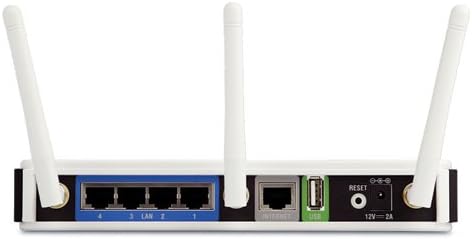
Figure 2: Rear panel connections of the D-Link DIR-855 Router.
2.3 Баштапкы конфигурация
After hardware installation, use the included CD-ROM to run the D-Link Installation Wizard. This wizard will guide you through the initial setup steps, including setting up your Internet connection and securing your wireless network.
Alternatively, you can access the router's web-based configuration utility by connecting a computer to one of the LAN ports and navigating to the default IP address (usually http://192.168.0.1) in a web browser. Refer to the product documentation on the CD-ROM for detailed instructions on web- негизделген орнотуу.
3. Операция
3.1 Dual-Band Wireless Functionality
The DIR-855 operates on two wireless frequency bands simultaneously:
- 2.4 ГГц диапазону: Ideal for general internet browsing, email, and compatibility with older wireless devices (802.11g/b). This band offers wider coverage but can be more susceptible to interference from other devices.
- 5 ГГц диапазону: Best suited for high-bandwidth applications such as HD video streaming and online gaming. This band offers faster speeds and less interference due to fewer devices operating on it, but typically has a shorter range.
You can connect different devices to different bands to optimize network performance. For example, stream HD movies on the 5 GHz band while browsing the internet on the 2.4 GHz band.
3.2 Акылдуу QoS (тейлөө сапаты)
D-Link's Intelligent QoS technology prioritizes network traffic to ensure smooth performance for critical applications. It analyzes and categorizes data streams (e.g., VoIP, video streaming, online gaming, web browsing) and gives priority to delay-sensitive applications. This prevents buffering and lag, even when multiple devices are actively using the network.
3.3 SharePort технологиясы
The DIR-855 features a USB port that supports D-Link's SharePort technology. This allows you to connect a USB printer or storage device (e.g., external hard drive, flash drive) directly to the router. Once connected, these devices become accessible to all users on your network, turning them into shared network resources. The SharePort Client Utility must be installed on client PCs to access shared USB devices.
3.4 Wi-Fi менен корголгон орнотуу (WPS)
WPS provides a simple and secure way to add new devices to your wireless network without manually entering network names (SSIDs) or complex passwords. Press the WPS button on the router and then activate WPS on your client device within two minutes to establish a secure connection.
3.5 IPv6 колдоосу
The DIR-855 is IPv6 Certified, ensuring compatibility with the latest Internet Protocol. This prepares your network for future internet addressing requirements and services.
4. Техникалык тейлөө
4.1 Микропрограмма жаңыртуулары
Periodically check the official D-Link support website for firmware updates for your DIR-855 router. Firmware updates can provide performance improvements, new features, and security enhancements. Follow the instructions provided by D-Link carefully when performing a firmware update to avoid damaging the device.
4.2 Тармактын коопсуздугу
Ensure your wireless network is secured with WPA2 encryption. Regularly change your Wi-Fi password to a strong, unique combination of letters, numbers, and symbols. Access the router's web-based configuration utility to manage security settings.
4.3 Физикалык кам көрүү
Keep the router in a well-ventilated area, free from dust and direct sunlight. Do not block the ventilation openings. Clean the exterior with a soft, dry cloth. Avoid using liquid or aerosol cleaners.
5. Кыйынчылыктарды
This section provides solutions to common issues you might encounter with your DIR-855 router.
5.1 Интернет байланышы жок
- Кабелдерди текшерүү: Ensure all Ethernet cables are securely connected to the router, modem, and computer. Verify the Internet port cable is connected to your modem.
- Power Cycle: Turn off your modem and router. Wait 30 seconds, then turn on the modem first. Once the modem is fully online (indicated by stable lights), turn on the router.
- Модем абалы: Check the status lights on your modem to ensure it has an active internet connection.
- Роутердин конфигурациясы: Маршрутизаторго кириңиз web-based configuration utility to verify your Internet connection settings (e.g., PPPoE, DHCP, Static IP) are correctly configured according to your Internet Service Provider (ISP).
5.2 Weak or Intermittent Wireless Signal
- Маршрутизатордун жайгашуусу: Relocate the router to a more central location, away from walls, large metal objects, and other electronic devices (cordless phones, microwaves) that can cause interference.
- Антенналар: Ensure the antennas are securely attached and oriented for optimal signal.
- Канал кийлигишүүсү: Маршрутизатордо web-based configuration, try changing the wireless channel for both 2.4 GHz and 5 GHz bands. Use a Wi-Fi analyzer tool (available for smartphones) to identify less congested channels.
- 5 GHz Range: The 5 GHz band offers higher speeds but generally has a shorter range and is more susceptible to obstacles like walls. If experiencing issues on 5 GHz, try moving closer to the router or switching to the 2.4 GHz band for better coverage.
5.3 Devices Cannot Connect to Wi-Fi
- Купуя сөз: Double-check that you are entering the correct Wi-Fi password (network key).
- SSID берүү: Ensure the router is broadcasting its SSID (network name). This can be checked in the wireless settings of the router's configuration utility.
- WPS: If using WPS, ensure it is activated on both the router and the client device within the allowed timeframe.
- Заводдун баштапкы абалга келтирүү: As a last resort, you can perform a factory reset. Locate the reset button on the back of the router (often a small pinhole). With the router powered on, use a paperclip to press and hold the reset button for 10-15 seconds. This will restore the router to its default factory settings, requiring you to reconfigure it from scratch.
6. Техникалык шарттар
| Продукциянын өлчөмдөрү | 7.88 x 4.75 x 1.25 дюйм |
| Элемент Салмагы | 0.01 унция |
| Модель номери | ДИР-855 |
| Бренд | D-Link |
| Өзгөчө өзгөчөлүк | QoS, WPS |
| Жыштык тилкесинин классы | Кош тилкелүү (2.4 ГГц, 5 ГГц) |
| Зымсыз стандарт | 802.11a/b/g/n |
| Байланыш технологиясы | Зымдуу, Зымсыз |
| Ethernet порттору | 4 x RJ-45 Gigabit LAN, 1 x RJ-45 Gigabit WAN |
| Коопсуздук протоколу | WPA-PSK, WPA2-PSK, WPS |
| Шайкеш түзмөктөр | Оюн консолу, принтер |
| Сунушталган Колдонуулар | Gaming, HD Video Streaming |
| Өндүрүүчү | D-Link Systems, Inc. |
| Биринчи жеткиликтүү күн | 4-январь, 2008-жыл |
7. Кепилдик жана колдоо
7.1 Кепилдик маалыматы
For detailed warranty information regarding your D-Link DIR-855 router, please refer to the warranty card included in your product package or visit the official D-Link webсайт. Кепилдиктин шарттары жана шарттары аймакка жана сатып алуу күнүнө жараша өзгөрүшү мүмкүн.
7.2 Техникалык колдоо
If you encounter issues that cannot be resolved using this manual, or require further assistance, please contact D-Link Technical Support. You can find contact information, FAQs, and additional resources on the official D-Link support webсайт:
D-Link колдоо кызматына баш багыңыз Webсайт
Before contacting support, it is helpful to have your router's model number (DIR-855) and serial number ready.