
1. Киришүү
This manual provides detailed instructions for the safe and efficient use of your Vivitar VIVICAM-7340RED 7.0MP Digital Camera. Please read this manual thoroughly before operating the camera and keep it for future reference. Your camera is designed for capturing high-quality still images and video recordings with ease.
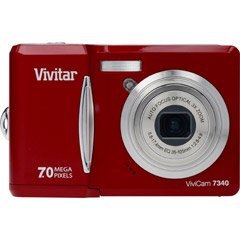
Сүрөт 1: Алдыңкы view of the Vivitar VIVICAM-7340RED Digital Camera. This image shows the lens, flash, and the overall compact design of the camera.
2. Орнотуу
2.1. Батареяларды салуу
- Камеранын астыңкы же капталындагы батарея бөлүкчөсүнүн капкагын табыңыз.
- Капкакты ачуу үчүн бекиткичти жылдырыңыз.
- Insert the required batteries (typically AA or AAA, refer to packaging) according to the polarity indicators (+ and -) inside the compartment.
- Батарея бөлүкчөсүнүн капкагын чыкылдагыча бекем жабыңыз.
Note: Ensure batteries are inserted with correct polarity as indicated inside the compartment.
2.2. Эстутум картасын салуу
Your camera requires a compatible memory card (e.g., SD card) to store photos and videos. The memory card slot is usually located near the battery compartment or on the side of the camera.
- Эстутум картасынын уячасынын капкагын ачыңыз.
- Insert the memory card with the metal contacts facing the correct direction (refer to the diagram near the slot). Push gently until it clicks into place.
- Эстутум картасынын уячасынын капкагын жабыңыз.
Note: Do not force the memory card. If it does not insert easily, check its orientation.
2.3. Күйгүзүү / Өчүрүү
- Камераны күйгүзүү үчүн, баскычын басыңыз КҮЧ button. The LCD screen will illuminate.
- Камераны өчүрүү үчүн, баскычын басып, кармап туруңуз КҮЧ LCD экраны өчкөнгө чейин баскычын кайра басыңыз.
2.4. Баштапкы жөндөөлөр (күн жана убакыт)
Upon first use or after battery replacement, you may need to set the date and time. Follow the on-screen prompts or navigate to the МЕНЮ > ЖАЙГАШУУ > DATE/TIME option to adjust these settings.
3. Камераны иштетүү
3.1. Сүрөткө тартуу
- Turn on the camera. Ensure it is in photo capture mode (usually indicated by a camera icon on the LCD).
- 2.4 дюймдук LCD экранды колдонуп, сүрөтүңүздү кадрга алыңыз.
- Press the shutter button halfway down to allow the camera to focus. A green frame or beep typically indicates focus lock.
- Сүрөттү тартуу үчүн жапкычты толугу менен ылдый басыңыз.
3.2. Using Optical Zoom
Your camera features a 3x optical zoom. Use the zoom lever (often located around the shutter button) to zoom in or out. Optical zoom adjusts the lens elements to magnify the subject without losing image quality.
- Масштабдоо рычагын көздөй басыңыз T (Телефото) чоңойтуу үчүн.
- Масштабдоо рычагын көздөй басыңыз W (Кеңейтүү) чоңойтуу үчүн.
The camera also has a 5x digital zoom, which can be accessed after reaching the maximum optical zoom. Digital zoom digitally enlarges the image, which may result in reduced image quality.
3.3. Видеолорду жаздыруу
- Switch the camera to video recording mode (usually via a mode dial or menu option).
- Press the shutter button to start recording. A red dot or timer on the LCD indicates recording is in progress.
- Жазууну токтотуу үчүн жапкычты кайра басыңыз.
3.4. ViewСүрөттөрдү жана видеолорду тартуу
- басыңыз ОЙНОО баскычы (көбүнчө ойнотуу сүрөтчөсү менен көрсөтүлөт).
- Тартылган сүрөттөр жана видеолор арасында багыттоочу баскычтарды колдонуңуз.
- Видеону ойнотуу үчүн аны тандап, басыңыз OK or ОЙНОО баскычы.
3.5. өткөрүп берүү Files to a Computer (PictBridge)
Your camera is PictBridge compatible, allowing direct printing to compatible printers. For transferring fileкомпьютерге:
- Камераны компьютериңизге берилген USB кабели аркылуу туташтырыңыз.
- Turn on the camera. It should appear as a removable disk or device on your computer.
- Open the camera's folder and copy the desired photos and videos to your computer.
- Safely eject the camera from your computer before disconnecting the USB cable.
4. Техникалык тейлөө
4.1. Камераны тазалоо
- Объектив: Use a soft, lint-free cloth specifically designed for camera lenses. Gently wipe in a circular motion. Avoid using harsh chemicals.
- LCD экран: Wipe with a soft, dry cloth. For stubborn smudges, a slightly damp cloth (water only) can be used, followed by a dry wipe.
- Камеранын корпусу: Чаңды жана манжа издерин сүртүү үчүн жумшак, кургак чүпүрөктү колдонуңуз.
Do not use solvents, alcohol, or abrasive cleaners on any part of the camera.
4.2. Батареяга кам көрүү
- Камера агып кетпеши үчүн узак убакыт бою колдонулбай турган болсо, батареяларды алып салыңыз.
- Сунушталган батареянын түрлөрүн гана колдонуңуз.
- Эски батареяларды жергиликтүү эрежелерге ылайык таштаңыз.
4.3. Сактоо
Store the camera in a cool, dry place away from direct sunlight, extreme temperatures, and high humidity. Use the included case for protection during transport.
5. Кыйынчылыктарды
| Көйгөй | Мүмкүн себеп | Чечим |
|---|---|---|
| Камера күйбөйт. | Өлүк же туура эмес салынган батарейкалар. | Батареяларды алмаштырыңыз же алардын туура полярдуулукта салынганын текшериңиз. |
| Сүрөттөр бүдөмүк. | Камера титиреп, фокус жок же кир линза. | Hold camera steady, ensure focus is achieved before shooting, clean the lens. |
| "Эстутум картасынын катасы" билдирүүсү. | Card not inserted correctly, damaged, or full. | Reinsert card, try a different card, or delete files to free space. |
| Жарк этпейт. | Flash mode set to OFF, or batteries low. | Check flash settings in menu, replace batteries. |
6. Техникалык шарттар
| Өзгөчөлүк | Деталь |
|---|---|
| Бренд | Vivitar |
| Модель номери | VIVICAM-7340RED |
| Натыйжалуу дагы эле чечим | 7 депутат |
| Оптикалык масштаб | 3x |
| Digital Zoom | 5x |
| ЖК-экран Көлөм | 2.4 дюйм |
| Видео жаздыруу | Up to 640 x 480 at 30fps |
| Сүрөттүн чечилиши | 3072 x 2304 чейин |
| Автофокус | Ооба |
| PictBridge Compatible | Ооба |
| Power Source | Батареялар (кошулган) |
| Түс | Кызыл |