
Introduction
This manual provides detailed instructions for the setup, operation, maintenance, and troubleshooting of your Avaya 9640G IP Phone. Please read this manual thoroughly before using the device to ensure proper functionality and to prevent damage.
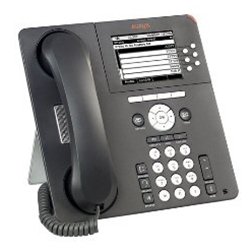
1-сүрөт: Фронт view of the Avaya 9640G IP Phone, showing the display, keypad, and function buttons.
1. Орнотуу
1.1 Пакеттен чыгаруу
Бардык компоненттерди таңгактан кылдаттык менен алып салыңыз. Төмөнкү заттар бар экенин текшериңиз:
- Avaya 9640G IP Phone unit
- Телефон
- Телефон шнуры
- Ethernet кабели
- Desk stand (if applicable)
- Кубат адаптери (эгер Ethernet аркылуу кубаттоо - PoE колдонулбаса)
1.2 Телефонду туташтыруу
IP телефонуңузду туташтыруу үчүн төмөнкү кадамдарды аткарыңыз:
- Телефонду туташтыруу: Оролгон трубканын шнурунун бир учун трубкага, экинчи учун телефондун түбүндөгү трубка портуна сайыңыз (адатта трубканын сүрөтчөсү менен белгиленген).
- Гарнитураны туташтыруу (милдеттүү эмес): If using a headset, plug it into the headset port (usually marked with a headset icon).
- Тармакка туташуу:
- Plug one end of the Ethernet cable into the LAN port on the phone (often labeled with a network icon or "LAN").
- Plug the other end of the Ethernet cable into a network jack or a network switch/router.
- If your network provides Power over Ethernet (PoE), the phone will power on automatically.
- Кубатты туташтырыңыз (эгер PoE колдонбосоңуз): If PoE is not available, connect the power adapter to the phone's power port and then plug the adapter into a wall outlet.
- Баштапкы жүктөө: The phone will power on and begin its boot-up sequence. This may take a few minutes. The display will show progress and eventually indicate readiness for use.
1.3 Баштапкы конфигурация
Upon first boot-up or after a factory reset, the phone may require network configuration or login credentials. Consult your network administrator for specific settings such as IP address, subnet mask, gateway, and SIP server details.
2. Иштөө нускамалары
2.1 Чакыруунун негизги функциялары
- Чакыруу:
- Lift the handset, press the Speaker button, or press a Line button.
- Ариптакта аркылуу каалаган номерди териңиз.
- Press the "Call" or "Dial" softkey, or wait for the call to connect automatically.
- Чалууга жооп берүү:
- Lift the handset, press the Speaker button, or press the flashing Line button.
- Чалууну аяктоо:
- Replace the handset, press the Speaker button again, or press the "End Call" softkey.
2.2 Өркүндөтүлгөн чалуу функциялары
- Кармап туруу: During an active call, press the "Hold" button. The call will be placed on hold, and the line button may flash. To resume, press the flashing line button again.
- өткөрүүсү: During an active call, press the "Transfer" button. Dial the number to which you want to transfer the call. You can either announce the call (wait for the other party to answer) or perform a blind transfer (press "Transfer" again before they answer).
- Конференция: During an active call, press the "Conference" button. Dial the number of the third party. Once they answer, press "Conference" again to join all parties.
2.3 Үн почтасы
To access your voicemail, press the "Message" or "Voicemail" button (often indicated by an envelope icon). Follow the audio prompts to listen to, save, or delete messages. You may need to enter a PIN.
2.4 Directory/Contacts
The phone may have a local directory or access to a corporate directory. Press the "Directory" or "Contacts" button to access these lists. Use the navigation buttons to scroll and select entries, then press "Dial" to call.
2.5 Feature Buttons and Display Navigation
The Avaya 9640G features a color display and several programmable buttons. Use the navigation cluster (up, down, left, right arrows, and Select button) to move through menus and options on the display. Softkeys (buttons directly below the display) change their function based on the current context.
3. Техникалык тейлөө
3.1 Тазалоо
Телефонуңузду тазалоо үчүн жумшак,amp, lint-free cloth. Do not use abrasive cleaners, solvents, or aerosol sprays directly on the phone. Disconnect the phone from power before cleaning.
3.2 Программалык камсыздоо жана микропрограмма жаңыртуулары
Software and firmware updates are typically managed by your system administrator. Do not attempt to manually update the phone's software unless instructed to do so by qualified personnel. Regular updates ensure optimal performance and security.
4. Кыйынчылыктарды
| Көйгөй | Мүмкүн себеп | Чечим |
|---|---|---|
| Терүү үнү жок | Phone not powered, network cable loose, network issue. | Check power connection (PoE or adapter). Ensure Ethernet cable is securely connected. Contact your network administrator. |
| Чалууларды жасоо/кабыл алуу мүмкүн эмес | Network connectivity issues, incorrect configuration, account not registered. | Verify network connection. Check phone's IP address and registration status. Contact your system administrator. |
| Дисплей бош же тоңуп калган | Электр кубаты көйгөйү, программалык камсыздоодо ката. | Disconnect and reconnect power. If the issue persists, contact technical support. |
| Аудио сапаты начар | Network congestion, faulty cable, handset/headset issue. | Check network activity. Try a different handset or headset. Report to network administrator if problem persists. |
For issues not listed here, or if the suggested solutions do not resolve the problem, please contact your IT or network support department.
5. Техникалык шарттар
- Бренд: Avaya
- Модел: 9640G
- ASIN: B003P5AA8Y
- Жооп берүү системасынын түрү: Санарип
- Чалуучунун идентификациясы: Жок
- Байланыш: Ethernet (PoE capable)
- Дисплей: Түстүү дисплей
- Телефон: Зымдуу
- Гарнитураны колдоо: Ооба
Эскертүү: Техникалык мүнөздөмөлөр эскертүүсүз өзгөртүлүшү мүмкүн.
6. Кепилдик жана колдоо
6.1 Кепилдик маалыматы
The Avaya 9640G IP Phone typically comes with a limited manufacturer's warranty. Please refer to the warranty card included with your product or visit the official Avaya website for detailed terms and conditions regarding warranty coverage, duration, and claims procedures. Keep your proof of purchase for warranty purposes.
6.2 Техникалык колдоо
For technical assistance, troubleshooting beyond this manual, or service requests, please contact your authorized Avaya reseller or your organization's IT support department. You may also find additional resources and support documentation on the official Avaya support webсайт: support.avaya.com.