
TP-Link TL-MR3420 Wireless N300 3G/4G Router User Manual
Модели: TL-MR3420
1. Киришүү
The TP-Link TL-MR3420 Wireless N300 3G/4G Router is designed to share a 3G/4G mobile broadband connection wirelessly. By connecting a compatible UMTS/HSPA/EVDO USB modem to the router, a Wi-Fi hotspot is instantly established, allowing multiple devices to access the internet. This router also features a 3G/WAN connection backup strategy, ensuring a continuous internet connection by switching between 3G/4G and WAN (Ethernet) connections as needed. It supports wireless N speeds of up to 300Mbps, suitable for various online activities.
2. Пакеттин мазмуну
- TP-Link TL-MR3420 Wireless N300 3G/4G Router
- Кубаттуу адаптер
- Ethernet кабели
- Ыкчам орнотуу колдонмосу
3. Техникалык жабдыктар бүттүview
3.1 Front Panel and LEDs
The front panel of the router features LED indicators that provide information about the device's status, including power, system, WLAN, WAN, LAN, and 3G/4G connection status.

Сүрөт: алдыңкы view of the TL-MR3420 router, showing the TP-Link logo and status LEDs.
3.2 Side Panel (USB Port)
The side panel includes a USB 2.0 port, primarily used for connecting a compatible 3G/4G USB modem.
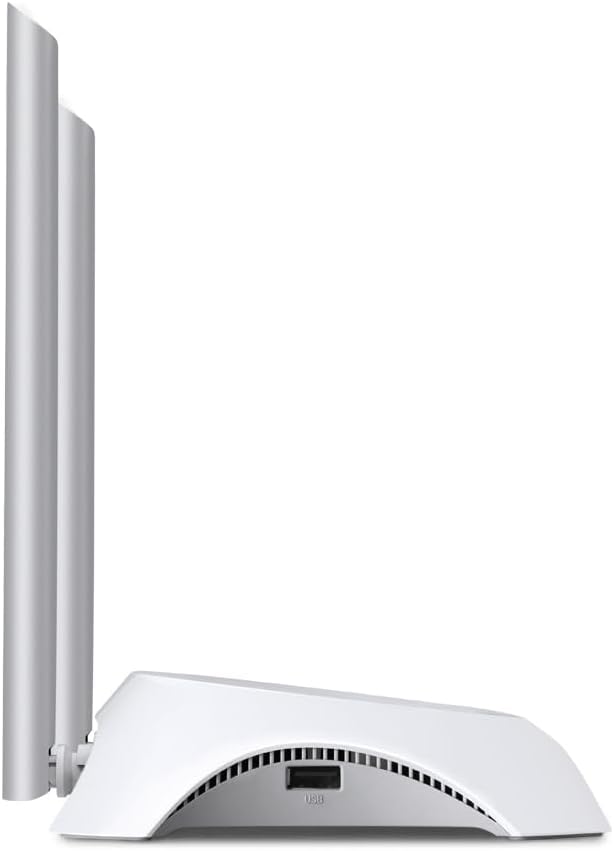
Сүрөт: каптал view of the TL-MR3420 router, highlighting the USB port for modem connection.
3.3 Арткы панель (порттор жана баскычтар)
The rear panel provides various ports and buttons for connectivity and control.
- Электр порту: Кубат адаптерине туташат.
- Күйгүзүү / Өчүрүү баскычы: Роутерди күйгүзөт же өчүрөт.
- WAN порту (Көк): Connects to a DSL/Cable modem for traditional internet access.
- LAN порттору (сары): Four ports for connecting wired devices like computers or switches.
- WPS/Reset баскычы: WPS функциясы үчүн басыңыз; заводдук жөндөөлөргө кайтаруу үчүн басып кармап туруңуз.
- Антенна туташтыргычтары: For attaching the two external antennas.

Сүрөт: Арткы view of the TL-MR3420 router, displaying the power port, WAN port, LAN ports, WPS/Reset button, and antenna connectors.
4. Орнотуу колдонмосу
4.1 Физикалык байланыш
- Антенналарды тиркөө: Screw the two detachable antennas firmly into their connectors on the rear panel.
- Connect 3G/4G USB Modem: Insert your compatible 3G/4G USB modem into the USB port on the side of the router.
- Күйгүзүү: Кубат адаптерин роутердин кубат портуна туташтырып, аны розеткага сайыңыз. Зарыл болсо, "Күйгүзүү/Өчүрүү" баскычын басыңыз.
- (Optional) Connect to WAN: If using a wired internet connection as a backup or primary, connect an Ethernet cable from your DSL/Cable modem to the blue WAN port on the router.
- (Optional) Connect Wired Devices: Connect your computer or other wired devices to the yellow LAN ports using Ethernet cables.

Image: The TL-MR3420 router with a 3G USB modem connected to its side USB port.
4.2 Баштапкы конфигурация (Web Интерфейс)
- Роутерге туташуу: Connect your computer to the router either via an Ethernet cable to a LAN port or wirelessly using the default Wi-Fi SSID printed on the router's label (e.g., TP-Link_XXXX).
- Мүмкүнчүлүк Web Браузер: ачуу а web браузер (мисалы, Chrome, Firefox) жана териңиз
http://tplinkwifi.netorhttp://192.168.0.1(жеhttp://192.168.1.1) into the address bar. Press Enter. - Кирүү: Адатта, демейки колдонуучу атын жана сырсөздү киргизиңиз
adminfor both. If these do not work, check the label on the bottom of your router. - Ыкчам орнотууну иштетүү: Интернет байланышыңызды жана зымсыз жөндөөлөрүңүздү конфигурациялоо үчүн экрандагы Тез Орнотуу Устатын аткарыңыз.
4.3 3G/4G Connection Setup
During the Quick Setup, select 3G/4G роутер mode. The router will automatically detect your USB modem. You may need to select your region and ISP, and enter APN (Access Point Name) details if prompted. Ensure your 3G/4G USB modem is compatible with the TL-MR3420.
4.4 WAN Connection Setup (Optional)
If you are using a wired internet connection, configure the WAN settings. This can be done via Dynamic IP, Static IP, or PPPoE, depending on your Internet Service Provider (ISP) requirements. The TL-MR3420 supports a 3G/WAN failover strategy, allowing you to set a preferred connection (3G/4G or WAN) and use the other as a backup.
4.5 Зымсыз тармакты орнотуу
Set your desired Wireless Network Name (SSID) and a strong password (WPA/WPA2 Personal recommended) for your Wi-Fi network. This will secure your wireless connection.
5. Маршрутизаторду иштетүү
5.1 LED индикаторлорун түшүнүү
| LED | Статус | Көрсөтмө |
|---|---|---|
| Күч | On | Router is powered on. |
| Система | Жаркылдоо | Роутер нормалдуу иштеп жатат. |
| WLAN | Күйүк/Жаркылдап | Wireless function is enabled/data is being transmitted. |
| WAN | Күйүк/Жаркылдап | WAN port is connected/data is being transmitted. |
| LAN (1-4) | Күйүк/Жаркылдап | Corresponding LAN port is connected/data is being transmitted. |
| 3G/4G | Күйүк/Жаркылдап | 3G/4G modem is connected and working/data is being transmitted. |
5.2 Түзмөктөрдү туташтыруу
- Зымсыз түзмөктөр: Издөө your Wi-Fi network (SSID) on your device and enter the password you configured.
- Зымдуу түзмөктөр: Connect an Ethernet cable from your device to any of the yellow LAN ports on the router.
5.3 3G/WAN байланышындагы ката
The router can be configured to use either 3G/4G or WAN as the primary internet connection, with the other serving as a backup. If the primary connection fails, the router will automatically switch to the backup, ensuring continuous internet access. This setting can be managed in the router's web interface under Network > WAN Backup.
6. Техникалык тейлөө
6.1 Орнотулган программаны жаңыртуу
TP-Link расмий компаниясынан микропрограммалык камсыздоонун жаңыртууларын үзгүлтүксүз текшерип жана орнотуп туруңуз website. Firmware updates can improve performance, add new features, and fix bugs. Download the correct firmware for your model and follow the instructions provided on the TP-Link support page for upgrading via the web interface (System Tools > Firmware Upgrade).
6.2 Конфигурациянын камдык көчүрмөсүн сактоо жана калыбына келтирүү
Роутериңиздин конфигурация жөндөөлөрүнүн камдык көчүрмөсүн төмөнкүгө көчүрө аласыз file on your computer. This allows you to restore your settings quickly after a factory reset or if you need to revert to a previous configuration (System Tools > Backup & Restore).
6.3 Системаны кайра жүктөө
If the router is experiencing issues, a simple reboot can often resolve them. You can reboot the router from the web interface (System Tools > Reboot) or by unplugging and replugging the power adapter.
6.4 Заводдук абалга кайтаруу
A factory reset will revert all settings to their default values. This can be done by pressing and holding the WPS/Reset button on the rear panel for approximately 5-10 seconds until the System LED flashes rapidly, or via the web interface (System Tools > Factory Defaults).
7. Кыйынчылыктарды
- Интернетке кирүү мүмкүн эмес:
- Check LED indicators: Ensure Power, System, WLAN, and 3G/4G (or WAN) LEDs are on or flashing correctly.
- Verify physical connections: Ensure all cables are securely connected.
- Check 3G/4G modem: Ensure it is properly inserted and recognized by the router.
- Confirm ISP settings: Verify that your 3G/4G or WAN settings (APN, connection type) are correct in the router's web интерфейс.
- Reboot the router and modem.
- Зымсыз байланыш көйгөйлөрү:
- Ensure WLAN LED is on/flashing.
- Verify correct Wi-Fi SSID and password.
- Сигналдын күчүн текшерүү үчүн роутерге жакыныраак жылыңыз.
- Change wireless channel in router settings to avoid interference.
- Интернеттин ылдамдыгы жай:
- Check your 3G/4G signal strength or WAN connection speed.
- Ensure no other devices are heavily using bandwidth.
- Роутердин микропрограммасын жаңыртуу.
8. Техникалык шарттар
| Өзгөчөлүк | Деталь |
|---|---|
| Модель аты | TL-MR3420 |
| Зымсыз стандарт | IEEE 802.11n, 802.11g, 802.11b |
| Зымсыз ылдамдык | 300 Мбит/сек чейин |
| Frequency Band | 2.4 ГГц |
| Антенна түрү | 2x 5dBi ажыратылуучу Omni багыттуу антенналар |
| Interfaces | 1x 10/100Mbps WAN Port, 4x 10/100Mbps LAN Ports, 1x USB 2.0 Port |
| Buttons | WPS/Reset Button, Power On/Off Button |
| Өлчөмдөрү (W x D x H) | 11.34 x 8.9 x 2.8 дюйм (Өнүмдүн өлчөмдөрү) |
| Элемент Салмагы | 9.5 унция |
| Электр камсыздоо | 12VDC / 1A (External Power Adapter) |
| Зымсыз коопсуздук | 64/128-bit WEP, WPA/WPA2, WPA-PSK/WPA2-PSK encryption |
| Шайкеш түзмөктөр | Personal Computer, UMTS/HSPA/EVDO USB Modems |
9. Кепилдик жана колдоо
9.1 Продукциянын кепилдиги
The TP-Link TL-MR3420 Wireless N300 3G/4G Router typically comes with a 2-year limited warranty. Please refer to the warranty card included in your package or visit the official TP-Link webСиздин аймакка тиешелүү деталдуу кепилдик шарттары жана шарттары үчүн сайт.
9.2 Техникалык колдоо
For technical assistance, troubleshooting, or further inquiries, please visit the official TP-Link support website. You can find FAQs, firmware updates, and contact information for customer support.
- TP-Link колдоо Webсайт: www.tp-link.com/support/