
1. Киришүү
The D-Link Wireless N300 Dual Band PCI Express Desktop Adapter (DWA-566) provides high-speed wireless connectivity for your desktop computer. Utilizing Wireless N technology, it maximizes the speed and range of your wireless signal, offering superior performance compared to Wireless G devices. The dual-band capability supports both 2.4GHz and 5GHz wireless signals, allowing for flexible network usage, such as browsing on 2.4GHz and HD streaming or gaming on the clearer 5GHz band.
This adapter is designed to fit into any standard PCI Express slot, offering a higher performance interface than legacy PCI. It supports secure wireless networks with WPA or WPA2 encryption.

Figure 1.1: D-Link DWA-566 Wireless N300 Dual Band PCI Express Desktop Adapter with antennas.
2. Өзгөчөлүктөрү
The DWA-566 adapter includes the following key features:
- IEEE 802.11n, 802.11g, and 802.11a Compliant
- Dual Band Technology for Superior Wireless Performance (2.4GHz or 5GHz)
- Access secure wireless networks using advanced WPA or WPA2 encryption
- Fits into any standard PCI Express slot
- PCI Express Interface provides higher performance than a legacy PCI interface
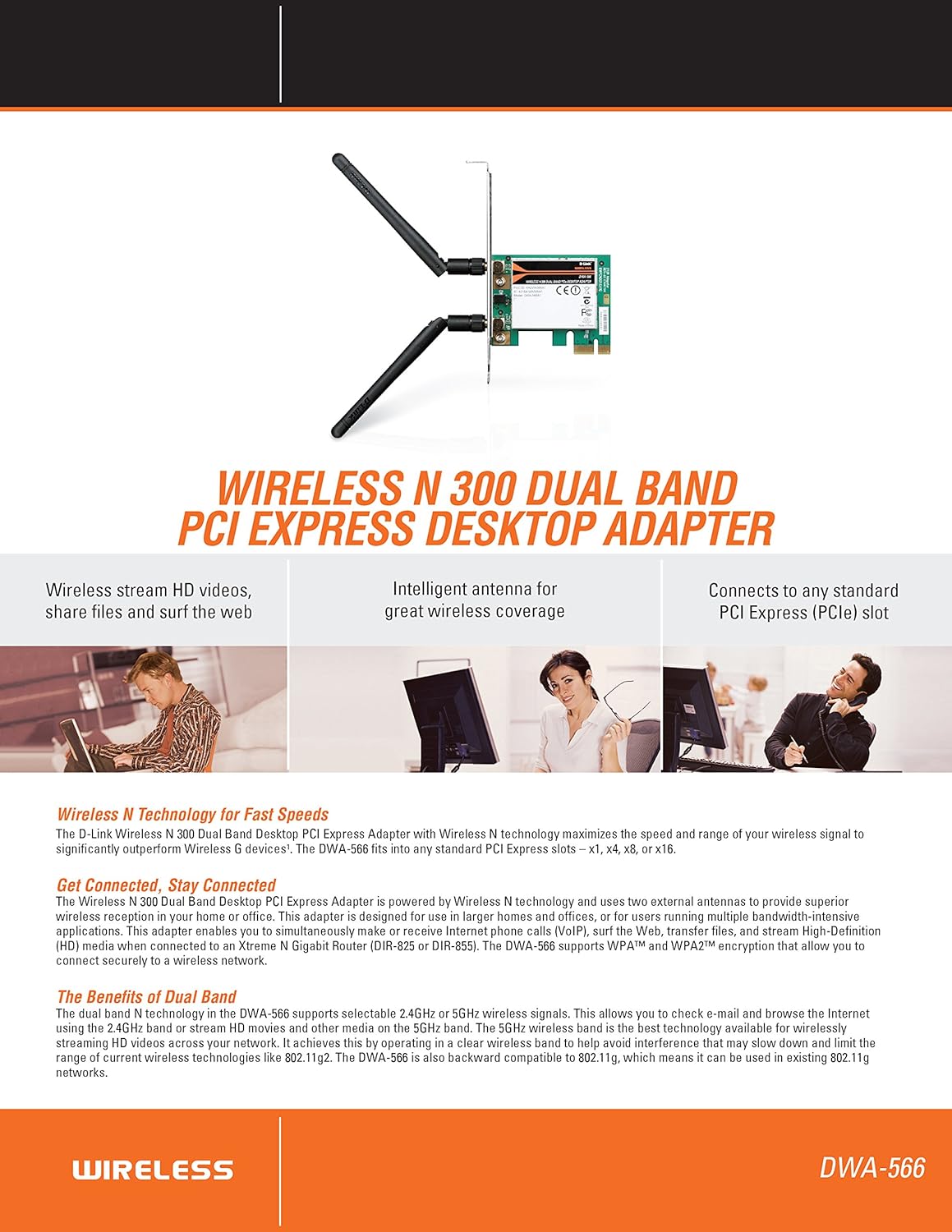
Figure 2.1: ашыкview of DWA-566 features and benefits.
3. Пакеттин мазмуну
Пакетиңизде төмөнкү заттар бар экенин текшериңиз:
- Wireless N 300 Dual Band PCI Express Adapter (DWA-566)
- Эки ажыратылуучу антенна
- Төмөн профессионалfile монтаждоо кронштейн
- Ыкчам орнотуу көрсөтмөсү
- CD-ROM with:
- D-Link зымсыз байланыш менеджери
- Айдоочулар
- Продукт документациясы
4. Системалык талаптар
Before installing the DWA-566, ensure your system meets the following minimum requirements:
- Computer with an available PCI Express slot
- Windows operating system (Windows XP, Vista, 7, 8, 10)
- CD-ROM drive (for driver installation from included CD)
- Internet Explorer 7 or Firefox 3.0 and above (for viewing documentation)
- Интернет провайдери (ISP) менен жазылуу
For optimal performance, a D-Link Wireless N router (DIR-655 or DIR-825) is recommended.

Figure 4.1: Detailed technical specifications, minimum requirements, and network diagram.
5. Орнотуу жана орнотуу
5.1 Аппараттык камсыздоону орнотуу
- Power Off Computer: Компьютериңизди өчүрүп, шнурду сууруп алыңыз.
- Ачык компьютер корпусу: Компьютердин капкагын алып салыңыз.
- PCI Express уячасын табыңыз: Find an available PCI Express slot on your motherboard.
- Адаптерди киргизүү: Carefully insert the DWA-566 adapter into the PCI Express slot, ensuring it is seated firmly.
- Коопсуз адаптер: Secure the adapter with a screw to the computer chassis.
- Антенналарды тиркөө: Screw the two included antennas onto the connectors on the adapter.
- Капты жаап, күйгүзүү: Replace the computer case cover, plug in the power cord, and power on your computer.

Figure 5.1: DWA-566 adapter with antennas attached, ready for installation.
5.2 Программалык камсыздоону орнотуу
After hardware installation, proceed with driver and utility installation:
- Орнотуу CDсин салыңыз: Insert the DWA-566 installation CD into your computer's CD-ROM drive. The setup wizard should launch automatically. If not, navigate to the CD drive and run the 'Setup.exe' file.
- Экрандагы нускамаларды аткарыңыз: Follow the prompts of the D-Link setup wizard to install the drivers and the D-Link Wireless Connection Manager utility.
- Компьютерди кайра иштетүү: After the installation is complete, restart your computer when prompted.
Эскертүү: For Windows 7/8 64-bit systems, ensure you are using the latest drivers available from the official D-Link support website to avoid potential compatibility issues.
6. Иштөө нускамалары
Once the drivers are installed, you can connect to a wireless network:
- Launch Connection Manager: Open the D-Link Wireless Connection Manager utility or use the built-in Windows wireless network utility.
- Тармактарды издөө: The utility will scan for available wireless networks in your area.
- Тармакты тандоо: Choose your desired wireless network (SSID) from the list.
- Коопсуздук ачкычын киргизиңиз: If the network is secured, enter the correct WPA/WPA2 security key or passphrase.
- Туташуу: Зымсыз байланышты орнотуу үчүн "Байланыш" баскычын басыңыз.
A successful connection will be indicated by a strong signal strength and internet access.
7. Техникалык тейлөө
DWA-566 адаптериңиздин оптималдуу иштешин жана узак мөөнөттүү иштешин камсыз кылуу үчүн:
- Айдоочуларды жаңыртыңыз: Мезгил-мезгили менен D-Link колдоосун текшерип туруңуз webакыркы драйверлер жана микропрограммалык камсыздоо жаңыртуулары үчүн сайт.
- Туура желдетүүнү камсыз кылуу: Make sure your computer case has adequate airflow to prevent overheating of internal components, including the wireless adapter.
- Антеннаны жайгаштыруу: Adjust the antennas for the best possible signal reception.
- Экологиялык факторлор: Avoid placing your computer near large metal objects or other devices that may cause wireless interference.
8. Кыйынчылыктарды
Эгер сиз DWA-566 адаптериңизде көйгөйлөргө туш болсоңуз, төмөндөгүлөрдү карап көрүңүз:
8.1 No Wireless Connection
- Verify Hardware Installation: Ensure the adapter is correctly seated in the PCI Express slot and antennas are securely attached.
- Драйверлерди текшерүү: Confirm that the drivers are installed correctly. Check Device Manager for any error symbols next to the network adapter. Reinstall drivers if necessary.
- Маршрутизатордун абалы: Ensure your wireless router is powered on and broadcasting a signal.
- Коопсуздук ачкычы: Double-check that the correct wireless security key (WPA/WPA2 passphrase) is entered.
- Firewall жөндөөлөрү: Temporarily disable your computer's firewall to see if it is blocking the connection. If it resolves the issue, configure your firewall to allow the D-Link utility.
8.2 Slow Connection Speed or Frequent Disconnections
- Антеннаны тууралоо: Try repositioning the antennas for better signal reception.
- Интерференция: Move the computer away from potential sources of interference (e.g., cordless phones, microwaves, Bluetooth devices).
- Маршрутизатордун жакындыгы: Ensure the computer is within the effective range of your wireless router.
- Эки тилкелүү колдонуу: If your router supports it, try connecting to the 5GHz band for less interference and potentially higher speeds, especially for streaming or gaming.
- Драйвер жаңыртуу: Update the adapter drivers to the latest version from the D-Link webсайт.
9. Техникалык шарттар
| Өзгөчөлүк | Спецификация |
|---|---|
| Бренд | D-Link |
| Модель номери | DWA-566 |
| Аппараттык интерфейс | PCI Express |
| Data Link Protocol | IEEE 802.11n, 802.11g, 802.11a |
| Маалыматтарды өткөрүү ылдамдыгы | Секундасына 300 Мегабитке чейин |
| Frequency Band | 2.4 GHz / 5 GHz (Dual Band) |
| Коопсуздук | WPA, WPA2 |
| Шайкеш түзмөктөр | Үстөл компьютерлери |
| Элемент Салмагы | 0.4 фунт (болжол менен 181 грамм) |
| Тышкы тестирлөөнүн сертификаты | FCC B, IC B, CE, C-Tick |
10. Кепилдик жана колдоо
The D-Link Wireless N300 Dual Band PCI Express Desktop Adapter (DWA-566) comes with a 1 жылдык чектелген кепилдик. For specific terms and conditions, please refer to the warranty documentation included with your product or visit the official D-Link webсайт.
D-Link provides 24/7 Basic Installation Support to assist with initial setup and configuration. For technical assistance, driver downloads, and further product information, please visit the D-Link support webсайтка же кардарларды тейлөөгө кайрылыңыз.
D-Link колдоо Webсайт: https://support.dlink.com/