
1. Киришүү
The SteelSeries Kana Optical Gaming Mouse is engineered for precision and versatility, designed to accommodate all three primary grip styles: palm, claw, and fingertip. This ambidextrous mouse features an ergonomic button layout and size, developed in collaboration with professional gaming teams to ensure consistent performance and accuracy in competitive environments. This manual provides comprehensive instructions for setup, operation, maintenance, and troubleshooting to help you maximize your gaming experience.
2. Пакеттин мазмуну
- SteelSeries Kana Optical Gaming Mouse (White)
- Quick Start Guide (integrated into this manual)
3. Продукт бүтүп калдыview
Familiarize yourself with the key components of your SteelSeries Kana mouse:
- Сол чыкылдатуу баскычы: Негизги аракет баскычы.
- Оң баскычты чыкылдатуу: Кошумча аракет баскычы.
- Жылдыруу дөңгөлөгү: For scrolling and a clickable middle button. The scroll wheel is illuminated.
- CPI Toggle Button: Located centrally, allows quick switching between sensitivity settings.
- Side Buttons (x2): One on each side, large and easily accessible for rapid-fire actions. These can be customized or disabled via software.
- Оптикалык сенсор: Located on the underside, provides precise tracking.
- USB туташтыргычы: Чычканды компьютерге туташтыруу үчүн.
- Өрүлгөн кабель: Durable, tangle-free nylon cord.
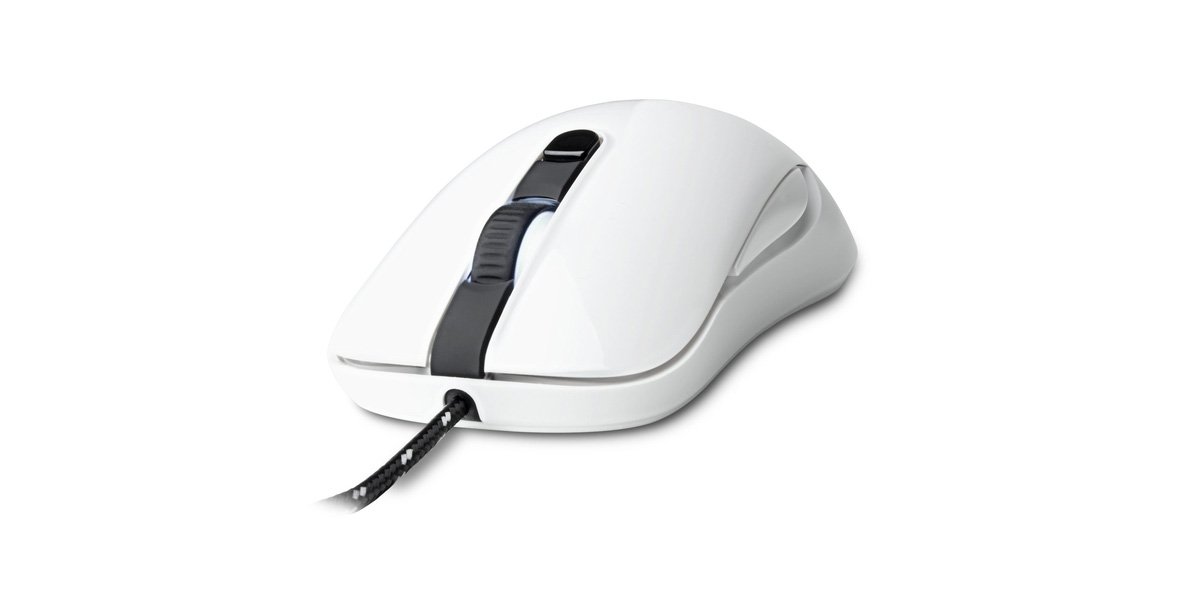
Image of the SteelSeries Kana Optical Gaming Mouse in white, showcasing its ambidextrous design, illuminated scroll wheel, and side buttons.
4. Орнотуу
4.1 Аппараттык туташуу
- Компьютериңизден жеткиликтүү USB портун табыңыз.
- Plug the USB connector of the SteelSeries Kana mouse into the USB port.
- Your operating system should automatically detect and install basic drivers for the mouse.
4.2 Программалык камсыздоону орнотуу (SteelSeries Engine)
To unlock the full customization potential of your SteelSeries Kana mouse, including CPI settings, button programming, macros, and LED intensity, install the SteelSeries Engine software.
- Расмий SteelSeries сайтына баш багыңыз webсайт: steelseries.com/engine
- Download the SteelSeries Engine software compatible with your operating system (Windows or macOS).
- Орнотууну аяктоо үчүн экрандагы нускамаларды аткарыңыз.
- Once installed, launch the SteelSeries Engine to configure your mouse settings.
Mac колдонуучулары үчүн эскертүү: Compatibility with macOS versions 10.9 and later for SteelSeries Engine 2.0 (required for Kana) has historically been inconsistent. Please check the official SteelSeries website for the latest software updates and compatibility information before installation.
5. Иштөө нускамалары
5.1 Негизги функционалдуулук
- Кыймыл: Экрандагы курсорду башкаруу үчүн чычканды беттин үстүнө жылдырыңыз.
- Басуу: Use the left and right buttons for primary and secondary actions.
- Жылдыруу: Rotate the scroll wheel to navigate documents and web pages. Press the scroll wheel for its assigned middle-click function.
5.2 Adjusting CPI (Counts Per Inch)
The centrally located CPI toggle button allows you to switch between two pre-defined sensitivity settings instantly. The default CPI settings are optimized for gaming, but can be customized using the SteelSeries Engine software. The maximum CPI supported is 3200.
- Press the CPI toggle button once to switch to the alternate CPI setting.
- Press it again to revert to the previous setting.
5.3 Customizing with SteelSeries Engine
The SteelSeries Engine software provides extensive customization options:
- КБИ жөндөөлөрү: Fine-tune or set custom CPI values beyond the pre-defined options.
- Баскычтарды программалоо: Assign custom functions, keyboard shortcuts, or macros to any of the 6 programmable buttons (including side buttons and scroll wheel click).
- Макрос: Create and assign complex sequences of commands with precise timing control.
- LED Intensity: Adjust the brightness of the illuminated scroll wheel.
- Profiles: Бир нече профессионал түзүңүз жана сактаңызfiles for different games or applications, with automatic switching based on game triggers.
6. Техникалык тейлөө
6.1 Чычканыңызды тазалоо
To ensure optimal performance and longevity, keep your mouse clean.
- Сырткы: Бир аз жумшак, түксүз кездемени колдонуңуз dampЧычкандын бетин суу же жумшак тазалоочу эритме менен сүртүңүз. Катуу химиялык заттардан же абразивдүү материалдардан алыс болуңуз.
- Оптикалык сенсор: Gently clean the optical sensor lens on the underside of the mouse with a dry cotton swab or compressed air to remove dust or debris.
- Чычкан буттары: Ensure the mouse feet are clean and free of obstructions for smooth gliding.
Абайлаңыз: Do not immerse the mouse in water or any cleaning solution. Avoid spraying liquids directly onto the mouse.
7. Кыйынчылыктарды
| Көйгөй | Мүмкүн чечим |
|---|---|
| Mouse not detected / Not responding |
|
| Inaccurate or erratic tracking |
|
| Buttons not responding or performing incorrectly |
|
| SteelSeries Engine software not recognizing mouse (Mac OS) |
|
8. Техникалык шарттар
| Бренд | SteelSeries |
| Модель номери | 62029 |
| Түс | Ак |
| Кыймылды аныктоо технологиясы | Оптикалык |
| баскычтардын саны | 6 (Программалануучу) |
| Колдун багыты | Ambidextrous (Left, Right) |
| Аппараттык платформа | PC |
| Кабель түрү | Өрүлгөн нейлон |
| Элемент Салмагы | 0.16 килограмм |
| Өзгөчө өзгөчөлүк | Ergonomic Design, Illuminated Scroll Wheel |
9. Кепилдик жана колдоо
9.1 Кепилдик маалыматы
The SteelSeries Kana Optical Gaming Mouse comes with a 1 жылдык чектелген кепилдик сатып алынган күндөн тартып. Бул кепилдик кадимки колдонуудагы өндүрүштүк кемчиликтерди жана чеберчиликти камтыйт. Туура эмес колдонуудан, кырсыктардан, уруксатсыз өзгөртүүлөрдөн же кадимки эскирүүдөн келип чыккан зыянды камтыбайт. Кепилдик дооматтары үчүн сатып алганыңызды тастыктаган документти сактап коюңуз.
9.2 Кардарларды колдоо
For technical assistance, warranty claims, or further information, please visit the official SteelSeries support webсайт:
You can find FAQs, driver downloads, and contact information for customer service on their webсайт.