
1. Киришүү
This user manual provides comprehensive instructions for the setup, operation, maintenance, and troubleshooting of your BenQ GL2450 24-inch Widescreen LCD TFT Monitor. Please read this manual thoroughly before using the monitor to ensure proper and safe operation.
The BenQ GL2450 LED backlit monitor is designed to deliver exceptional visual quality for various applications, from viewing documents to enjoying multimedia content. It features a dynamic contrast ratio of 12,000,000:1, Senseye Human Vision Technology for optimized viewing, a rapid 5ms response time, and DVI connectivity, ensuring every image detail is rendered with clarity and precision.
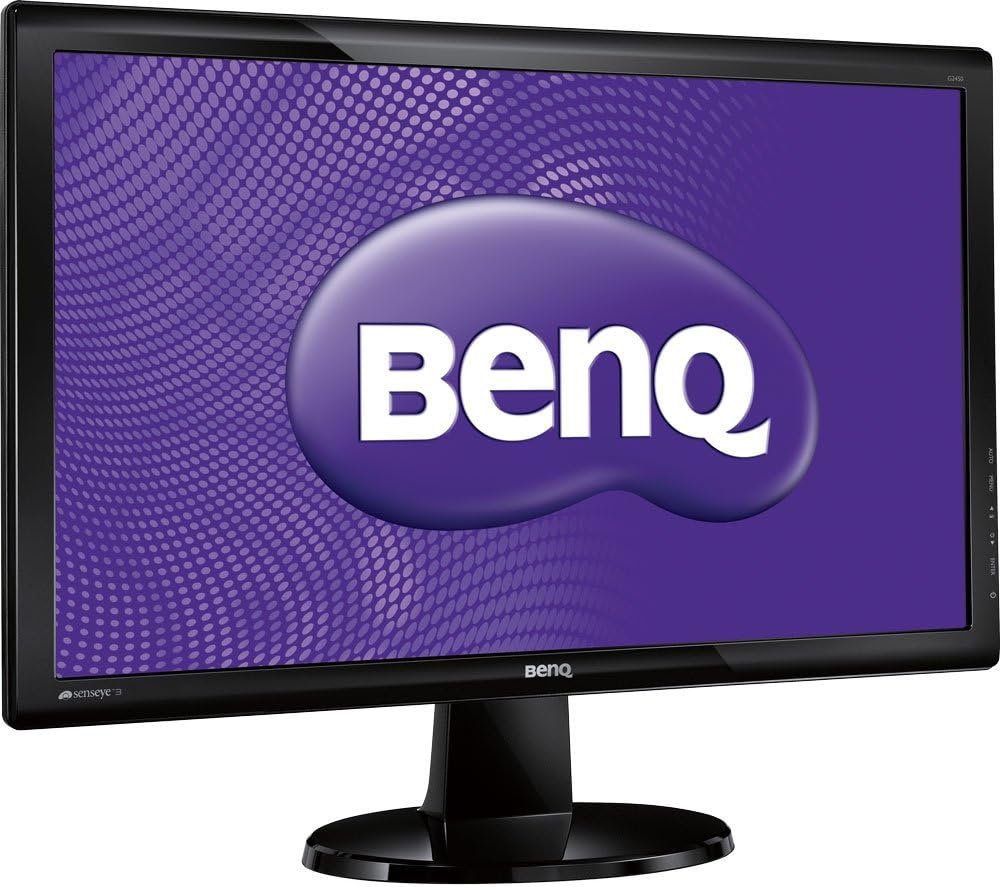
Figure 1.1: BenQ GL2450 Monitor Front View
This image shows the BenQ GL2450 monitor from the front, featuring its sleek black bezel and stand. The screen displays the BenQ logo prominently against a purple background, highlighting the monitor's display capabilities.
2. Коопсуздук боюнча маанилүү маалымат
To prevent damage and ensure safe operation, please observe the following safety precautions:
- Кубат булагы: Монитор менен кошо берилген кубат шнурын жана адаптерди гана колдонуңуз. Жерге туташтырылган электр розеткасына туташтырыңыз.
- Вентиляция: Вентиляция тешиктерин жаап албаңыз. Туура аба агымы үчүн монитордун айланасында жетиштүү орун калтырыңыз.
- Суюктук жана нымдуулук: Мониторду суудан, жамгырдан же ашыкча нымдуулуктан алыс кармаңыз. Монитордун үстүнө суюктук толтурулган буюмдарды койбоңуз.
- Тазалоо: Unplug the monitor before cleaning. Use a soft, dry cloth. Do not use liquid cleaners or aerosol cleaners.
- Жайгашкан жери: Мониторду туруктуу, тегиз бетке коюңуз. Аны күн тийген жерге же жылуулук булактарынын жанына коюудан алыс болуңуз.
- Тейлөө: Мониторду өзүңүз тейлөөгө аракет кылбаңыз. Бардык тейлөөлөрдү квалификациялуу тейлөө кызматкерлерине тапшырыңыз.
3. Пакеттин мазмуну
Таңгактан чыгарганда таңгактын ичиндегисин текшериңиз. Эгерде кандайдыр бир буюмдар жок болсо же бузулуп калса, сатуучуга кайрылыңыз.
- BenQ GL2450 Monitor
- Монитор стенд (негизги жана моюн)
- Электр кабели
- VGA кабели
- DVI кабели
- Quick Start Guide
- Driver CD (if applicable)
4. Орнотуу
4.1 Стендди бекитүү
- Чийилип калбашы үчүн, монитордун экранын жумшак, таза бетке этияттык менен коюңуз.
- Align the stand neck with the slot on the back of the monitor.
- Gently push the neck into the slot until it clicks into place.
- Стенд негизин стенд мойнунун түбүнө бекитип, аны туткун бурагыч менен бекитиңиз.
4.2 Мониторду туташтыруу
Тиешелүү кабель аркылуу мониторду компьютериңизге туташтырыңыз.
- VGA туташуу: Connect one end of the VGA cable to the VGA port on your computer and the other end to the VGA port on the monitor. Tighten the screws on the VGA connector.
- DVI Connection: Connect one end of the DVI cable to the DVI port on your computer and the other end to the DVI port on the monitor. Tighten the screws on the DVI connector.
- Кубат туташуу: Кубат шнурунун монитордун кубат кирүүчүсүнө туташтырыңыз, андан кийин экинчи учун жерге туташтырылган электр розеткасына сайыңыз.

Figure 4.1: BenQ GL2450 Monitor Rear View порттор менен
This image displays the back of the BenQ GL2450 monitor, highlighting the various input ports, including VGA and DVI, and the standard VESA mounting holes for alternative mounting solutions.
5. Мониторду иштетүү
5.1 Күйгүзүү/өчүрүү
Press the power button located on the lower right bezel of the monitor to turn it on or off. The power indicator light will illuminate when the monitor is on.
5.2 Экрандагы дисплей (OSD) менюсу
The OSD menu allows you to adjust various monitor settings. Use the control buttons located on the lower right side of the monitor to navigate the menu.
- Меню баскычы: Press to open the OSD menu or enter a sub-menu.
- Өйдө/ылдый баскычтары: Use to navigate through menu options or adjust values.
- Кирүү баскычы: Тандоону ырастоо үчүн басыңыз.
- Чыгуу баскычы: Учурдагы менюдан чыгуу же мурунку деңгээлге кайтуу үчүн басыңыз.
Жалпы экрандык меню параметрлери:
- Сүрөт: Жарыктыгын, контрастын, курчтукту, гамманы жана түс температурасын тууралаңыз.
- Дисплей: Adjust H/V position, pixel clock, and phase for analog input.
- Аудио: Adjust volume (if speakers are present or via headphone jack).
- Система: Language selection, OSD timeout, OSD position, DDC/CI, and reset to factory settings.
- Маалымат: Учурдагы токтомду жана жаңыртуу ылдамдыгын көрсөтөт.

Figure 5.1: BenQ GL2450 Monitor Displaying Content
This image shows the BenQ GL2450 monitor actively displaying a colorful scene, demonstrating its picture quality and vibrant color reproduction. The scene includes a carousel and a large Ferris wheel.
6. Техникалык тейлөө
6.1 Кам көрүү жана тазалоо
Proper care will extend the life of your monitor. Follow these guidelines:
- Экранды тазалоо: Экранды жумшак, түксүз чүпүрөк менен акырын сүртүңүз. өжөр белгилер үчүн, гampen the cloth slightly with water or a mild, non-abrasive screen cleaner. Do not spray liquid directly onto the screen.
- Casing Тазалоо: Мониторду тазалоо үчүн жумшак, кургак чүпүрөктү колдонуңуз casinг. Күчтүү жуугучтарды же абразивдүү тазалагычтарды колдонуудан алыс болуңуз.
- Чаңдандыруу: Regularly dust the monitor and its ventilation openings to prevent overheating.
- Сактагыч: If storing the monitor for an extended period, unplug it and store it in a cool, dry place, preferably in its original packaging.
7. Кыйынчылыктарды
Эгерде сиз мониторуңуз менен көйгөйлөргө туш болсоңуз, кеңири таралган көйгөйлөр жана аларды чечүү жолдору үчүн төмөндөгү таблицаны караңыз.
| Көйгөй | Мүмкүн себеп | Чечим |
|---|---|---|
| Экранда сүрөт жок | Power cable not connected; Video cable not connected; Monitor off. | Ensure power and video cables are securely connected. Press the power button to turn on the monitor. |
| Сүрөт бүдөмүк же бурмаланган | Incorrect resolution; Loose video cable; Auto-adjustment needed (VGA). | Set the display resolution to 1920x1080. Check video cable connection. For VGA, use the OSD menu to perform auto-adjustment. |
| Түстөр туура эмес | OSDдеги түс жөндөөлөрү; Видео кабель бузулган. | OSD менюсунан түс жөндөөлөрүн тууралаңыз. Башка видео кабелин колдонуп көрүңүз. |
| Monitor goes into power saving mode | No signal from computer; Computer in sleep mode. | Ensure computer is on and not in sleep mode. Check video cable connection. |
8. Техникалык шарттар
| Өзгөчөлүк | Деталь |
|---|---|
| Бренд | BenQ |
| Модель номери | GL2450-T |
| Screen Size | 24 дюйм |
| Дисплей түрү | LCD TFT LED Backlit |
| Резолюция | 1920 x 1080 (Full HD) |
| Аспект катышы | 16:9 |
| Жооп убактысы | 5 мс |
| Жарыктык | 250 кд/м² |
| Контраст катышы | 1000:1 (Static), 12,000,000:1 (Dynamic) |
| Viewбурч | 170° (H) / 160° (V) |
| Байланыш | VGA (D-Sub), DVI |
| Энергияны керектөө | 34 Вт (иштетүү) |
| Өлчөмдөрү (W x Y x D) | 57.9 x 43.6 x 17.9 см (стенд менен) |
| Салмагы | 4.1 кг |
| VESA тоосуна шайкеш келет | Ооба |
9. Кепилдик жана колдоо
9.1 Кепилдик маалыматы
The BenQ GL2450 monitor comes with a standard manufacturer's warranty. Please refer to the warranty card included in your product packaging or visit the official BenQ webСиздин аймакка тиешелүү деталдуу кепилдик шарттары жана шарттары үчүн сайт.
9.2 Кардарларды колдоо
For technical assistance, product inquiries, or service requests, please contact BenQ customer support. Contact information can typically be found on the BenQ official website or in the quick start guide provided with your monitor.
Эскертүү: Техникалык мүнөздөмөлөр жана дизайн эскертүүсүз өзгөртүлүшү мүмкүн.