
1. Киришүү
This manual provides instructions for the installation, operation, maintenance, and troubleshooting of the TP-Link TL-WDR4300 N750 Wireless Dual Band Gigabit Router. The TL-WDR4300 is designed to provide high-speed wireless connectivity across both 2.4 GHz and 5 GHz bands, offering a combined bandwidth of up to 750 Mbps. It features Gigabit Ethernet ports and USB 2.0 ports for versatile network capabilities.
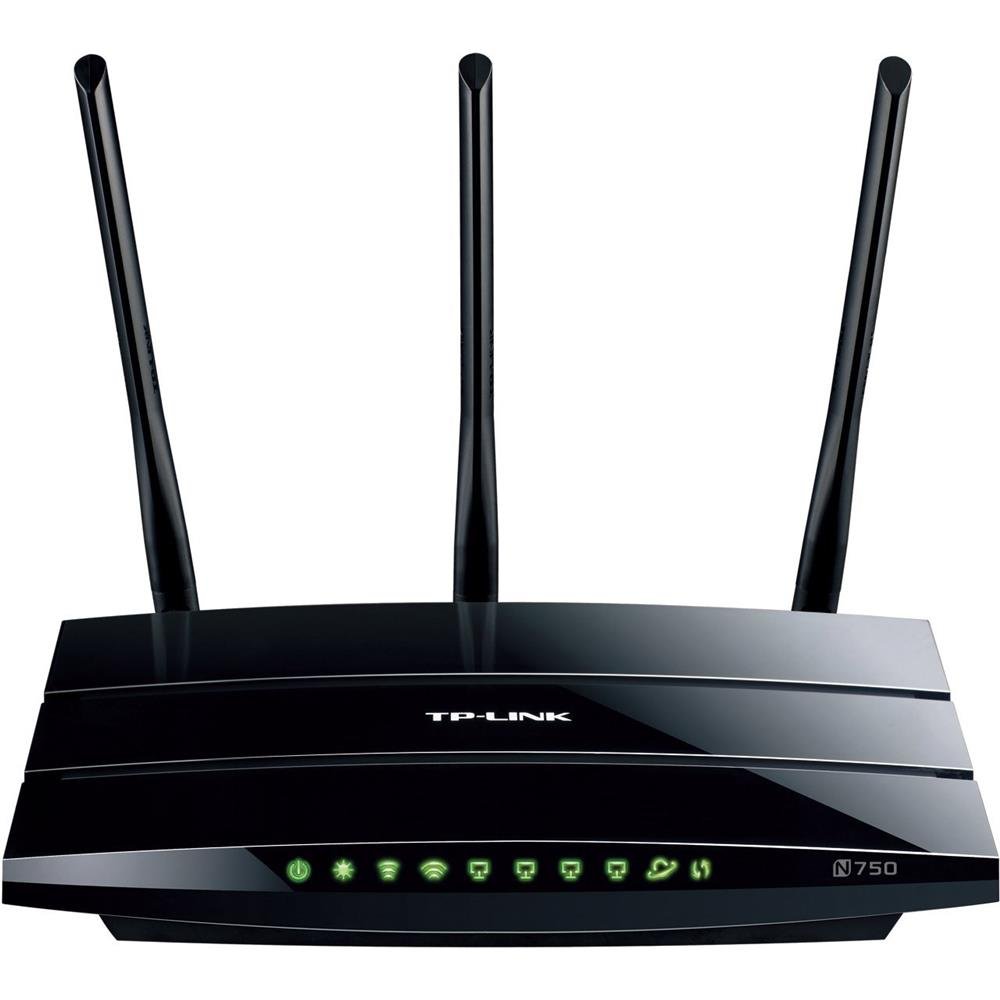
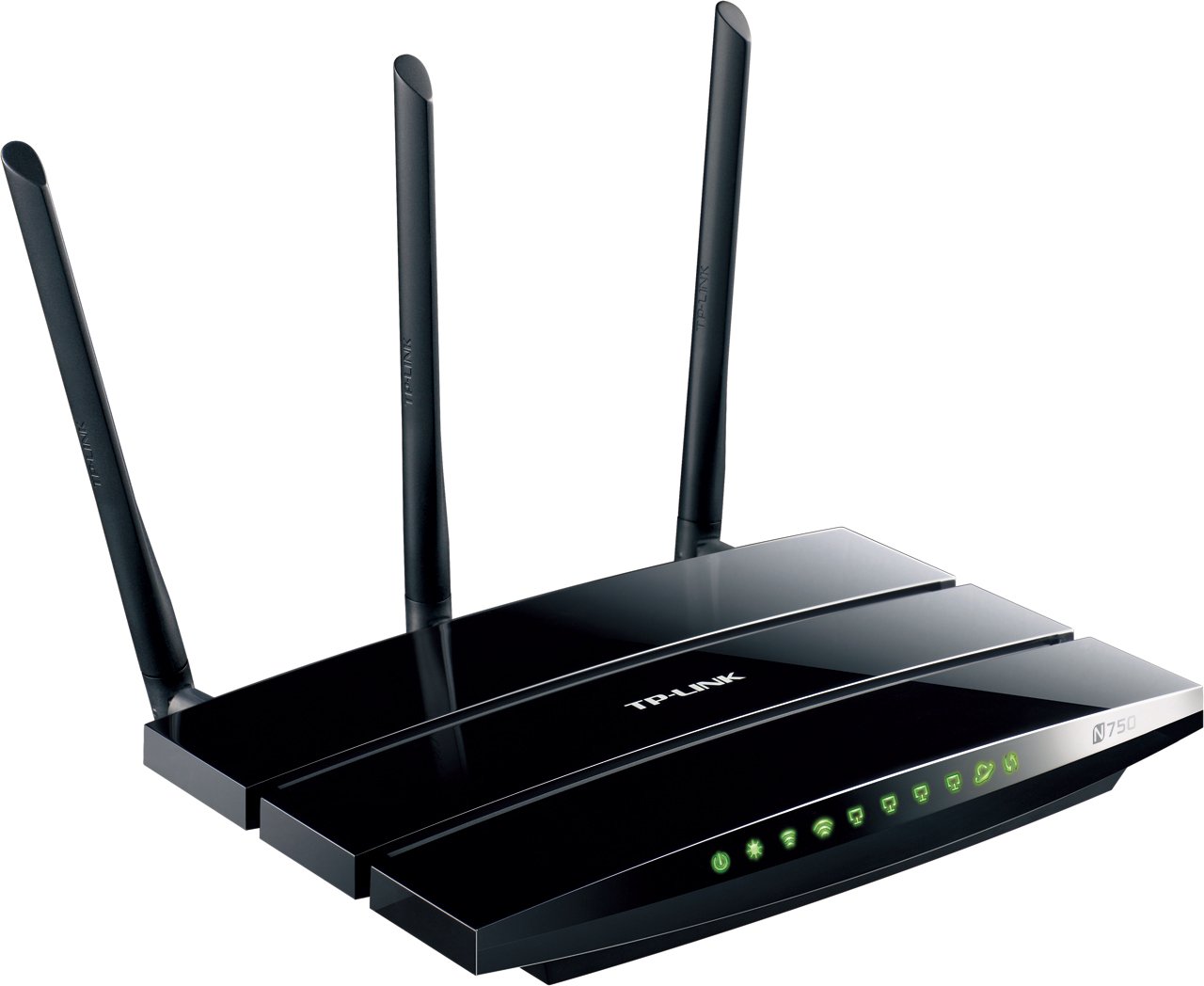
1-сүрөт: TP-Link TL-WDR4300 N750 Wireless Dual Band Gigabit Router. This image shows the top-down view of the black router with three detachable antennas and front-facing LED indicators.
2. Орнотуу
2.1 Пакеттин мазмуну
- TP-Link TL-WDR4300 Router
- Кубаттуу адаптер
- Ethernet кабели
- Ыкчам орнотуу колдонмосу
- Ресурстук CD
2.2 Физикалык байланыш
- Өчүрүү: Модемиңизди жана роутериңизди (эгер бар болсо) электр кубатынан ажыратыңыз.
- Антенналарды туташтыруу: Screw the three detachable antennas onto the corresponding connectors on the rear panel of the router.
- Модемди туташтыруу: Connect an Ethernet cable from your modem's Ethernet port to the blue WAN port on the TL-WDR4300 router.
- Түзмөктөрдү туташтыруу: Connect your computer or other wired devices to any of the four yellow LAN ports using Ethernet cables.
- Күйгүзүү: Connect the power adapter to the router's power jack and plug it into a power outlet. Power on your modem, then the router. Wait for the LED indicators to stabilize.
2-сүрөт: Rear panel connections. This image displays the rear of the router, showing the power input, WAN port (blue), four LAN ports (yellow), two USB 2.0 ports, and the three antenna connectors.
2.3 Баштапкы конфигурация (Web Интерфейс)
- Кирүү роутери: ачуу а web browser on a connected computer. In the address bar, type http://tplinkwifi.net or http://192.168.0.1 (же http://192.168.1.1) жана Enter басыңыз.
- Кирүү: Адатта, демейки колдонуучу атын жана сырсөздү киргизиңиз админ for both. If prompted, change the default password for security.
- Ыкчам орнотууну иштетүү: Follow the on-screen instructions of the Quick Setup Wizard to configure your internet connection type and basic wireless settings.
2.4 Зымсыз тармакты орнотуу
The TL-WDR4300 operates on two frequency bands:
- 2.4 ГГц диапазону: Provides wider coverage and is suitable for general internet use.
- 5 ГГц диапазону: Offers higher speeds and less interference, ideal for online gaming and HD video streaming.
During the Quick Setup, you will set up separate SSIDs (network names) and passwords for each band. Ensure you use strong, unique passwords for both.
2.5 WPS (Wi-Fi менен корголгон орнотуу)
To quickly connect WPS-compatible devices without entering a password:
- Press the WPS button on the router (usually located on the rear or side panel).
- Эки мүнөттүн ичинде кардар түзмөгүңүздөгү WPS баскычын басыңыз.
- The device will automatically connect to the wireless network.
2.6 Коноктор тармагы
The Guest Network feature provides secure Wi-Fi access for guests without sharing your main network's password or resources. This can be configured via the router's web interface under the "Guest Network" settings.
3. Операция
3.1 Dual Band Wireless Functionality
The TL-WDR4300 operates simultaneously on both 2.4 GHz and 5 GHz wireless bands. This allows for flexible network management:
- колдонуу 2.4 ГГц диапазону for devices that require wider range or are older, such as smartphones, tablets, and general web серептөө.
- колдонуу 5 ГГц диапазону for bandwidth-intensive applications like HD video streaming, online gaming, and large file transfers, which benefit from higher speeds and reduced interference.
3.2 USB Sharing Ports
The router is equipped with two USB 2.0 ports, enabling various sharing functionalities:
- Принтерди бөлүшүү: Connect a USB printer to the router to make it accessible to all connected devices on your network.
- File Бөлүшүү: Attach a USB storage device (flash drive or external hard drive) to share files and media across your local network or remotely via an FTP server.
- Медиа сервер: Configure the router as a media server to stream content from a connected USB storage device to compatible devices (e.g., smart TVs, media players) on your network.
3.3 гигабит Ethernet порттору
The TL-WDR4300 features one Gigabit WAN port and four Gigabit LAN ports. These ports provide high-speed wired connections, which are essential for:
- Connecting desktop computers, gaming consoles, and network-attached storage (NAS) devices.
- Ensuring optimal performance for latency-sensitive applications like online gaming and large data transfers.
3.4 IP QoS (Тейлөө сапаты)
IP QoS allows you to manage and prioritize bandwidth for specific devices or applications. This ensures that critical applications receive sufficient bandwidth, preventing network congestion and maintaining performance for all users. Configuration is available in the router's web интерфейс.
3.5 Ата-эненин көзөмөлү
The Parental Controls feature enables you to restrict access to certain websites or limit internet usage times for specific devices on your network. This helps in managing internet access for children or employees. Settings are accessible through the router's web башкаруу барагы.
4. Техникалык тейлөө
4.1 Микропрограмма жаңыртуулары
Расмий TP-Linkтен микропрограмма жаңыртууларын үзгүлтүксүз текшерип жана орнотуп туруңуз website. Firmware updates can improve performance, add new features, and address security vulnerabilities. Always follow the instructions provided with the firmware update carefully to avoid damaging the device.
- Download the latest firmware for your specific model (TL-WDR4300) from the TP-Link support webсайт.
- Маршрутизаторго кириңиз web интерфейс.
- Navigate to the "System Tools" or "Firmware Upgrade" section.
- Жүктөлүп алынган микропрограмманы жүктөө file and follow the prompts. Do not power off the router during the upgrade process.
4.2 Заводдук абалга кайтаруу
A factory reset restores the router to its default settings. This can be useful for troubleshooting persistent issues or when reconfiguring the router. There are two methods:
- Аппараттык абалга келтирүү: With the router powered on, press and hold the Reset button (usually a small pinhole button on the rear panel) for approximately 10 seconds until the system LED flashes rapidly. Release the button and wait for the router to restart.
- Программалык камсыздоону баштапкы абалга келтирүү: Маршрутизаторго кириңиз web interface, navigate to "System Tools" > "Factory Defaults," and click "Restore."
Note: Performing a factory reset will erase all custom configurations, including Wi-Fi settings and passwords.
4.3 Физикалык тазалоо
Keep the router clean and free from dust to ensure proper ventilation and prevent overheating. Use a soft, dry cloth to wipe the exterior. Do not use liquid cleaners or abrasive materials.
5. Кыйынчылыктарды
5.1 Интернетке кирүү жок
- Байланыштарды текшерүү: Ensure all Ethernet cables are securely connected, especially the one from your modem to the router's WAN port.
- Модем абалы: Модемиңиз туура иштеп жатканын жана активдүү интернет байланышы бар экенин текшериңиз.
- Роутердин светодиоддору: Check the WAN LED on the router. If it's off or red, there might be an issue with the internet connection from your ISP or modem.
- Кайра жүктөө: Power cycle your modem and router (unplug, wait 30 seconds, plug back in modem first, then router).
- MAC дарегин клондоштуруу: Айрым интернет провайдерлери MAC дарегин клондоону талап кылышат. Роутердин даректерине кириңиз web интерфейсин тандап, бул параметр үчүн WAN жөндөөлөрүн текшериңиз.
5.2 Жай зымсыз ылдамдык
- Топтун тандоосу: Ensure devices requiring high speed are connected to the 5 GHz network.
- Интерференция: Move the router away from devices that emit radio frequency interference (e.g., cordless phones, microwaves, Bluetooth devices).
- Каналды оптималдаштыруу: In the router's wireless settings, try changing the wireless channel for both 2.4 GHz and 5 GHz bands to a less congested one.
- Маршрутизатордун жайгашуусу: Position the router in a central location, away from obstructions, and elevate it if possible.
- Микропрограмма: Роутердин микропрограммасы жаңыртылганын текшериңиз.
5.3 Wi-Fi'га туташуу мүмкүн эмес
- Check Password: Verify that you are entering the correct Wi-Fi password (WPA/WPA2-PSK key).
- SSID берүү: Ensure the SSID (network name) is being broadcast. If hidden, manually enter the SSID.
- WPS: Try connecting using the WPS button if your device supports it.
- Коопсуздук түрү: Confirm that your device supports the security type configured on the router (e.g., WPA2-PSK).
- Заводдун баштапкы абалга келтирүү: If all else fails, perform a factory reset and reconfigure the router.
6. Техникалык шарттар
| Өзгөчөлүк | Деталь |
|---|---|
| Бренд | TP-Link |
| Модел | TL-WDR4300 |
| Зымсыз стандарттар | IEEE 802.11a / b / g / n |
| Жыштык | 2.4 ГГц жана 5 ГГц (Эки тилкелүү) |
| Маалыматтарды өткөрүү ылдамдыгы | Up to 750 Mbps (300 Mbps at 2.4 GHz, 450 Mbps at 5 GHz) |
| Ethernet порттору | 1x Гигабит WAN, 4x Гигабит LAN |
| USB порттору | 2x USB 2.0 порттору |
| Антенналар | 3x Detachable Dual Band Antennas |
| Өлчөмдөрү (L x W x Y) | 24.3 x 16.06 x 3.25 см |
| Элемент Салмагы | 213 г |
| Тtage | 12 вольт (ток) |
7. Кепилдик жана колдоо
7.1 Кепилдик маалыматы
TP-Link products are covered by a limited warranty. The specific terms and duration of the warranty may vary by region and product. Please refer to the warranty card included with your product or visit the official TP-Link website for detailed warranty information applicable to your purchase.
7.2 Техникалык колдоо
Техникалык жардам алуу, өнүмдөрдү каттоо же акыркы драйверлерди жана микропрограммаларды жүктөп алуу үчүн TP-Linkтин расмий колдоо бөлүмүнө кайрылыңыз. webсайт:
You may also find answers to common questions and troubleshooting tips in the FAQ section of the support webсайт.