
1. Киришүү
The Microsoft LifeChat LX-3000 Headset (JUG-00013) is designed to provide clear stereo sound and comfortable use for various audio applications, including internet voice calls, music, movies, and gaming. Featuring a noise-cancelling microphone and convenient in-line controls, this wired USB headset offers a reliable audio solution for your PC.
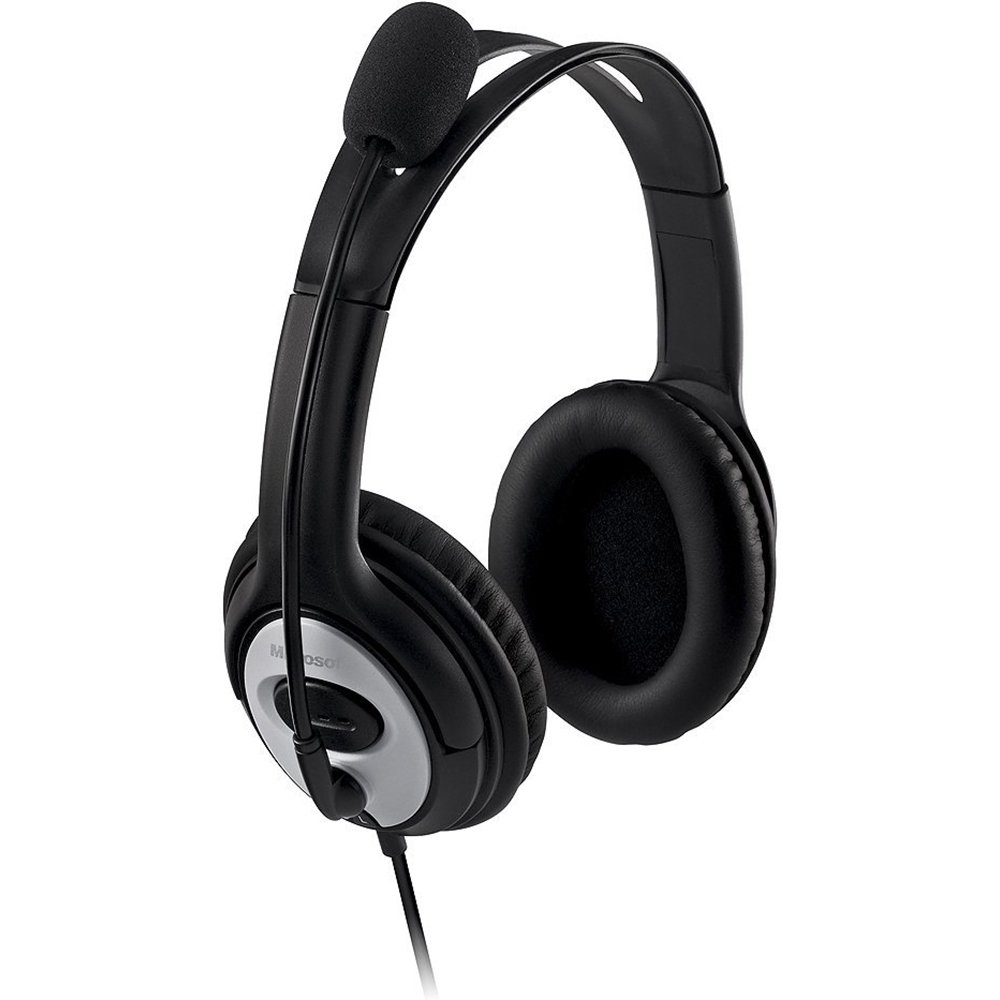
Figure 1: Microsoft LifeChat LX-3000 Headset with microphone and in-line controls.
2. Орнотуу
The Microsoft LifeChat LX-3000 Headset features a simple Plug and Play USB connection, making setup straightforward. Follow these steps to begin using your headset:
- Системалык талаптар: Ensure your PC meets the minimum operating system requirements: Microsoft Windows 10, Windows 8.1, Windows 8, or Windows 7.
- Гарнитураны туташтыруу: Locate an available USB port on your computer. Insert the USB connector of the headset firmly into the USB port.
- Драйверди орнотуу: Your operating system should automatically detect the headset and install the necessary drivers. This process may take a few moments.
- Байланышты текшерүү: Once installed, the headset should appear as an audio device in your computer's sound settings. You may need to select it as the default playback and recording device.

Figure 2: Close-up of the USB connector for the headset.
3. Иштөө нускамалары
The LifeChat LX-3000 Headset is designed for ease of use with integrated controls and a flexible microphone.
3.1. Гарнитураны тууралоо
- Баш боосун жөндөө: The headband is adjustable to fit various head sizes. Gently extend or retract the earcups until the headset sits comfortably over your ears.
- Микрофонду жайгаштыруу: The pivoting boom microphone offers 180-degree movement. Position the microphone approximately one inch from your mouth for optimal voice clarity.
3.2. Using In-Line Controls
The headset features an in-line control module for quick access to essential functions:
- Үндү көзөмөлдөө: Үндү катуулатууну колдонуңуз (+) жана үндү азайтуу (-) buttons to adjust the listening volume.
- Микрофондун үнүн өчүрүү: Press the mute button (often indicated by a microphone icon) to temporarily disable or enable the microphone. An indicator light on the control module may show the mute status.

Figure 3: In-line control module for volume and microphone mute.
3.3. Noise-Cancelling Microphone
The integrated noise-cancelling microphone helps reduce background noise, ensuring your voice is heard clearly during calls and recordings.
4. Техникалык тейлөө
Proper care and maintenance will extend the life of your Microsoft LifeChat LX-3000 Headset.
- Кулак төшөктөрүн тазалоо: The leatherette ear pads can be gently wiped with a soft, damp кездеме. Катуу химиялык заттарды же абразивдүү тазалагычтарды колдонуудан алыс болуңуз.
- Кабельге кам көрүү: Avoid sharp bends or excessive pulling on the flexible 6-foot cable to prevent damage. Store the cable neatly when not in use.
- Сактагыч: Гарнитураны таза, кургак жерде, өтө жогорку температурадан жана түз күн нурунан алыс сактаңыз.
5. Кыйынчылыктарды
Эгер гарнитураңызда көйгөйлөргө туш болсоңуз, төмөнкү чечимдерди колдонуп көрүңүз:
| Көйгөй | Чечим |
|---|---|
| Гарнитурадан үн жок |
|
| Микрофон иштебей жатат |
|
| Аудио сапаты начар |
|
6. Техникалык шарттар
Key technical specifications for the Microsoft LifeChat LX-3000 Headset:
| Өзгөчөлүк | Деталь |
|---|---|
| Бренд | Microsoft |
| Модель номери | JUG-00013 |
| Байланыш технологиясы | Зымдуу (USB) |
| Кулак жайгаштыруу | Кулак үстүндө |
| Микрофон | Noise-cancelling, Pivoting Boom (180-degree movement) |
| Controls | In-line Volume Control, Microphone Mute |
| Кабелдин узундугу | Flexible 6-foot cable |
| Кулак жапкыч материалы | Жасалма тери |
| Жыштык диапазону | 20 Гц - 20 000 Гц |
| Шайкеш операциялык системалар | Microsoft Windows 10, Windows 8.1, Windows 8, Windows 7 |
| Элемент Салмагы | 8.32 унция |
7. Кепилдик жана колдоо
7.1. Кепилдик маалыматы
The Microsoft LifeChat LX-3000 Headset (JUG-00013) comes with a 3 жылдык чектелген аппараттык кепилдикБул кепилдик кадимки колдонуудагы материалдардагы жана жасалгалоодогу кемчиликтерди камтыйт. Так шарттар жана эрежелер үчүн, өнүмүңүзгө тиркелген кепилдик документтерин караңыз же расмий Microsoft колдоо кызматына кайрылыңыз. webсайт.
7.2. Кардарларды колдоо кызматы
For further assistance, technical support, or warranty claims, please contact Microsoft Customer Support through their official website or the contact information provided in your product packaging. You can find additional resources and FAQs on the Microsoft колдоо webсайт.