
1. Киришүү
This manual provides essential information for the proper setup, operation, and maintenance of your Honeywell 7580G Genesis USB Kit Barcode Scanner. Please read this guide thoroughly before using the device to ensure optimal performance and longevity.
2. Орнотуу
2.1 Пакеттен чыгаруу
Бардык компоненттерди таңгактан кылдаттык менен алып салыңыз. Төмөнкү нерселердин бар экенин текшериңиз:
- Honeywell 7580G Genesis Barcode Scanner
- USB Type A 3M Cable (CBL-500-300-S00)
- Документация
2.2 Сканерди туташтыруу
The Honeywell 7580G Genesis scanner connects to your host device (desktop or laptop) via a standard USB cable. No external power adapter is typically required as the scanner draws power directly from the USB port.
- Connect the smaller end of the USB cable to the USB port located at the base of the Honeywell 7580G Genesis scanner.
- Connect the larger USB Type A end of the cable to an available USB port on your computer.
- Upon successful connection, the scanner will typically emit a power-on beep and its indicator lights will activate, signaling it is ready for use. Most operating systems will automatically detect and install the necessary drivers for the scanner to function as a keyboard wedge (HID-POS).
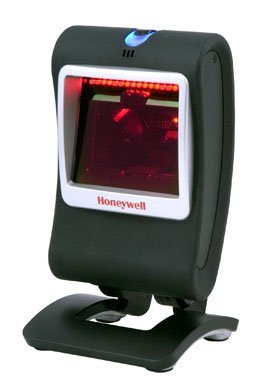
Image: The Honeywell 7580G Genesis barcode scanner shown with its USB cable connected, ready for integration with a computer system.
3. Иштөө нускамалары
3.1 Негизги сканерлөө
The 7580G Genesis is designed for intuitive, hands-free scanning. It can also be picked up for handheld operation.
- Позициялоо: Place the item with the barcode facing the scanner's window. For optimal performance, ensure the barcode is within the scanner's field of view.
- Скандоо: Сканер штрих-кодду автоматтык түрдө аныктап, окуйт. Ийгиликтүү сканерлөө, адатта, үн сигналы жана/же визуалдык ырастоо жарыгы менен көрсөтүлөт.
- Маалыматтарды өткөрүү: The decoded barcode data will be transmitted to your computer as if it were typed on a keyboard, appearing in any active text field.
3.2 Колдоого алынган симбологиялар
The Honeywell 7580G Genesis scanner supports a wide range of 1D, PDF417, and 2D barcode symbologies, including but not limited to:
- 1D штрих коддору: UPC/EAN, 39-код, 128-код, 5тен 2си аралыкта ж.б.
- PDF417: Standard PDF417 codes.
- 2D штрих коддору: Data Matrix, QR Code, Aztec, etc.
3.3 Scanning Feedback
The scanner provides feedback to indicate its status and successful scans:
- Укулган сигнал: A short beep typically indicates a successful barcode read.
- Визуалдык көрсөткүч: The scanner may have LED indicators that change color or flash to confirm a successful scan or indicate an error. Refer to the full product documentation for specific indicator patterns.
4. Техникалык тейлөө
4.1 Сканерди тазалоо
Regular cleaning helps maintain optimal scanning performance.
- Сырткы: жумшак, таза кездемени колдонуу dampened with water or a mild cleaning solution to wipe the exterior of the scanner. Avoid abrasive cleaners or solvents.
- Скандоо терезеси: Gently wipe the scan window with a soft, lint-free cloth. Do not use harsh chemicals or scratch the window, as this can impair scanning accuracy.
4.2 Сактоо
Колдонулбай турган учурда, сканерди таза, кургак жерде, өтө жогорку температурадан жана түз күн нурунан алыс сактаңыз.
5. Кыйынчылыктарды
If you encounter issues with your Honeywell 7580G Genesis scanner, refer to the following common problems and solutions:
| Көйгөй | Мүмкүн себеп | Чечим |
|---|---|---|
| Сканер күйбөйт. | USB кабели туура эмес туташкан же USB порту бузук. | USB кабелинин сканерге да, компьютерге да бекем туташтырылганын текшериңиз. Компьютериңиздеги башка USB портун колдонуп көрүңүз. |
| Сканер штрих-коддорду окубайт. | Barcode damaged, incorrect symbology enabled, or scanner window dirty. | Ensure the barcode is not damaged. Verify the barcode type is supported. Clean the scanner window as described in Section 4.1. |
| Сканерленген маалыматтар туура эмес көрсөтүлөт. | Incorrect keyboard layout setting on the computer. | Ensure your computer's keyboard layout matches the region settings for the scanner (if applicable). |
| Сканер сигнал берет, бирок эч кандай маалымат өткөрүлбөйт. | Application not in focus or not accepting input. | Ensure the cursor is in the desired text field of your application. Test with a simple text editor like Notepad. |
6. Техникалык шарттар
Key technical specifications for the Honeywell 7580G Genesis Barcode Scanner:
| Өзгөчөлүк | Деталь |
|---|---|
| Модель номери | 7580G-2 |
| Өндүрүүчү бөлүгүнүн номери | MK7580-30B38-12-A |
| Бренд | Honeywell |
| Байланыш технологиясы | USB кабели |
| Power Source | Электр зымдары (USB менен) |
| Шайкеш түзмөктөр | Иш такта, ноутбук |
| Элемент Салмагы | 16 унция |
| Колдоого алынган штрихкоддор | 1D, PDF417, 2D |
7. Кепилдик маалыматы
Honeywell products are manufactured to high-quality standards and are covered by a manufacturer's warranty. For specific warranty terms and conditions, please refer to the warranty card included with your product or visit the official Honeywell webсайт. Кепилдик дооматтар үчүн сатып алганыңыздын далилин сактаңыз.
8. Колдоо
For technical assistance, product inquiries, or service, please contact Honeywell customer support. Support contact information can typically be found on the Honeywell webсайтында же сканериңиз менен берилген документтерде.