
1. Киришүү
The Juniper Networks SRX210 Services Gateway is an 8-Port GigE Secure Services Gateway designed for enhanced VPN firewall and security appliance functionalities. This device provides comprehensive security, routing, switching, and WAN connectivity in a single, high-performance platform. It is ideal for securing small to medium-sized branch offices and distributed enterprises.
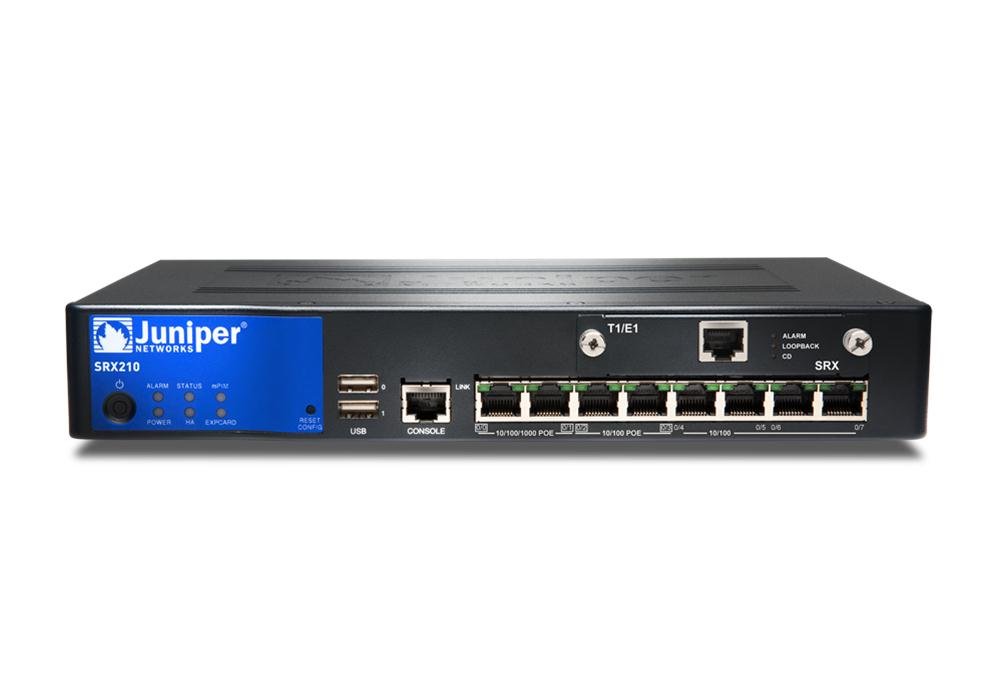
Figure 1: Juniper Networks SRX210 Services Gateway. This image displays the front view of the SRX210 device, highlighting its compact form factor and port layout.
This manual provides essential information for the setup, operation, maintenance, and troubleshooting of your SRX210 Services Gateway. For detailed configuration guides and advanced features, please refer to the official Juniper Networks documentation.
2. Орнотуу
Follow these steps for the initial physical setup of your SRX210 Services Gateway:
- Аппаратты таңгактан чыгаруу: Carefully remove the SRX210 Services Gateway from its packaging. Verify that all components listed in the packing slip are present.
- Жайгашкан жерди тандаңыз: Select a stable, level surface in a well-ventilated area. Ensure adequate space around the device for proper airflow and cable management. Avoid placing it near heat sources or in direct sunlight.
- Туташуу кубаты:
- Connect the provided power cord to the power input on the rear panel of the SRX210.
- Электр шнурунун экинчи учун жерге туташтырылган электр розеткасына сайыңыз.
- The device will power on automatically. Observe the power indicator LED on the front panel.
- Тармак кабелдерин туташтыруу:
- Connect your WAN (Internet) cable to the appropriate WAN port (e.g.,
ge-0/0/0orfe-0/0/0, consult port labels). - Connect your LAN (internal network) devices to the available GigE ports.
- Connect your WAN (Internet) cable to the appropriate WAN port (e.g.,
- Баштапкы конфигурацияга кирүү:
- For initial configuration, connect a console cable (RJ-45 to DB-9) from your management workstation to the console port on the SRX210.
- Configure your terminal emulation software (e.g., PuTTY, Tera Term) with the following settings: 9600 baud, 8 data bits, no parity, 1 stop bit, no flow control.
- Log in using default credentials (if applicable) or follow the Junos OS initial setup wizard.
Refer to the Juniper Networks documentation for specific port assignments and initial configuration procedures for your network environment.
3. Operating the SRX210 Services Gateway
The SRX210 Services Gateway operates on Juniper Networks' Junos OS, a command-line interface (CLI) based operating system. Basic operation involves configuring security policies, routing, and network services.
- Junos OS CLI: Access the device via the console port or SSH for configuration and monitoring. Familiarize yourself with basic Junos OS commands for configuration mode, operational mode, and commit operations.
- Security Policies: Configure firewall filters and security policies to control traffic flow between different network zones (e.g., trust, untrust, DMZ).
- Тармак дарегин которуу (NAT): Implement NAT to allow internal network devices to access the internet using a limited number of public IP addresses.
- VPN конфигурациясы: Set up Virtual Private Networks (VPNs) for secure remote access or site-to-site connectivity. The SRX210 supports IPsec VPNs.
- Routing and Switching: Configure static routes, dynamic routing protocols (e.g., OSPF, BGP), and VLANs as required by your network topology.
- Мониторинг: Use operational commands to monitor system status, interface statistics, security logs, and active sessions.
For detailed instructions on specific configurations, consult the Juniper Networks Junos OS documentation available on their official webсайт.
4. Техникалык тейлөө
Regular maintenance ensures the optimal performance and security of your SRX210 Services Gateway.
- Программалык камсыздоонун жаңыртуулары: Juniper Networks колдоосун мезгил-мезгили менен текшерип туруңуз website for the latest Junos OS releases. Apply updates to benefit from new features, bug fixes, and security patches. Follow the recommended upgrade procedures carefully.
- Конфигурациянын камдык көчүрмөсү: Regularly back up your device configuration. This allows for quick recovery in case of accidental changes or system failures. Store backups securely off-device.
- Системанын мониторинги: Monitor system logs, CPU utilization, memory usage, and interface statistics. Address any anomalies promptly.
- Экологиялык текшерүүлөр: Иштөө чөйрөсү белгиленген температура жана нымдуулук диапазондорунда болушун камсыз кылыңыз. Желдетүүчү тешиктерди тоскоолдуктардан таза кармаңыз.
- Физикалык текшерүү: Periodically inspect cables and connections for wear or damage. Ensure all connections are secure.
5. Кыйынчылыктарды
This section provides guidance for common issues you might encounter with your SRX210 Services Gateway.
- Кубат жок:
- Verify the power cord is securely connected to both the device and the electrical outlet.
- Розетканын иштеп жатканын текшерүү үчүн аны башка түзмөк менен текшериңиз.
- Ensure the power switch (if present) is in the ON position.
- Тармакка туташуу жок:
- Check physical cable connections to the SRX210 ports and connected devices.
- Verify interface status using Junos OS operational commands (e.g.,
show interfaces terse). - Review firewall policies to ensure traffic is permitted between zones.
- Check routing tables for correct routes to destinations.
- Cannot Access CLI via Console:
- Ensure the console cable is correctly connected.
- Verify terminal emulation software settings (baud rate, data bits, parity, stop bits, flow control).
- Try a different console cable or USB-to-serial adapter.
- Аткаруу маселелери:
- Monitor CPU and memory usage (
show system processes extensive,show system memory). - Check for high traffic loads on interfaces.
- Review security policies for complex rules that might impact performance.
- Monitor CPU and memory usage (
If issues persist, consult the Juniper Networks knowledge base or contact technical support.
6. Техникалык шарттар
Key technical specifications for the Juniper Networks SRX210 Services Gateway:
| Бренд | Juniper Networks |
| Модель номери | M20-FPC-E (SRX210 Series) |
| Description | 8-Port GigE Secure Services Gateway High Memory Enhanced VPN Firewall Security Appliance |
| Порттардын саны | 8 |
| Элемент Салмагы | 6.2 фунт (2.81 кг) |
| Продукциянын өлчөмдөрү (LxWxH) | 8.31 x 6.97 x 0.39 дюйм (21.11 x 17.70 x 0.99 см) |
| UPC | 832938067479 |
| ASIN | B00CPNATCE |
| Дата биринчи жеткиликтүү | 9-май, 2013-жыл |
Note: Specifications are subject to change without notice. For the most current information, please refer to the official Juniper Networks product documentation.
7. Кепилдик жана колдоо
This section outlines general information regarding warranty and support for your Juniper Networks SRX210 Services Gateway.
Кепилдик маалыматы:
Juniper Networks products typically come with a standard manufacturer's warranty. For specific warranty terms and conditions applicable to your SRX210 device, please refer to the official warranty statement provided with your purchase or visit the Juniper Networks website. It is important to note that the manufacturer has announced end-of-life for the SRX210 series, with support generally extending until 2020. Please verify current support status directly with Juniper Networks.
Important: Returns for non-defective items are generally not accepted and may incur a restocking fee if returned for repair and found not defective by technicians. This policy is subject to the vendor from whom the product was purchased. Additional warranty length may be available from certain resellers; contact your vendor for details.
Техникалык колдоо:
For technical assistance, software downloads, and documentation, please visit the official Juniper Networks Support website. You will typically need your product serial number to register and access support resources.
- Онлайн ресурстар: Juniper Networks provides extensive online documentation, knowledge bases, and community forums.
- Колдоо кызматы менен байланышуу: If you have an active support contract, you can contact Juniper Networks technical support directly via phone or web порталы.
Keeping your device's Junos OS up-to-date is crucial for security and performance, and access to updates is typically tied to a support contract.