
1. Киришүү
This manual provides essential instructions for the setup, operation, and maintenance of your Samsung Xpress SL-M2070FW Multifunctional Printer. This device offers 4-in-1 functionality, including printing, copying, scanning, and faxing, designed to streamline your workflow. It supports wireless connectivity via NFC, Wi-Fi Direct, and Google Cloud Print for convenient use.

1.1-сүрөт: Фронт view of the Samsung Xpress SL-M2070FW Multifunctional Printer, showing the paper tray and output area.
2. Орнотуу
2.1 Таңгактан чыгаруу жана алгачкы жайгаштыруу
- Принтерди таңгагынан этияттык менен чыгарыңыз.
- Принтерден бардык коргоочу ленталарды жана таңгактоочу материалдарды алып салыңыз.
- Принтерди вентиляциясы бар туруктуу, тегиз жерге коюңуз.
2.2 Кубатты туташтыруу
- Электр шнурду принтерге, анан жерге туташтырылган электр розеткасына туташтырыңыз.
- Принтерди иштетүү үчүн кубат баскычын басыңыз.
2.3 Тонер-картриджди орнотуу
- Принтердин алдыңкы капкагын ачыңыз.
- Remove the toner cartridge from its packaging and gently shake it side to side to distribute the toner.
- Принтерге тонер картриджди чыкылдатканча кыстарыңыз.
- алдыңкы капкакты жабыңыз.
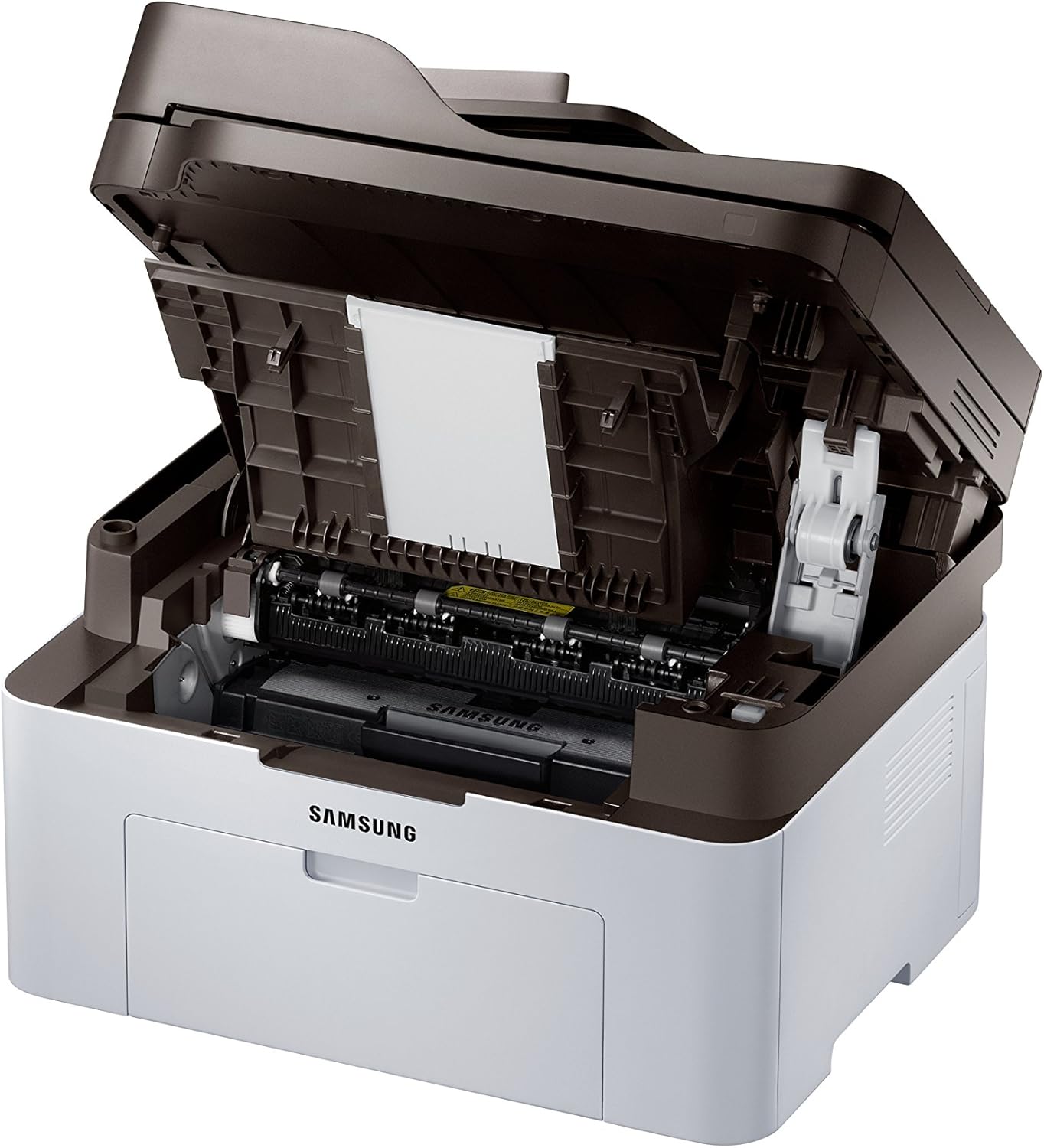
2.1-сүрөт: Front cover open, revealing the toner cartridge slot for installation or replacement.
2.4 Программаны орнотуу жана туташуу
- Insert the provided installation CD into your computer's CD-ROM drive, or download the latest drivers from the Samsung support webсайт.
- Follow the on-screen instructions to install the printer software.
- For wireless setup, follow the prompts to connect the printer to your Wi-Fi network. The printer supports NFC for easy pairing with compatible devices.
- For USB connection, connect the printer to your computer using a USB cable (not always included).
3. Иштөө нускамалары

3.1-сүрөт: Бурчтуу view showing the control panel with display and function buttons.
3.1 Документтерди басып чыгаруу
- Принтер күйгүзүлүп, компьютериңизге же тармагыңызга туташып турганын текшериңиз.
- Кагазды киргизүү лотогуна жүктөңүз.
- Компьютериңизден басып чыгаргыңыз келген документти ачыңыз.
- Тандоо Басып чыгаруу колдонмонун менюсунан (мисалы, File > Басып чыгаруу).
- Choose the Samsung Xpress SL-M2070FW from the list of available printers.
- Adjust print settings as needed (e.g., number of copies, paper size, quality).
- Click Басып чыгаруу.
3.2 Документтерди көчүрүү
- Place the document face-down on the scanner glass or face-up in the automatic document feeder (ADF).
- Принтердин башкаруу панелиндеги баскычты басыңыз Көчүрүү баскычы.
- Use the navigation buttons to select copy options (e.g., number of copies, darkness, original size).
- басыңыз Баштоо көчүрүүнү баштоо үчүн баскычты басыңыз.
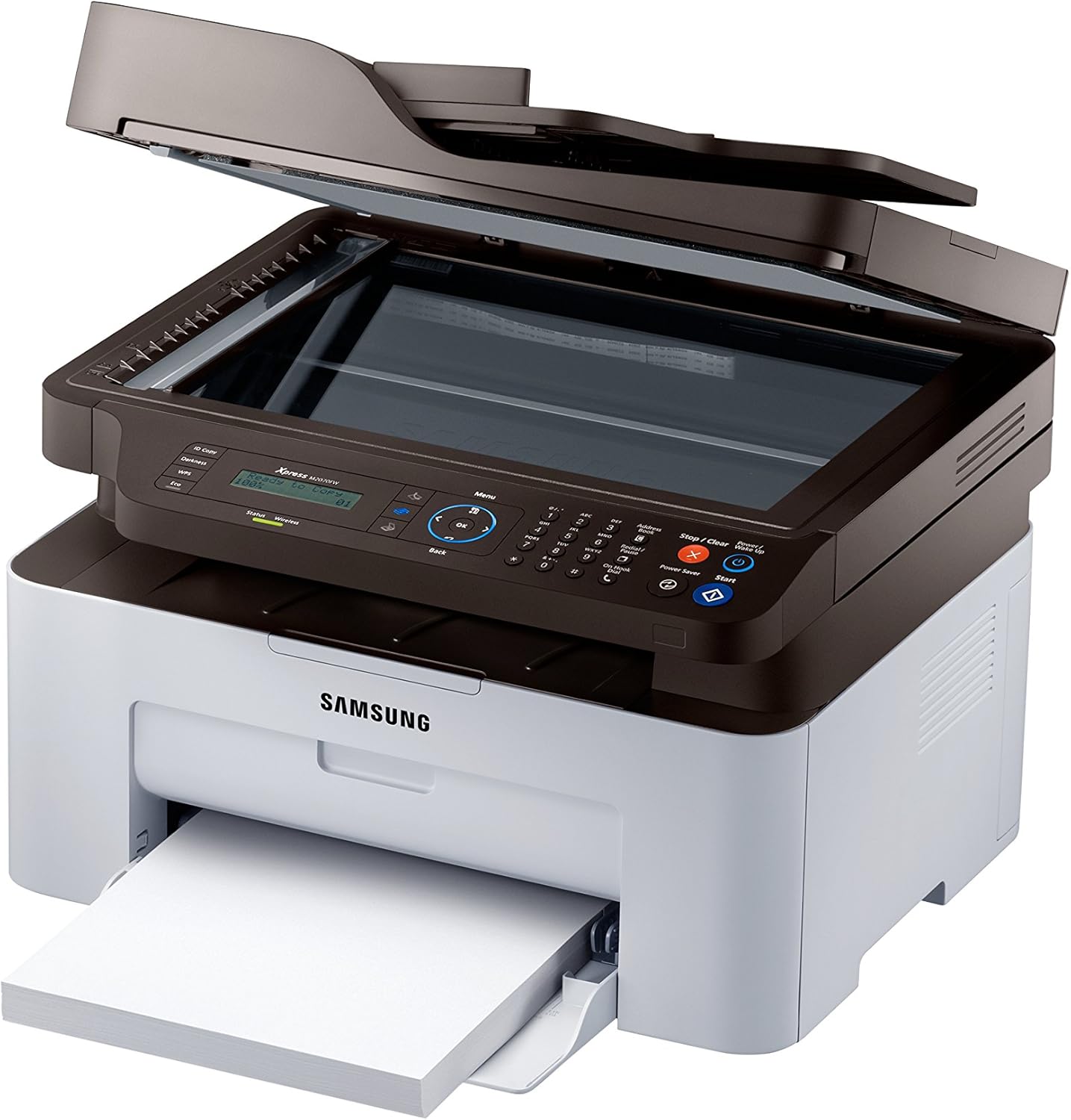
3.2-сүрөт: Top cover open, showing the flatbed scanner glass for copying and scanning.
3.3 Документтерди сканерлөө
- Документти сканердин айнегине же ADFке салыңыз.
- From your computer, open the Samsung Easy Document Creator software or a similar scanning application.
- Тандоо Скандоо and choose your desired settings (e.g., resolution, color mode, destination).
- Click Скандоо жараянын баштоо үчүн.
3.4 Sending Faxes
- Документти ADFке жүктөңүз же сканер айнегине коюңуз.
- Принтердин башкаруу панелиндеги баскычты басыңыз Факс баскычы.
- Сандык баскычтопту колдонуп алуучунун факс номерин киргизиңиз.
- Adjust fax settings if necessary.
- басыңыз Баштоо факс жөнөтүү үчүн баскыч.
3.5 Wireless Printing (NFC, Wi-Fi Direct, Google Cloud Print)
- NFC: Tap your NFC-enabled smartphone or tablet to the NFC tag on the printer to establish a direct connection and print.
- Wi-Fi Direct: Connect your mobile device directly to the printer's Wi-Fi Direct network without needing a router.
- Google Булуттагы Принтер: Register your printer with Google Cloud Print to print from anywhere using your Google account. Refer to the online manual for detailed registration steps.
4. Техникалык тейлөө
4.1 Тонер-картриджди алмаштыруу
- When the toner low message appears on the display, order a new toner cartridge.
- Принтердин алдыңкы капкагын ачыңыз.
- Эски тонер картриджди кылдаттык менен сууруп алыңыз.
- Unpack the new toner cartridge and shake it gently.
- Жаңы картриджди ордуна бекитилмейинче салыңыз.
- алдыңкы капкакты жабыңыз.
4.2 Принтерди тазалоо
- Сырткы: Принтердин сыртын жумшак, түксүз чүпүрөк менен сүртүңүз. Абразивдүү тазалагычтарды колдонбоңуз.
- Сканер айнек: Gently clean the scanner glass with a soft cloth dampайнек тазалагыч менен тазалаңыз. Калдык калбаганын текшериңиз.
- Ички иштер: Periodically open the front cover and gently remove any paper dust or debris with a dry, lint-free cloth.
5. Кыйынчылыктарды
| Көйгөй | Мүмкүн себеп | Чечим |
|---|---|---|
| Принтер күйбөй жатат. | Электр зымы туура туташкан эмес. | Check power cord connections to the printer and wall outlet. Ensure the outlet is functional. |
| Кагаз тыгылып калды. | Incorrect paper loading; foreign objects in paper path. | Remove all paper from the tray and reload correctly. Open covers and carefully remove any jammed paper or obstructions. |
| Басып чыгаруу сапаты начар. | Low toner; dirty print head/drum; incorrect print settings. | Replace toner cartridge. Clean the interior of the printer. Adjust print quality settings in the printer driver. |
| Зымсыз туташуу мүмкүн эмес. | Туура эмес Wi-Fi сырсөзү; принтер роутерден өтө алыс жайгашкан; тармак көйгөйлөрү. | Verify Wi-Fi password. Move printer closer to the router. Restart printer and router. Reconfigure wireless settings. |
6. Техникалык шарттар
- Модель аты: SL-M2070FW
- Функциялары: Басып чыгаруу, көчүрүү, сканерлөө, факс
- Басып чыгаруу технологиясы: Лазер (монохромдуу)
- Максималдуу басып чыгаруу ылдамдыгы (монохромдуу): 20 ppm (мүнөтүнө барак)
- Макс көчүрүү ылдамдыгы (ак жана кара): 14 промилле
- Max Copy Resolution (Black & White): 600 dpi
- Сканер түрү: Планшет
- Байланыш технологиясы: USB, Wireless (Wi-Fi, NFC, Wi-Fi Direct, Ethernet)
- Аппараттык интерфейс: Ethernet, USB
- Эстутум сактоо сыйымдуулугу: 128 MB
- Энергияны керектөө: 50 Ватт (иштетүү)
- Продукциянын өлчөмдөрү: 15.98 x 14.16 x 12.15 дюйм
- Элемент Салмагы: 18.92 фунт (8.6 килограмм)
- Камтылган компоненттер: Scanner Glass, Fax Machine, Paper Tray
7. Кепилдик жана колдоо
Your Samsung Xpress SL-M2070FW Multifunctional Printer comes with a limited warranty. For detailed information regarding warranty terms and conditions, please refer to the warranty card included with your product or visit the official Samsung support webсайт.
For technical assistance, driver downloads, or further support, please visit the Samsung support webсайтка же кардарларды тейлөөгө кайрылыңыз.
- Онлайн колдоо: www.samsung.com/support/
- Кепилдик түрү: Чектелген Кепилдик