
Hewlett-Packard KUS0133
HP KUS0133 SmartCard USB Keyboard User Manual
Model: KUS0133 / 434822-161 | Brand: Hewlett-Packard
1. Introduction and Overview
This manual provides comprehensive instructions for the setup, operation, and maintenance of your HP KUS0133 SmartCard USB Keyboard. Designed for efficiency and security, this keyboard integrates a SmartCard reader, making it suitable for environments requiring secure authentication and data access.
The HP KUS0133 is a wired USB keyboard featuring a standard 104-key layout, including a numeric keypad and dedicated function keys. Its robust design ensures reliable performance for daily computing tasks.
2. Орнотуу
Follow these steps to connect and prepare your HP KUS0133 SmartCard USB Keyboard for use.
2.1. Баскычтопту туташтыруу
- Компьютериңизден (компьютер же ноутбук) жеткиликтүү USB портун табыңыз.
- Insert the USB-A connector of the keyboard cable firmly into the USB port.
- Your operating system should automatically detect the new hardware and install the necessary generic drivers.
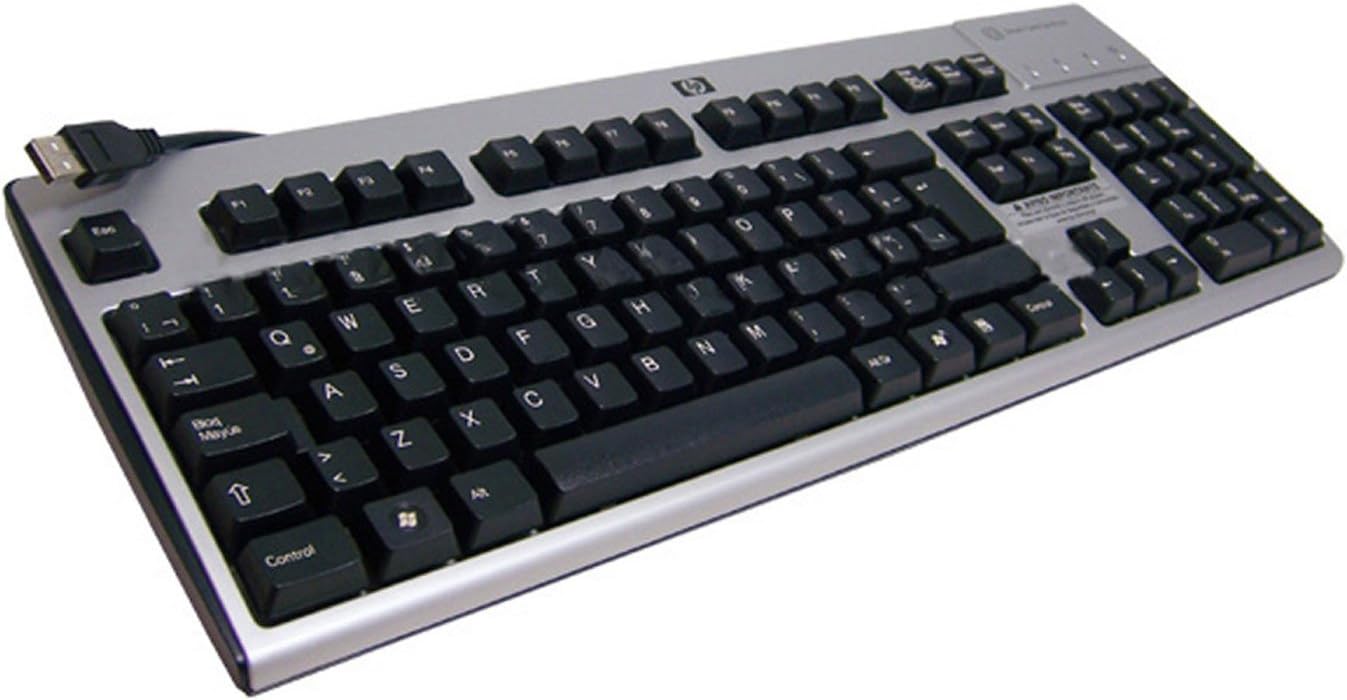
Үстүбүздөгү чыгым view of the HP KUS0133 SmartCard USB Keyboard, showing its full layout, including the numeric keypad and the integrated SmartCard reader slot on the top right, with the USB cable extending from the top left.
2.2. Driver Installation (for SmartCard Functionality)
While the basic keyboard functions are plug-and-play, specific drivers or software may be required for the SmartCard reader to function correctly with certain applications or security systems. Consult your system administrator or the software provider for SmartCard reader driver requirements.
- For most modern operating systems, the SmartCard reader drivers are often included or automatically downloaded via Windows Update/macOS updates.
- If prompted, allow the operating system to search for and install the appropriate drivers.
- Restart your computer if instructed to complete the driver installation.
3. Баскычтопту иштетүү
3.1. Негизги баскычтоп функциялары
The HP KUS0133 keyboard operates like any standard 104-key keyboard. All alphanumeric keys, function keys (F1-F12), navigation keys, and the numeric keypad function as expected for typing, data entry, and system navigation.
- Терүү: Текст киргизүү үчүн тамга-сан баскычтарын колдонуңуз.
- Сандык баскычтоп: For efficient number entry, ensure Num Lock is active.
- Функция баскычтары: F1-F12 perform various tasks depending on the active application or operating system.
- Мультимедиа ачкычтары: If present, these keys control media playback (e.g., volume, play/pause).
3.2. SmartCard Reader Usage
The integrated SmartCard reader allows for secure login, digital signatures, and access to protected data. Ensure the necessary SmartCard middleware and applications are installed on your computer.
- Identify the SmartCard slot, typically located on the top right side of the keyboard.
- Insert your SmartCard into the slot with the chip facing upwards and towards the keyboard, until it clicks into place.
- Follow the prompts from your operating system or application to enter your PIN or perform the required authentication.
- To remove the SmartCard, gently pull it out from the slot.
4. Техникалык тейлөө
Proper care and maintenance will extend the life of your keyboard.
- Тазалоо: Тазалоодон мурун клавиатураны компьютерден ажыратыңыз. Жумшак, түксүз чүпүрөктү бир аз сүртүңүзampсуу же жумшак тазалоо эритмеси менен. Катуу химиялык заттардан же абразивдүү материалдардан алыс болуңуз.
- Чаңды тазалоо: Баскычтардын ортосундагы чаңды жана калдыктарды тазалоо үчүн кысылган абаны колдонуңуз.
- Суюктуктар: In case of a liquid spill, immediately disconnect the keyboard and allow it to dry completely before reconnecting. Do not attempt to use the keyboard while wet.
5. Кыйынчылыктарды
If you encounter issues with your HP KUS0133 SmartCard USB Keyboard, refer to the following common troubleshooting steps.
| Көйгөй | Мүмкүн себеп | Чечим |
|---|---|---|
| Клавиатура жооп бербей жатат. | Бош USB туташуу, туура эмес USB порт, драйвер маселеси. |
|
| SmartCard is not detected. | Incorrect card insertion, missing/outdated SmartCard drivers, software conflict. |
|
| Ачкычтар жабышчаак же жооп бербейт. | Ачкычтардын астындагы таштандылар, суюктуктан улам бузулуу. |
|
6. Техникалык шарттар
Key technical specifications for the HP KUS0133 SmartCard USB Keyboard:
| Өзгөчөлүк | Деталь |
|---|---|
| Бренд | Hewlett-Packard |
| Модель номери | KUS0133 / 434822-161 |
| Байланыш технологиясы | USB, USB-A |
| Keyboard Description | Multimedia, SmartCard Reader Integrated |
| Ачкычтардын саны | 104 |
| Түс | Кара-Күмүш |
| Материал | Пластик |
| Power Source | USB менен иштейт |
| Элемент Салмагы | 4 фунт |
| Шайкеш түзмөктөр | Компьютер, ноутбук, оюн консолу |
7. Кепилдик жана колдоо
For warranty information and technical support, please refer to the documentation included with your purchase or visit the official Hewlett-Packard (HP) support website. You can typically find support resources, driver downloads, and contact information for customer service there.
Ask a question about this manual
Ask about setup, troubleshooting, compatibility, parts, safety, or missing instructions. Manuals+ will review the question and use this page’s manual context to help answer it.