
Xerox 3215/NI
Xerox WorkCentre 3215/NI Monochrome Multifunction Printer User Manual
Модел: 3215/NI | Бренд: Xerox
This manual provides detailed instructions for the setup, operation, maintenance, and troubleshooting of your Xerox WorkCentre 3215/NI Monochrome Multifunction Printer.
1. Киришүү
The Xerox WorkCentre 3215/NI is a versatile monochrome multifunction printer designed for efficient printing, copying, scanning, and faxing. It offers reliable performance for single users or small teams, integrating essential office functions into a compact device.
Негизги өзгөчөлүктөрү
- Wi-Fi Direct: Enables secure direct connections from mobile phones, tablets, and laptop computers without an existing wireless network.
- Affordable Reliability: Designed to keep operational costs low while providing fast, dependable printing.
- Easy Wireless Setup: Simplifies connection to your Wi-Fi network.
- Компакт дизайн: Allows for flexible placement due to its quiet operation and small footprint.
- Комплекстүү колдоо: Backed by Xerox Service and Support, including a standard one-year warranty.
Пакеттин мазмуну
Бардык элементтер кутучада бар экенин текшериңиз:
- Xerox WorkCentre 3215/NI Multifunction Printer
- Initial Laser Toner Cartridge
- Электр кабели
- USB кабели
- Phone Cable (for fax functionality)
- Installation CD (contains drivers and software)
2. Орнотуу
2.1 Пакеттен чыгаруу жана жайгаштыруу
Carefully remove the printer from its packaging. Ensure all protective tapes and packing materials are removed from both the exterior and interior of the device. Place the printer on a stable, level surface with adequate space for ventilation and access to connections.

Сүрөт: алдыңкы view of the Xerox WorkCentre 3215/NI Monochrome Multifunction Printer, showing the paper tray and control panel. This image illustrates the printer's overall design and accessible components.
2.2 Тонер-картриджди орнотуу
Open the front cover of the printer. Gently insert the toner cartridge into its designated slot until it clicks securely into place. Ensure the sealing tape is completely removed from the cartridge before installation to prevent printing issues.

Сүрөт: алдыңкы view of the Xerox WorkCentre 3215/NI Monochrome Multifunction Printer with the paper tray closed, ready for operation. This view highlights the compact nature of the device.
2.3 Принтерди туташтыруу
2.3.1 Кубат туташтыруу
Connect the power cable to the printer's power input, then plug the other end into a grounded electrical outlet.
2.3.2 Network Connection (Wi-Fi, USB, Ethernet)
The WorkCentre 3215/NI supports multiple connectivity options:
- Wi-Fi: For wireless connectivity, use the Xerox Easy Wireless Setup utility found on the installation CD or downloaded from the official Xerox website. Follow the on-screen prompts to connect the printer to your wireless network. The Wi-Fi Direct feature allows direct connection from compatible mobile devices.
- USB: For a direct connection to a single computer, use the provided USB cable. Install the necessary drivers from the installation CD.
- Ethernet: Connect an Ethernet cable from the printer's network port to your network router or switch. Install the drivers from the installation CD for network printing capabilities.
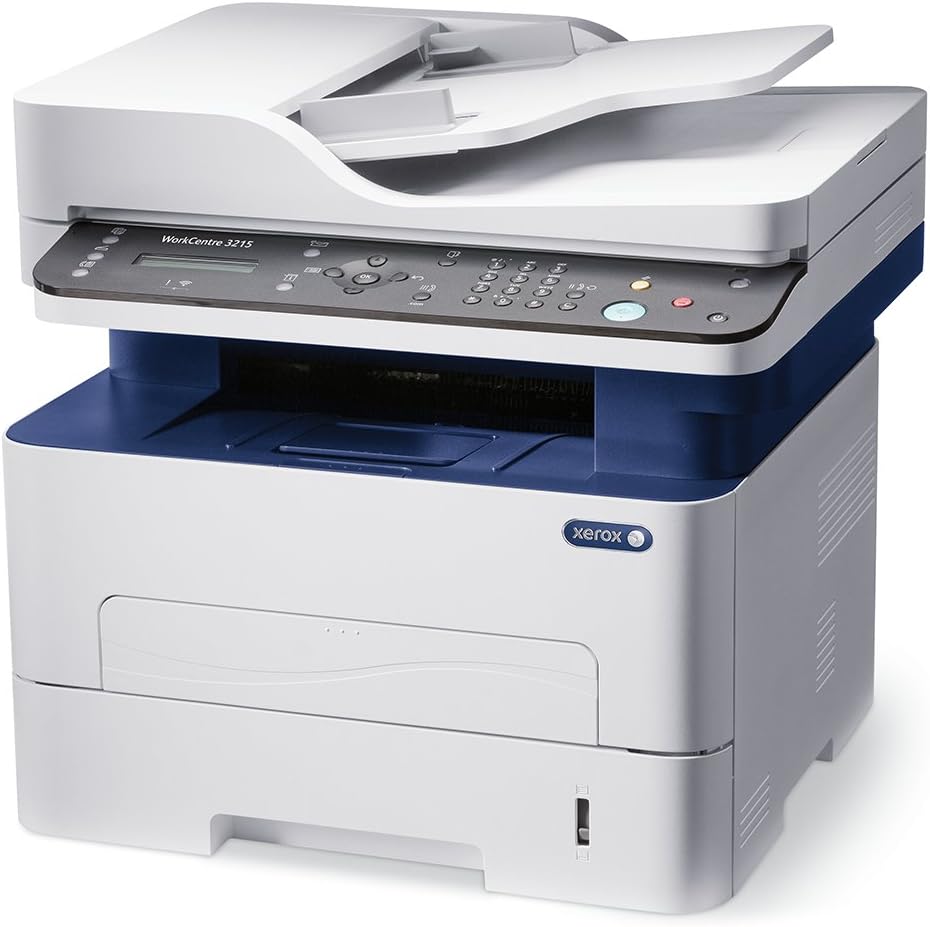
Сүрөт: сол жагы view of the Xerox WorkCentre 3215/NI Monochrome Multifunction Printer, showing the side panel and overall depth. This perspective helps in understanding the printer's physical footprint.
3. Иштөө нускамалары
3.1 Башкаруу панелинин үстүнөview
The printer's control panel features an LCD display and various buttons for navigating menus, selecting functions, and initiating operations.

Сүрөт: жогорудан төмөнгө view of the Xerox WorkCentre 3215/NI Monochrome Multifunction Printer's control panel, highlighting the LCD screen and various function buttons. This image is useful for identifying controls during operation.
3.2 Басып чыгаруу
Load paper into the paper tray. From your computer, select the Xerox WorkCentre 3215/NI as your printer and adjust print settings as needed (e.g., paper size, print quality).
3.2.1 Manual Duplex Printing
This printer supports manual duplexing. The printer will first print all odd-numbered pages. You will then be prompted to reinsert the printed pages into the paper tray in the correct orientation to print the even-numbered pages on the reverse side. Refer to the on-screen instructions or the printer's LCD for specific reinsertion guidance.
3.3 Көчүрүү
Place your document on the scanner glass or in the Automatic Document Feeder (ADF). Use the control panel to select the "Copy" function and adjust settings such as number of copies, darkness, and paper size.
3.4 Скандоо
Place your document on the scanner glass or in the ADF. Select "Scan" from the control panel or initiate a scan from your computer using the installed software. You can scan to email, a network folder, or a connected USB device.
3.5 Факс
Connect a phone line to the printer's fax port. Use the control panel to enter the recipient's fax number and send documents placed on the scanner glass or in the ADF.
4. Техникалык тейлөө
4.1 Тонер-картриджди алмаштыруу
When the printer indicates a low toner level, open the front cover, remove the old cartridge, and insert a new Xerox-compatible toner cartridge. Ensure the new cartridge is properly seated.
4.2 Принтерди тазалоо
Принтердин сыртын дайыма жумшак, гamp cloth. For the scanner glass, use a lint-free cloth and a mild glass cleaner. Avoid using abrasive materials or harsh chemicals, which can damage the surfaces.
4.3 Кагаз лотокту башкаруу
Ensure paper is loaded correctly and within the specified limits to prevent paper jams. Use only recommended paper types and sizes for optimal performance and print quality.
5. Кыйынчылыктарды
5.1 Жалпы маселелер жана чечимдер
- Принтер жооп бербей жатат: Check all power connections, USB/Ethernet cables, and Wi-Fi connectivity. Restart the printer and your computer.
- Кагаз тыгылыштары: Follow the instructions displayed on the printer's LCD to locate and clear any jammed paper. Ensure paper is loaded correctly and not overfilled.
- Начар басып чыгаруу сапаты: Verify toner levels. If necessary, clean the print head or drum unit (refer to the full user guide for detailed steps). Ensure you are using genuine Xerox toner cartridges.
- Configuration Page Prints on Startup: To disable the automatic printing of a configuration page on startup, navigate to System Setup > Machine Setup > Conf. Page on the printer's LCD panel and select the "OFF" option.
- Туташуу маселелери: For Wi-Fi, ensure the printer is within range of your wireless router. For wired connections, verify the integrity of the Ethernet or USB cable. Reinstall printer drivers if necessary.
For more detailed troubleshooting steps and advanced solutions, refer to the comprehensive user guide available on the Xerox support webсайт.
6. Техникалык шарттар
| Өзгөчөлүк | Деталь |
|---|---|
| Модель аты | 3215/NI |
| Бренд | Xerox |
| Принтердин чыгышы | Монохромдуу |
| Басма технологиясы | Лазер |
| Макс басып чыгаруу ылдамдыгы (монохромдуу) | 27 промилле |
| Макс көчүрүү ылдамдыгы (ак-кара) | 27 промилле |
| Макс кара жана ак басып чыгаруу чечими | 300 dpi |
| Байланыш технологиясы | Wi-Fi, USB, Ethernet |
| Максималдуу киргизүү барагынын сыйымдуулугу | 250 барак |
| Эстутум сактоо сыйымдуулугу | 256 MB |
| Продукциянын өлчөмдөрү (L x W x Y) | 17 x 19 x 20.5 дюйм |
| Элемент Салмагы | 24 фунт |
| Сканер түрү | Документ |
| Дуплекстүү басып чыгаруу | Manual |
| UPC | 095205863161 |
7. Кепилдик жана колдоо
7.1 Кепилдик маалыматы
The Xerox WorkCentre 3215/NI comes with a standard limited warranty. For specific terms, conditions, and duration of your warranty coverage, please refer to the warranty documentation included with your product or visit the official Xerox webсайт.
7.2 Кардарларды колдоо
For technical assistance, driver downloads, software updates, or additional support resources, please visit the official Xerox Store on Amazon or the main Xerox support webсайт.
A comprehensive User Guide in PDF format is also available for download, providing more in-depth information and advanced troubleshooting:
Ask a question about this manual
Ask about setup, troubleshooting, compatibility, parts, safety, or missing instructions. Manuals+ will review the question and use this page’s manual context to help answer it.