
Introduction
This manual provides instructions for setting up, operating, and maintaining your Mercury MW3030R Dual Band Wireless Router. Please read this manual carefully before use to ensure proper installation and optimal performance.
Коопсуздук маалыматы
- Аппаратты сууга же ашыкча нымдуулукка дуушар кылбаңыз.
- Аппаратты өз алдынча бөлүүгө же оңдоого аракет кылбаңыз.
- Аппарат менен кошо берилген кубат адаптерин гана колдонуңуз.
- Ашыкча ысып кетүүнүн алдын алуу үчүн роутердин айланасында жакшы желдетүүнү камсыз кылыңыз.
Пакеттин мазмуну
Пакетиңизде төмөнкү заттар бар экенин текшериңиз:
- Mercury MW3030R Wireless Router
- Кубаттуу адаптер
- Ethernet кабели
- Тез орнотуу боюнча колдонмо (бул колдонмо толук көрсөтмө катары кызмат кылат)
Продукт бүттүview
Роутердин компоненттери жана индикаторлору менен таанышып алыңыз.
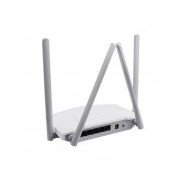
1-сүрөт: Арткы view of the Mercury MW3030R router. This image displays the four external antennas, the WAN port (typically blue), multiple LAN ports (typically yellow), and the power input jack. The reset button and WPS button are also usually located on the rear panel.
2-сүрөт: Жогорудан төмөн view of the Mercury MW3030R router with its antennas folded. This perspective highlights the router's sleek, white casing and its overall compact form factor, suitable for various placements.
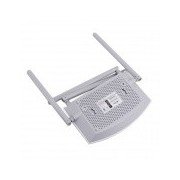
3-сүрөт: Төмөнкү view of the Mercury MW3030R router. This image shows the ventilation holes designed for heat dissipation and the product label, which typically contains important information such as the default Wi-Fi name (SSID), password, and web management address.
LED көрсөткүчтөрү:
- Power LED: Роутердин кубат абалын көрсөтөт.
- Интернет LED: Интернет байланышынын абалын көрсөтөт.
- WLAN LED: Зымсыз байланыштын активдүүлүгүн көрсөтөт.
- LAN диоддору: Indicate connection status for each LAN port.
Жайгашуу
1. Аппараттык туташуу
- Күйгүзүү: Connect the power adapter to the router's power port and plug it into a wall outlet. Wait for the Power LED to become stable.
- Интернетке туташуу (WAN): Connect one end of an Ethernet cable to your modem's LAN port and the other end to the router's WAN port (usually distinctively colored, e.g., blue).
- Туташуу түзмөктөрү (LAN): For wired connections, connect your computer or other devices to the router's LAN ports (usually yellow) using Ethernet cables.
- Антенналар: Adjust the four antennas for optimal signal coverage.
2. Баштапкы конфигурация (Web Интерфейс)
- Роутерге туташуу: Connect your computer to the router either via an Ethernet cable to a LAN port or wirelessly using the default Wi-Fi SSID and password printed on the router's label (refer to Figure 3).
- Мүмкүнчүлүк Web Браузер: ачуу а web browser (e.g., Chrome, Firefox) and type the default access address (e.g., http://192.168.1.1 or http://tplinkwifi.net) дарек тилкесине кирип, Enter баскычын басыңыз.
- Кирүү: Демейки колдонуучу атын жана паролду киргизиңиз (адатта админ экөө үчүн тең, же роутердин этикеткасында көрсөтүлгөндөй).
- Ыкчам орнотууну иштетүү: Follow the on-screen instructions of the Quick Setup Wizard to configure your internet connection type (e.g., PPPoE, Dynamic IP, Static IP) and wireless settings (SSID, password).
- Демейки сырсөздү өзгөртүү: For security, it is highly recommended to change the default login password for the router's web башкаруу интерфейси.
Иштөө нускамалары
Wi-Fi'га туташууда
- On your wireless device (smartphone, laptop), search for available Wi-Fi networks.
- Select your router's Wi-Fi network name (SSID) that you configured during setup.
- Enter the Wi-Fi password you set.
- Түзмөгүңүз азыр интернетке туташып турушу керек.
Dual Band операциясы
The MW3030R supports both 2.4GHz and 5.0GHz wireless bands. The 2.4GHz band offers wider coverage, while the 5.0GHz band provides faster speeds with less interference over shorter distances. You can connect your devices to either band based on your needs.
Конок тармагы
Маршрутизаторго кириңиз web interface to enable and configure a separate guest network. This allows guests to access the internet without accessing your main network resources.
Техникалык тейлөө
- Программалык камсыздоонун жаңыртуулары: Дайыма өндүрүүчүнүн текшерүү webмикропрограммалык камсыздоону жаңыртуу сайты. Микропрограммалык камсыздоону жаңыртуу иштин натыйжалуулугун жакшыртып, жаңы функцияларды кошуп, коопсуздук кемчиликтерин оңдой алат.
- Маршрутизаторду кайра иштетүү: Эгерде сиз тармак көйгөйлөрүнө туш болсоңуз, кубат адаптерин сууруп, 10 секунд күтүп, андан кийин кайра сайып, роутерди өчүрүп-күйгүзүп көрүңүз.
- Тазалоо: Роутерди таза жана чаңсыз кармаңыз. Жумшак, кургак чүпүрөктү колдонуңуз. Суюк тазалоочу каражаттарды колдонбоңуз.
- Жайгашкан жери: Маршрутизаторду борбордук жерге, тоскоолдуктардан жана тоскоолдуктарды алып келе турган түзүлүштөрдөн (мисалы, микротолкундар, зымсыз телефондор) алысыраак жерге коюңуз.
Проблемаларды чечүү
Интернетке кирүү жок
- Check if the Internet LED on the router is lit or blinking correctly.
- Модемиңиздеги Ethernet кабели роутердин WAN портуна бекем туташтырылганын текшериңиз.
- Модемди жана роутерди өчүрүп күйгүзүңүз.
- Роутердеги интернетке туташуу жөндөөлөрүн текшериңиз web интерфейс.
Жай зымсыз ылдамдык
- Ensure your device is connected to the 5.0GHz band if it supports it, for faster speeds.
- Move closer to the router or adjust antenna positions.
- Башка электрондук шаймандардын кийлигишүүсүн текшериңиз.
- Reduce the number of devices connected to the network or bandwidth-intensive activities.
Роутерге кирүү мүмкүн эмес Web Интерфейс
- Түзмөгүңүз роутерге (зымдуу же зымсыз) туташкандыгын текшериңиз.
- Verify the IP address you are typing in the browser is correct (e.g., http://192.168.1.1).
- Браузериңиздин кэшин тазалап көрүңүз же башка браузерди колдонуп көрүңүз.
- If you forgot the login password, you may need to perform a factory reset (Warning: This will erase all your settings).
Техникалык шарттар
| Өзгөчөлүк | Description |
|---|---|
| Модел | MW3030R |
| Зымсыз стандарттар | IEEE 802.11ac/n/g/b/a |
| Жыштык | 2.4GHz and 5.0GHz (Dual Band) |
| Зымсыз ылдамдык | Up to 600Mbps (combined) |
| Антенналар | 4 Тышкы антенналар |
| Interfaces | 1x WAN Port, Multiple LAN Ports (typically 3 or 4) |
| Электр камсыздоо | External Power Adapter (provided) |
Кепилдик жана колдоо
The Mercury MW3030R router comes with a standard manufacturer's warranty. For detailed warranty information, technical support, or service inquiries, please refer to the official Mercury webсайтка же кардарларды тейлөөгө кайрылыңыз. Кепилдик дооматтар үчүн сатып алуу дүмүрчөгүңүздү сактаңыз.