
1. Киришүү
The VONETS VAP11G-300 is a versatile 2.4GHz Mini WiFi Bridge/Repeater designed to provide seamless network connectivity. It supports WiFi to wired and wired to WiFi conversion, functioning as a WiFi repeater, WiFi bridge (IP layer or MAC layer transparent transmission), and WiFi-AP hotspot. With a WiFi rate of 300Mbps and support for WiFi 802.11b/g/n, it is suitable for various applications including IP cameras, printers, medical devices, and industrial PLCs.

Figure 1: VONETS VAP11G-300 WiFi Bridge
2. Продукциянын өзгөчөлүктөрү
- 2.4GHz WiFi Bridge/Repeater: Industrial-grade device capable of WiFi to wired or wired to WiFi conversion. Offers a 300Mbps WiFi rate and supports 802.11b/g/n standards.
- Multiple Application Modes: Functions as a WiFi repeater, WiFi bridge (IP layer or MAC layer transparent transmission), and WiFi-AP hotspot.
- Point-to-Point Transmission: Achieves up to 100 meters without obstacles for small data, and less than 50 meters for video transmission. Equipped with 2 x 1.5dBi internal antennas.
- Конфигурация параметрлери: Кеңири томду колдойтtage DC 5V-15V (typical 5V/1A, ripple less than 100mV). Average power consumption is less than 2.5W. Includes a 30cm power cable with male DC, male USB, and parallel female DC ports, plus a 10/100Mbps adaptive Ethernet port.
- IP/MAC Layer Transparent: Supports both IP layer (default) and MAC layer transparent transmission for broad compatibility with various network systems.

Figure 2: Product Features - 802.11n Technology and Multifunctional Power Line
3. Кутуда эмне бар
The VONETS VAP11G-300 package includes the following components:
- VONETS VAP11G-300 WiFi Bridge
- RJ45 Ethernet кабели
- USB/DC power cable
Note: A power adapter is not included and must be supplied separately.

3-сүрөт: Пакеттин мазмуну
4. Физикалык бүтүрүүview
Familiarize yourself with the physical components and indicators of the VAP11G-300:

Figure 4: VAP11G-300 Physical Components (Top View)
- USB порт: Кубат киргизүү үчүн.
- DC Порт: For alternative power input (5V-15V).
- LAN (RJ45) порту: 10/100Mbps adaptive Ethernet port for wired connections.
- Hotspot Connection Status Light: WiFi байланышынын абалын көрсөтөт.
- Ethernet Cable Connection Light: Ethernet байланышынын абалын көрсөтөт.
- Калыбына келтирүү баскычы: Заводдун демейки жөндөөлөрүн калыбына келтирүү үчүн колдонулат.
5. Орнотуу колдонмосу
Follow these steps to configure your VONETS VAP11G-300:
- Баштапкы туташуу: Connect the VAP11G-300 to your PC using an Ethernet cable. Ensure your PC's wireless adapter is disabled.
- Кирүү конфигурациясынын интерфейси: ачуу а web browser on your PC and enter
http://vonets.cfgin the address bar. If this does not work, you can find the device's current IP address by opening the Windows Command Prompt and typingping vonets.cfg, then use the returned IP address to log in. The default login credentials are: ID: admin, Сырсөз: админ. - Configure WiFi Hotspot: Once logged in, navigate to the WiFi settings. Scan for available WiFi hotspots (SSIDs) and select the one you wish to connect to. Enter the WiFi password.
- Set Static IP (Optional but Recommended): For easier management, consider assigning a static IP address to the VAP11G-300 within your network's subnet.
- Disable Hotspot (If using as Bridge only): If you intend to use the device solely as a bridge, it is recommended to disable its own hotspot broadcasting function during setup.
- Сактоо жана кайра баштоо: Apply the settings and restart the device to complete the configuration.

Figure 5: Cable Configuration Guide Screenshots
6. Иштөө режимдери
The VONETS VAP11G-300 supports multiple operating modes to suit various networking needs:
6.1. AP режими (Кирүү чекитинин режими)
In AP mode, the device converts a wired network connection into a wireless access point. This is ideal for scenarios where an Ethernet cable provides internet access to a computer without requiring dialing.
6.2. Repeater Mode
Repeater mode extends the range of an existing wireless network, facilitating easy network expansion. It can also convert a WiFi signal to an RJ45 network, allowing a computer to access the internet via a network cable.
6.3. Bridge Mode (IP Layer / MAC Layer Transparent Transmission)
The VAP11G-300 supports two types of transparent transmission in bridge mode:
- IP Layer Transparent Transmission (Factory Default): This mode meets most bridge application requirements by transparently transmitting data at the IP layer.
- MAC Layer Transparent Transmission: This mode allows for transparent transmission of all data at and above the MAC layer (link layer), including IP layer data. This is useful for specific applications like Cisco APs or Hikvision surveillance systems.

Figure 6: Application Mode Introduction
7. Типтүү колдонмолор
The VAP11G-300 is a reliable partner for various network applications, including but not limited to:
- Monitoring systems (IP cameras, DVRs)
- Электрондук тараза
- Медициналык приборлор
- IoT түзмөктөрү
- Industrial PLCs
- Gaming consoles (e.g., PS3)
- Network printers
- Robots and doll machines
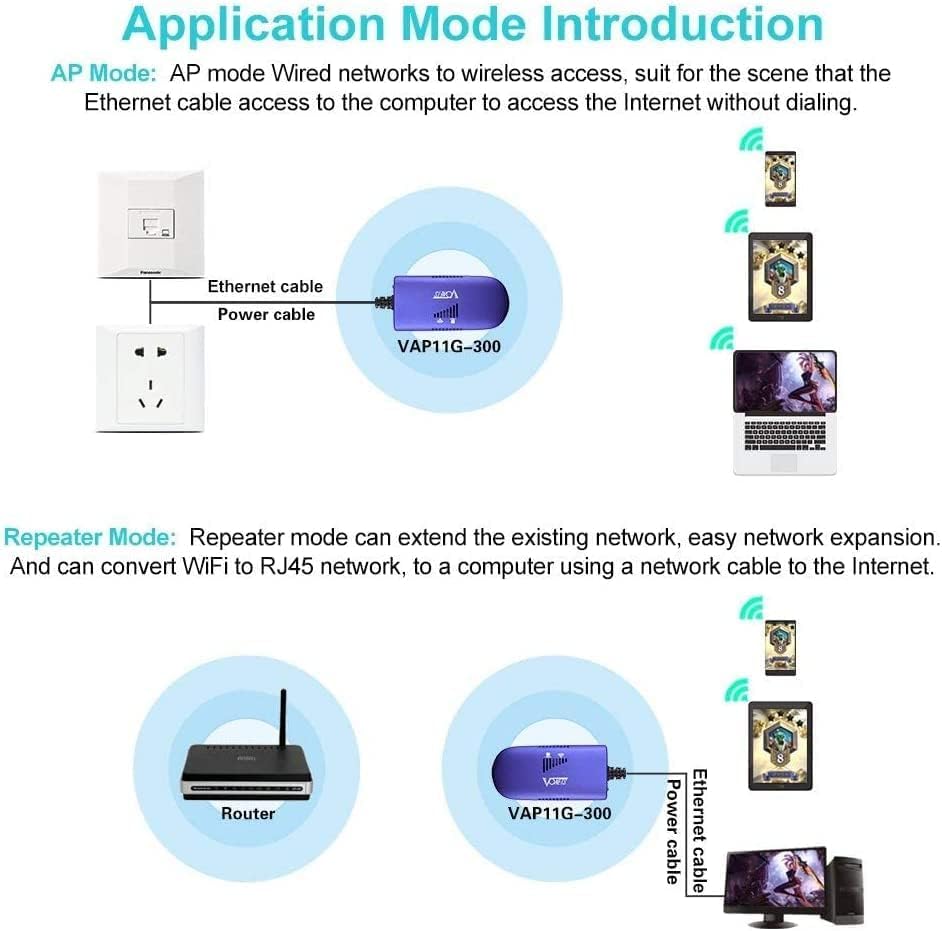
Figure 7: Good Partner for These Devices
7.1. Wireless Monitoring Application Diagram
The VAP11G-300 provides effective solutions for remote video surveillance:

Figure 8: Wireless Monitoring Application Diagram
- Биринчи чечим: Direct Camera-Bridge-Recorder-Monitor setup.
- Экинчи чечим: Multiple Cameras-Bridge-Recorder-Monitor setup.
- Үчүнчү чечим: Multiple Cameras-Switch-Bridge-Recorder-Monitor setup for larger deployments.
8. Техникалык шарттар
| Атрибут | Нарк |
|---|---|
| Продукциянын өлчөмдөрү | 3.62 x 1.85 x 0.83 дюйм |
| Элемент Салмагы | 2.12 унция |
| Элемент моделинин номери | VAP11G-300 |
| Бренд | Vonets |
| Зымсыз байланыш стандарты | 2.4 GHz Radio Frequency, 802.11bgn, 802.11n |
| Маалыматтарды өткөрүү ылдамдыгы | 300 Мегабит секундасына |
| Жыштык тилкесинин классы | Single-band |
| Өндүрүүчү | Shenzhen Houtian Network Communication Technology Co.,Ltd |
9. Техникалык тейлөө
To ensure the longevity and optimal performance of your VONETS VAP11G-300, consider the following maintenance guidelines:
- Keep the device in a clean, dry environment, away from excessive dust, moisture, and extreme temperatures.
- Avoid blocking the ventilation holes on the device to prevent overheating.
- Аппаратты түз күн нурунун же жылуулук булактарынын астында калтырбаңыз.
- Сыртын жумшак, кургак чүпүрөк менен тазалаңыз. Суюк же аэрозоль тазалагычтарды колдонбоңуз.
10. Кыйынчылыктарды
If you encounter issues with your VAP11G-300, refer to the following common troubleshooting tips:
- Setup Difficulty: The initial setup can sometimes be tricky. Many online video tutorials are available to guide you through the process. Издөө 'VONETS VAP11G-300 setup guide' on video platforms.
- Accessing Configuration Page: If
http://vonets.cfgdoes not work, the device's IP address might have changed. Open Windows Command Prompt and typeping vonets.cfgto find the current IP address, then use that IP to access the configuration page. - No Data Flow from Ethernet Port: The Ethernet port is primarily a signal conversion interface. If it's not connected to a valid WiFi hotspot, the absence of data flow is expected behavior and not a malfunction.
- Lost Configuration Access: If you lose the ability to configure the device after initial setup, you may need to perform a factory reset using the reset button. Be aware that this will erase all custom settings.
- Changing Default Password: For security, it is highly recommended to change the default 'admin' password for the configuration interface. Choose a strong password that you will not forget.
- MAC дарегин чыпкалоо: If you use MAC address filtering on your wireless network, you may need to temporarily disable it during setup or identify the device's wireless MAC address (which might differ slightly from the printed wired MAC) to allow it to connect.
11. Кепилдик жана колдоо
For warranty information and technical support, please refer to the documentation provided with your purchase or visit the official Vonets website. Contacting Vonets customer support directly is recommended for specific issues not covered in this manual.