
1. Киришүү
This manual provides detailed instructions for the installation, operation, and maintenance of the GeoVision GV-MFD2501-6F 2MP Mini Fixed Dome IP Security Camera. Please read this manual thoroughly before using the product to ensure proper setup and functionality. Keep this manual for future reference.
1.1 Продукт бүттүview
The GV-MFD2501-6F is a compact 2-megapixel mini fixed dome IP camera designed for various surveillance applications. It features a 2.3mm lens, super low lux capabilities, and supports network connectivity for remote monitoring.
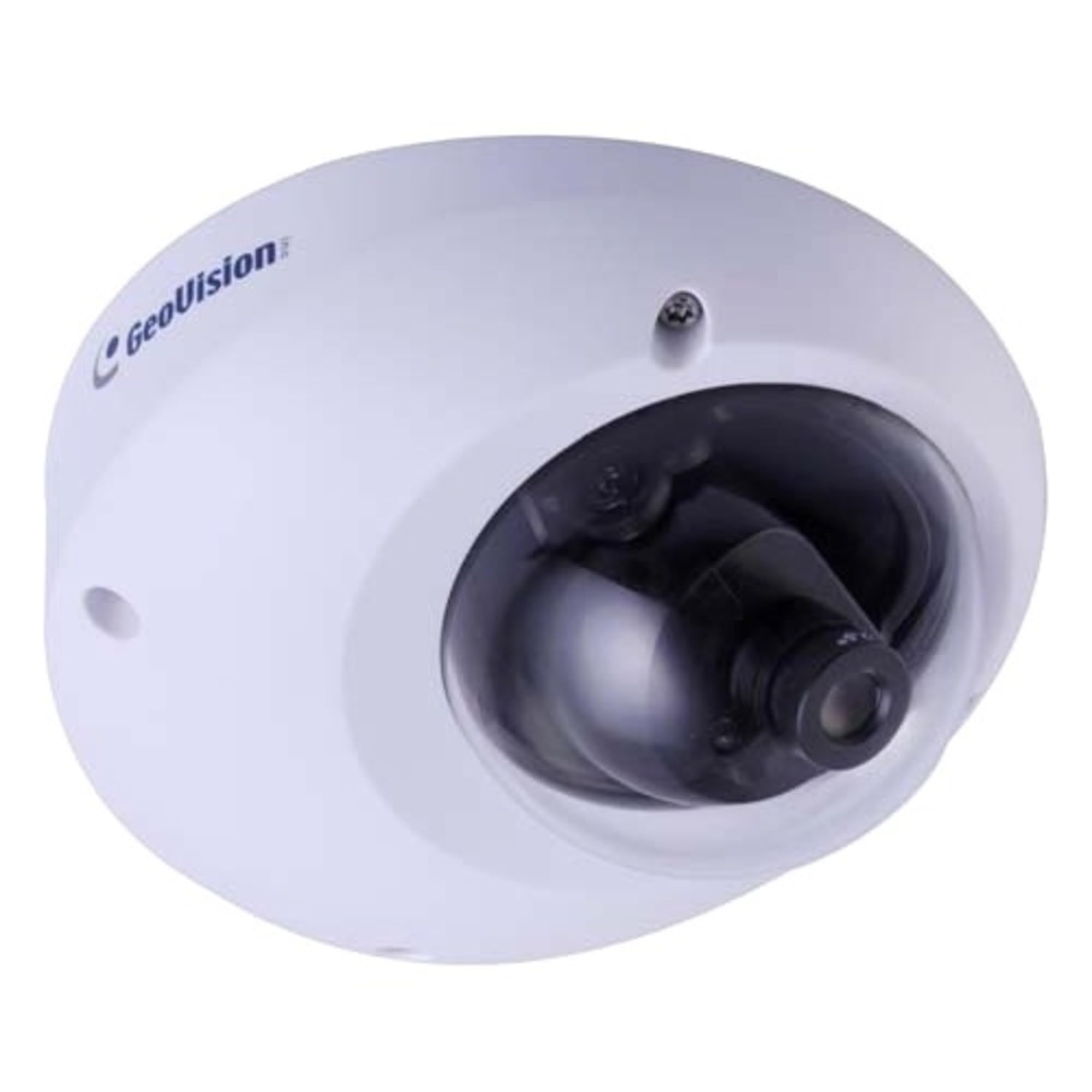
Figure 1.1: GeoVision GV-MFD2501-6F Mini Fixed Dome IP Security Camera. This image shows the compact design of the camera, highlighting its dome shape and lens.
1.2 Пакеттин мазмуну
Бардык буюмдар таңгактын ичинде экенин текшериңиз. Эгерде кандайдыр бир буюмдар жок болсо же бузулуп калса, дароо дилериңизге кайрылыңыз.
- GV-MFD2501-6F IP Camera
- Бургулоочу комплект
- Орнотуу боюнча колдонмо
- Software CD (or download link)
- Суу өткөрбөй турган туташтыргыч (эгер бар болсо)
2. Коопсуздук маалыматы
WARNING: To prevent fire or shock hazard, do not expose this unit to rain or moisture.
- Бул түзмөк үчүн көрсөтүлгөн кубат адаптерин гана колдонуңуз.
- Do not open the camera housing. Refer all servicing to qualified personnel.
- Avoid placing the camera in direct sunlight, near heat sources, or in areas with high humidity or dust.
- Камеранын айланасында туура желдетүүнү камсыз кылыңыз.
- Тазалоодон же тейлөөдөн мурун электр энергиясын өчүрүңүз.
3. Орнотуу
3.1 Физикалык орнотуу
The GV-MFD2501-6F is designed for indoor use. Choose a suitable mounting location that provides the desired field of view and is within reach of network and power cables.
- Монтаждоо бетин даярдаңыз: Бургулоочу тешиктерди белгилөө үчүн берилген орнотуу шаблонун (эгер бар болсо) колдонуңуз.
- Бургулоо тешиктери: Монтаждоо бурамалар үчүн пилоттук тешиктерди бургула.
- Камераны коргоо: Attach the camera base to the mounting surface using the provided screws.
- Бурчту тууралоо: Камеранын линзасын каалаган абалга келтирүү үчүн жөндөө бурамаларын бошотуңуз viewing angle, then tighten the screws to secure it.
Figure 3.1: Illustrative diagram of camera mounting. This image would typically show the steps for securing the camera to a ceiling or wall, including screw placement and cable routing.
3.2 Зымдар жана байланыштар
Connect the camera to your network and power source.
- Ethernet кабели: Connect an Ethernet cable from your network switch or router to the camera's RJ-45 port. If using Power over Ethernet (PoE), this single cable provides both power and data.
- Кубат адаптери (эгер PoE колдонулбаса): If PoE is not available, connect a compatible 12V DC power adapter (not included) to the camera's power input port.
Figure 3.2: Diagram showing camera wiring connections. This image would illustrate how to connect the Ethernet cable and, if necessary, the power adapter to the camera's ports.
3.3 Баштапкы тармак конфигурациясы
After physical installation and connection, configure the camera for network access.
- Күйгүзүү: Connect the camera to power. The camera will perform a self-test.
- Камераны табуу: Use the GeoVision GV-IP Device Utility (available on the GeoVision website) to discover the camera on your local network. The utility will display the camera's IP address.
- Мүмкүнчүлүк Web Интерфейс: ачуу а web browser (e.g., Chrome, Firefox) and enter the camera's IP address in the address bar.
- Кирүү: Enter the default username (e.g., "admin") and password (e.g., "admin" or "1234"). You will be prompted to change the password upon first login for security.
- Тармак орнотуулары: Navigate to the network settings to configure IP address (DHCP or Static), subnet mask, gateway, and DNS settings as required by your network environment.
4. Иштөө нускамалары
Once configured, the camera can be accessed and managed through its web interface or compatible GeoVision VMS software.
4.1 Live View
From web interface, navigate to the "Live View" section to see the real-time video feed from the camera. You can adjust video stream settings such as resolution, frame rate, and quality here.
4.2 Жазуу орнотуулары
Configure recording schedules, motion detection recording, and continuous recording options. Recordings can be stored on a network-attached storage (NAS), local storage (if supported), or a GeoVision NVR/VMS.
4.3 Кыймылды аныктоо
Set up motion detection zones and sensitivity levels. When motion is detected, the camera can trigger recording, send email alerts, or activate other alarm outputs.
4.4 Remote Access
To access the camera remotely, ensure your network router is configured for port forwarding (if not using a VPN or cloud service). Refer to your router's manual for port forwarding instructions. GeoVision also offers mobile applications for remote viewing.
5. Техникалык тейлөө
5.1 Камераны тазалоо
Regularly clean the camera lens and housing to ensure optimal image quality. Use a soft, dry cloth. For stubborn dirt, a slightly damp cloth with mild detergent can be used, followed by a dry cloth. Do not use abrasive cleaners or solvents.
5.2 Микропрограмма жаңыртуулары
Periodically check the GeoVision webмикропрограммалык камсыздоону жаңыртуу сайты. Микропрограммалык камсыздоону жаңыртуу жаңы функцияларды, иштин натыйжалуулугун жана коопсуздукту жакшыртууларды камсыз кыла алат. Микропрограммалык камсыздоону жаңыртуу топтому менен берилген көрсөтмөлөрдү кылдаттык менен аткарыңыз.
5.3 Сырсөздү башкаруу
Regularly change your camera's password to a strong, unique password to prevent unauthorized access.
6. Кыйынчылыктарды
| Көйгөй | Мүмкүн себеп | Чечим |
|---|---|---|
| Камерага электр кубаты жок | Power adapter unplugged or faulty; PoE not active. | Check power connections. Ensure PoE switch/injector is active. Test with a known good power source. |
| Видео түрмөгү жок | Network cable disconnected; incorrect IP address; firewall blocking access. | Verify Ethernet cable connection. Use GV-IP Device Utility to find camera. Check network settings and firewall rules. |
| Кирүү мүмкүн эмес | Incorrect username/password. | Ensure correct credentials. If forgotten, refer to the GeoVision website for password reset procedures (may require physical access). |
| Сүрөттүн сапаты начар | Dirty lens; improper focus; low light conditions; incorrect video settings. | Clean the lens. Adjust focus if applicable. Ensure adequate lighting. Check resolution, frame rate, and compression settings. |
7. Техникалык шарттар
The following are key specifications for the GeoVision GV-MFD2501-6F camera:
- Модел: 84-MFD2501-6F1U
- Чечим: 2 мегапиксел
- Объектив: 2.3mm Fixed Linza
- Байланыш: Зымсыз Note: While "Wireless" is listed in specifications, this IP camera primarily uses wired Ethernet for reliable data transmission and PoE. Wireless functionality may refer to specific optional modules or control methods.
- Күч: PoE (Ethernet аркылуу кубаттоо) же 12V DC (адаптер кошулган эмес)
- Өлчөмдөрү: Болжол менен 21 x 18.6 x 9.3 см (посылканын өлчөмдөрү)
- Салмагы: Болжол менен 487 г (Пацелканын Салмагы)
- Иштөө температурасы: (Маалымат берилген жок, типтүү диапазону -10°Cден 50°Cге чейин)
- Өндүрүүчү: GeoVision
8. Кепилдик жана колдоо
8.1 Кепилдик маалыматы
GeoVision products typically come with a limited warranty. For specific warranty terms and conditions, please refer to the warranty card included with your product or visit the official GeoVision webсайт. Кепилдик дооматтар үчүн сатып алганыңыздын далилин сактаңыз.
8.2 Техникалык колдоо
For technical assistance, product inquiries, or troubleshooting beyond this manual, please contact GeoVision customer support or your authorized GeoVision dealer. Visit the official GeoVision webсайт (www.geovision.com.tw) for support resources, FAQs, and contact information.