
1. Киришүү
The GeoVision GV-VS2400 is a compact and powerful 4-channel H.264 Video Server designed for converting analog video signals into high-resolution digital images. This device supports TVI 1080p/720p and analog 960H/D1 real-time video inputs, making it an integral part of a comprehensive IP surveillance solution when integrated with GV-System (GV-DVR/NVR) or GV-VMS.
Key features include support for over 50 PTZ camera models, local video recording to USB storage, and a Tampering Alarm system to enhance security. The GV-VS2400 is suitable for various surveillance applications requiring reliable video digitization and management.
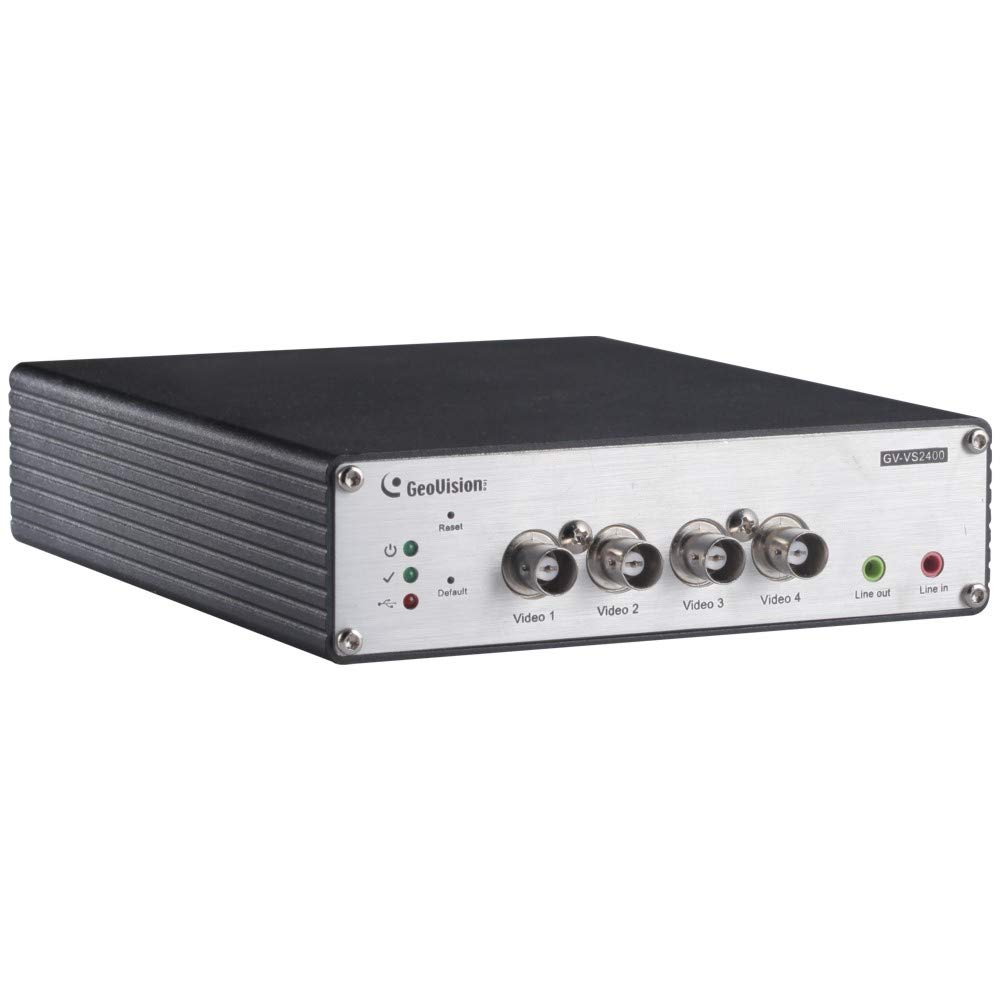
Сүрөт 1: Алдыңкы view of the GeoVision GV-VS2400 Video Server, showing its compact design and ports.
2. Орнотуу
2.1 Пакеттин мазмуну
Орнотууну баштоодон мурун, пакетте бардык элементтер бар экенин текшериңиз:
- GV-VS2400 Video Server Unit
- Кубат адаптери (12V DC)
- Quick Start Guide
- Software CD (GV-System/GV-VMS)
- Орнотуу комплекти (эгер бар болсо)
2.2 Аппараттык камсыздоону орнотуу
- Камераларды туташтыруу: Connect up to four TVI 1080p/720p or analog 960H/D1 cameras to the video input ports on the GV-VS2400. Ensure secure connections.
- Тармак туташуусу: Connect the GV-VS2400 to your network using an Ethernet cable. Alternatively, configure Wi-Fi or 3G/4G connectivity as required.
- USB Storage (Optional): For local recording, connect a compatible USB HDD to the USB port on the GV-VS2400.
- Кубат туташуу: Connect the 12V DC power adapter to the GV-VS2400 and then plug it into a power outlet. The device will power on automatically.
2-сүрөт: Арткы view of the GV-VS2400, illustrating video input, network, and power connections.
2.3 Баштапкы конфигурация
After hardware installation, access the device's web interface for initial configuration:
- Түзмөктү табуу: Use the GeoVision IP Device Utility software (available on the provided CD or GeoVision website) to discover the GV-VS2400 on your network.
- Мүмкүнчүлүк Web Интерфейс: ачуу а web browser and enter the IP address of the GV-VS2400. Log in using the default credentials (refer to the Quick Start Guide for details).
- Тармак орнотуулары: Configure network settings, including IP address, subnet mask, and gateway, to match your network environment.
- Видеонун жөндөөлөрү: Adjust video input settings for each connected camera, including resolution, frame rate, and compression (H.264).
- PTZ башкаруу: If using PTZ cameras, configure the appropriate PTZ protocol and settings.
- Сактагычтын конфигурациясы: Format and configure the connected USB HDD for video recording.
3. Operating the GV-VS2400
3.1 Live View жана Жаздыруу
The GV-VS2400 can be monitored and managed through its web interface or integrated with GeoVision's GV-System/GV-VMS software.
- Live View: Access the live video streams from connected cameras through the web interface or client software.
- Кол менен жаздыруу: Initiate manual recording of video streams to the configured USB storage or network storage.
- Пландаштырылган жаздыруу: Set up recording schedules based on time or events (e.g., motion detection).
3.2 Тampсигнализация
Тampering Alarm feature detects attempts to obstruct or disable cameras.
- Т. иштетүүampИштетүүлөрдү аныктоо: Ичинде web interface, navigate to the camera settings and enable the Tampering Alarm for desired channels.
- Аракеттерди конфигурациялоо: Specify actions to be taken when a tampering event is detected, such as sending notifications, triggering recording, or activating an alarm output.
3.3 Мобилдик мүмкүндүк алуу
The GV-VS2400 supports remote access via mobile devices using GeoVision's mobile applications.
- Колдонмону жүктөп алуу: Download the appropriate GeoVision mobile app from your device's app store.
- Түзмөк кошуу: Add the GV-VS2400 to the app using its IP address or QR code.
- View Live Feeds: Access live video feeds and manage basic settings remotely.
4. Техникалык тейлөө
4.1 Микропрограмма жаңыртуулары
Оптималдуу иштөөнү жана коопсуздукту камсыз кылуу үчүн микропрограмманын жаңыртууларын үзгүлтүксүз текшерип жана орнотуп туруңуз.
- Visit the official GeoVision webакыркы программалык камсыздоо версиялары үчүн сайт.
- Follow the provided instructions for firmware update procedures.
4.2 Системанын камдык көчүрмөсүн сактоо жана калыбына келтирүү
It is recommended to regularly back up your system configurations.
- колдонуу web interface to export configuration files.
- Store backup files in a secure location.
4.3 Тазалоо
Keep the device clean to prevent dust accumulation and ensure proper ventilation.
- Аппараттын сыртын тазалоо үчүн жумшак, кургак кездемени колдонуңуз.
- Суюк тазалагычтарды же абразивдүү материалдарды колдонбоңуз.
5. Кыйынчылыктарды
| Көйгөй | Мүмкүн себеп | Чечим |
|---|---|---|
| Видео сигнал жок |
|
|
| Кирүү мүмкүн эмес web интерфейс |
|
|
| Жаздыруу иштебей жатат |
|
|
6. Техникалык шарттар
| Өзгөчөлүк | Description |
|---|---|
| Модел | GV-VS2400 |
| Видео киргизүү | 4-channel TVI 1080p / 720p, Analog 960H / D1 |
| Видеону кысуу | H.264 |
| Max чечим | Up to 2 Megapixels (digitized) |
| Байланыш | Ethernet, Wi-Fi, USB, UMTS / 3G / 3.5G / 4G |
| Сактагыч | USB HDD (for local recording) |
| PTZ колдоо | Supports over 50 PTZ models |
| Power Input | 12V DC |
| Өзгөчөлүктөр | Tampering Alarm, Automatic switch between WiFi and 3G, Multi-language web interface (29 languages) |
7. Кепилдик жана колдоо
7.1 Продукциянын кепилдиги
GeoVision products typically come with a limited warranty. Please refer to the warranty card included with your product or visit the official GeoVision website for detailed warranty terms and conditions specific to the GV-VS2400. Keep your proof of purchase for warranty claims.
7.2 Техникалык колдоо
For technical assistance, product inquiries, or troubleshooting beyond this manual, please contact GeoVision technical support:
- Webсайт: Visit the official GeoVision webколдоо ресурстары, көп берилүүчү суроолор жана драйверлерди жүктөп алуу үчүн сайт.
- Байланыш маалыматы: Refer to the GeoVision website for regional contact numbers and email addresses for technical support.
- Онлайн ресурстар: Explore GeoVision's online knowledge base and forums for community support and additional information.