
HEWLETT PACKARD V0C69UA
HP T730 Thin Pro User Manual
Model: V0C69UA
1. Киришүү
Welcome to the user manual for your HP T730 Thin Pro. This document provides essential information for setting up, operating, maintaining, and troubleshooting your device. Please read this manual thoroughly to ensure optimal performance and longevity of your thin client.
2. Продукт бүтүп калдыview
The HP T730 Thin Pro is a powerful and compact thin client designed for demanding virtualized environments. It features an AMD R-Series Rx-427Bb processor, ample memory, and dedicated graphics, making it suitable for a wide range of business applications.
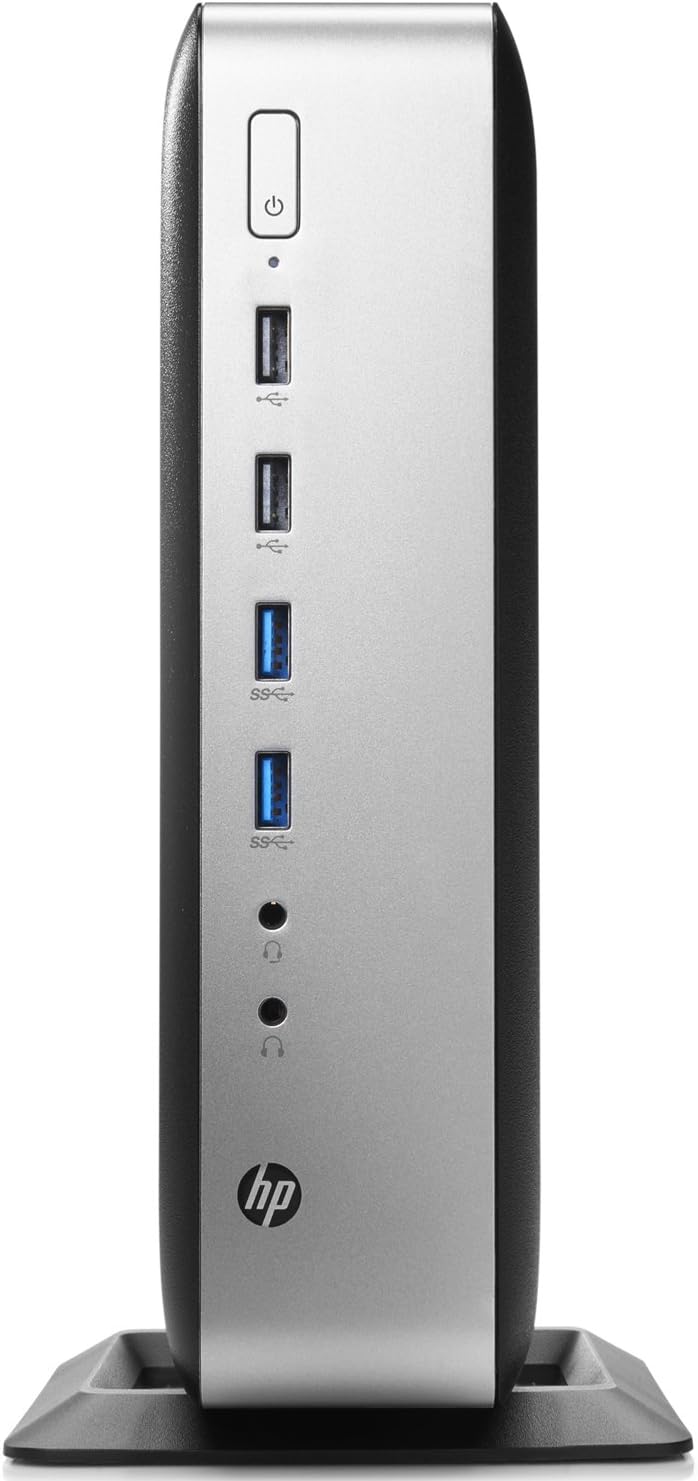
Figure 2.1: Front panel of the HP T730 Thin Pro, displaying the power button, multiple USB ports, and audio input/output jacks.

Figure 2.2: Rear panel of the HP T730 Thin Pro, featuring a comprehensive array of connectivity options including video outputs, USB ports, and network connections.
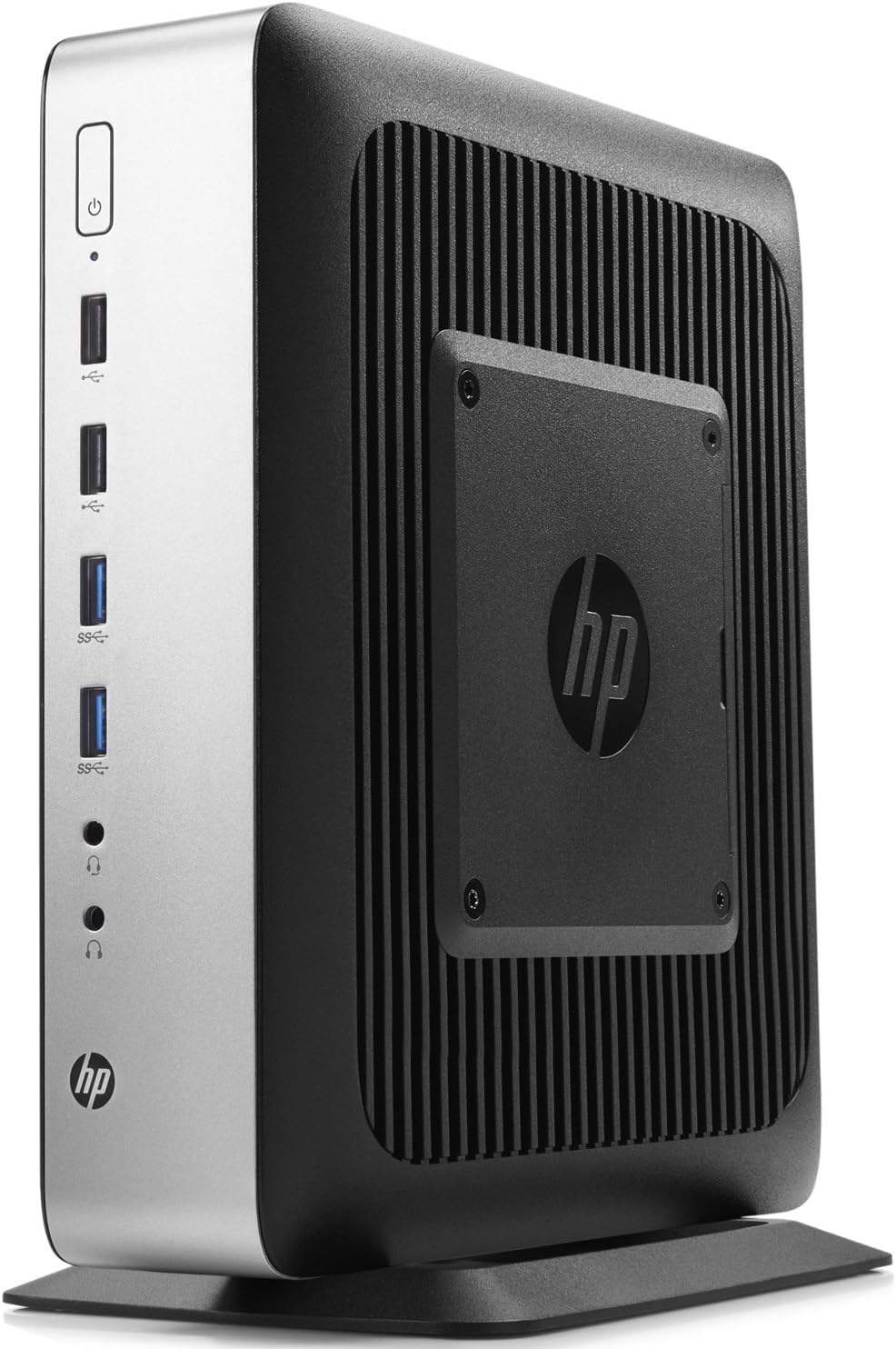
2.3-сүрөт: Бурчтуу view of the HP T730 Thin Pro, highlighting its compact form factor and the integrated VESA mounting plate for flexible deployment.
3. Негизги өзгөчөлүктөрү
- Процессор: 2.7 GHz Quad Core AMD R-Series CPU
- Эстутум: 16 ГБ DDR4 RAM
- Сактагыч: 16GB Катуу абалдагы диск
- Дисплей: 15.6" FHD IPS Anti-glare Display
- Графика: Dedicated AMD Radeon RX 427B graphics card
4. Орнотуу колдонмосу
4.1 Пакеттен чыгаруу
Carefully remove the HP T730 Thin Pro and all accessories from the packaging. Verify that all components listed in the packing slip are present.
4.2 Перифериялык түзүлүштөрдү туташтыруу
Күйгүзүүдөн мурун негизги перифериялык түзүлүштөрдү туташтырыңыз:
- Монитор: Connect your display cable (DisplayPort, DVI, or VGA) to the corresponding port on the rear of the thin client.
- Баскычтоп жана чычкан: USB клавиатураңызды жана чычканыңызды каалаган USB портторуна туташтырыңыз.
- Тармак: Connect an Ethernet cable from your network router or switch to the RJ-45 network port on the rear.
- Күч: Connect the power adapter to the thin client's power input, then plug the power cord into a wall outlet.
4.3 Күйгүзүү
Press the power button located on the front panel of the thin client. The power indicator light will illuminate, and the system will begin to boot.
5. Operating Your Thin Client
5.1 Initial Boot and OS Setup
Upon the first boot, the Windows 10 operating system may require initial setup, including language selection, network configuration, and user account creation. Follow the on-screen prompts to complete this process.
5.2 Тармакка туташуу
If you did not connect an Ethernet cable during setup, or if you need to configure Wi-Fi (if applicable), navigate to the network settings within the operating system to establish a connection.
5.3 Негизги операция
Once the operating system is ready, you can begin using your thin client. Access your virtual desktop infrastructure (VDI) or cloud applications as configured by your IT administrator. The device functions similarly to a standard desktop computer for general tasks.
6. Техникалык тейлөө жана кам көрүү
- Тазалоо: Use a soft, dry cloth to clean the exterior of the thin client. For stubborn marks, slightly dampкездемени суу менен сүртүңүз. Абразивдүү тазалоочу каражаттардан же эриткичтерден алыс болуңуз.
- Вентиляция: Ensure that the ventilation openings are not blocked to prevent overheating. Do not place the device in an enclosed space without adequate airflow.
- Программалык камсыздоо жаңыртуулары: Regularly check for and install operating system and driver updates to maintain security and performance.
- Экологиялык шарттар: Operate the thin client within recommended temperature and humidity ranges to prevent damage.
7. Кыйынчылыктарды
| Көйгөй | Мүмкүн себеп | Чечим |
|---|---|---|
| Күч жок | Электр кабели туташкан эмес; розеткада көйгөй бар | Электр кабелинин туташуусун текшерүү; башка розеткага аракет кылып көрүңүз. |
| Дисплей жок | Monitor cable loose; monitor off; incorrect input selected on monitor | Ensure monitor cable is secure; turn on monitor; select correct input source. |
| Тармакка туташуу маселелери | Ethernet cable loose; network settings incorrect; router/switch issue | Check Ethernet cable; verify network settings; restart network equipment. |
| System slow or unresponsive | Too many applications open; outdated drivers; malware | Close unnecessary applications; update drivers; run a malware scan. |
8. Техникалык шарттар
| Өзгөчөлүк | Спецификация |
|---|---|
| Screen Resolution | 1920 x 1080 |
| Процессор | 2.7 GHz AMD R-Series |
| RAM | 16 ГБ |
| Катуу диск | SSD |
| Chipset маркасы | AMD |
| Card Description | арналган |
| Сериялар | Hp T730 |
| Элементтин моделинин номери | V0C69UA |
| Операция системасы | Windows 10 |
| Элемент Салмагы | 11 фунт |
| Продукциянын өлчөмдөрү | 0.1 x 0.1 x 0.1 дюйм |
| Түс | Кара |
| Процессор бренди | AMD |
| Процессорлордун саны | 4 |
| CPU модели | AMD R Series |
| CPU ылдамдыгы | 2.7 ГГц |
| Графикалык картанын сүрөттөлүшү | арналган |
| Эстутум сактоо сыйымдуулугу | 100 ГБ |
| Personal computer design type | Компьютер мунарасы |
| Ram эстутум орнотулган өлчөмү | 4 ГБ |
9. Кепилдик жана колдоо
For warranty information and technical support, please refer to the documentation provided with your purchase or visit the official HP support webсайт. Кепилдик дооматтар үчүн сатып алганыңыздын далилин сактаңыз.
Ask a question about this manual
Ask about setup, troubleshooting, compatibility, parts, safety, or missing instructions. Manuals+ will review the question and use this page’s manual context to help answer it.