
1. Киришүү
The HP Aruba 7030 Cloud Services Controller is designed to optimize cloud services and secure enterprise applications within branch office environments. It provides comprehensive configuration, management, encryption, and application visibility to ensure reliable delivery of network services. This controller supports up to 64 Access Points (APs) and unifies policy management for both wired and wireless networks, facilitating an all-wireless workplace in branch offices.
Capable of managing up to 4,000 users, the 7030 series enforces stateful firewall policies at speeds up to 8 Gbps. It secures IP tunnels for branch traffic across public and private transport networks to the cloud and headquarters. The device also integrates Aruba's Mobility Firewall with AppRF technology, which continuously evaluates application usage and performance, making real-time configuration adjustments to optimize bandwidth, priority, and network paths.
2. Коопсуздук маалыматы
- Орнотуудан жана иштетүүдөн мурун бардык нускамаларды кылдат окуп чыгыңыз.
- Кубат булагы томго дал келишин текшериңизtage requirements specified on the device label.
- Аппаратты сууга, нымдуулукка же экстремалдык температурага тийгизбеңиз.
- Ашыкча ысып кетүүнүн алдын алуу үчүн аппаратты жакшы желдетилген жерге орнотуңуз.
- Өндүрүүчү тарабынан көрсөтүлгөн аксессуарларды жана тиркемелерди гана колдонуңуз.
- Аппаратты тазалоодон же тейлөөдөн мурун электр энергиясын өчүрүңүз.
- Бул аппарат имараттын ичинде гана колдонууга арналган.
3. Пакеттин мазмуну
Пакетиңизде төмөнкү заттар бар экенин текшериңиз:
- HP Aruba 7030 64 AP Branch Controller (Model JW687A)
- Стойкага орнотуу үчүн топтом
- Power cord (region specific)
- Документтер (Ыкчам баштоо колдонмосу, коопсуздук жана ченемдик маалымат)
If any items are missing or damaged, contact your vendor or HP Aruba support immediately.
4. Физикалык бүтүрүүview
The following image illustrates the front panel of the HP Aruba 7030 controller, highlighting key components and indicators.
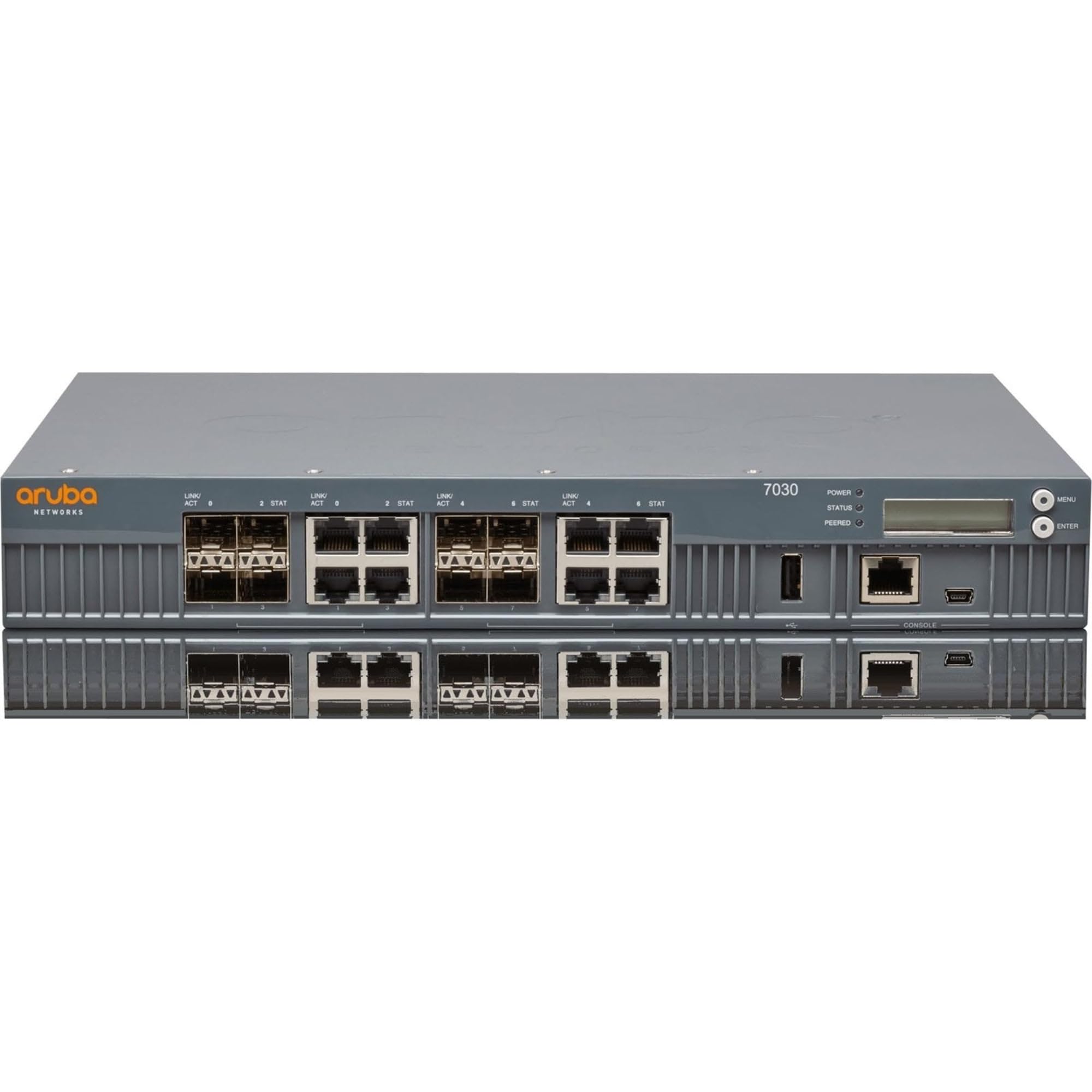
1-сүрөт: Front Panel of HP Aruba 7030 Controller
алдыңкы панелдин өзгөчөлүктөрү:
- Aruba Networks Logo: Брендди идентификациялоо.
- LINK/ACT индикаторлору: LEDs indicating link status and activity for each network port.
- STAT Indicators: LEDs indicating the status of various system functions.
- Network Ports (RJ-45): Eight (8) RJ-45 ports for wired network connections.
- SFP/SFP+ порттору: Four (4) SFP/SFP+ slots for fiber optic or high-speed copper connections.
- USB порт: For connecting USB devices, potentially for configuration or firmware updates.
- Консол порту: A serial port (likely RJ-45 or Mini-USB) for direct command-line interface access.
- Power LED: Аппараттын кубат абалын көрсөтөт.
- Статус LED: Түзмөктүн жалпы иштөө абалын көрсөтөт.
- Peered LED: Indicates peering status in a high-availability setup.
- LCD дисплей: A small screen for displaying system information and menu options.
- Menu/Enter Buttons: Buttons for navigating and selecting options on the LCD display.
5. Орнотуу
5.1. Rack Монтаждоо
The HP Aruba 7030 controller is designed for rack installation. Use the provided rack-mount kit to secure the device in a standard 19-inch equipment rack.
- Attach the mounting brackets from the rack-mount kit to the sides of the controller using the screws provided.
- Align the controller with the desired rack unit (RU) space in your equipment rack.
- Secure the controller to the rack posts using appropriate rack screws (not always included with the kit, check your rack's hardware).
- Ensure there is adequate airflow around the device for proper cooling.
5.2. Кубатты туташтыруу
- Connect the power cord to the power input on the rear panel of the controller.
- Plug the other end of the power cord into a grounded electrical outlet or a power distribution unit (PDU).
- The device will power on automatically. Observe the Power LED on the front panel; it should illuminate.
5.3. Тармак кабелдерин туташтыруу
- Connect Ethernet cables from your network infrastructure (e.g., switches, routers) to the RJ-45 network ports on the front panel.
- For fiber optic or high-speed connections, insert appropriate SFP/SFP+ transceivers into the designated slots and connect fiber cables.
- Observe the LINK/ACT LEDs for each connected port; they should illuminate and blink to indicate a valid link and activity.
5.4. Баштапкы конфигурацияга кирүү
To perform initial configuration, you can use the console port or a web-негизделген интерфейс.
- Консолго кирүү: Connect a serial cable from your computer to the console port on the controller. Use a terminal emulation program (e.g., PuTTY, Tera Term) with settings typically 9600 baud, 8 data bits, no parity, 1 stop bit, no flow control.
- Web Интерфейс: Once the device obtains an IP address (via DHCP or a default static IP), you can access the web-based management interface by entering the controller's IP address into a web browser. Refer to the Quick Start Guide for default IP addresses or initial setup procedures.
6. Контроллерди иштетүү
6.1. LED индикаторлорун түшүнүү
- Power LED:
- Жашыл түстө күйүп турат: Түзмөк күйгүзүлүп, кадимкидей иштеп жатат.
- Off: Device is powered off or experiencing a power issue.
- Статус LED:
- Solid Green: System is healthy.
- Blinking Green: System is booting or performing a specific operation.
- Solid Amber: Minor fault or warning.
- Blinking Amber: Major fault or error.
- Peered LED:
- Solid Green: Controller is successfully peered with another controller for high availability.
- Off: Not peered or peering failed.
- LINK/ACT LEDs (per port):
- Solid Green: Valid network link established.
- Blinking Green: Data activity on the port.
- Off: No link or cable disconnected.
6.2. Башкаруу интерфейси
The controller can be managed via its command-line interface (CLI) through the console port or SSH, and via a web-based graphical user interface (GUI). The GUI provides an intuitive way to configure and monitor the device.
- Конфигурация: Set up network parameters, VLANs, security policies, and AP management.
- Мониторинг: View system status, connected devices, traffic statistics, and event logs.
- Программалык камсыздоонун жаңыртуулары: Manage and apply firmware upgrades to the controller.
6.3. Негизги өзгөчөлүктөр бүттүview
- Cloud Services Optimization: Designed to enhance the performance and security of cloud-based applications.
- Unified Policy Management: Centralized control for both wired and wireless network policies.
- Mobility Firewall with AppRF: Provides deep packet inspection and application-level visibility for over 1,500 applications, allowing for real-time optimization of bandwidth and network paths.
- Secure IP Tunnels: Protects branch traffic across public and private networks.
- Adaptive Radio Management (ARM) & ClientMatch: Technologies for optimizing wireless performance and client connectivity.
- RFProtect Spectrum Analysis: Provides wireless intrusion protection and interference detection.
7. Техникалык тейлөө
7.1. Микропрограмманы жаңыртуу
Regularly check the HP Aruba support website for the latest firmware versions. Keeping your controller's firmware up-to-date ensures optimal performance, security, and access to new features. Follow the instructions provided with the firmware release notes for the update process, typically performed via the web GUI же CLI.
7.2. Тазалоо
To maintain proper airflow and prevent dust buildup, periodically clean the exterior of the controller. Use a soft, dry cloth. Do not use liquid or aerosol cleaners directly on the device. Ensure the device is powered off and disconnected from the power source before cleaning.
7.3. Экологиялык эске алуулар
Ensure the operating environment adheres to the specified temperature and humidity ranges. Avoid placing the controller near heat sources or in direct sunlight. Maintain clear space around ventilation openings to prevent overheating.
8. Кыйынчылыктарды
Бул бөлүмдө сиз кабылышы мүмкүн болгон жалпы маселелерди чечүү жолдору каралган.
- Кубат жок:
- Check if the power cord is securely connected to both the controller and the power outlet.
- Электр розеткасынын иштешин текшериңиз.
- Алдыңкы панелдеги кубаттуулук индикатору күйүп турганын текшериңиз.
- Тармакка туташуу жок:
- Check the Ethernet cables for secure connections to both the controller and the network device.
- Verify that the LINK/ACT LEDs for the connected ports are solid green or blinking.
- Confirm network settings (IP address, subnet mask, gateway) are correctly configured.
- Ensure connected devices are powered on and functioning.
- Башкаруу интерфейсине кирүү мүмкүн эмес:
- колдонуп жаткан болсо web GUI, ensure your computer is on the same network segment as the controller or has a route to it.
- Verify the controller's IP address.
- Браузериңиздин кэшин тазалаңыз же башка браузерди колдонуп көрүңүз.
- If using console access, double-check serial port settings (baud rate, data bits, parity, stop bits, flow control).
- Зымсыз байланыштын начар иштеши:
- Ensure connected Access Points (APs) are properly configured and online.
- Check for potential Wi-Fi interference from other devices.
- Review controller logs for any error messages related to APs or wireless clients.
- Consult the Aruba documentation for advanced wireless optimization techniques.
If you continue to experience issues, refer to the comprehensive documentation available on the HP Aruba support webсайтка же техникалык колдоо менен байланышыңыз.
9. Техникалык шарттар
| Өзгөчөлүк | Спецификация |
|---|---|
| Бренд | HEWLETT PACKARD |
| Модель номери | JW687A |
| Порттардын саны | 8 (RJ-45) + SFP/SFP+ slots |
| Интерфейс | RJ45, USB, Console |
| Маалыматтарды өткөрүү ылдамдыгы | Секундасына 8 гигабитке чейин |
| Которуу түрү | Башкарылган |
| Элемент Салмагы | 96 унция (болжол менен 2.72 кг) |
| Жогорку температура рейтинги | 40 градус |
| Камтылган компоненттер | Стойкага орнотуу үчүн топтом |
| UPC | 190017027425 |
10. Кепилдик маалыматы
This HP Aruba product is covered by a limited warranty. For detailed information regarding warranty terms, conditions, and duration, please refer to the warranty card included with your product or visit the official HP Aruba webсайт. Кепилдик дооматтар үчүн сатып алганыңыздын далилин сактаңыз.
11. Техникалык колдоо
For technical assistance, product documentation, software downloads, and frequently asked questions, please visit the official HP Aruba support webсайт:
www.arubanetworks.com/support/
You may also contact HP Aruba customer service directly for further assistance.