
1. Киришүү
This manual provides essential information for the installation, operation, and maintenance of your EVGA GeForce GTX 1050 Ti SC GAMING graphics card. Please read these instructions carefully before proceeding with installation to ensure proper functionality and to prevent damage to your system components.
The EVGA GeForce GTX 1050 Ti SC GAMING is a high-performance graphics card designed for an enhanced computing experience, featuring NVIDIA Pascal architecture and 4GB of GDDR5 memory. It is optimized for gaming at 1080p resolution and supports multiple display outputs.
2. Системалык талаптар
- Бир x16 графикалык уячасы бар PCI Express стандартына шайкеш келген энелик плата.
- Кеминде 300 Вт же андан жогору кубаттуулуктагы системалык кубат булагы (+12 В рельсинде кеминде 18 А).
- 350MB of available hard-disk space.
- 4GB system memory (6GB or higher recommended).
- Microsoft Windows 10, Windows 8, or Windows 7 (32/64-bit).
- Драйверди орнотуу үчүн CD-ROM/DVD-ROM диск же интернет байланышы керек.
3. Аппараттык камсыздоону орнотуу
- Системаңызды даярдаңыз: Компьютериңизди өчүрүп, электр кабелин розеткадан ажыратыңыз. Компьютериңиздин корпусун ачыңыз.
- PCI Express уячасын табыңыз: Энелик платаңыздагы PCI Express x16 уячасын аныктаңыз. Бул, адатта, эң узун уяча болот.
- Slot капкагын алып салуу: Тандалган PCI Express уячасына туура келген компьютер корпусунун арткы бетинен металл уяча капкагын алып салыңыз.
- Графикалык картаны орнотуу: Carefully align the graphics card with the PCI Express x16 slot. Press down firmly and evenly until the card is securely seated in the slot. Ensure the retention clip on the slot engages.
- Картаны коргоо: Графикалык картанын бекитүүчү кронштейнин компьютердин корпусуна бекитүү үчүн бураманы колдонуңуз.
- Connect Display Cables: Connect your monitor(s) to the appropriate video output ports on the graphics card (DisplayPort, HDMI, or DVI-D).
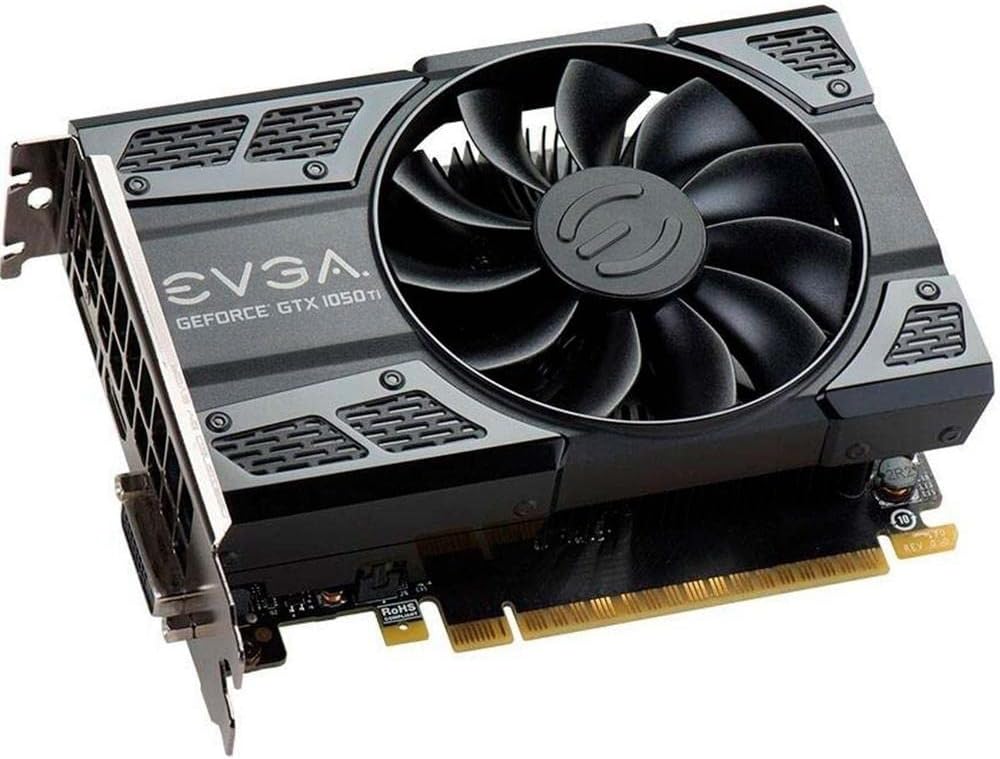
This image shows the front of the EVGA GeForce GTX 1050 Ti SC GAMING graphics card, highlighting its single cooling fan and EVGA branding.
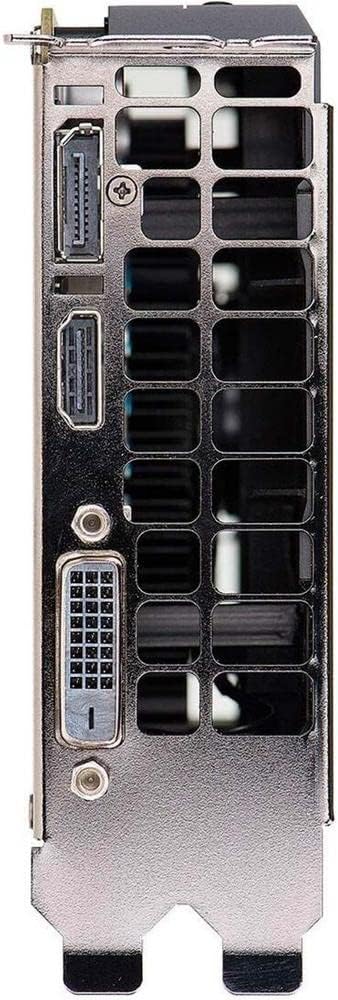
This image displays the video output ports on the graphics card, including DisplayPort, HDMI, and DVI-D connectors.
- Капты жаап, күйгүзүү: Компьютериңиздин корпусун жаап, кубат кабелин кайра туташтырыңыз жана системаңызды күйгүзүңүз.
4. Драйверди орнотуу
After hardware installation, the operating system may install generic drivers. For optimal performance and full functionality, install the latest drivers from EVGA or NVIDIA.
- Драйверлерди жүктөп алыңыз: Visit the official EVGA webсайт (www.evga.com/drivers/) же NVIDIA webсайт (www.nvidia.com/drivers).
- Продукт тандоо: Choose your graphics card model (GeForce GTX 1050 Ti) and operating system.
- Download and Run: Download the recommended driver package and run the installer.
- Экрандагы көрсөтмөлөрдү аткарыңыз: Follow the instructions provided by the driver installer. A system restart may be required to complete the installation.
Consider installing EVGA Precision XOC software for advanced monitoring, overclocking, and fan control features, which supports DX12 OSD (On-Screen Display).
5. Графикалык картаңызды иштетүү
Once drivers are installed, your EVGA GeForce GTX 1050 Ti SC GAMING graphics card is ready for use. It will automatically handle graphics processing for applications and games. Ensure your display settings are configured correctly for resolution and refresh rate.
- Дисплейдин жөндөөлөрү: Access your operating system's display settings to set the desired resolution (up to 1080p for optimal performance) and refresh rate (up to 240 Hz max).
- Көп мониторду орнотуу: The card supports up to three monitors simultaneously. Configure extended desktop or duplicate display modes through your operating system's display settings or the NVIDIA Control Panel.
- Оюн: For gaming, ensure your game settings are optimized for your system's capabilities to achieve smooth frame rates.
6. Техникалык тейлөө
Үзгүлтүксүз техникалык тейлөө графикалык картаңыздын узак мөөнөттүү жана оптималдуу иштешин камсыз кылууга жардам берет.
- Драйвер жаңыртуулары: Periodically check for and install the latest graphics drivers from EVGA or NVIDIA. Driver updates often include performance improvements, bug fixes, and support for new games.
- Чаңды тазалоо: Over time, dust can accumulate on the fan and heatsink, reducing cooling efficiency. Carefully clean the fan and heatsink using compressed air. Ensure the system is powered off and unplugged before cleaning. Avoid touching the fan blades directly.
- Аба агымы: Ensure your computer case has adequate airflow to prevent overheating. Keep the area around your computer clear of obstructions.
7. Кыйынчылыктарды
Эгерде сиз видеокартаңыз менен көйгөйлөргө туш болсоңуз, төмөнкү көйгөйлөрдү чечүү кадамдарын караңыз:
- Дисплей чыгышы жок:
- Ensure the monitor is powered on and the display cable is securely connected to both the graphics card and the monitor.
- Verify the graphics card is fully seated in the PCI Express slot.
- Мүмкүн болсо, башка дисплей кабели же монитор менен сынап көрүңүз.
- Мониторуңуз туура киргизүү булагына коюлганын текшериңиз.
- Айдоочу маселелери:
- If you experience crashes or display artifacts, try reinstalling the graphics drivers. Use a clean installation option if available in the driver installer.
- Ensure you have downloaded the correct drivers for your specific graphics card model and operating system.
- Аткаруу көйгөйлөрү:
- Ensure your system meets the recommended requirements for the applications or games you are running.
- Monitor GPU temperatures using software like EVGA Precision XOC. High temperatures can lead to performance throttling.
- Системалык ресурстарды бошотуу үчүн керексиз фондук тиркемелерди жабыңыз.
- Системанын туруксуздугу:
- Энергия менен камсыздоо блогуңуз (PSU) минималдуу ватка жооп берерин текшериңизtagд талаптар.
- Check for any loose connections inside your computer case.
8. Техникалык шарттар
| Өзгөчөлүк | Спецификация |
|---|---|
| Графикалык сопроцессор | NVIDIA GeForce GTX 1050 Ti |
| Бренд | EVGA |
| Модель номери | 04G-P4-6253-KR |
| Графикалык RAM өлчөмү | 4 ГБ GDDR5 |
| Видео чыгаруу интерфейси | DVI-D, DisplayPort, HDMI |
| Графикалык процессор өндүрүүчүсү | NVIDIA |
| Негизги саат | 1354 МГц |
| Саатты күчөтүү | 1468 МГц |
| Интерфейс | PCI Express 3.0 |
| Max Monitors Supported | 3 |
| Max Refresh Rate | 240 Гц |
| Өлчөмдөрү (бийиктиги x узундугу) | 4.4 inch x 5.7 inch (Compact Size) |
| Операциялык системаны колдоо | Windows 10 (32/64bit), Windows 8 (32/64bit), Windows 7 (32/64bit) |
9. Кепилдик жана колдоо
For warranty information, technical support, and additional resources, please visit the official EVGA website or contact EVGA customer service. Keep your proof of purchase for warranty claims.
EVGA Official Webсайт: www.evga.com