
Introduction
Thank you for choosing the INPHIC M1 II Tri-Mode Wireless Mouse. This manual provides detailed instructions for setting up, operating, and maintaining your mouse to ensure optimal performance. This mouse offers versatile connectivity options (2.4G USB, Bluetooth 4.0, and Bluetooth 5.0), an ergonomic design, quiet clicking, and adjustable DPI settings for various computing needs.
Жайгашуу
1. Күйгүзүү
Locate the ON/OFF switch on the bottom of the mouse and slide it to the "ON" position.

Сүрөт: The bottom of the INPHIC M1 II mouse, showing the ON/OFF switch, DPI button, and the storage slot for the USB receiver.
2. Чычканыңызды туташтыруу
The INPHIC M1 II mouse supports three connection modes: 2.4G USB, Bluetooth 4.0 (BT1), and Bluetooth 5.0 (BT2).
2.1. 2.4G USB Connection
- Төмөнкү жактагы КҮЙГҮЗҮҮ/ӨЧҮРҮҮ баскычын колдонуп, чычканды күйгүзүңүз.
- Press the "MODE" button on the bottom of the mouse to select 2.4G mode. The indicator light will show the selected mode.
- Чычкандын астыңкы жагындагы USB кабыл алгычын анын сактоо уячасынан чыгарыңыз.
- USB ресиверди компьютериңиздеги жеткиликтүү USB портуна салыңыз.
- Компьютериңиз чычканды автоматтык түрдө аныктап, ага туташышы керек.

Сүрөт: Visual guide for connecting the mouse via 2.4G USB receiver, illustrating the steps from turning on to plugging in the receiver.
2.2. Bluetooth 4.0 (BT1) / Bluetooth 5.0 (BT2) Connection
- Төмөнкү жактагы КҮЙГҮЗҮҮ/ӨЧҮРҮҮ баскычын колдонуп, чычканды күйгүзүңүз.
- Short press the "MODE" button on the bottom of the mouse to select either BT1 (Bluetooth 4.0) or BT2 (Bluetooth 5.0). The corresponding indicator light will illuminate.
- On your device (laptop, tablet, smartphone), go to Bluetooth settings.
- Bluetooth'ду иштетиңиз жана жеткиликтүү түзмөктөрдү издеңиз.
- Select "BT4.0 Mouse" or "BT5.0 Mouse" from the list to connect.

Сүрөт: Visual guide for connecting the mouse via Bluetooth, showing how to select BT1 or BT2 and pair with a device.
Note: Windows 7 does not support Bluetooth 4.0 and above. Please use the 2.4G wireless connection for Windows 7.
Иштөө нускамалары
1. DPI тууралоо
The mouse features 5 adjustable DPI levels: 800, 1200, 1600, 2000, and 2400. To change the DPI, press the DPI button located on the bottom of the mouse. Each press cycles through the available DPI settings.
Сүрөт: The underside of the mouse, highlighting the DPI adjustment button for sensitivity control.
2. Үнсүз чыкылдатуу
The INPHIC M1 II mouse is designed with silent click buttons, reducing noise by up to 90%. This feature is ideal for quiet environments such as offices, libraries, or late-night use.

Сүрөт: The INPHIC M1 II mouse on a dark surface, emphasizing its quiet operation for a distraction-free experience.
3. Батарея индикатору
The mouse features a visible battery indicator LED on its top surface. This allows you to monitor the remaining power instantly, preventing unexpected power loss during use.

Сүрөт: А деталдуу view of the mouse's top, showing the illuminated battery status indicator lights to check power levels.
Заряддоо
The INPHIC M1 II mouse is equipped with a built-in rechargeable battery and a Type-C charging port. To charge the mouse:
- Connect the provided Type-C charging cable to the mouse's charging port.
- Кабелдин экинчи учун USB кубат булагына туташтырыңыз (мисалы, компьютердин USB порту, USB дубал адаптери).
- The battery indicator lights will show the charging status. A full charge typically takes 2-3 hours.
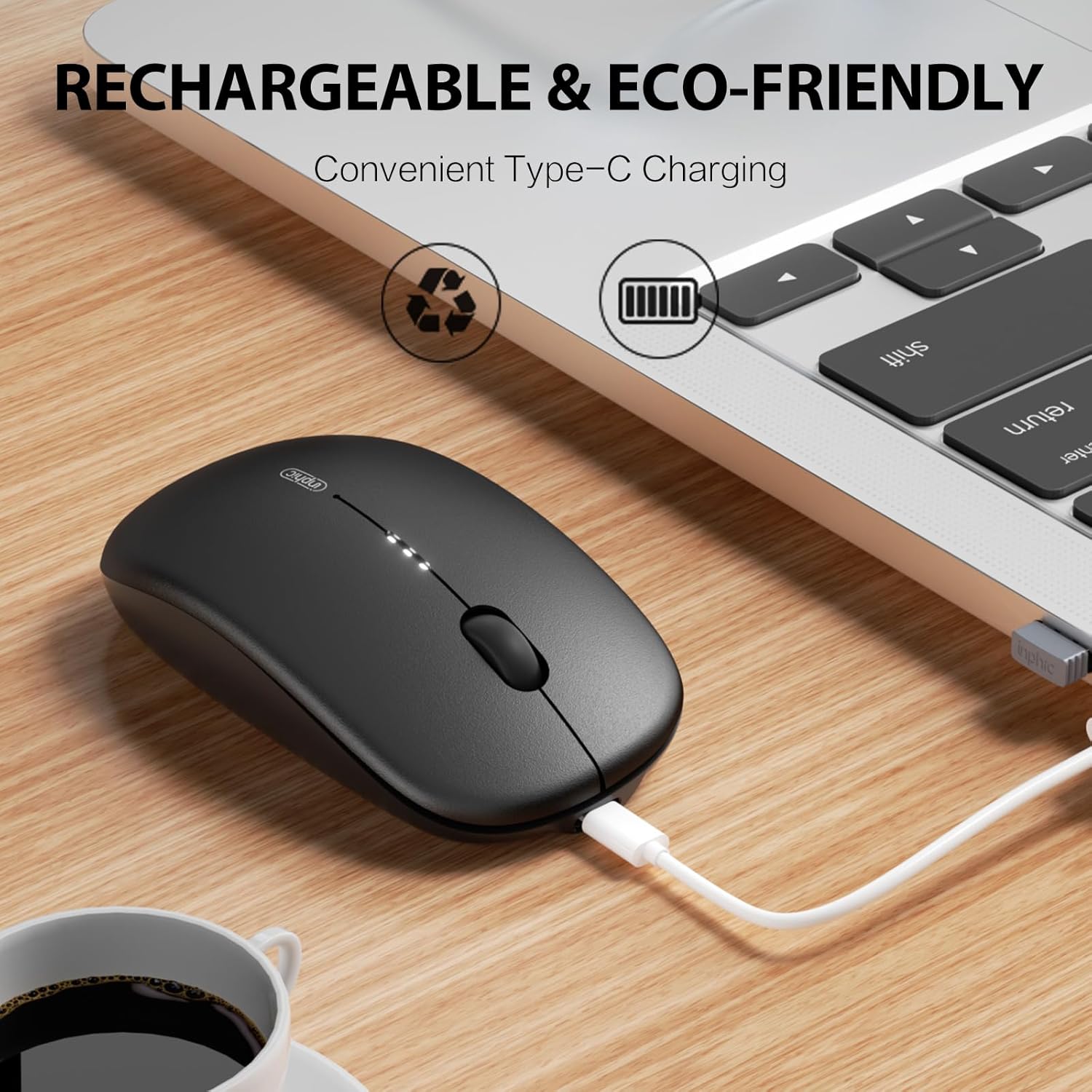
Сүрөт: The INPHIC M1 II mouse being charged via its Type-C port, with a laptop in the background, indicating convenient recharging.
Техникалык тейлөө
- Тазалоо: Чычканды тазалоо үчүн жумшак, кургак чүпүрөктү колдонуңуз. өжөр кир үчүн, бир аз гampчүпүрөктү суу же жумшак тазалоо эритмеси менен жууп салыңыз. Катуу химиялык заттардан алыс болуңуз.
- Сактагыч: Колдонулбай турган учурда, жоголуп кетпеши үчүн, USB кабыл алгычын чычкандын астыңкы жагындагы атайын уячага сактаңыз.
- Батареяга кам көрүү: To prolong battery life, avoid fully discharging the mouse frequently. Charge it when the battery indicator shows low power.
- Экологиялык шарттар: Avoid exposing the mouse to extreme temperatures, direct sunlight, or high humidity.
Проблемаларды чечүү
| Көйгөй | Чечим |
|---|---|
| Чычкан жооп бербей жатат |
|
| Кечигип же үзгүлтүктүү байланыш |
|
| DPI жөндөөсү өзгөрбөйт | Ensure you are pressing the DPI button on the bottom of the mouse. Cycle through all settings to confirm functionality. |
Техникалык шарттар
- Модел: M1 II
- Бренд: ИНФИК
- Байланыш: 2.4G USB Wireless, Bluetooth 4.0 (BT1), Bluetooth 5.0 (BT2)
- DPI деңгээли: 800 / 1200 / 1600 / 2000 / 2400
- Батарея: Built-in 700mAh Rechargeable Lithium Battery (Type-C Charging)
- Салмагы: Болжол менен 80 г
- Иштөө диапазону: 10 метрге чейин (33 фут)
- Баскычтар: 4 (Left, Right, Scroll Wheel, DPI Switch)
- Колдун багыты: Туура
- Кыймылды аныктоо: Оптикалык
- Шайкеш OS: Windows (7/8/10/XP/Vista), macOS, Chrome OS, Android, Linux
- Өлчөмдөрү (L x W): 44.1"L x 26.4"W (Note: These dimensions may be a data entry error and are unusually large for a mouse.)
Кепилдик жана колдоо
The INPHIC M1 II Wireless Mouse comes with a 1 жылдык кепилдик from the date of purchase. This warranty covers manufacturing defects and malfunctions under normal use. For warranty claims or technical support, please contact INPHIC customer service through the retailer where you purchased the product or visit the official INPHIC webбайланыш маалыматы үчүн сайт.
Онлайн ресурстар: For additional support, FAQs, and driver downloads (if applicable), please visit the INPHIC Store.
Расмий продукт Video
Видео: Расмий продукт бүттүview of the INPHIC Bluetooth Tri-mode Mouse M1 II, demonstrating its features and connectivity options.