
Introduction
This manual provides essential instructions for the setup, operation, and maintenance of your Canon Pixma G4000 Wireless All-in-One Color Inkjet Printer. The G4000 is designed for high-volume printing with its refillable ink tank system, offering print, scan, copy, and fax functionalities. Please read this manual thoroughly before using your printer to ensure correct and safe operation.
Жайгашуу
1. Пакеттен чыгаруу жана алгачкы жайгаштыруу
Carefully remove the printer from its packaging. Place the printer on a stable, flat surface with adequate space around it for ventilation and operation.
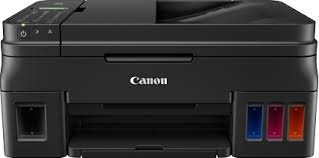
Image: Canon Pixma G4000 printer, illustrating its compact design and visible ink tanks.
2. Сыя менен толтуруу
The Pixma G4000 utilizes a refillable ink tank system. Open the ink tank covers and carefully fill each tank with the corresponding GI-790 ink bottle (Black, Cyan, Magenta, Yellow). Ensure the ink levels are within the indicated maximum fill lines. Close the covers securely after filling.
3. Power Connection
Электр шнурду принтерге, андан кийин розеткага туташтырыңыз. Принтерди иштетүү үчүн кубат баскычын басыңыз.
4. Программалык камсыздоону орнотуу
Insert the provided installation CD into your computer's CD-ROM drive, or download the latest drivers and software from the official Canon webсайт. Орнотууну аяктоо үчүн экрандагы нускамаларды аткарыңыз.
5. Wireless (Wi-Fi) Setup
To connect your printer to a Wi-Fi network, navigate to the wireless settings on the printer's control panel. Select your network name (SSID) and enter the password. Refer to the on-screen guide for detailed steps. The printer supports Wi-Fi connectivity for convenient wireless printing.
6. Баштапкы кагаз жүктөө
Open the paper support and load paper into the rear tray. Adjust the paper guides to fit the paper width. The printer supports various paper sizes including A4, A5, B5, LTR, LGL, 4 x 6 inch, 5 x 7 inch, 8 x 10 inch, and envelopes.
Иштөө нускамалары
1. Негизги басып чыгаруу
From your computer or mobile device, open the document or image you wish to print. Select "Print" from the application's menu. Choose the Canon G4000 printer, adjust print settings such as paper size, type, and quality, then click "Print." The printer offers ISO standard print speeds of approximately 8.8 ipm for monochrome and 5.0 ipm for color documents.
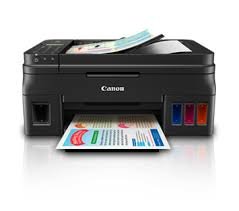
Image: Canon Pixma G4000 in operation, demonstrating paper handling during printing.
2. Borderless Printing
The G4000 supports borderless printing for photos and documents. To enable this feature, select the borderless option in your printer settings before printing. A 4 x 6 inch borderless photo can be printed in approximately 60 seconds.
3. Документтерди көчүрүү
Place the document face-down on the scanner glass or face-up in the Automatic Document Feeder (ADF). Use the printer's control panel to select "Copy." Adjust settings like number of copies, color/black & white, and paper size, then press the Start button.
4. Документтерди сканерлөө
Place the document on the flatbed scanner. From your computer, open the scanning software (e.g., Canon IJ Scan Utility). Select the scan type (document, photo, etc.), adjust settings, and initiate the scan. The scanned image will be saved to your computer.
5. Документтерди факс аркылуу жөнөтүү
Load the document into the ADF or place it on the scanner glass. Enter the recipient's fax number using the numeric keypad on the printer's control panel. Select "Fax" and press the Start button to send the fax.
6. Мобилдик басып чыгаруу
The Canon G4000 is compatible with smartphones. Download the Canon PRINT Inkjet/SELPHY app to your mobile device. Connect your device to the same Wi-Fi network as the printer. Open the app to print photos or documents directly from your smartphone or tablet.
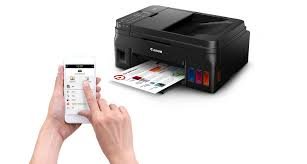
Image: Demonstrating mobile printing functionality with a smartphone connected to the Canon Pixma G4000.
Техникалык тейлөө
1. Ink Tank Refilling
When an ink tank level is low, the printer's ink end sensor will indicate the need for a refill. Use genuine Canon GI-790 ink bottles to replenish the tanks. Refer to the "Ink Filling" section under Setup for the correct procedure.
2. Басып чыгаруу башын тазалоо
If print quality deteriorates (e.g., streaks, faded colors), perform a print head cleaning. This can be initiated from the printer's maintenance menu on the control panel or through the printer driver software on your computer. Regular cleaning helps maintain optimal print quality.
3. Кагаздын тыгылып калышын тазалоо
If a paper jam occurs, the printer will display an error message. Carefully open the printer covers and gently remove any jammed paper, pulling it in the direction of the paper path to avoid tearing. Ensure all paper fragments are removed before closing the covers and resuming operation.
Проблемаларды чечүү
This section addresses common issues you might encounter with your Canon Pixma G4000 printer.
1. Принтер жооп бербей жатат
- Ensure the printer is powered on and properly connected to the computer or network.
- Принтердин дисплейинде ката билдирүүлөрү бар-жогун текшериңиз.
- Verify that the correct printer is selected in your computer's print dialog.
- Принтерди да, компьютериңизди да өчүрүп күйгүзүңүз.
2. Басып чыгаруунун сапатынын начардыгы
- Сыя деңгээлин текшерип, азайган бактарды кайрадан толтуруңуз.
- Принтердин техникалык тейлөө менюсунан басып чыгаруу башын тазалоону жана форсунканы текшерүүнү аткарыңыз.
- Басып чыгаруу орнотууларыңыз үчүн ылайыктуу кагазды колдонуп жатканыңызды текшериңиз.
3. Wireless Connectivity Issues
- Confirm the printer is within range of your Wi-Fi router.
- Verify that the Wi-Fi password entered is correct.
- Restart your Wi-Fi router and the printer.
- If issues persist, try reconnecting the printer to the Wi-Fi network via the setup wizard.
Техникалык шарттар
| Өзгөчөлүк | Деталь |
|---|---|
| Бренд | Canon |
| Модель аты | G4000 |
| Байланыш технологиясы | Wi-Fi, Ethernet |
| Басма технологиясы | Inkjet |
| Принтердин функциялары | Басып чыгаруу, сканерлөө, көчүрүү, факс (баары бир) |
| Принтердин чыгышы | Colour, Monochrome |
| Максималдуу басып чыгаруу ылдамдыгы (түстүү) | 5 ppm (ISO standard) |
| Макс басып чыгаруу ылдамдыгы (монохромдуу) | 8.8 ppm (ISO standard) |
| Максималдуу басып чыгаруу резолюциясы | 4800 x 1200 DPI |
| Көчүрүүнүн максималдуу чечилиши | 4800 x 1200 DPI |
| Сканер түрү | Планшет |
| Өзгөчөлүктөр | Чексиз басып чыгаруу |
| Ink Type | GI-790 (Кара, Көгүлтүр, Кызгылт көк, Сары) |
| Шайкеш түзмөктөр | Смартфондор |
| Элемент Салмагы | 7 килограмм |
| Ватtage | 11 Ватт |
| Максималдуу медиа өлчөмү | A4, A5, B5, LTR, LGL, 4x6, 5x7, 8x10, Envelopes, Custom |
| Барактын максималдуу сыйымдуулугу | 100 барак |
| Дуплекстүү басып чыгаруу | Manual |
Кепилдик жана колдоо
For information regarding your product's warranty, please refer to the warranty card included in the printer's packaging or visit the official Canon support website. For technical assistance, driver downloads, or further troubleshooting, please contact Canon customer support or visit their online resources.
Canonдун расмий колдоосу: www.canon.com/support