
Introduction
This manual provides essential information for the proper setup, operation, maintenance, and troubleshooting of your QUMOX Wired USB Gamepad (Model L220U). Please read this manual thoroughly before using the product to ensure optimal performance and longevity.
Продукт бүттүview
The QUMOX Wired USB Gamepad is designed for use with PC and laptop systems, offering a familiar control layout for a wide range of gaming experiences. It features a wired USB connection for reliable performance.

Сүрөт: алдыңкы view of the QUMOX Wired USB Gamepad, showing the dual analog sticks, D-pad, action buttons (numbered 1-4), and central Select, Analog, and Start buttons.
Контроллердин компоненттери
- Кош аналогдук таякчалар: For precise 360-degree movement control.
- Багыттоочу такта (D-Pad): Багыттуу киргизүү үчүн.
- Аракет баскычтары (1, 2, 3, 4): Оюндагы аракеттер үчүн.
- Ийин баскычтары (L1, L2, R1, R2): Located on the top edge of the controller.
- Тандоо баскычы: Адатта меню навигациясы же оюндун белгилүү бир функциялары үчүн колдонулат.
- Баштоо баскычы: Typically used to pause games or confirm selections.
- Analog Button: Activates/deactivates analog stick functionality.
- USB кабели: For connecting the gamepad to your computer.
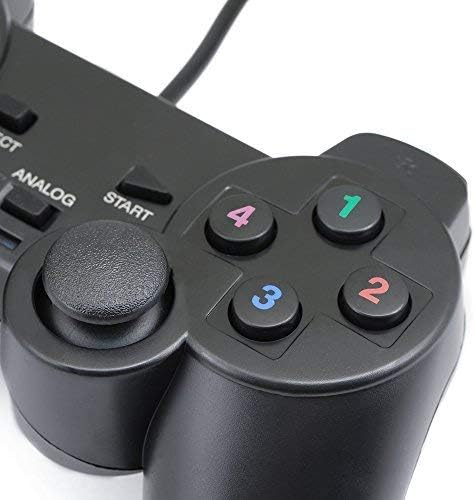
Сүрөт: Жакын план view of the right side of the QUMOX Gamepad, highlighting the numbered action buttons and the right analog stick.
Жайгашуу
- Connect the Gamepad: Insert the USB connector of the QUMOX Gamepad into an available USB port on your PC or laptop.
- Драйверди орнотуу: Your operating system (e.g., Windows) should automatically detect and install the necessary drivers. This process may take a few moments. In some cases, for optimal compatibility with certain games, you may need to install third-party drivers such as x360ce or similar gamepad emulation software. Refer to the specific game's requirements or online resources for guidance if automatic detection fails or performance is not as expected.
- Текшерүү: After installation, you can verify the gamepad's functionality through your operating system's game controller settings. For Windows, navigate to Control Panel > Devices and Printers, right-click on the gamepad icon, and select "Game controller settings" to test button and axis inputs.

Сүрөт: каптал view of the QUMOX Wired USB Gamepad, showing the attached USB cable extending from the top of the controller.
Иштөө нускамалары
- Негизги башкаруу: Use the D-pad or left analog stick for movement, and the action buttons (1, 2, 3, 4) for primary in-game actions.
- Аналогдук режим: басыңыз Аналог button located in the center of the controller to activate or deactivate the analog sticks. When active, the analog sticks provide variable input, suitable for games requiring precise movement or camera control. Some games may require the Analog mode to be enabled for the joysticks to function correctly.
- Ийин баскычтары: L1, L2, R1, and R2 buttons are typically used for secondary actions, triggers, or camera adjustments depending on the game.
- Оюндун шайкештиги: The gamepad is designed to be compatible with a wide range of PC games that support standard USB game controllers. For specific game settings, refer to the game's control options menu.
Техникалык тейлөө
- Тазалоо: Use a soft, dry cloth to clean the surface of the gamepad. For stubborn dirt, a slightly damp cloth can be used, but ensure no moisture enters the controller. Do not use harsh chemicals or abrasive cleaners.
- Сактагыч: Геймпадды күн нурунан жана экстремалдык температурадан алыс, салкын, кургак жерде сактаңыз. Кабельге зыян келтирбөө үчүн өтө катуу ороодон качыңыз.
- Колдонуу: Handle the gamepad with care. Avoid dropping it or subjecting it to strong impacts, as this can damage internal components.
Проблемаларды чечүү
- Issue: Gamepad not recognized by PC.
- Ensure the USB cable is securely plugged into both the gamepad and the computer.
- Компьютериңиздеги башка USB портун колдонуп көрүңүз.
- Компьютериңизди өчүрүп күйгүзүңүз.
- Check Device Manager (Windows) to see if the device is listed, and if there are any driver issues. You may need to manually update or reinstall drivers.
- Consider installing generic gamepad drivers or emulation software (e.g., x360ce) if the issue persists, as some systems or games may require them.
- Issue: Analog sticks or certain buttons are not responding correctly.
- камсыз кылуу Аналог button is pressed to activate analog stick functionality if required by your game.
- Calibrate the gamepad through your operating system's game controller settings.
- Test the gamepad with different games or a gamepad testing utility to determine if the issue is game-specific or hardware-related.
- Баскычтардын же таякчалардын айланасында кандайдыр бир физикалык тоскоолдуктар же таштандылар бар-жогун текшериңиз.
- Issue: Input lag or slow response time.
- Ensure your computer meets the minimum system requirements for the game you are playing.
- Системалык ресурстарды бошотуу үчүн керексиз фондук тиркемелерди жабыңыз.
- Try connecting the gamepad to a different USB port, preferably a USB 2.0 or 3.0 port directly on the motherboard (for desktops).
Техникалык шарттар
| Модель номери | L220U |
| Байланыш | Зымдуу USB |
| Продукциянын өлчөмдөрү | 15 x 9 x 5.5 см |
| Салмагы | 99.79 грамм |
| Шайкештик | PC, Laptop (Windows OS recommended) |
Кепилдик жана колдоо
QUMOX products are manufactured to high-quality standards. For information regarding warranty coverage, technical support, or service, please refer to the documentation included with your purchase or visit the official QUMOX webсайт. Кепилдик дооматтар үчүн сатып алганыңыздын далилин сактаңыз.