
1. Киришүү
The BrewArt BeerDroid is a fully automated beer brewing system designed to simplify the home brewing process. It allows users to brew 10 liters (2.6 gallons) of quality beer with precise temperature control and patented End of Fermentation (EOF) technology. The system is Wi-Fi enabled, allowing for monitoring and control via the BrewArt app.
This manual provides detailed instructions for setting up, operating, maintaining, and troubleshooting your BeerDroid to ensure optimal brewing results.

Figure 1.1: The BeerDroid automated brewing system, shown with a box of BrewPrints (ingredient kits).
2. Коопсуздук маалыматы
Please read all safety instructions carefully before operating the BeerDroid. Failure to do so may result in injury or damage to the appliance.
- Ensure the BeerDroid is placed on a stable, level surface.
- This appliance operates on 110V electrical outlets only. Do not attempt to use it with other voltage системалары.
- Шайманды күн нурунан, жылуулук булактарынан жана нымдуулуктан алыс кармаңыз.
- Do not immerse the BeerDroid unit in water or any other liquid.
- Тазалоодон же техникалык тейлөөдөн мурун ар дайым розеткадан ажыратыңыз.
- Балдар жетпеген жерде сактаңыз.
- Use only BrewArt approved accessories and ingredients.
- Exercise caution when handling hot liquids during the brewing process.
3. Кутуда эмне бар
Upon unboxing your BeerDroid system, verify that all components are present:
- BeerDroid Brewing Unit
- Электр кабели
- Discovery Pale Ale BrewPrint (initial ingredient kit)
- Sanitizing Tablets
- Көрсөтмө (бул документ)

3.1-сүрөт: Мисample of BrewPrint ingredient pouches, which are included with the BeerDroid.
4. Орнотуу
4.1 Алгачкы жайгаштыруу
Place the BeerDroid on a clean, stable, and level surface. Ensure there is adequate space around the unit for ventilation and easy access for cleaning and operation. A location near a sink is recommended for convenience during sanitization and cleaning.
4.2 Колдонмону жүктөп алуу жана Wi-Fi туташуусу
The BeerDroid is controlled and monitored via the BrewArt App. Download the official BrewArt App from your device's app store (available for iPhone and Android).
- Download and install the BrewArt App.
- Create a BrewArt account or log in if you already have one.
- Follow the in-app instructions to connect your BeerDroid to your home Wi-Fi network. This will enable remote monitoring and notifications.
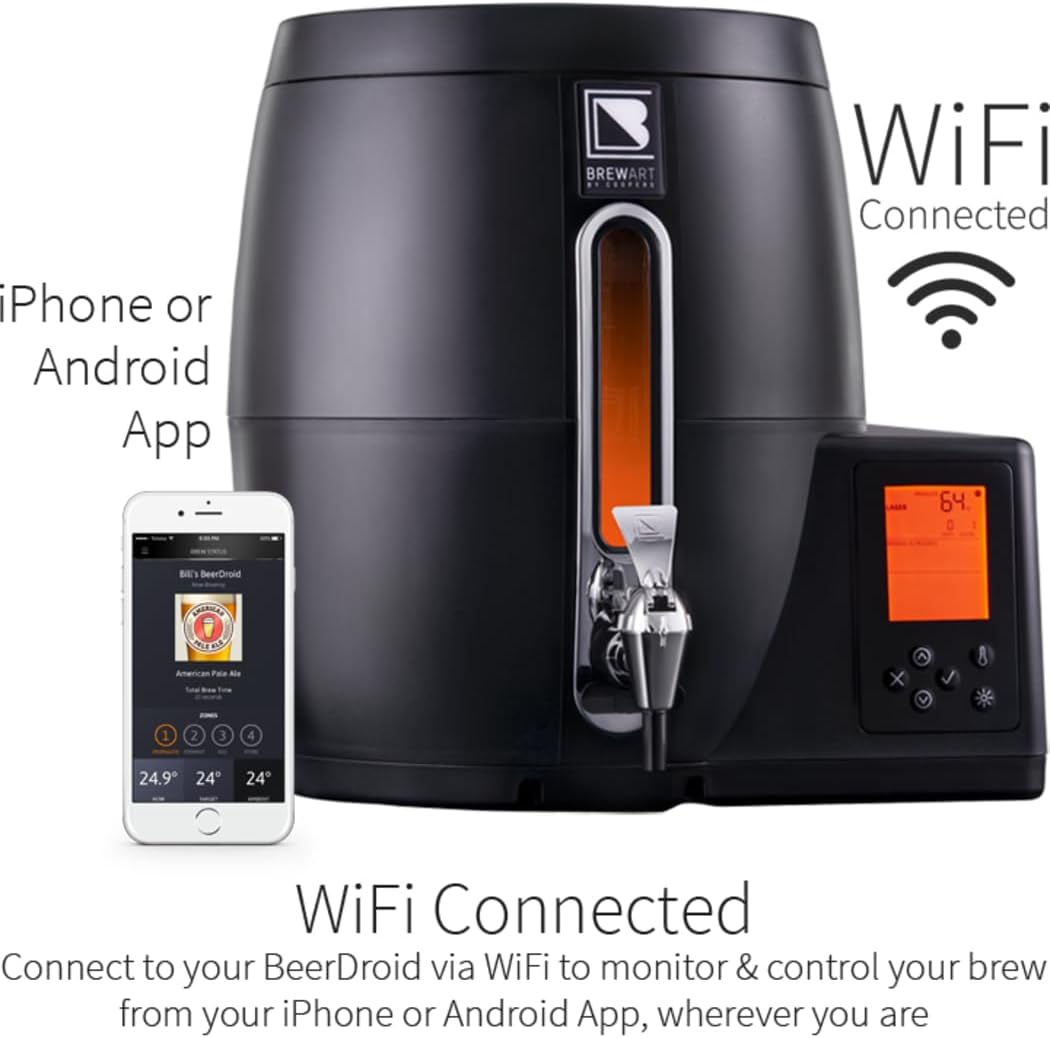
Figure 4.1: The BeerDroid can be monitored and controlled via the BrewArt app on your smartphone.
4.3 Санитизация
Before your first brew, and before each subsequent brew, it is crucial to sanitize the BeerDroid and all components that will come into contact with the wort. This prevents contamination and ensures the quality of your beer.
- Fill the BeerDroid with clean water.
- Add one sanitizing tablet (provided) to the water.
- Allow the sanitizing solution to circulate for the recommended time (refer to tablet instructions, typically 1 hour).
- Drain the sanitizing solution completely. Do not rinse, as this can reintroduce contaminants.
5. Иштөө нускамалары
5.1 Starting a Brew
- Ensure the BeerDroid is clean and sanitized.
- Add 10 liters of clean, filtered water to the BeerDroid.
- Open the BrewPrint ingredient pouches and carefully pour the contents into the BeerDroid. Do not stir.
- Капкакты бекем жабыңыз.
- On the BeerDroid control panel or via the app, select your desired brew type (e.g., Ale, Lager) or a custom setting if applicable.
- Initiate the brewing process. The BeerDroid will automatically manage temperature and fermentation stages.
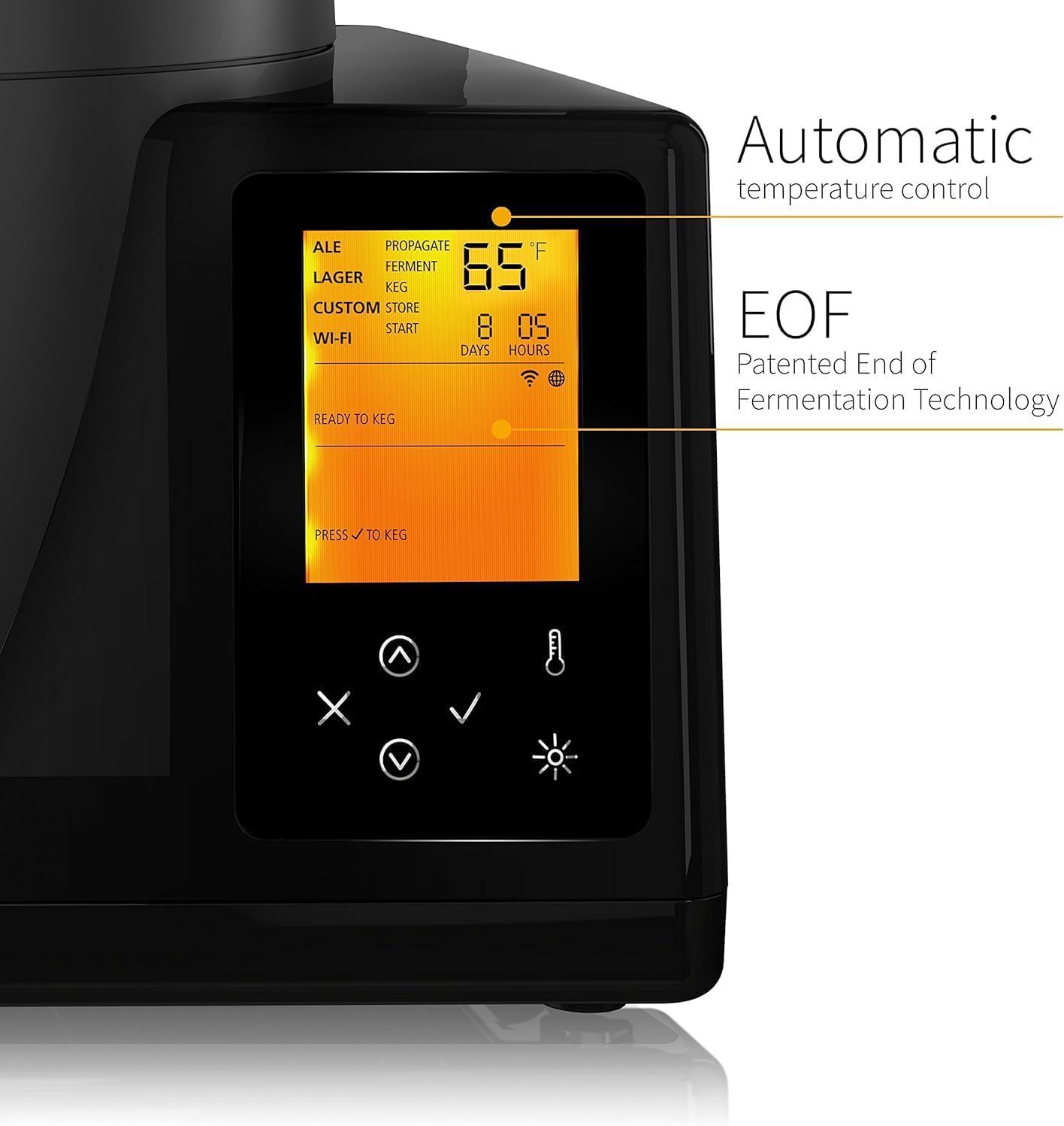
Figure 5.1: The BeerDroid control panel displays brewing status, temperature, and allows for program selection.
5.2 Monitoring Your Brew
The BeerDroid features a clear viewing window and an LED light to observe your brew's progress. For detailed monitoring, use the BrewArt App:
- Receive real-time notifications for brewing milestones.
- View temperature control graphs.
- Track the elapsed brewing days.

Figure 5.2: The BeerDroid's viewing window allows you to visually inspect your brew, illuminated by an internal LED.
5.3 End of Fermentation (EOF) Technology
The BeerDroid's patented EOF technology automatically detects when fermentation is complete. You will receive a notification via the BrewArt App when your beer is ready to be kegged or bottled. If you are unable to transfer the beer immediately, the BeerDroid will automatically enter a storage mode, maintaining the beer at an optimal temperature (39°F / 4°C) until you are ready.
5.4 Kegging or Bottling
Once the EOF notification is received, your beer is ready for transfer. You can choose to keg your beer using BrewArt kegs (e.g., with a BrewFlo dispenser) or bottle it using a bottling kit.
- Prepare your kegs or bottles by sanitizing them thoroughly.
- Add any required priming sugar (sucrose) to your kegs or bottles as per your BrewPrint instructions.
- Connect the appropriate transfer tube to the BeerDroid's tap.
- Carefully transfer the beer from the BeerDroid into your prepared kegs or bottles.
- Seal the kegs or bottles and allow for secondary fermentation/carbonation as per your BrewPrint instructions (typically 1-2 weeks).

Figure 5.3: Transferring the finished brew from the BeerDroid to a keg for carbonation and serving.
6. Техникалык тейлөө жана тазалоо
Regular cleaning and maintenance are essential for the longevity of your BeerDroid and the quality of your brews.
6.1 Cleaning the BeerDroid Unit
After each brew, thoroughly clean the BeerDroid unit:
- Агрегатты розеткадан сууруп алыңыз.
- Rinse the interior of the BeerDroid with warm water, using a sink sprayer if available.
- Wipe down all interior surfaces with a soft cloth or sponge. Do not use abrasive pads or harsh chemicals, as these can scratch the surface and make future cleaning more difficult.
- Ensure all beer residue is removed.
- Allow the unit to air dry completely before storing or starting a new brew.
6.2 Cleaning the Snap Tap
The BeerDroid features a removable snap tap for easy cleaning:
- Remove the snap tap from the BeerDroid.
- Disassemble the tap components if possible (refer to visual guides in the app's 101 section).
- Clean all tap components with warm, soapy water and a small brush to remove any beer residue.
- Rinse thoroughly and allow to air dry before reassembling and reattaching to the BeerDroid.
7. Кыйынчылыктарды
This section addresses common issues you might encounter with your BeerDroid.
| Көйгөй | Мүмкүн себеп | Чечим |
|---|---|---|
| BeerDroid displays "Error 4" | Cooling system malfunction or sensor issue. | Unplug the unit for 5 minutes, then plug it back in. If the error persists, contact BrewArt customer support. |
| Unit not connecting to Wi-Fi | Туура эмес Wi-Fi сырсөзү, начар сигнал же роутер көйгөйлөрү. | Double-check your Wi-Fi password. Move the BeerDroid closer to your router. Restart your router. Re-attempt Wi-Fi setup via the BrewArt App. |
| Beer not fermenting | Incorrect temperature, expired BrewPrint, or yeast not activated. | Ensure the BeerDroid is powered on and set to the correct temperature program. Verify the BrewPrint's expiry date. Contact BrewArt support if issues persist. |
| Difficulty obtaining BrewPrints/Supplies | Regional restrictions or supply chain issues. | Check the BrewArt website for current availability and shipping restrictions to your region. Contact BrewArt customer service for specific inquiries. |
8. Техникалык шарттар
- Продукциянын өлчөмдөрү: 19.5 x 19 x 18.5 дюйм
- Элемент Салмагы: 30 фунт
- Өндүрүүчү: BrewArt
- Модель номери: 41-41000-00
- ASIN: B07558KHBD
- Сыйымдуулугу: 10 литр (2.6 галлон)
- Кубаттуулугу: 110V electrical outlets
- Байланыш: Wi-Fi иштетилген
- Негизги өзгөчөлүктөрү: Automated temperature control, Patented End of Fermentation (EOF) technology, App control, Removable Snap Tap
9. Кепилдик жана колдоо
9.1 Кардарларды колдоо
For technical assistance, troubleshooting beyond this manual, or inquiries regarding your BeerDroid, please contact BrewArt customer support. Refer to the official BrewArt webэң акыркы байланыш маалыматы үчүн сайт.
9.2 Онлайн ресурстар
Additional resources, including video tutorials and FAQs, may be available on the official BrewArt website or within the BrewArt App.
You can also refer to the official User Manual PDF for further details: Колдонуучунун колдонмосун жүктөп алуу (PDF)
9.3 Кепилдик маалыматы
The BeerDroid comes with a manufacturer's warranty. Please retain your proof of purchase for warranty claims. For specific warranty terms and conditions, refer to the documentation included with your product or visit the official BrewArt webсайт.