
Wacom CTL-672/K0-C
Wacom One Pen Tablet CTL-672/K0-C User Manual
Model: CTL-672/K0-C
Introduction
This manual provides essential information for setting up, operating, and maintaining your Wacom One Pen Tablet (Model CTL-672/K0-C). Please read this guide thoroughly to ensure proper use and to maximize your experience with the device.
The Wacom One Pen Tablet is designed for digital drawing, painting, sketching, and e-signatures, offering a natural pen-on-paper feel with its pressure-sensitive, battery-free pen.
Пакеттин мазмуну
Пакетти ачканда, бардык компоненттер бар экенин текшериңиз:
- Wacom One Pen Tablet (CTL-672/K0-C)
- Wacom Pen (battery-free)
- USB кабели
- Ыкчам баштоо колдонмосу (бул санариптик колдонмодо камтылган эмес)

Image: The Wacom One Pen Tablet and its accompanying pen, shown alongside its retail packaging. The tablet is black with a red underside, and the pen is also black.
Орнотуу колдонмосу
1. Системалык талаптар
- Операция системасы: Windows 7 or later, macOS X 10.10 or later, ChromeOS
- Байланыш: Standard USB Type-A port
- Интернетке кирүү: Required to download drivers
2. Планшетти туташтыруу
- Connect the USB cable to the Wacom One Pen Tablet.
- Connect the other end of the USB cable to an available USB Type-A port on your computer.
- The tablet will be recognized by your computer.

Image: A Wacom One Pen Tablet connected via USB to a laptop, with a hand using the pen on the tablet surface. This illustrates the physical connection and basic usage setup.
3. Драйверди орнотуу
For full functionality and customization, driver installation is required.
- ачуу а web browser and navigate to the official Wacom support webсайт.
- Locate the drivers section and search for "Wacom One Pen Tablet CTL-672/K0-C".
- Download the appropriate driver for your operating system (Windows, macOS, or ChromeOS).
- Орноткучту иштетиңиз жана экрандагы нускамаларды аткарыңыз.
- Суралган учурда компьютериңизди өчүрүп күйгүзүңүз.

Image: An illustration showing the Wacom One Pen Tablet's compatibility with both Apple (Mac) and Windows operating systems, along with icons for USB Type-A and USB Micro-A connectors. This highlights the system requirements and connection types.
Иштөө нускамалары
Using the Wacom Pen
- The Wacom Pen is battery-free and pressure-sensitive, offering 2048 levels of pressure.
- Hold the pen as you would a regular pen or pencil.
- Move the pen tip across the tablet surface to control the cursor on your screen.
- Press the pen tip onto the tablet surface to click or draw. The harder you press, the thicker or darker your line will be in compatible software.
- The pen features two customizable buttons. These can be configured through the Wacom Tablet Properties software after driver installation.
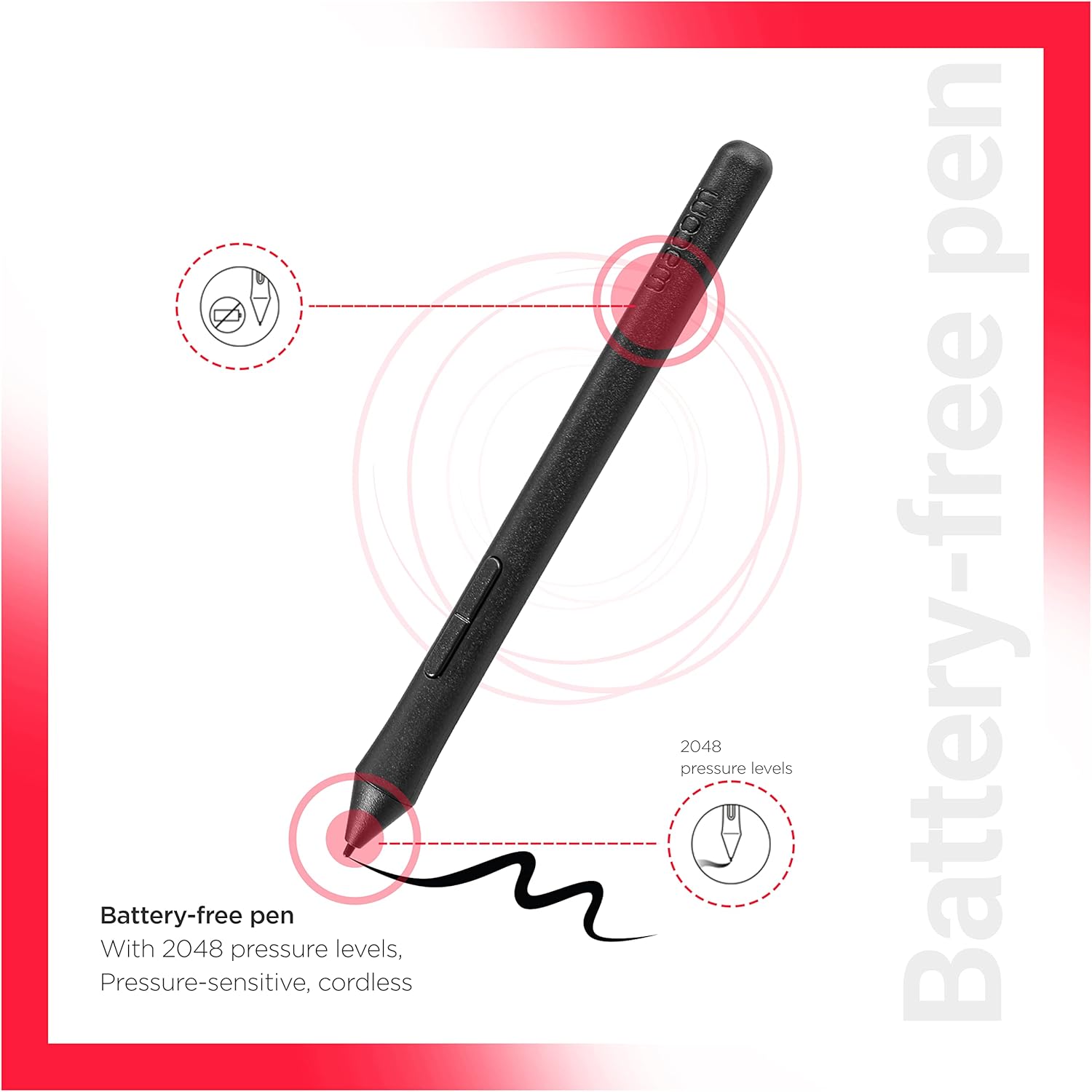
Image: A close-up diagram of the Wacom Pen, highlighting its battery-free nature and 2048 pressure levels. This visual explains key features of the pen.
Tablet Orientation
The Wacom One Pen Tablet supports both right-handed and left-handed use. You can adjust the tablet orientation in the Wacom Tablet Properties software to suit your preference.
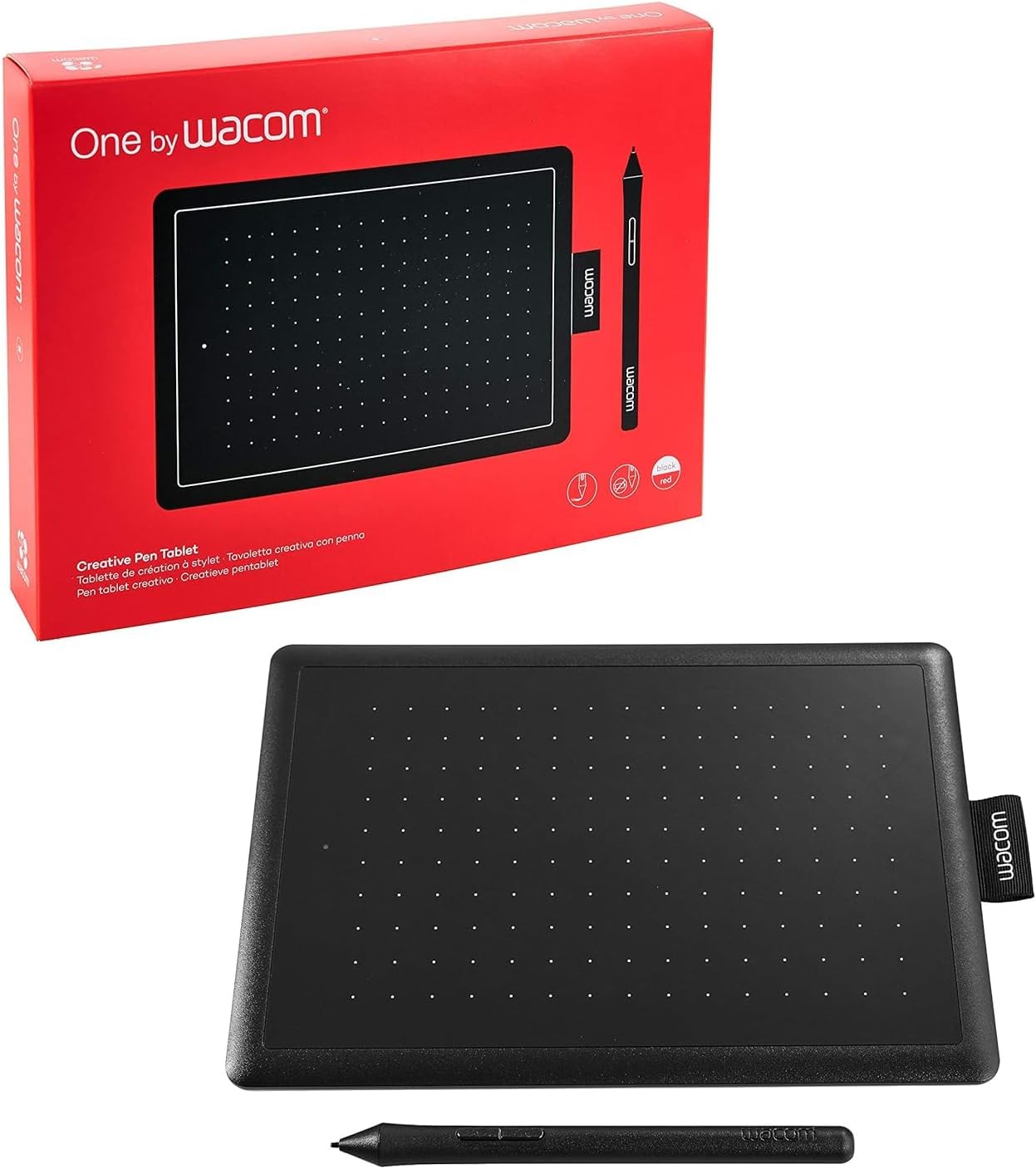
Image: An illustration demonstrating the ergonomic design of the Wacom One Pen Tablet, indicating its suitability for both right-handed and left-handed users. This highlights the flexibility in usage.
Тиркемелер
The Wacom One Pen Tablet is ideal for various creative and productivity applications, including:
- Digital Drawing and Painting
- Эскиз
- Сүрөттү түзөтүү
- E-signatures and Document Annotation
- Online Teaching and Whiteboarding

Image: A graphic illustrating the versatile applications of the Wacom One Pen Tablet, including drawing, painting, sketching, and e-signatures. This showcases the tablet's broad utility.
Техникалык тейлөө
Планшетти тазалоо
- Use a soft, lint-free cloth to gently wipe the tablet surface.
- өжөр белгилери үчүн, бир аз гampчүпүрөктү суу менен. Катуу химиялык заттардан же абразивдүү тазалагычтардан алыс болуңуз.
- Ensure the tablet is disconnected from your computer before cleaning.
Калем учтарын алмаштыруу
Over time, the pen nib may wear down. Replacement nibs are available from Wacom. To replace a nib:
- Gently pull the old nib straight out of the pen using a nib removal tool (if provided) or tweezers.
- Жаңы учту калемдин ичине тыкылдаганча кыстарыңыз.
Проблемаларды чечүү
| Көйгөй | Мүмкүн себеп | Чечим |
|---|---|---|
| Tablet not responding | Loose USB connection, incorrect driver, incompatible port. |
|
| Pen pressure not working | Driver issue, software incompatibility. |
|
| Cursor erratic or jumping | Interference, damaged pen nib, driver issue. |
|
Техникалык шарттар
| Өзгөчөлүк | Деталь |
|---|---|
| Модель номери | CTL-672/K0-C |
| Продукциянын өлчөмдөрү | 8.27 x 0.34 x 5.75 дюйм (216.0 x 135.0 мм) |
| Элемент Салмагы | 8.8 унция (250 г) |
| Басым сезгичтиги | 2048 Levels (tip only) |
| Калем технологиясы | Pressure-sensitive, cordless, battery-free |
| Байланыш | Зымдуу (USB Type-A) |
| Операциялык системанын шайкештиги | Windows 7 or later, macOS X 10.10 or later, ChromeOS |
| Өндүрүүчү | WACOM |
| ASIN | B07583VVY5 |

Image: A diagram illustrating the physical dimensions of the Wacom One Pen Tablet, showing its length (216.0 mm) and width (135.0 mm). This provides precise measurements for the device.
Кепилдик жана колдоо
Кепилдик маалымат
Wacom products typically come with a limited manufacturer's warranty. For specific warranty terms and conditions applicable to your region and product, please refer to the warranty card included with your product or visit the official Wacom webсайт.
Кепилдик дооматтар үчүн сатып алганыңыздын далилин сактаңыз.
Кардарларды колдоо
For technical assistance, driver downloads, FAQs, and further support, please visit the official Wacom support webсайт:
You may also find helpful resources and community forums on the Wacom webсайт.
Ask a question about this manual
Ask about setup, troubleshooting, compatibility, parts, safety, or missing instructions. Manuals+ will review the question and use this page’s manual context to help answer it.