
Introduction
This manual provides comprehensive instructions for the setup, operation, and maintenance of your NETUM NT-R3 Mini 1D CCD Bluetooth Barcode Scanner. Please read this guide thoroughly to ensure proper use and to maximize the performance of your device.
Пакеттин мазмуну
Таңгактан чыгаргандан кийин, төмөндө көрсөтүлгөн нерселердин бардыгы бар экенин жана жакшы абалда экендигин текшериңиз:
- 1 x NETUM Mini Bluetooth Barcode Scanner (NT-R3)
- 1 x USB заряддоо кабели
- 1 x Quick Start Guide
- 1 x 2.4 GHz Adapter
Продукт бүттүview
The NETUM NT-R3 is a compact and versatile 1D CCD barcode scanner designed for portability and ease of use. Its ring-style design allows for comfortable wear, enhancing productivity in various environments.

Image: The NETUM NT-R3 Mini Barcode Scanner, a small black electronic device with a screen and button, designed to be worn on a finger with an adjustable ring structure.
Негизги өзгөчөлүктөрү:
- Ring Design: Magnesium alloy casing and trigger for durability and ease of use.
- 180° айлануу: Unique rotatable design for scanning from various angles.
- CCD Scanning: Reads 1D barcodes directly from LCD screens of computers or mobile devices, including poorly printed or damaged barcodes.
- Зымсыз туташуу: Supports Bluetooth (SPP, HID) and 2.4 GHz wireless connections.
- Кеңири шайкештик: Compatible with Windows XP/7/8/8.1/10, Google Android, iOS, and Mac OS X.
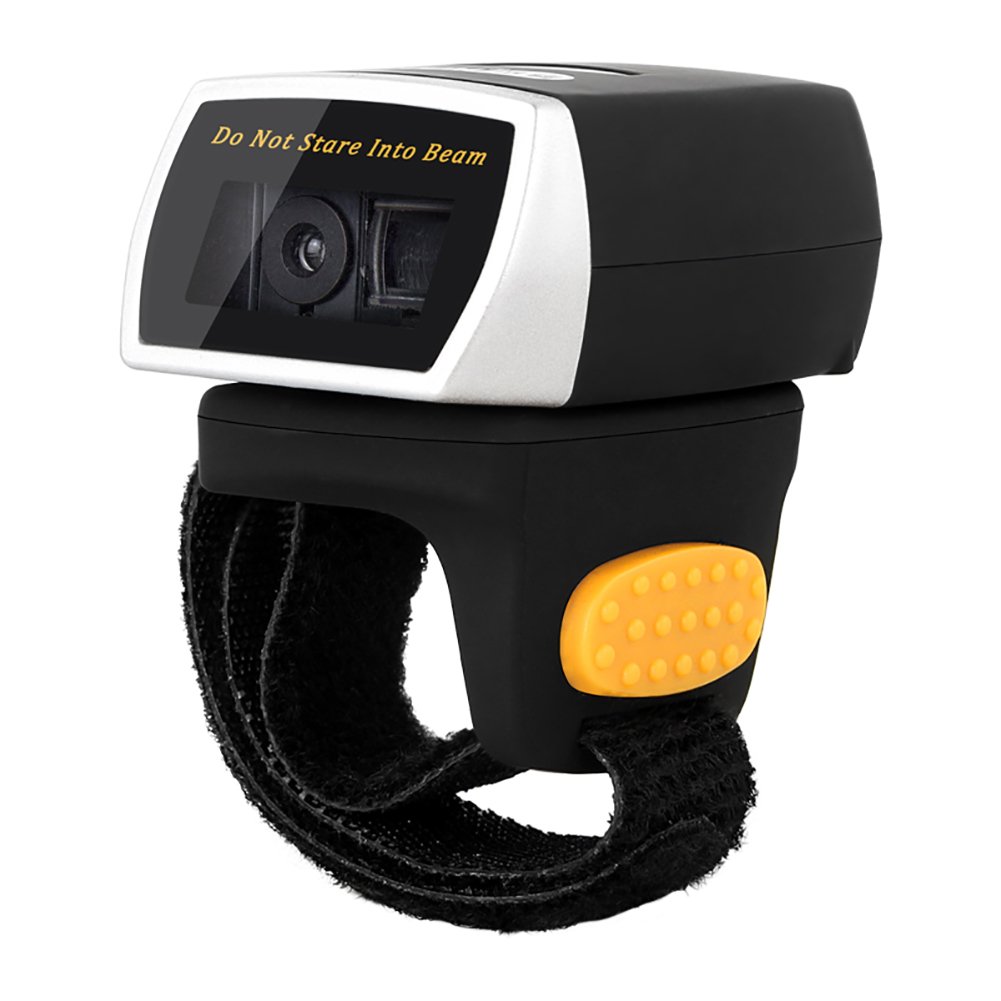
Image: The NETUM NT-R3 Mini Barcode Scanner demonstrating its 180-degree rotation design, allowing for flexible scanning angles.

Image: The NETUM NT-R3 Mini Barcode Scanner held in a hand, illustrating its compact dimensions (50mm x 44mm x 38mm) and light weight (50g), emphasizing its strong compatibility with various devices.
Орнотуу жана туташуу
1. Сканерди кубаттоо
Before initial use, fully charge the scanner using the provided USB charging cable. Connect the small end of the USB cable to the scanner's charging port and the other end to a USB power source (e.g., computer, USB wall adapter). The charging indicator light will show the charging status.
2. Күйгүзүү / Өчүрүү
To power on the scanner, press and hold the trigger button for a few seconds until you hear a beep and see the indicator light. To power off, press and hold the trigger button again until the indicator light turns off.
3. Байланыш параметрлери
The NT-R3 scanner offers two primary connectivity methods:
Bluetooth Connection (HID Mode - Keyboard Emulation)
- Сканер күйгүзүлгөнүн текшериңиз.
- Scan the "Bluetooth HID Mode" barcode (refer to the Quick Start Guide for specific barcodes).
- On your host device (smartphone, tablet, computer), enable Bluetooth and search for available devices.
- Select "NETUM Barcode Scanner" or a similar name from the list of devices.
- The scanner will beep to confirm successful pairing.
In HID mode, scanned barcodes are input directly as keyboard entries into any active text field.
Bluetooth Connection (SPP Mode - Serial Port Profile)
SPP mode is typically used for applications that require direct data communication with the scanner. This mode requires specific software on the host device to interpret the data. Refer to your application's documentation for SPP setup.
- Сканер күйгүзүлгөнүн текшериңиз.
- Scan the "Bluetooth SPP Mode" barcode (refer to the Quick Start Guide).
- Follow the instructions provided by your specific application for connecting to an SPP device.
2.4 ГГц зымсыз туташуу
- Plug the provided 2.4 GHz adapter into a USB port on your computer.
- Сканер күйгүзүлгөнүн текшериңиз.
- Scan the "2.4G Wireless Mode" barcode (refer to the Quick Start Guide).
- The scanner will automatically connect to the adapter. A successful connection is indicated by a specific beep or light pattern (refer to the Quick Start Guide for details).
The 2.4 GHz connection offers a wireless range of up to 10 meters (30 feet).
Иштөө режимдери
The NETUM NT-R3 scanner supports two data upload modes:
1. Тез жүктөө режими
In this mode, scanned barcodes are immediately transmitted to your connected device. This is suitable for real-time data entry.
2. Сактоо режими
The scanner can store up to 2000 barcodes in its built-in flash memory. This mode is useful when working out of range of your host device. Barcodes can be uploaded later when a connection is established.
Image: A visual representation of the two upload modes. Instant Upload Mode shows barcodes being sent directly to a device. Storage Mode shows barcodes being stored internally and then uploaded later.
To switch between modes, scan the corresponding configuration barcodes found in the Quick Start Guide.
Штрихкоддорду сканерлөө
Штрих-кодду сканерлөө үчүн:
- Hold the scanner with the scanning window facing the barcode.
- Press the trigger button. A red scanning line will appear.
- Align the red scanning line across the entire barcode.
- Once successfully scanned, the scanner will emit a beep, and the indicator light will flash.
The NT-R3 is capable of reading 1D barcodes from various surfaces, including:
- Басылган этикеткалар
- LCD screens (computers, smartphones, tablets)
- Poorly printed or damaged barcodes
Техникалык тейлөө
Батареяга кам көрүү
- Батареянын иштөө мөөнөтүн узартуу үчүн, бат-баттан батарейканы толук зарядсыздандырбаңыз.
- Charge the scanner regularly, even if not in constant use.
- Сканерди узак убакытка колдонбогондо салкын, кургак жерде сактаңыз.
Тазалоо
- Use a soft, dry, lint-free cloth to clean the scanner's exterior.
- Сканерлөө терезеси үчүн линзаны тазалоочу чүпүрөктү же жумшак чүпүрөктү бир аз колдонуңузampсуу же жумшак, абразивдик тазалоочу каражат менен тазалаңыз.
- Катуу химиялык заттарды, эриткичтерди же абразивдүү материалдарды колдонбоңуз, анткени алар түзмөккө зыян келтириши мүмкүн.
Проблемаларды чечүү
| Көйгөй | Мүмкүн себеп | Чечим |
|---|---|---|
| Сканер күйбөйт. | Батарея аз. | Сканерди кеминде 2 саат кубаттаңыз. |
| Сканер Bluetooth аркылуу туташпайт. | Incorrect mode selected; device not discoverable; out of range. | Ensure "Bluetooth HID Mode" or "SPP Mode" is scanned. Make sure Bluetooth is enabled on the host device and the scanner is within 10 meters. Try re-pairing. |
| Scanner does not connect via 2.4 GHz adapter. | Adapter not properly inserted; incorrect mode selected. | Ensure the 2.4 GHz adapter is securely plugged in. Scan the "2.4G Wireless Mode" barcode. |
| Сканер штрих-коддорду окубайт. | Barcode is unreadable; scanner not aligned; scanner in storage mode. | Ensure the barcode is clear and well-lit. Align the red line across the entire barcode. If in storage mode, switch to instant upload mode or upload stored data. |
| Сканерленген маалыматтар туура эмес көрсөтүлөт. | Keyboard layout mismatch (for HID mode). | Scan the appropriate keyboard layout barcode (e.g., US, UK, French) from the Quick Start Guide. |
Техникалык мүнөздөмөлөр
| Өзгөчөлүк | Деталь |
|---|---|
| Модель номери | NT-R3 |
| Скандоо технологиясы | 1D CCD |
| Байланыш | Bluetooth (SPP, HID), 2.4 GHz Wireless, USB |
| Шайкеш операциялык системалар | Windows XP/7/8/8.1/10, Google Android, iOS, Mac OS X |
| Скандоо ылдамдыгы | 260 сampсекундуна лес |
| Сактоо сыйымдуулугу | 100 000ге чейин штрих-код (Сактоо режиминде) |
| Батарея түрү | 1 литий металл батарейка (кошулган) |
| Power Source | Батарея менен иштейт |
| Operating Voltage | 5 вольт |
| Максималдуу сактоо температурасы | 45 градус |
| Сертификаттар | CE, ISO, RoHS |
| Өндүрүүчү | Guangzhou Netum Electronic Technology Co.,Ltd. |
| Келип чыккан өлкө | Кытай |
Кепилдик жана колдоо
Кайтаруу саясаты
Бул продукт сатуучунун кайтарып берүү саясатына ылайык, сатып алынган күндөн тартып 30 күндүн ичинде акчасын кайтарып алууга же алмаштырууга укуктуу.
Өндүрүүчү маалымат
Manufacturer: Guangzhou Netum Electronic Technology Co.,Ltd.
For further assistance or technical support, please refer to the contact information provided in your Quick Start Guide or visit the official NETUM webсайт.
Эскертүү: Запастык бөлүктөрдүн бар экендиги жана кепилденген программалык камсыздоо жаңыртуулары тууралуу маалымат азыр жеткиликтүү эмес.