
1. Киришүү
This manual provides instructions for the ROCCAT KONE Aimo Gaming Mouse. The KONE Aimo features an Owl-Eye Optical Sensor, customizable RGB AIMO LED illumination, and 23 programmable keys. It is designed for precision and ergonomic comfort during extended use.
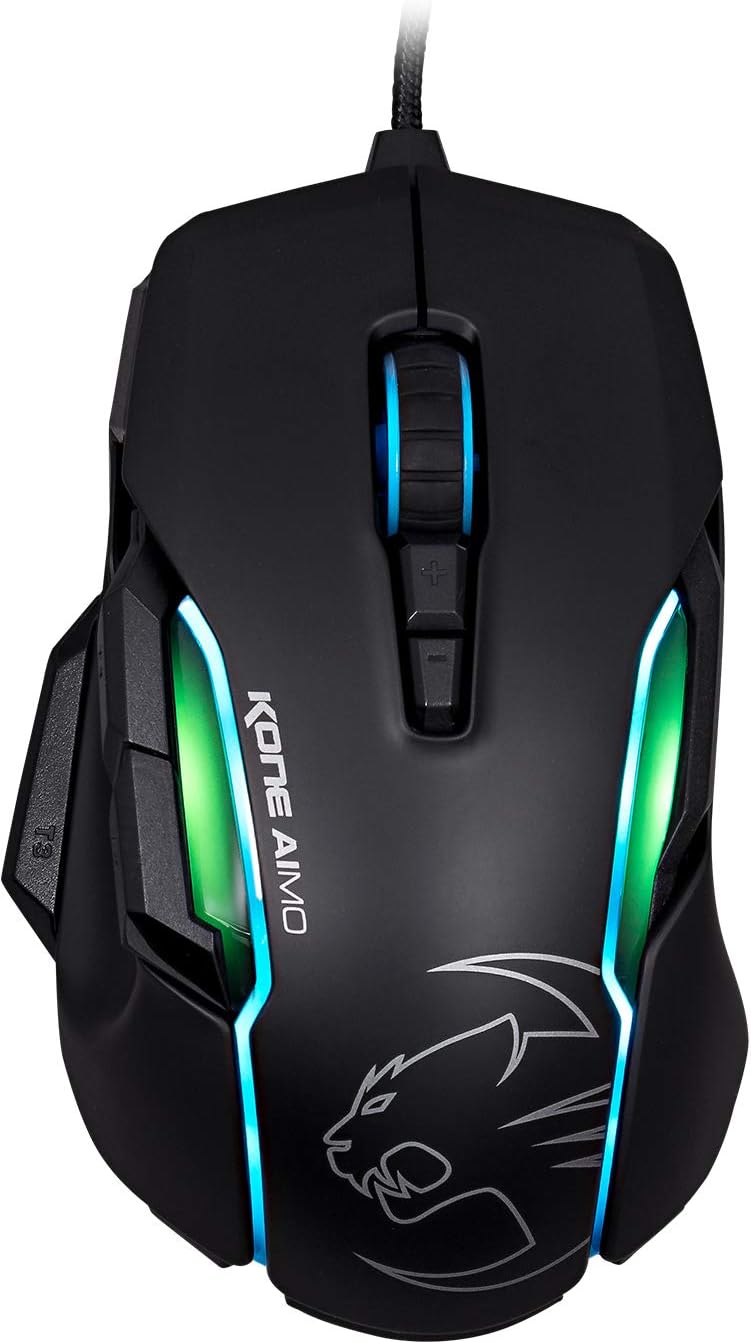
1-сүрөт: Жогорку view of the ROCCAT KONE Aimo Gaming Mouse, showcasing its ergonomic shape and RGB lighting zones.
2. Пакеттин мазмуну
Пакетте бардык буюмдар бар экенин текшериңиз:
- KONE AIMO Mouse with Attached Braided USB Cable
- Quick колдонмо
- ROCCAT Stickers

Figure 2: Retail packaging of the ROCCAT KONE Aimo Gaming Mouse.
3. Орнотуу
- Чычканды туташтыруу: Plug the USB cable of the ROCCAT KONE Aimo mouse into an available USB port on your computer.
- Драйверди орнотуу: Your operating system (Windows 7, 8, 8.1, 10) should automatically detect and install the necessary drivers.
- Install ROCCAT Swarm Software: For full customization of DPI settings, button assignments, and AIMO lighting, download and install the ROCCAT Swarm software from the official ROCCAT website. This software allows you to create and manage profiles.

Figure 3: The ROCCAT KONE Aimo mouse in use on a mouse pad, connected to a computer.
4. Иштөө нускамалары
4.1. Баскыч функциялары
The KONE Aimo features 23 programmable keys, including a tri-button thumb zone and a 4D tilting Titan wheel. These can be customized via the ROCCAT Swarm software.
- Сол/оң чыкылдатуу: Стандарттык чычкан функциялары.
- Scroll Wheel (4D Titan Wheel): Scrolls vertically and can tilt horizontally for additional functions. Also acts as a clickable button.
- DPI жөндөө баскычтары: Located above and below the scroll wheel, these buttons allow for on-the-fly DPI sensitivity changes. Settings are configured in the Swarm software.
- Thumb Buttons (T1, T2, T3): Three buttons located on the left side, easily accessible by the thumb. The bottom-most button (T3) is often defaulted to the Easy-Shift[+] function.
- Easy-Shift[+] Button: This exclusive ROCCAT feature doubles the number of programmable functions for other buttons when held down, effectively expanding the total programmable keys.

4-сүрөт: Детальдуу view of the programmable thumb buttons (T1, T2, T3) on the left side of the mouse.
4.2. AIMO Lighting System
The AIMO lighting system provides intelligent, reactive RGB illumination across four independently configurable LED light zones and the glowing mouse wheel. It can synchronize with other compatible ROCCAT devices and is programmable through the ROCCAT Swarm software.

Figure 5: The KONE Aimo mouse displaying its multi-zone RGB AIMO illumination.
4.3. Owl-Eye Optical Sensor
The mouse is equipped with the ROCCAT Owl-Eye Optical Sensor, a modified PixArt 3361 sensor, offering adjustable DPI from 100 to 12,000. This sensor provides precise tracking and responsiveness. A built-in tracking distance control unit monitors the lift-off distance for enhanced accuracy.

Figure 6: The bottom of the mouse, highlighting the Owl-Eye Optical Sensor.
4.4. Эргономика
The KONE Aimo features refined ergonomics designed for comfort during extended use. Its shape provides a natural fit for the hand, with a dedicated thumb rest area.

Figure 7: A hand gripping the KONE Aimo mouse, illustrating its ergonomic design.
5. Техникалык тейлөө
- Тазалоо: Чычкандын бетин тазалоо үчүн жумшак, кургак чүпүрөктү колдонуңуз. өжөр кир үчүн, бир аз гamp кездемени колдонсо болот, бул нымдуулуктун ички компоненттерге кирбешин камсыздайт.
- Сенсорго кам көрүү: Keep the optical sensor on the underside of the mouse clean and free of dust or debris to ensure optimal tracking performance.
- Кабелдик башкаруу: Зыяндын алдын алуу үчүн өрүлгөн USB кабелин курч ийилгенден же ашыкча тартпаңыз.
6. Кыйынчылыктарды
- Чычкан жооп бербейт:
- USB кабели иштеген USB портуна бекем сайылганын текшериңиз.
- Try a different USB port or another computer to rule out port or system issues.
- Компьютериңизди өчүрүп күйгүзүңүз.
- Tracking Issues / Inaccurate Movement:
- Чычкандын түбүндөгү оптикалык сенсорду тазалаңыз.
- Ensure you are using the mouse on a clean, suitable mouse pad or surface.
- Check DPI settings in the ROCCAT Swarm software.
- RGB жарыгы иштебейт / туура эмес:
- ROCCAT Swarm программасы иштеп жатканын жана жаңыртылганын текшериңиз.
- Check lighting settings within the Swarm software.
- Эч кандай карама-каршы программа RGB жарыгын көзөмөлдөбөгөнүн текшериңиз.
- Баскычтар иштебейт:
- Check button assignments in the ROCCAT Swarm software.
- Ensure the software is not experiencing issues (try restarting it).
7. Техникалык шарттар
| Өзгөчөлүк | Деталь |
|---|---|
| Бренд | ROCCAT |
| Модель номери | ROC-11-815-BK |
| Сенсор | Owl-Eye Optical Sensor (modified PixArt 3361) |
| DPI диапазону | 100тен 12,000 DPIге чейин |
| Программалануучу баскычтар | 23 (with Easy-Shift[+]) |
| Жарыктандыруу | RGBA AIMO LED Illumination (4 independent zones + scroll wheel) |
| Байланыш | USB (Зымдуу) |
| Операциялык системанын шайкештиги | Windows 7, Windows 8, Windows 8.1, Windows 10 (32-bit and 64-bit versions) |
| Элемент Салмагы | 11.2 унция (болжол менен 317.5 грамм) |
| Продукциянын өлчөмдөрү (LxWxH) | 5.12 x 2.95 x 1.57 дюйм (болжол менен 13 x 7.5 x 4 см) |
8. Кепилдик жана колдоо
For warranty information, technical support, and additional resources, please visit the official ROCCAT website or contact ROCCAT customer service. Keep your proof of purchase for warranty claims.
Сиз да зыярат кылсаңыз болот ROCCAT Store on Amazon көбүрөөк продукт маалымат алуу үчүн.


