
1. Киришүү
This manual provides essential information for the safe and efficient use of your Alienware AW3418DW 34.1-inch Curved Gaming Monitor. This monitor features a WQHD (3440x1440) resolution, a 120Hz refresh rate (overclocked), and NVIDIA G-SYNC technology for an immersive gaming experience. Please read this manual thoroughly before operating the device.
2. Коопсуздук маалыматы
- Always disconnect the power cable from the wall outlet before cleaning the monitor.
- Өрт же шок коркунучун болтурбоо үчүн мониторду жамгырга же нымга тийгизбеңиз.
- Мониторду ачпаңыз casinг. Ичинде колдонуучу тейлей турган бөлүктөр жок. Бардык тейлөөлөрдү квалификациялуу тейлөө кызматкерлерине тапшырыңыз.
- Монитор кулап калбаш үчүн аны туруктуу, тегиз бетке коюңуз.
- Монитордун айланасында туура желдетүүнү камсыз кылыңыз. Вентиляция тешиктерин жаап албаңыз.
- Монитор менен келген кубат адаптерин жана кабелдерди гана колдонуңуз.
3. Пакеттин мазмуну
Пакетте бардык компоненттер бар экенин текшериңиз:
- Alienware AW3418DW Monitor
- Монитор стенди (негизги жана көтөргүч)
- Электр кабели
- DisplayPort кабели
- HDMI кабели
- USB 3.0 Upstream кабели
- Documentation (Quick Setup Guide, Safety Information)
4. Орнотуу
4.1 Физикалык орнотуу
Carefully remove the monitor and its components from the packaging. Place the monitor face down on a soft cloth or cushion to prevent scratches.
Стендди бекитүү
- Тирөөчтү монитор панелине ал ордуна чыкылдаган үн чыкканга чейин бекитиңиз.
- Attach the stand base to the stand riser and tighten the captive screw.

Сүрөт 4.1: Алдыңкы view of the Alienware AW3418DW monitor with its stand attached.

4.2-сүрөт: Каптал view of the Alienware AW3418DW monitor with its stand.
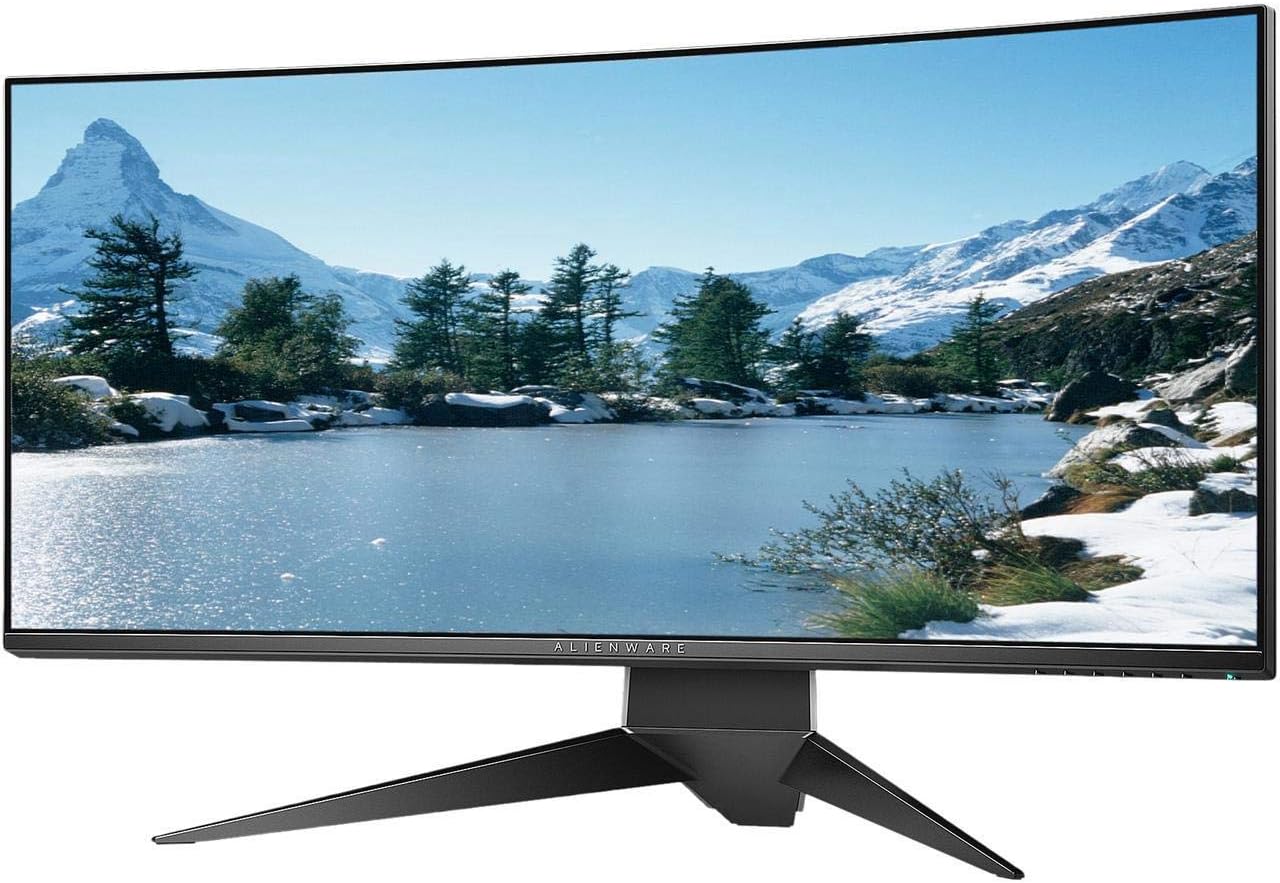
4.3-сүрөт: Арткы view of the Alienware AW3418DW monitor showing the stand and AlienFX lighting.
VESA Монтаждоо
The monitor supports VESA mounting (100 x 100 mm). Remove the stand riser by pressing the release button and then attach the VESA-compatible mount to the monitor using appropriate screws. Ensure the mount can support the monitor's weight of 26.1 pounds (without stand).

Figure 4.4: Monitor dimensions for VESA mount compatibility.
4.2 Туташтыруучу кабельдер
Керектүү кабелдерди мониторуңузга жана компьютериңизге туташтырыңыз.
- Кубат кабели: Кубат кабелин монитордун кубат портуна, андан кийин дубалдагы розеткага туташтырыңыз.
- Видео кабель: Connect either the DisplayPort cable or the HDMI cable from your computer's graphics card to the corresponding port on the monitor. For optimal performance, especially for 120Hz refresh rate and G-SYNC, use the DisplayPort connection.
- USB жогорку агым кабели: Connect the USB 3.0 upstream cable from your computer to the monitor's upstream USB port to enable the monitor's USB hub functionality.
- USB ылдый порттору: Connect your USB devices (e.g., keyboard, mouse, webcam) to the four USB 3.0 downstream ports on the monitor.
5. Иштөө нускамалары
5.1 Күйгүзүү/өчүрүү
Мониторду күйгүзүү же өчүрүү үчүн монитордо жайгашкан кубат баскычын басыңыз. Кубат индикатору монитордун абалын көрсөтөт.
5.2 Экрандагы дисплей (OSD) навигациясы
The On-Screen Display (OSD) menu allows you to adjust various monitor settings. Use the control buttons, typically located on the bottom right or rear of the monitor, to navigate the OSD.
- OSD менюсун иштетүү үчүн башкаруу баскычын басыңыз.
- Use the navigation buttons (up/down/left/right) to move through menu options.
- Тандоону ырастоо же кошумча менюга кирүү үчүн тандоо баскычын басыңыз.
- Мурунку менюга кайтуу же OSDден чыгуу үчүн артка/чыгуу баскычын колдонуңуз.
5.3 Дисплей орнотуулары
Оптималдуу үчүн дисплей орнотууларын тууралаңыз viewing and gaming performance.
- Чечим: Set your computer's display resolution to 3440x1440 for the native WQHD experience.
- Жаңыртуу ылдамдыгы: The monitor supports up to 120Hz refresh rate (overclocked). Ensure your graphics card drivers are updated and the refresh rate is set in your operating system's display settings or graphics control panel.
- NVIDIA G-SYNC: For tear-free and smooth gameplay, enable G-SYNC in your NVIDIA Control Panel. This feature synchronizes the monitor's refresh rate with your GPU's frame rate.
- Жарыктык/Контраст: Adjust these settings in the OSD menu to suit your environment and preference.
5.4 AlienFX жарыктандыруу
Customize the AlienFX lighting zones on your monitor through the OSD menu or Alienware Command Center software (if installed on your PC). You can select colors, effects, and synchronize lighting with other Alienware devices.
5.5 USB Hub Usage
The monitor acts as a USB 3.0 hub, providing convenient access to four downstream USB ports for connecting peripherals. Ensure the USB upstream cable is connected to your computer for this feature to function.
6. Техникалык тейлөө
6.1 Мониторду тазалоо
- Always unplug the monitor from the electrical outlet before cleaning.
- Жумшак, түксүз кездемени жеңил колдонуңуз dampсуу же абразивдүү эмес экран тазалагыч менен иштетиңиз.
- Тазалоочу каражатты түз экранга чачпаңыз.
- Чаңды жана тактарды кетирүү үчүн экранды акырын сүртүңүз.
- Сырткы бөлүгүн тазалаңыз casing жумшак, кургак чүпүрөк менен.
6.2 Сактоо
If storing the monitor for an extended period, disconnect all cables, carefully disassemble the stand (if applicable), and store it in its original packaging in a cool, dry place.
7. Кыйынчылыктарды
Эгерде сиз мониторуңузда көйгөйлөргө туш болсоңуз, төмөнкү жалпы көйгөйлөрдү чечүү кадамдарын караңыз:
- Дисплей жок: Ensure all power and video cables are securely connected. Check if the monitor is powered on and the correct input source is selected in the OSD.
- Жаркылдоо/Кекелөө: Verify that your graphics drivers are up to date. Ensure G-SYNC is properly configured in the NVIDIA Control Panel. Check for interference from other electronic devices.
- Туура эмес чечим/жаңылоо ылдамдыгы: Adjust the display settings in your operating system or graphics control panel to the native resolution (3440x1440) and desired refresh rate (up to 120Hz).
- Өлүк пикселдер: The Alienware AW3418DW comes with a Premium Panel Guarantee. Refer to the warranty information for details on pixel policy.
- USB порттору иштебейт: Ensure the USB 3.0 upstream cable is connected from the monitor to your computer.
8. Техникалык шарттар
| Өзгөчөлүк | Спецификация |
|---|---|
| Бренд | Alienware |
| Модель номери | AW3418DW |
| Screen Size | 34.1 дюйм |
| Резолюция | WQHD (3440 x 1440 Pixels) |
| Аспект катышы | 21:9 |
| Жаңыртуу ылдамдыгы | 120 Hz (Overclocked) |
| Жооп убактысы | 4 Миллисекунд |
| Adaptive Sync Technology | NVIDIA G-SYNC |
| Дисплей түрү | LED IPS |
| Ийрилик | 1900R |
| Жарыктык | 300 кд/м² |
| Контраст катышы | 1000:1 |
| Viewбурч | 178 градус |
| Байланыш | 1x DisplayPort (1.2), 1x HDMI (1.4), 4x USB 3.0 Downstream, 1x USB 3.0 Upstream |
| Элемент Салмагы | 26.1 Pounds (without stand) |
| Монтаж түрү | VESA Compatible (100 x 100 mm) |
9. Кепилдик жана колдоо
Your Alienware AW3418DW monitor is covered by a 3 Years Limited Hardware Warranty жана 3 Years Advance Exchange Service, анын ичинде а Premium Panel Guarantee. The Premium Panel Guarantee ensures a free panel replacement during the limited hardware warranty period even if only one bright pixel is found.
For technical support, warranty claims, or additional information, please visit the official Alienware or Dell support website. You may also find updated drivers and firmware there.
Онлайн колдоо: www.dell.com/support