
Introduction
This manual provides detailed instructions for the installation, operation, and maintenance of the ECS Elitegroup B350AM4-M2 Micro ATX Motherboard. This motherboard is designed to support AMD AM4 socket processors, including AMD Ryzen and 7th Gen Athlon processors. It features a 4+2 phase thermal design, 100% solid capacitor design, and dual-channel DDR4 memory architecture supporting up to 64 GB across four DIMM sockets.
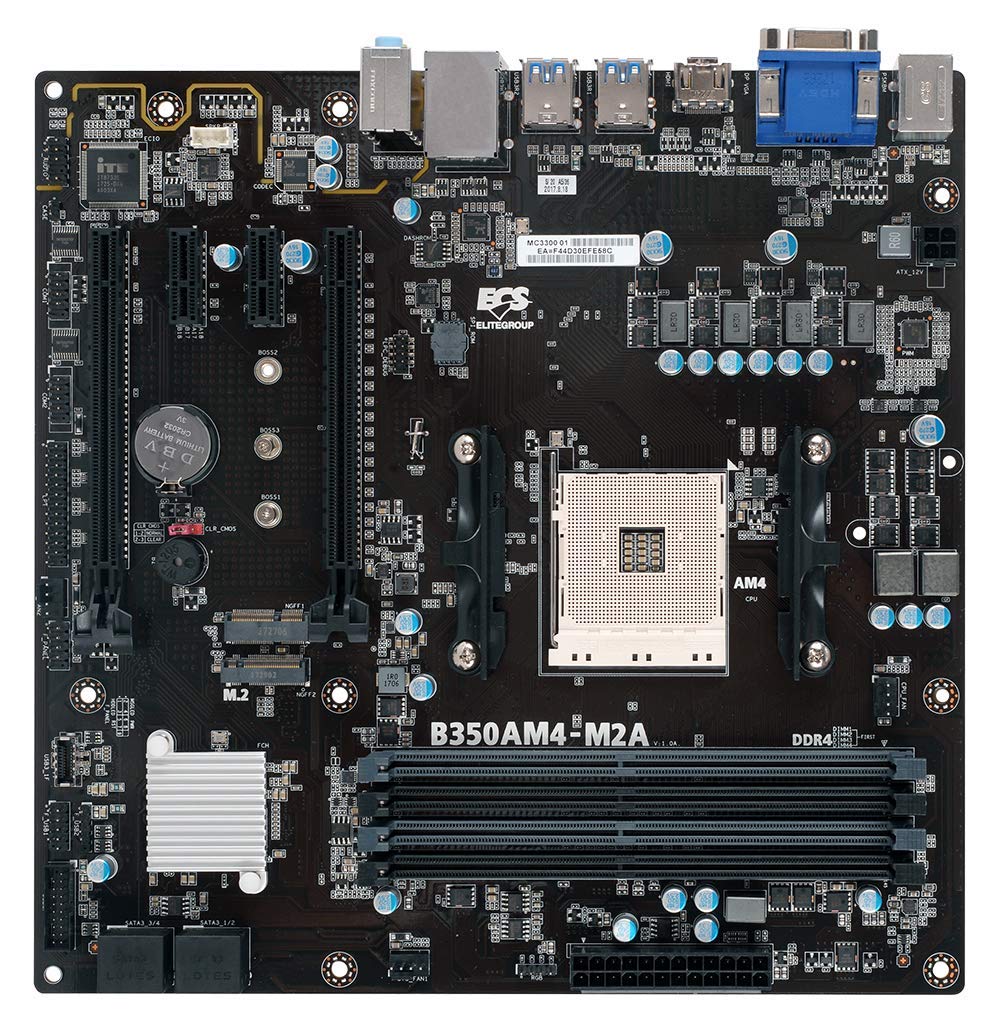
Figure 1: ашыкview of the ECS B350AM4-M2 Motherboard, showing its general layout and components.
Пакеттин мазмуну
Verify that all items listed below are present in the package. If any item is missing or damaged, contact your retailer.
- ECS B350AM4-M2 Motherboard
- Драйвер CD
- Колдонуучунун Колдонмосу (бул документ)
- SATA кабелдери
Орнотуу жана орнотуу
Before beginning installation, ensure your system is powered off and disconnected from the power outlet. Wear an anti-static wrist strap to prevent electrostatic discharge (ESD) damage to components.
1. CPU орнотуу
- Motherboard AM4 CPU розеткасын табыңыз.
- Розетка капталындагы жүктөө рычагын көтөрүңүз.
- CPUдагы үч бурчтук белгини розеткадагы тиешелүү белги менен кылдаттык менен тууралаңыз.
- Процессорду мажбурлабастан акырын розеткага салыңыз.
- Lower the load lever back into its locked position to secure the CPU.
- Apply thermal paste to the CPU surface and install the CPU cooler according to its manufacturer's instructions.
Figure 2: The AM4 CPU socket and surrounding area on the motherboard, where the processor is installed.
2. Эстутум (RAM) орнотуу
The B350AM4-M2 motherboard has four 288-pin DDR4 DIMM sockets. For optimal performance, install memory modules in pairs for dual-channel operation. Refer to the motherboard's silkscreen for recommended slot population order.
- Open the clips at both ends of the DIMM socket.
- Align the notch on the DDR4 memory module with the key in the DIMM socket.
- Insert the module firmly into the socket until the clips snap into place.
- Repeat for additional memory modules.
Figure 3: Location of the four DDR4 DIMM slots for memory installation.
3. Сактоочу түзмөктү орнотуу (SATA жана M.2)
Connect SATA storage devices (HDDs/SSDs) to the SATA 6Gb/s ports. For M.2 SSDs, locate the M.2 slot.
- For SATA devices: Connect one end of the SATA data cable to the storage device and the other end to a SATA port on the motherboard. Connect the SATA power cable from your power supply to the device.
- For M.2 SSDs: Insert the M.2 SSD into the M.2 slot at an angle. Push it down and secure it with the provided screw.
4. Кеңейтүү картасын орнотуу (PCIe)
Install graphics cards or other expansion cards into the appropriate PCI Express slots.
- Align the expansion card with the chosen PCIe slot.
- Press down firmly until the card is seated correctly and the retention clip (if present) locks into place.
- Картаны шассиге бурама менен бекитиңиз.
5. Электр байланыштары
Кубат берүүчү кабельдерди энелик платага туташтырыңыз.
- 24-пин ATX Power Connector: Connect the main 24-pin power cable from your power supply to the corresponding connector on the motherboard.
- 4-пин CPU Power Connector: Connect the 4-pin CPU power cable (often labeled P4 or ATX12V) from your power supply to the connector near the CPU socket.
6. Front Panel and USB Connections
Connect your chassis's front panel connectors (power button, reset button, HDD LED, power LED, front USB ports, front audio) to the corresponding headers on the motherboard. Refer to the motherboard layout diagram in the full manual for exact header locations.
Иштөө нускамалары
1. BIOS/UEFI Орнотуу
The BIOS (Basic Input/Output System) or UEFI (Unified Extensible Firmware Interface) is the firmware that initializes hardware during startup. To access the BIOS/UEFI setup utility:
- Компьютериңизди күйгүзүңүз.
- басыңыз DEL key repeatedly during the initial boot screen. The exact key may vary; consult the on-screen prompts.
Within the BIOS/UEFI, you can configure system settings such as boot order, date/time, CPU/memory frequencies, and enable/disable integrated peripherals. Save changes before exiting.
2. Операциялық системаны орнотуу
After assembling your system, you will need to install an operating system (e.g., Windows 10, Windows Vista, Linux).
- Insert your operating system installation media (USB drive or DVD) into the computer.
- Access the BIOS/UEFI setup and set the boot order to prioritize your installation media.
- Save changes and exit. The system will boot from the installation media.
- Операциялык тутумду орнотуу үчүн экрандын көрсөтмөлөрүн аткарыңыз.
- After installation, install the necessary drivers from the provided driver CD or the ECS Elitegroup webсайт.
Техникалык тейлөө
Туура тейлөө сиздин энелик платаңыздын узак жана туруктуу иштешин камсыздайт.
- Чаңды тазалоо: Regularly clean dust from inside your computer case using compressed air. Ensure fans and heatsinks are free from obstructions.
- BIOS жаңыртуулары: Periodically check the ECS Elitegroup website for updated BIOS versions. BIOS updates can improve compatibility, stability, and performance. Follow the update instructions carefully to avoid system damage.
- Кабелдик башкаруу: Аба агымын жакшыртуу жана тоскоолдуктарды болтурбоо үчүн ички кабелдердин тыкан өткөрүлүшүн текшериңиз.
Проблемаларды чечүү
Бул бөлүм сиз кабылышы мүмкүн болгон жалпы көйгөйлөрдү карайт.
No Power / System Does Not Turn On
- Check all power connections: 24-pin ATX, 4-pin CPU, and power cables to peripherals.
- Кубат менен камсыздоонун которгучу 'ON' абалында экенин текшериңиз.
- Verify the front panel power button connector is correctly attached to the motherboard header.
- Кубат булагын башка система же мүмкүн болсо, кубат булагын текшергич менен текшериңиз.
No Display / No POST (Power-On Self-Test)
- Монитор туура дисплей чыгышына (энелик платага интеграцияланган графикалык карта же дискреттик графикалык карта) туташтырылганын текшериңиз.
- Графикалык картаны жана эстутум модулдарын кайра орнотуңуз.
- CPU муздаткычы туура орнотулганын жана туташкандыгын текшериңиз.
- Listen for beep codes. A series of 9 short beeps often indicates a BIOS ROM error, suggesting a potential issue with the motherboard's firmware.
- Try booting with only essential components (CPU, one RAM stick, graphics card if no integrated graphics) to isolate the problem.
Системанын туруксуздугу / бузулуулары
- Бардык айдоочулар жаңыртылганын текшериңиз.
- Ашыкча ысып кетүүнүн алдын алуу үчүн CPU жана GPU температураларын текшериңиз.
- RAM бузулганын текшерүү үчүн эстутум диагностикалык куралдарын иштетиңиз.
- Verify that the power supply provides sufficient wattagбардык компоненттер үчүн e.
Техникалык шарттар
| Өзгөчөлүк | Деталь |
|---|---|
| Бренд | ECS Elitegroup |
| Модель номери | B350AM4-M2 |
| CPU розетка | Розетка AM4 |
| Шайкеш процессорлор | AMD Ryzen Processors, AMD 7th Gen Athlon Processors |
| Чипсет түрү | AMD B350 |
| RAM эс технологиясы | DDR4 |
| Эстутум Slots Жеткиликтүү | 4 x 288-пин DDR4 DIMM розеткалары |
| RAM эс максималдуу өлчөмү | 64 ГБ |
| Memory Clock Speed | 2667/2400 MHz (non-ECC, Un-buffered SDRAM) |
| Графикалык карта интерфейси | PCI Express |
| HDMI портторунун жалпы саны | 1 (HDMI 1.4a) |
| DisplayPort | Integrated DP with up to 2560x1600 resolution |
| USB 2.0 порттору | 1 (internal header, total ports may vary) |
| S/PDIF туташтыргычынын түрү | Оптикалык |
| Системалык шина стандарты колдоого алынат | SATA 3 |
| Платформа | Windows 10, Windows Vista |
| Элемент Салмагы | 1.15 фунт |
Кепилдик жана колдоо
The ECS Elitegroup B350AM4-M2 Motherboard comes with a 2 жылдык кепилдик from the date of purchase. This warranty covers defects in materials and workmanship under normal use. For warranty claims or technical support, please contact your retailer or visit the official ECS Elitegroup webколдоо булактары жана байланыш маалыматы үчүн сайт.
Онлайн колдоо: For the latest drivers, BIOS updates, and additional support, please visit the ECS Elitegroup official webсайт.