
Introduction
Thank you for choosing the MeeTion K9310 Gaming Keyboard. This manual provides detailed instructions for setting up, operating, and maintaining your new keyboard. The K9310 is designed for an enhanced gaming experience with features such as multicolor backlighting, anti-ghosting, and dedicated shortcut keys.
Пакеттин мазмуну
- MeeTion K9310 Gaming Keyboard
- Колдонуучунун Колдонмосу (бул документ)
Жайгашуу
Follow these steps to connect your MeeTion K9310 Gaming Keyboard to your computer:
- Баскычтопту таңгагынан чыгарыңыз.
- Компьютериңизден жеткиликтүү USB портун табыңыз.
- Баскычтоптун USB туташтыргычын USB портуна сайыңыз.
- Your operating system (Windows XP/Vista/7/8/10) will automatically detect and install the necessary drivers. No additional software installation is typically required.
- The keyboard is ready for use once the drivers are installed.

Сүрөт: Жогорку view of the MeeTion K9310 Gaming Keyboard with its USB cable, ready for connection.
Иштөө нускамалары
Негизги өзгөчөлүктөрү
- Multicolor Key Backlit: The keyboard features vibrant multicolor backlighting for enhanced visibility and aesthetic appeal, especially in low-light conditions.
- Comfortable and Soft Keys: Designed with membrane keys offering tactile feedback, providing a comfortable typing and gaming experience.
- 19 ачкыч арбактарга каршы: This feature ensures that up to 19 keys can be pressed simultaneously without any input loss, crucial for complex gaming commands.
- Win Lock Function with LED Indication: Prevents accidental presses of the Windows key during gameplay, which can interrupt your game. An LED indicator shows when this function is active.
- 12 FN Shortcut Buttons: Access various multimedia and system functions quickly using the Function (FN) key in combination with the F1-F12 keys.
Арткы жарыкты башкаруу
The K9310 keyboard features a multicolor backlight. Specific key combinations may be used to adjust brightness or switch lighting modes. Refer to the keyboard's markings for dedicated backlight control keys, often indicated by a sun or light bulb icon, or through FN key combinations.
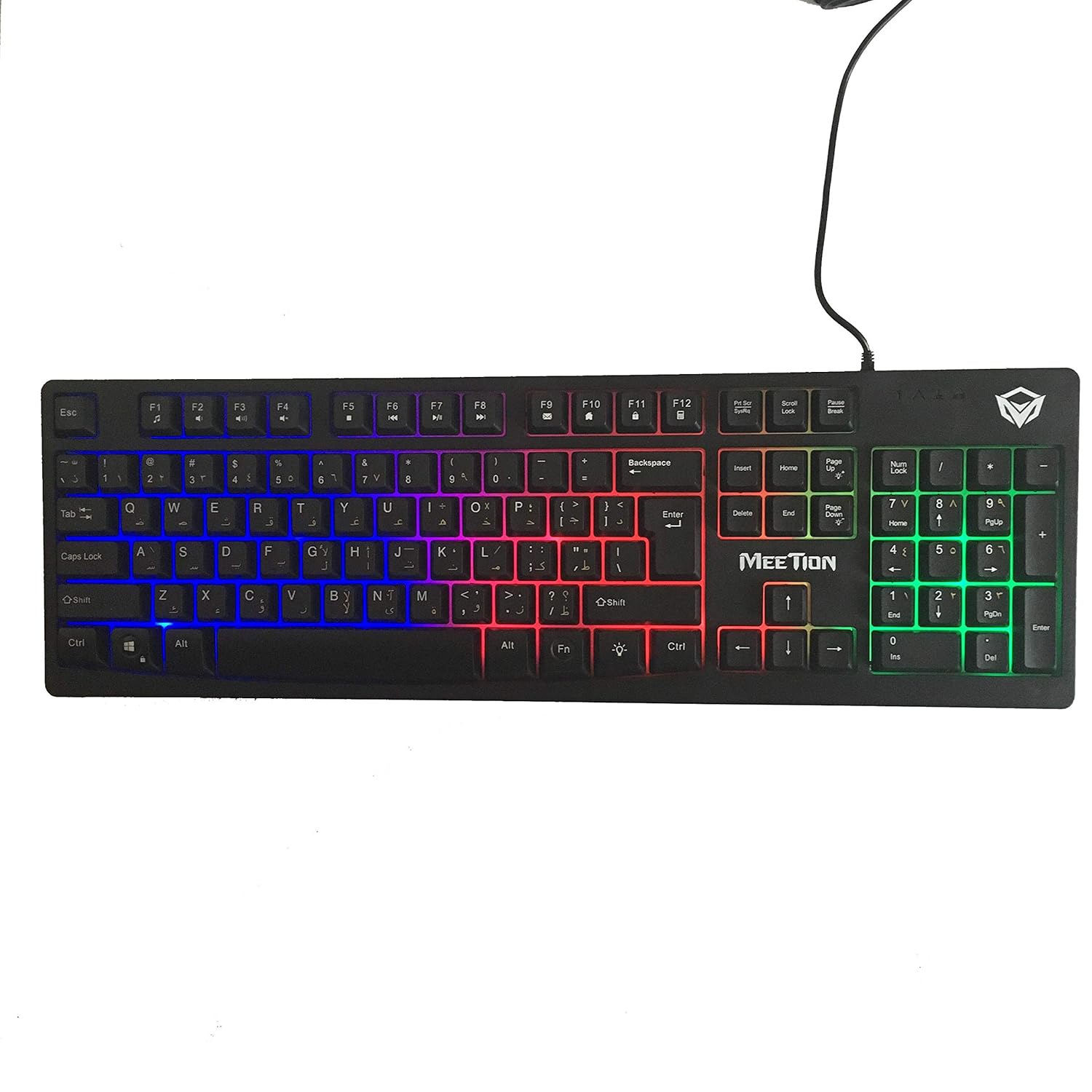
Сүрөт: Жогорку view of the MeeTion K9310 Gaming Keyboard with its multicolor backlighting illuminated.
FN Shortcut Functions
The keyboard includes 12 FN (Function) shortcut buttons. To activate these functions, press and hold the FN key, then press the desired F-key (F1-F12).
| Ачкыч айкалышы | Функция |
|---|---|
| FN + F1 | Медиа ойноткуч |
| FN + F2 | Үндү төмөндөтүү |
| FN + F3 | Үндү көтөрүү |
| FN + F4 | Үнсүз |
| FN + F5 | Токто |
| FN + F6 | Мурунку трек |
| FN + F7 | Ойнотуу/Тыныгуу |
| FN + F8 | Кийинки трек |
| FN + F9 | |
| FN + F10 | Web Браузер |
| FN + F11 | Менин компьютерим |
| FN + F12 | Калькулятор |
Win Lock Function
To activate or deactivate the Windows key lock function, press FN + Win ачкычы. When active, the Windows key will be disabled, preventing accidental presses during gaming. An LED indicator on the keyboard will typically illuminate to show the Win Lock status.
Техникалык тейлөө
Туура тейлөө клавиатураңыздын узак мөөнөттүү жана оптималдуу иштешин камсыз кылат.
- Тазалоо: Клавиатуранын бетин жумшак, кургак чүпүрөк менен сүртүңүз. Тереңирээк тазалоо үчүн, бир азamp жумшак самын кошулган чүпүрөктү колдонсо болот, бул суюктуктун ачкычтын өчүргүчтөрүнө же ички компоненттерине кирбешин камсыз кылат.
- Чаңды тазалоо: Баскычтардын ортосундагы чаңды жана калдыктарды тазалоо үчүн кысылган абаны колдонуңуз.
- Суюктуктардан алыс болуңуз: Do not spill liquids on the keyboard. If a spill occurs, immediately disconnect the keyboard from the computer and allow it to dry completely before reconnecting.
- Сактагыч: Клавиатураны узак убакыт бою колдонбогондо, күндүн тике тийген нурунан жана экстремалдык температурадан алыс, салкын, кургак жерде сактаңыз.

Сүрөт: Төмөнкү view of the MeeTion K9310 Gaming Keyboard, showing the product label and rubber feet.
Проблемаларды чечүү
If you encounter issues with your MeeTion K9310 Gaming Keyboard, refer to the following troubleshooting steps:
- Баскычтоп жооп бербейт:
- USB кабели компьютериңиздеги иштеген USB портуна бекем сайылганын текшериңиз.
- Баскычтопту башка USB портуна сайып көрүңүз.
- Компьютериңизди өчүрүп күйгүзүңүз.
- Көйгөй клавиатурада же компьютерде экенин аныктоо үчүн баскычтопту башка компьютерде сынап көрүңүз.
- Keys Not Working (e.g., 'W' key):
- Check for any debris or foreign objects lodged under the affected key. Use compressed air to clear it.
- If only specific keys are not responding, and the keyboard is otherwise functional, it might indicate a hardware issue.
- Арткы жарык иштебей жатат же жыпылыктайт:
- Клавиатура туура туташтырылганын текшериңиз.
- Check if the backlight brightness is set to minimum or turned off via FN key combinations.
- If the issue persists, it may indicate a hardware malfunction.
- Win Lock Function Not Working:
- Ensure you are using the correct key combination (FN + Win Key) to toggle the function.
- Check the LED indicator for Win Lock status.
Техникалык шарттар
| Өзгөчөлүк | Деталь |
|---|---|
| Бренд | ЖОЛУГУШУУ |
| Модел | K9310 |
| Баскычтоптун түрү | Оюн клавиатурасы |
| Негизги байланыш | Membrane with tactile feedback |
| Макет | Cyrillic alphabet layout (Windows Keys) |
| Anti-Ghosting | 19 ачкыч |
| Арткы жарык | Көп түстүү баскычтар арткы жарык |
| Win Lock Function | Ооба, LED көрсөткүчү менен |
| FN Shortcut Buttons | 12 |
| Error-Free Running Time | More than 10 million strokes |
| OS шайкештиги | Windows XP/Vista/7/8/10 |
| Өлчөмдөр | 17.5 × 5.5 x 1.5 inches (approximate) |
| Салмагы | 1.2 фунт (болжол менен) |
| Шайкеш түзмөктөр | Laptop (and Desktop PCs) |
Кепилдик жана колдоо
For warranty information or technical support, please refer to the documentation provided at the time of purchase or visit the official MEETION webсайт. Ар кандай кепилдик дооматтары үчүн сатып алганыңыздын далилин сактаңыз.