
Introduction
This manual provides detailed instructions for the installation, operation, and maintenance of your TP-Link Kasa Smart Wi-Fi LED Bulb KB100. This smart bulb offers dimmable white light and connects directly to your home's Wi-Fi network without requiring a separate hub. It is designed for convenient control via the Kasa Smart app and voice commands through compatible smart assistants.
Коопсуздук маалыматы
- Ensure the power is turned off at the switch before installing or removing the bulb.
- Do not use with standard dimmers. This bulb is dimmable only via the Kasa Smart app or voice control.
- кургак жерлерге гана ылайыктуу.
- Лампаны ажыратпаңыз же өзгөртпөңүз.
- Avoid exposing the bulb to direct water or excessive humidity.
Орнотуу колдонмосу
1. Физикалык орнотуу
- Turn off the power to the light fixture at the wall switch.
- Carefully screw the Kasa Smart Wi-Fi LED Bulb KB100 into a standard E26 light socket.
- Turn on the power at the wall switch. The bulb should blink three times, indicating it is ready for setup.

Image: The Kasa Smart Wi-Fi LED Bulb KB100, ready for installation. This bulb connects directly to your home's secure Wi-Fi network without the need for a separate hub.
2. Download the Kasa Smart App
- Kasa Smart колдонмосун Apple App Store же Google Play Store'дон жүктөп алыңыз. Издөө "Kasa Smart".
- Create a TP-Link ID or log in if you already have an account.
3. Түзмөктү жупташтыруу
- In the Kasa Smart app, tap the "+" icon in the top right corner to add a new device.
- Select "Device" and then choose "Smart Bulbs" from the list.
- Follow the on-screen instructions in the app to connect the bulb to your home Wi-Fi network. Ensure your phone is connected to a 2.4 GHz Wi-Fi network during setup.
- Once connected, you can name your bulb and assign it to a room.

Image: A smartphone screen displaying the Kasa Smart app interface, emphasizing that no hub is required for the bulb to connect directly to your Wi-Fi network.
Иштөө нускамалары
1. Күңүрттөөчү функция
- Open the Kasa Smart app and select your KB100 bulb.
- Use the slider or numerical input to adjust the brightness level from 1% to 100%.
- Set the right brightness for any mood or activity.

Image: A visual representation of the Kasa Smart bulb's dimmable feature, showing a room with the light set to three different brightness levels.
2. Control From Anywhere
- Once configured, you can control your smart light bulb from any location using your smartphone with the Kasa Smart app, provided your phone has an internet connection.

Image: A hand holding a smartphone displaying the Kasa Smart app, illustrating the ability to control lights remotely from any location.
3. Device Grouping
- In the Kasa Smart app, navigate to the "Groups" section.
- Create a new group and add your KB100 bulb along with other Kasa Smart devices.
- Control multiple devices simultaneously with a single tap or voice command.
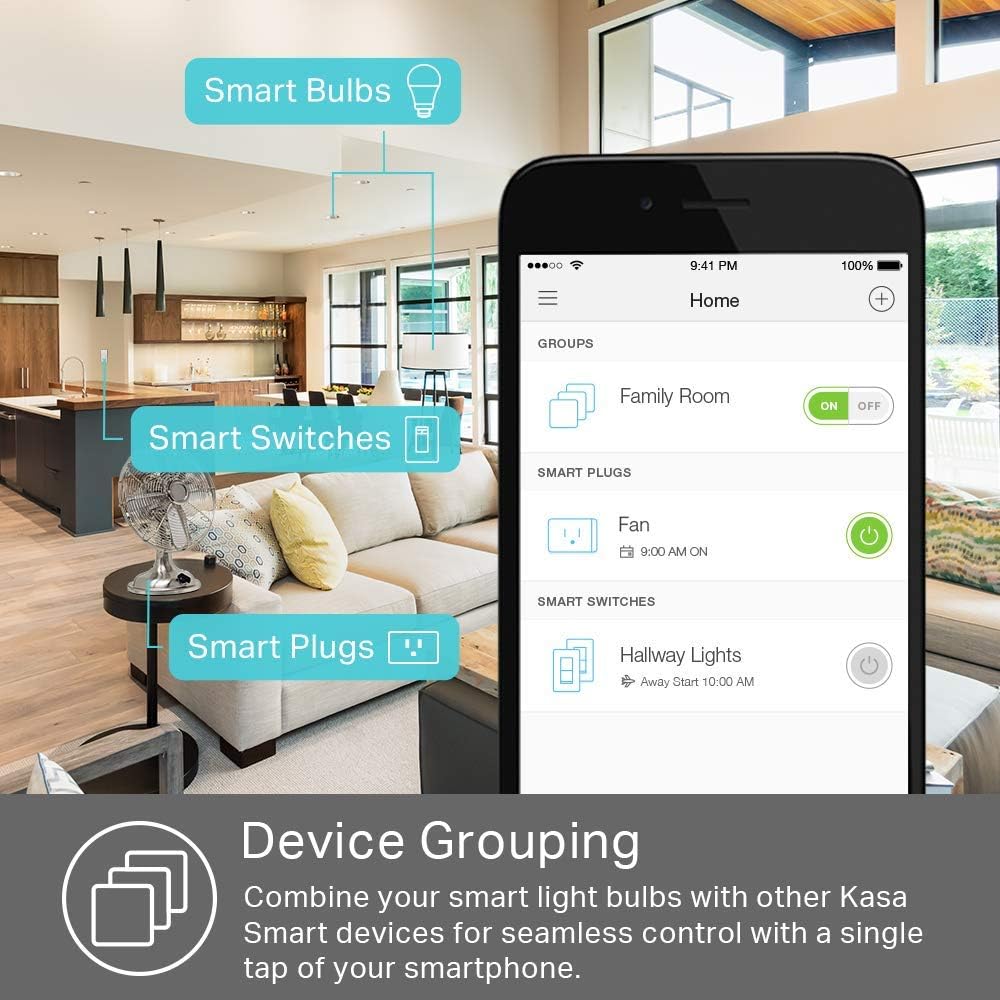
Image: A screenshot of the Kasa Smart app showing how multiple smart devices, including bulbs, switches, and plugs, can be grouped for unified control.
4. Үн менен башкаруу
- Link your Kasa Smart account to Amazon Alexa or Google Assistant through their respective apps.
- Use simple voice commands such as "Alexa, dim the living room light to 50%" or "Hey Google, turn off the bedroom lamp."

Image: Two individuals on a couch, demonstrating the use of voice commands to control a smart light, with a speech bubble indicating a command like "Turn on the living room lamp."
Техникалык тейлөө
- Тазалоодон мурун лампочка муздак жана электр кубаты өчүрүлгөн экенин текшериңиз.
- Лампочканы жумшак, кургак чүпүрөк менен сүртүңүз. Суюк тазалоочу каражаттарды же абразивдүү материалдарды колдонбоңуз.
- Regularly check for firmware updates in the Kasa Smart app to ensure optimal performance and security.
Проблемаларды чечүү
Bulb Not Responding / Disconnecting from Wi-Fi
- Wi-Fi сигналын текшерүү: Ensure the bulb is within range of your Wi-Fi router and has a strong signal.
- Маршрутизатор орнотуулары: Verify your router is broadcasting a 2.4 GHz network. Kasa devices typically connect to 2.4 GHz Wi-Fi.
- Power Cycle: Turn the light switch off for 10 seconds, then turn it back on. This can often re-establish the connection.
- Re-setup: If the issue persists, try removing the device from the Kasa app and performing the setup process again.
- Орнотулган программаны жаңыртуу: Ensure the bulb's firmware is up to date via the Kasa Smart app.
Bulb Not Blinking During Setup
- Ensure the bulb is properly screwed into the socket and the power is on.
- If it doesn't blink, try power cycling the bulb three times (turn off for 1 second, then on for 1 second, repeat) to initiate factory reset mode. It should then blink.
Продукт спецификациялары
| Өндүрүүчү | TP-Link |
| Модель номери | KB100 |
| Элемент Салмагы | 8.8 унция |
| Пакеттин өлчөмдөрү | 6.9 x 4.1 x 3.4 дюйм |
| Өлчөмү | 50 Ватт (эквиваленттүү) |
| Түс | Dimable White |
| Стиль | A19, Soft White |
| Материал | Пластик |
| Тtage | 120 вольт |
| Ватtage | 50 watts (Equivalent) |
| Лампанын түрү | LED |
| Өзгөчөлүктөр | Dimmable |
| Камтылган компоненттер | (1) Kasa Smart Light Bulb, (1) Quick Start Guide |
Кепилдик маалымат
The TP-Link Kasa Smart Wi-Fi LED Bulb KB100 comes with a 2-year manufacturer's warranty. Please retain your proof of purchase for warranty claims. For detailed terms and conditions, refer to the official TP-Link webсайтка же кардарларды колдоо менен байланышыңыз.
Кардарларды колдоо
For further assistance, technical support, or warranty inquiries, please visit the official TP-Link support webсайтка же кардарларды тейлөөгө кайрылыңыз:
- Webсайт: www.tp-link.com/us/support/
- Телефон: Refer to the TP-Link support webаймактык байланыш номерлери үчүн сайт.


