
Vonets VAR11N-300
Vonets VAR11N-300 Mini WiFi Router User Manual
Model: VAR11N-300
1. Киришүү
This manual provides detailed instructions for the setup, operation, and maintenance of the Vonets VAR11N-300 Mini WiFi Router. The VAR11N-300 is a versatile device designed to function as a WiFi Router, WiFi Bridge, and WiFi Repeater, offering flexible networking solutions for various environments.

Сүрөт 1.1: Алдыңкы view of the Vonets VAR11N-300 Mini WiFi Router.
The device is compact and portable, making it ideal for travel, home, or office use. It supports 802.11n wireless technology, providing a data transfer rate of up to 300Mbps.
2. Коопсуздук маалыматы
- Жайгашкан жери: Place the device in a well-ventilated area to prevent overheating. Do not cover ventilation openings.
- Кубат булагы: Use only the specified power supply (DC 5V) or a compatible USB power source.
- Суу таасири: Аппаратты сууга же нымга тийгизбеңиз.
- Тазалоо: Clean the device with a dry, soft cloth. Do not use liquid cleaners or aerosol sprays.
- Демонтаж: Аппаратты өз алдынча бөлүүгө же оңдоого аракет кылбаңыз. Бардык тейлөөлөрдү квалификациялуу кызматкерлерге тапшырыңыз.
3. Пакеттин мазмуну
Пакетиңизде бардык буюмдар бар экенин текшериңиз:
- Vonets VAR11N-300 Mini WiFi Router
- RJ45 Ethernet кабели
- DC/USB Power Cable
- Колдонуучунун Колдонмосу (бул документ)

Figure 3.1: Vonets VAR11N-300 with its accompanying RJ45 Ethernet and DC/USB power cables.
4. Продукт бүтүп калдыview
The VAR11N-300 features a compact design with essential ports for connectivity.
4.1. Физикалык өзгөчөлүктөрү
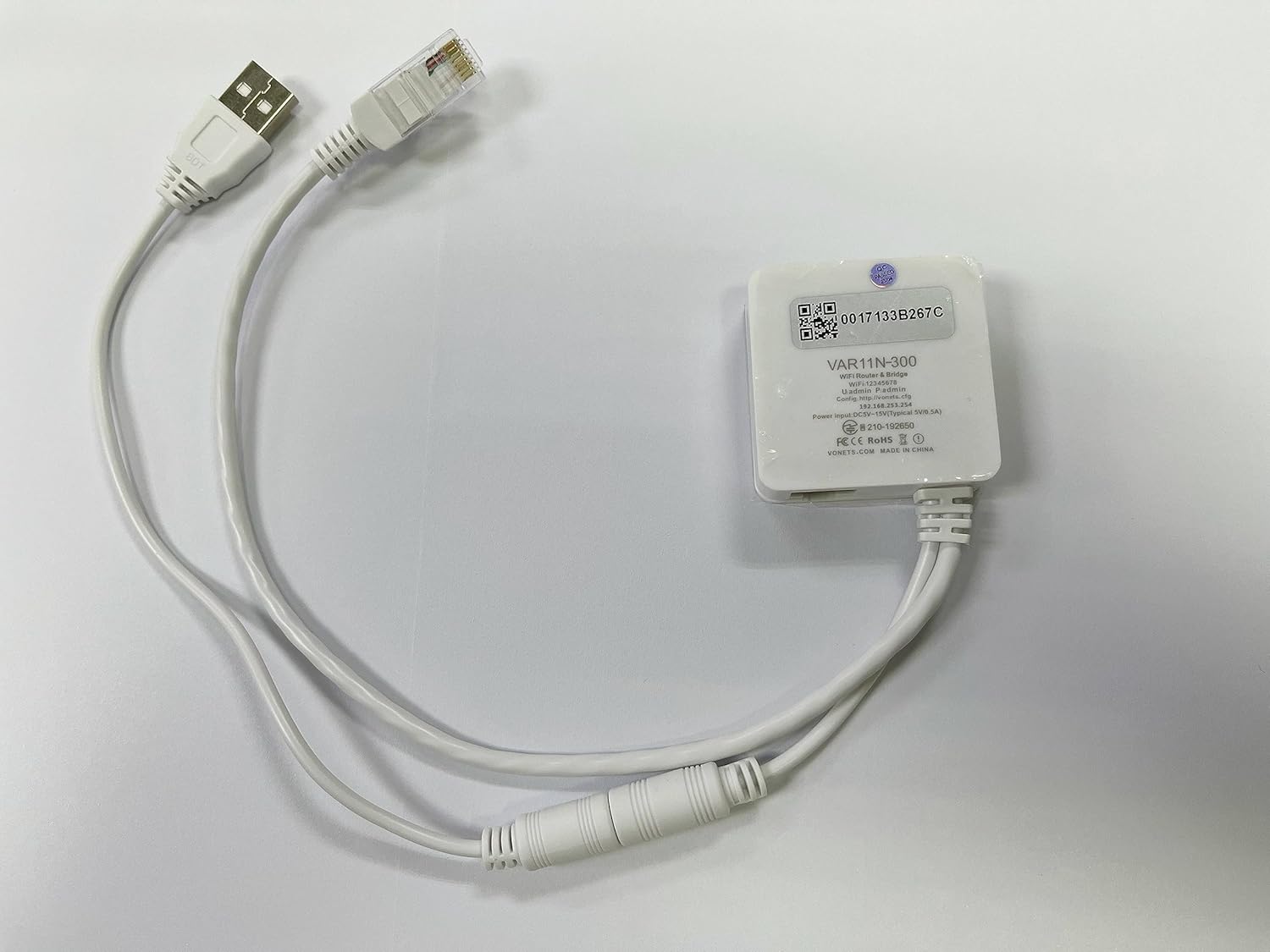
4.1-сүрөт: Арткы view of the VAR11N-300, highlighting the ports.
- DC 5V порт: Түзмөк үчүн кубат киргизүү.
- LAN порту: Used for local area network connections in Router mode or for connecting wired devices in Bridge mode.
- WAN порт: Used for Wide Area Network connection (e.g., to a modem) in Router mode.
- Калыбына келтирүү баскычы: Аппаратты демейки жөндөөлөргө кайтаруу үчүн колдонулат.
4.2. LED абалынын көрсөткүчтөрү
Аппараттын иштөө абалын көрсөтүү үчүн LED индикаторлору бар:
- Ethernet Port Status (Green Light): Ethernet портундагы активдүүлүктү көрсөтөт.
- Ethernet Cable Status (Green Light): Indicates a successful physical connection via Ethernet cable.
- Hotspot Connection Status (Blue Light): Indicates active connections to the device's WiFi hotspot.
- WiFi Status (Blue Light): Indicates the WiFi module is active and broadcasting.
5. Орнотуу жана конфигурациялоо
The VAR11N-300 offers a quick and easy setup process.
5.1. Баштапкы байланыш
- Connect the VAR11N-300 to a power source using the provided DC/USB cable.
- Wait for the device to power on and its WiFi indicator to become active.
- On your computer or mobile device, disable any existing local network connections (e.g., Ethernet).
- Connect to the VAR11N-300's default WiFi hotspot. The SSID typically starts with "VONETS_" followed by a series of characters.
5.2. Wireless Quick Configuration
- Once connected to the VAR11N-300's WiFi, open a web браузер (мисалы, Chrome, Firefox).
- In the address bar, enter the virtual configuration domain name: http://vonets.cfg
- You will be prompted for a username and password. The default credentials are:
Колдонуучунун аты: админ
Купуя сөз: админ - After logging in, select your desired WiFi network from the available list.
- Enter the password for your selected WiFi network and submit the configuration.
- The device will restart to apply the new settings. After restarting, your device should be connected to the internet via the configured mode.
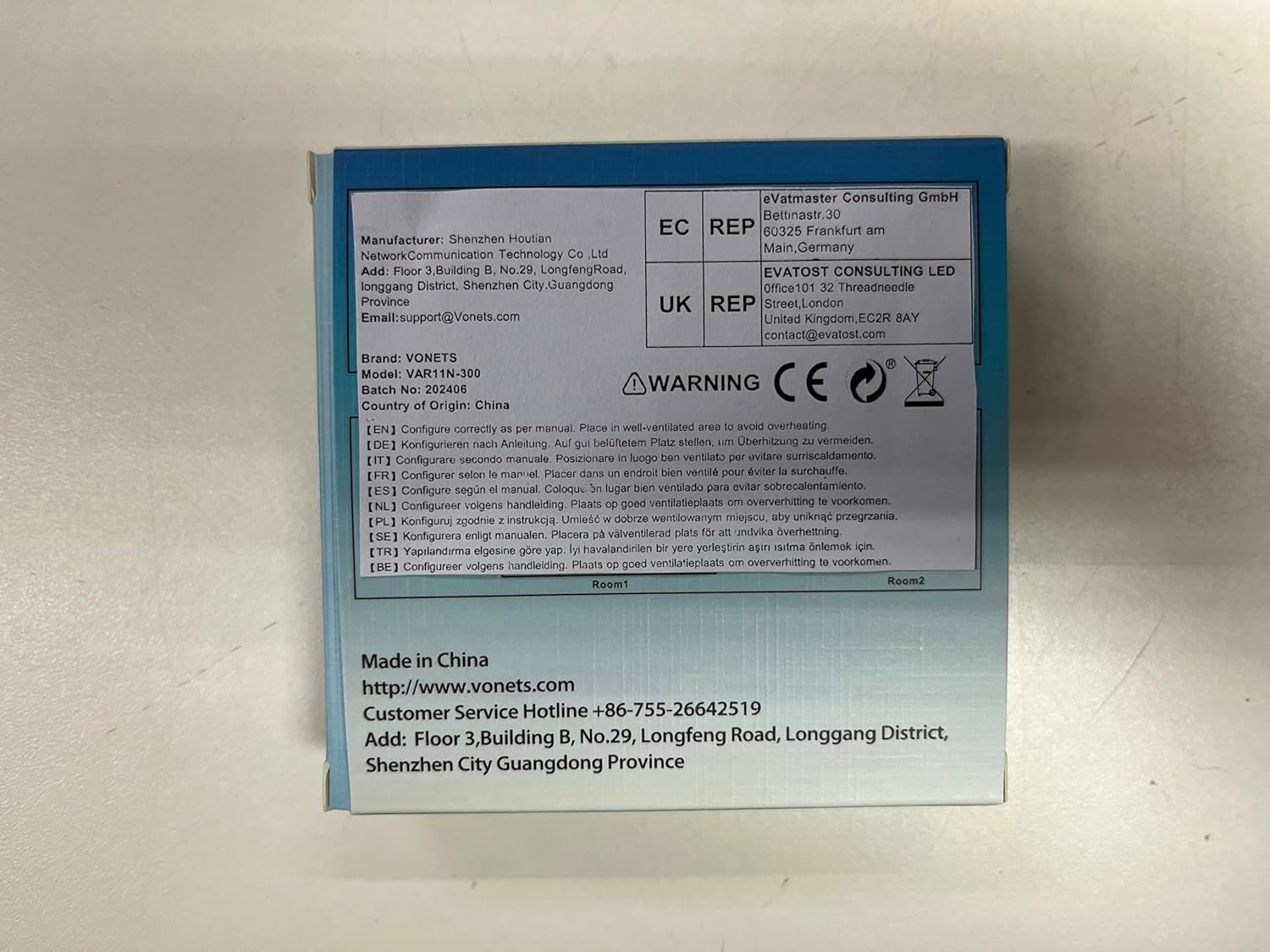
Figure 5.1: Visual guide for the three-step quick configuration process.
6. Иштөө режимдери
The VAR11N-300 supports three primary operating modes:
6.1. WiFi Router Mode
In Router mode, the VAR11N-300 acts as a traditional router, suitable for broadband users. It connects to a modem via its WAN port and provides internet access to multiple devices via WiFi or its LAN port.
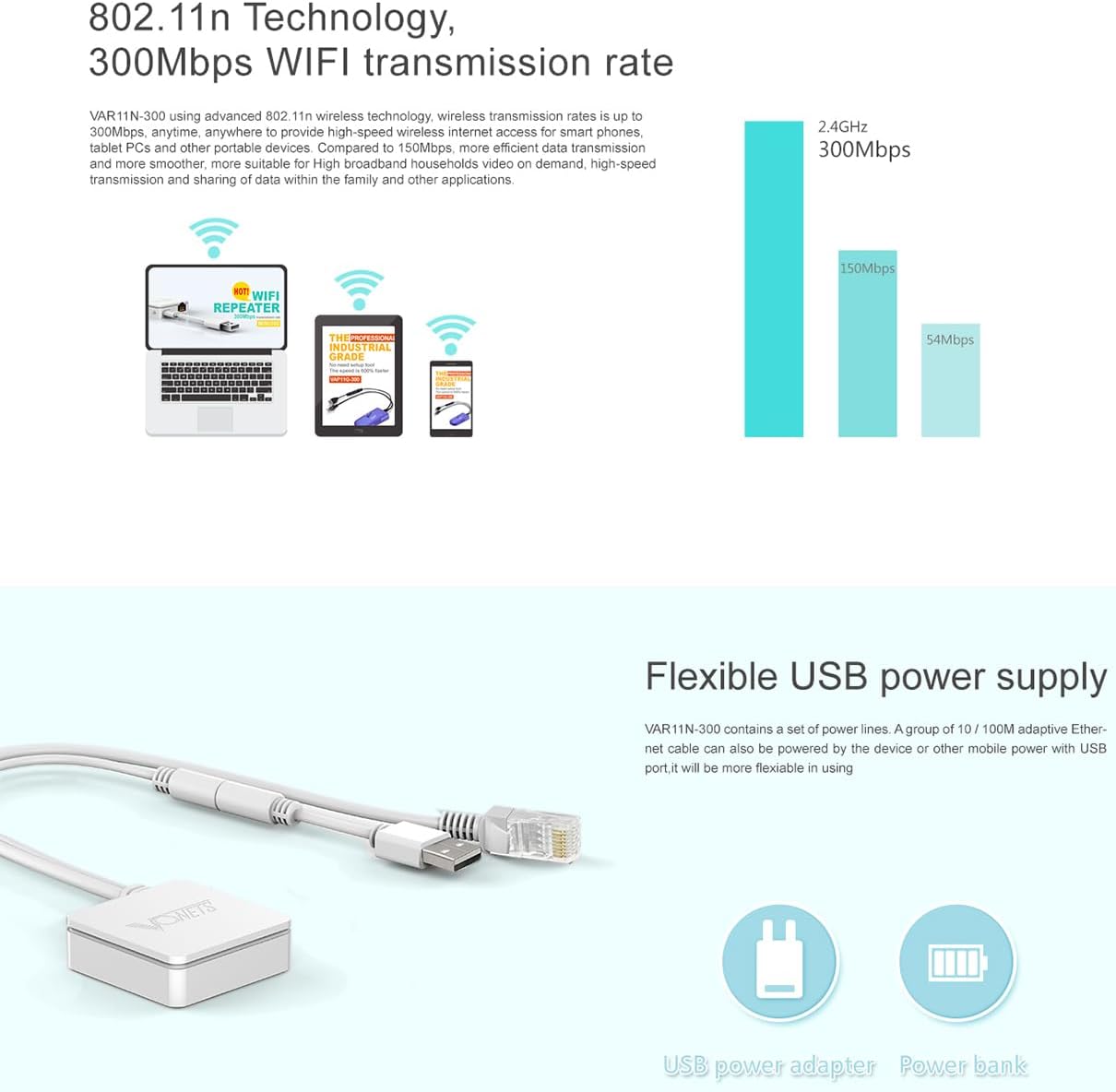
Figure 6.1: Setup for WiFi Router Mode, connecting to a modem and providing internet to devices.
6.2. WiFi Bridge Mode (WiFi to Ethernet)
In Bridge mode, the VAR11N-300 converts a WiFi signal into a wired Ethernet connection. This is useful for devices that only have an Ethernet port but need to connect to a wireless network (e.g., smart TVs, gaming consoles, printers).

6.2-сүрөт: Мисample of WiFi Bridge Mode, connecting a wired device to a wireless network.
6.3. Зымсыз кайталагыч режими
Repeater mode extends the range of an existing WiFi signal. The VAR11N-300 receives a weak WiFi signal and amplifies it, re-broadcasting it to cover a larger area, improving signal strength in dead zones.
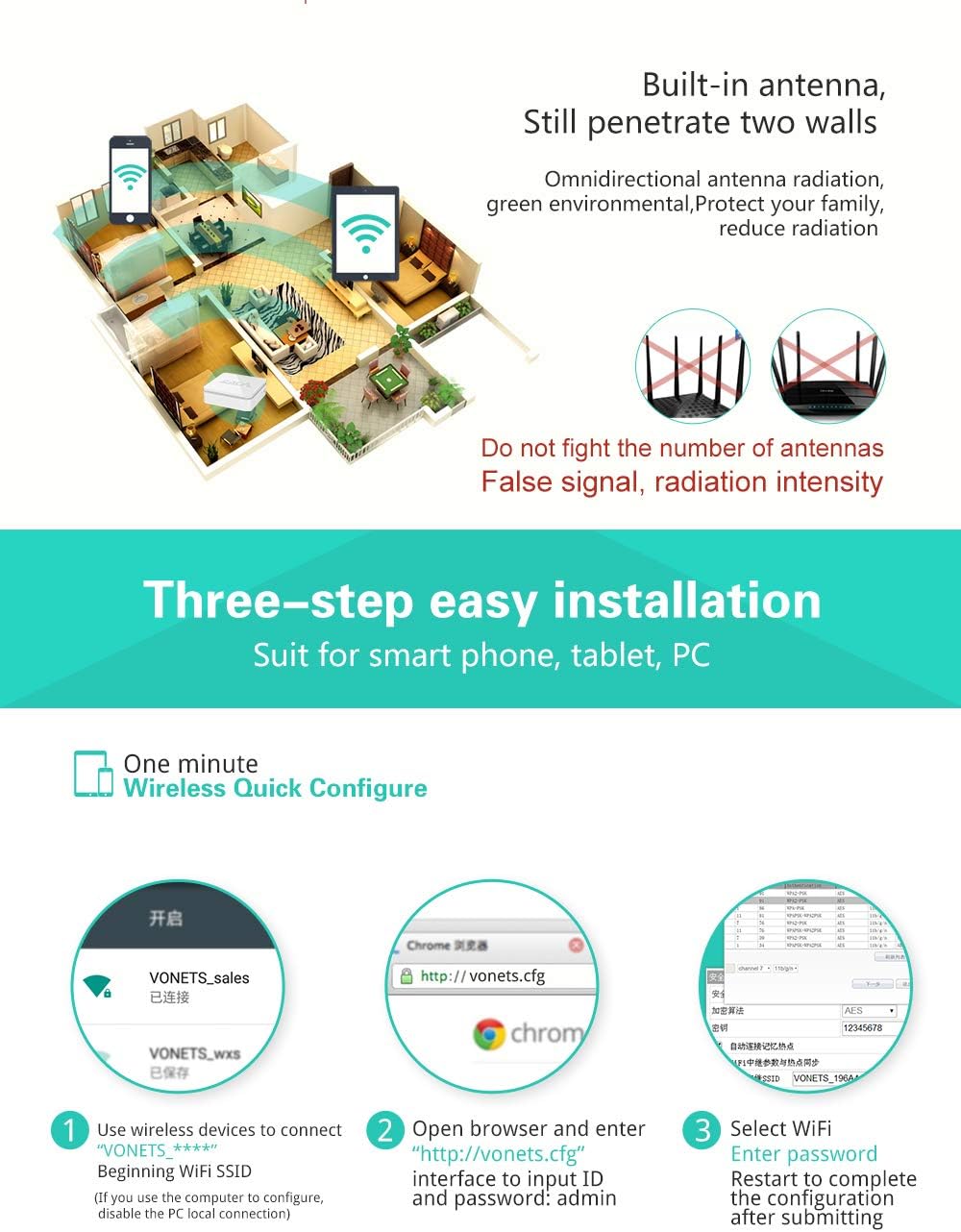
Figure 6.3: How Wireless Repeater Mode extends WiFi coverage.
7. Өркүндөтүлгөн конфигурация
For more detailed settings, access the web management interface via http://vonets.cfg.
7.1. Channel Idle Algorithm
The VAR11N-300 features a channel idle algorithm that automatically selects the best WiFi channel to avoid signal interference and improve performance, especially in environments with many WiFi networks.
7.2. Flexible USB Power Supply
The device can be powered via its DC 5V port or directly through a USB port, offering flexibility for various power sources, including power banks, making it highly portable.

Figure 7.1: The VAR11N-300 can be powered by a USB adapter or a power bank.
8. Техникалык тейлөө
To ensure optimal performance and longevity of your VAR11N-300:
- үзгүлтүксүз тазалоо: Түзмөктү чаңдан жана таштандылардан таза кармаңыз. Тазалоо үчүн жумшак, кургак чүпүрөк колдонуңуз.
- Программалык камсыздоонун жаңыртуулары: Periodically check the official Vonets website for firmware updates. Updating firmware can improve performance, add new features, and fix bugs. Follow the instructions provided with the firmware update carefully.
- Туура желдетүү: Always ensure the device is placed in an area with adequate airflow to prevent overheating.
9. Кыйынчылыктарды
If you encounter issues with your VAR11N-300, try the following solutions:
| Көйгөй | Мүмкүн себеп | Чечим |
|---|---|---|
| Cannot access configuration page (http://vonets.cfg) | Not connected to VAR11N-300 WiFi; IP conflict; Browser issue. | Ensure your device is connected to the VAR11N-300's WiFi. Disable other network adapters. Try a different browser. Reset the device to factory defaults. |
| Орнотулгандан кийин интернетке кирүү мүмкүн эмес | Incorrect WiFi password; Incorrect mode configuration; Upstream network issue. | Verify the WiFi password. Check if the selected operating mode (Router, Bridge, Repeater) is appropriate for your network setup. Ensure your modem/main router is working correctly. |
| Weak WiFi signal or frequent disconnections | Interference; Distance from main router (in Repeater mode); Obstructions. | Relocate the VAR11N-300 to a central location. Minimize physical obstructions. Check for other devices causing interference. Consider using Repeater mode if signal is weak. |
| Түзмөк ашыкча ысып жатат | Poor ventilation; Prolonged heavy use. | Ensure the device is in a well-ventilated area. Do not cover it. If the problem persists, contact support. |
10. Техникалык шарттар
| Өзгөчөлүк | Деталь |
|---|---|
| Модель номери | VAR11N-300 |
| Продукциянын өлчөмдөрү | 1.73 x 1.73 x 0.59 дюйм |
| Элемент Салмагы | 1.94 унция |
| Зымсыз байланыш стандарты | 2.4 GHz Radio Frequency, 802.11bgn, 802.11n |
| Маалыматтарды өткөрүү ылдамдыгы | 300 Мегабит секундасына |
| Жыштык тилкесинин классы | Single-band |
| Өзгөчөлүктөр | Access Point Mode, Bridge/Repeater Mode, Router Mode, WiFi to Ethernet, Wireless to Wired |
| Power Input | DC 5V (USB аркылуу) |
11. Кепилдик жана колдоо
The Vonets VAR11N-300 comes with a 1-year manufacturer warranty. For technical support or warranty claims, please contact Vonets customer service.
- Кардарларды тейлөө боюнча ишеним телефону: +86-755-26642519
- Электрондук почта: support@vonets.com
- Webсайт: www.vonets.com
Сураныч, кепилдик максаттары үчүн сатып алганыңыздын далилин сактап коюңуз.
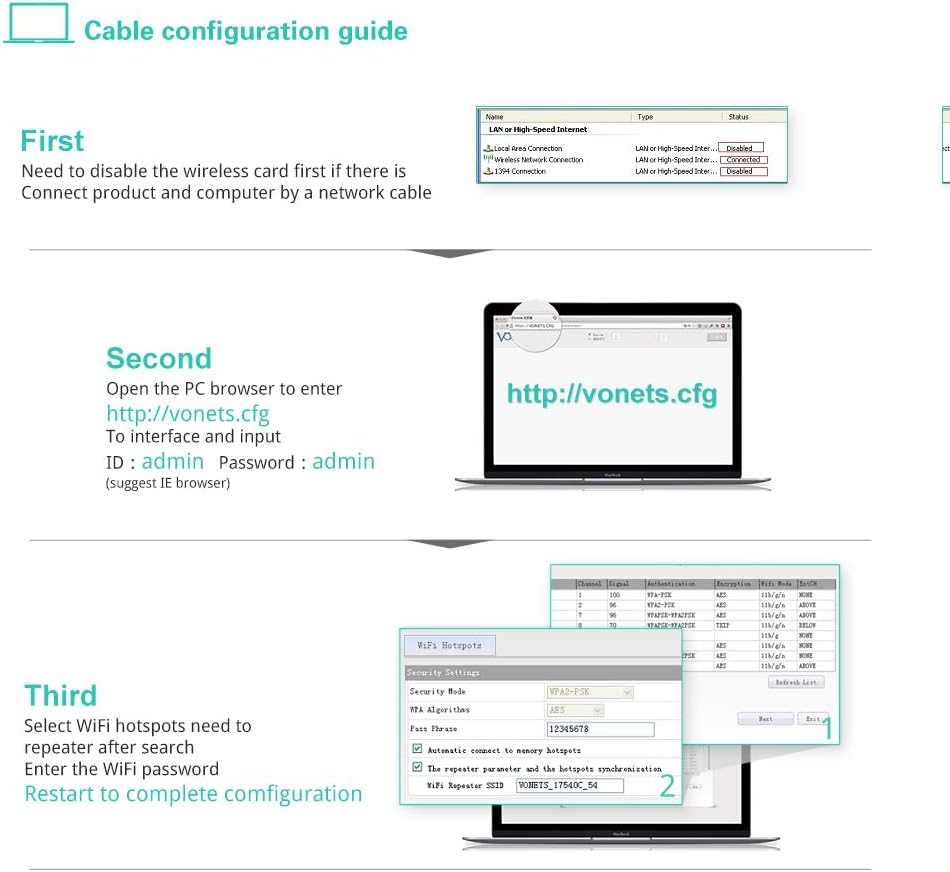
Figure 11.1: Compliance and manufacturer information.
Ask a question about this manual
Ask about setup, troubleshooting, compatibility, parts, safety, or missing instructions. Manuals+ will review the question and use this page’s manual context to help answer it.