
PIX-LINK LV-WR07
PIX-LINK LV-WR07 зымсыз роутеринин колдонуучу колдонмосу
Model: LV-WR07
1. Киришүү
Thank you for choosing the PIX-LINK LV-WR07 Wireless Router. This device is designed to provide a high-speed wireless network connection for your home or small office. With 300Mbps wireless speed and two external antennas, it ensures stable and wide-ranging Wi-Fi coverage. This manual will guide you through the setup, operation, and maintenance of your new router.

Image 1.1: The PIX-LINK LV-WR07 Wireless Router, showcasinанын компакттуу дизайны жана эки тышкы антеннасы бар.
2. Продукциянын өзгөчөлүктөрү
- Жогорку ылдамдыктагы зымсыз байланыш: Up to 300Mbps data transmission rate, ideal for smooth HD streaming, online gaming, and fast web серептөө.
- Кеңейтилген камтуу: Equipped with two external antennas to ensure a strong and stable Wi-Fi signal across your space.
- Бир нече порттор: Features 5 LAN ports for reliable wired connections to devices like desktop computers, smart TVs, and gaming consoles.
- WPS функциясы: Supports Wi-Fi Protected Setup (WPS) for easy and secure wireless connection setup.
- Кеңири шайкештик: Connects seamlessly with various devices including gaming consoles, tablets, and smart televisions.

Image 2.1: Illustration of the router's network coverage and compatibility with various devices, including laptops, smartphones, and PCs.
3. Пакеттин мазмуну
Пакетиңизде бардык буюмдар бар экенин текшериңиз:
- PIX-LINK LV-WR07 Wireless Router
- Кубаттуу адаптер
- Ethernet кабели
- Ыкчам орнотуу көрсөтмөсү (бул колдонмо)
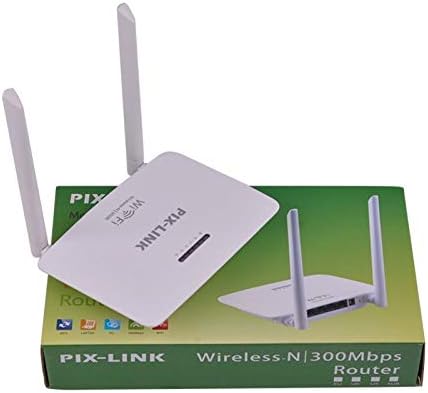
Image 3.1: The PIX-LINK LV-WR07 Wireless Router shown with its retail packaging, indicating the product as it appears in the box.

Image 3.2: The essential accessories included with the router: the power adapter for electrical connection and an Ethernet cable for wired network setup.
4. Орнотуу колдонмосу
4.1 Аппараттык туташуу
- Күйгүзүү: Connect the power adapter to the router's power port and then plug the adapter into a standard electrical outlet. The power indicator light on the router should illuminate.
- Интернет булагына туташыңыз: Connect one end of the provided Ethernet cable to your modem's LAN port or your internet service provider's (ISP) Ethernet wall jack. Connect the other end of the Ethernet cable to the WAN port (usually labeled differently or colored) on your PIX-LINK LV-WR07 router.
- Түзмөгүңүздү туташтыруу:
- Зымдуу туташуу: For initial setup or stable connection, connect your computer to one of the router's LAN ports (usually yellow) using another Ethernet cable.
- Зымсыз туташуу: Locate the default Wi-Fi network name (SSID) and password printed on a label on the bottom or back of your router. Connect your wireless device (laptop, smartphone, tablet) to this network.
4.2 Баштапкы конфигурация (Web Интерфейс)
After connecting the hardware, you can configure your router via a web браузер.
- Маршрутизатор орнотууларына кирүү: ачуу а web browser (e.g., Chrome, Firefox, Edge) on a device connected to the router. In the address bar, type the default IP address (e.g.,
192.168.1.1or192.168.0.1) and press Enter. This IP address is usually found on the router's label. - Кирүү: A login window will appear. Enter the default username and password (commonly
adminэкөө үчүн тең, же роутердин этикеткасында көрсөтүлгөндөй). - Орнотуу устасын иштетүү: Most routers have a Quick Setup Wizard. Follow the on-screen instructions to configure your internet connection type (e.g., DHCP, Static IP, PPPoE) and set up your new Wi-Fi network name (SSID) and a strong password.
- Жөндөөлөрдү сактоо: After configuring, save your settings and restart the router if prompted.
5. Роутериңизди иштетүү
5.1 Түзмөктөрдү Wi-Fiга туташтыруу
To connect a device to your Wi-Fi network:
- On your device, go to Wi-Fi settings.
- Тизмеден Wi-Fi тармагыңыздын атын (SSID) тандаңыз.
- Enter the Wi-Fi password you set during configuration.
- Түзмөгүңүз азыр интернетке туташып турушу керек.
5.2 WPS колдонуу (Wi-Fi корголгон орнотуу)
WPS allows you to connect devices to your Wi-Fi network without entering the password manually.
- Press the WPS button on your router (usually located on the back or side, labeled 'WPS'). The WPS LED indicator will start blinking.
- Within two minutes, activate WPS on your client device (e.g., a wireless adapter, smartphone, or printer). Refer to your device's manual for specific instructions on activating WPS.
- The device will automatically connect to your Wi-Fi network.
5.3 Wired Connections (LAN Ports)
The router provides multiple LAN ports for wired connections, offering stable and fast connectivity for devices like desktop computers, gaming consoles, and smart TVs.
- Simply connect an Ethernet cable from the device's Ethernet port to any available LAN port on the router.
- The corresponding LAN indicator light on the router should illuminate, indicating a successful connection.
6. Техникалык тейлөө
- Оптималдуу жайгаштыруу: Place the router in a central location, away from obstructions (thick walls, metal objects) and interference sources (microwaves, cordless phones) to maximize Wi-Fi coverage.
- Тазалыкты сактоо: Regularly clean the router's exterior with a soft, dry cloth. Ensure ventilation holes are not blocked to prevent overheating.
- Программалык камсыздоонун жаңыртуулары: Periodically check the PIX-LINK official website for firmware updates. Updating firmware can improve performance, add new features, and fix bugs. Follow the instructions provided on the webкылдат сайт.
- Мезгил-мезгили менен кайра баштоо: Роутериңизди бир нече жума сайын өчүрүп-күйгүзүү анын эс тутумун тазалоого жана тармактагы майда көйгөйлөрдү чечүүгө жардам берип, жалпы иштин натыйжалуулугун жакшыртат.
7. Кыйынчылыктарды
7.1 Интернет байланышы жок
- Check if the power adapter is securely connected and the router is powered on.
- Ensure the Ethernet cable from your modem/ISP is securely connected to the router's WAN port.
- Restart your modem and then your router. Wait a few minutes for them to fully boot up.
- Роутердеги интернет байланыш түрүңүздүн жөндөөлөрүн текшериңиз web interface (e.g., DHCP, Static IP, PPPoE).
- Эч кандай кызмат жок экенин тастыктоо үчүн Интернет Кызмат Провайдериңизге (ISP) кайрылыңызtagсиздин аймакта.
7.2 Slow Wi-Fi Speed or Intermittent Connection
- Маршрутизаторду тоскоолдуктардан жана тоскоолдуктардан алыс, борбордук жерге жылдырыңыз.
- Роутериңиздин микропрограммасы жаңыртылганын текшериңиз.
- Reduce the number of devices connected to the network, especially those performing high-bandwidth activities.
- Коңшу тармактардын тоскоолдуктарынан качуу үчүн роутердин жөндөөлөрүнөн Wi-Fi каналын өзгөртүп көрүңүз.
7.3 Маршрутизаторго кирүү мүмкүн эмес Web Интерфейс
- Ensure your device is connected to the router (either via Ethernet cable or Wi-Fi).
- Туура IP дарегин терип жатканыңызды текшериңиз (мисалы,
192.168.1.1) in the browser's address bar. - Браузериңиздин кэшин жана cookie файлдарын тазалаңыз же башкасын байкап көрүңүз web браузер.
- If you forgot the login credentials, you may need to perform a factory reset (see section 7.4).
7.4 How to Perform a Factory Reset
A factory reset will restore the router to its default settings, including the default Wi-Fi name and password, and login credentials.
- With the router powered on, locate the Reset button (often a small pinhole) on the back or bottom of the router.
- Use a paperclip or a thin object to press and hold the Reset button for about 5-10 seconds until the router's lights flash or change behavior.
- Release the button and wait for the router to restart. You will then need to reconfigure it using the initial setup steps.
8. Техникалык шарттар
| Өзгөчөлүк | Description |
|---|---|
| Бренд | PIX-LINK |
| Модел | LV-WR07 |
| Зымсыз ылдамдык | 300 Мегабит/секунда (Мбит/сек) |
| Антенналар | 2 Тышкы антенналар |
| Порттардын саны | 5 (1 WAN, 4 LAN) |
| Байланыш технологиясы | Wi-Fi, LAN |
| Өзгөчөлүктөр | WPS (Wi-Fi корголгон орнотуу) |
| Шайкеш түзмөктөр | Gaming Consoles, Tablets, Smart Televisions |
9. Кепилдик маалыматы
PIX-LINK products are designed for reliability and performance. For specific warranty terms and conditions, please refer to the warranty card included with your product or visit the official PIX-LINK webсайт. Сатып алуу квитанциясын кепилдик дооматтары үчүн сатып алуунун далили катары сактаңыз.
10. Кардарларды колдоо кызматы
If you encounter any issues that are not covered in this manual or require further assistance, please contact PIX-LINK customer support. You can usually find contact information (phone number, email, or support portal) on the official PIX-LINK webсайтында же продуктунун таңгагында.
Before contacting support, please have the following information ready:
- Product Model: LV-WR07
- Serial Number (found on the product label)
- Сиз туш болуп жаткан маселенин толук сүрөттөлүшү
- Steps you have already taken to troubleshoot
Ask a question about this manual
Ask about setup, troubleshooting, compatibility, parts, safety, or missing instructions. Manuals+ will review the question and use this page’s manual context to help answer it.