
1. Киришүү
This instruction manual provides detailed guidance for setting up, operating, and maintaining your TP-Link AC4000 Smart WiFi Router, model Archer A20. This tri-band router is designed to deliver high-speed wireless connectivity, advanced security features, and robust performance for your home network.
The Archer A20 features MU-MIMO technology for simultaneous device connections, Beamforming and RangeBoost for extended Wi-Fi coverage, and a 1.8 GHz 64-bit CPU for efficient data processing. It also includes advanced security features like Parental Controls and Built-In Antivirus powered by TP-Link HomeCare.
2. Пакеттин мазмуну
Баштоодон мурун, пакетиңизде төмөнкү элементтер бар экенин текшериңиз:
- TP-Link AC4000 акылдуу WiFi роутери (Archer A20)
- Электр менен жабдуу бирдиги
- Ethernet тармак кабели
- Ыкчам орнотуу көрсөтмөсү (QIG)
3. Орнотуу колдонмосу
3.1 Аппараттык туташуу
- Power off your modem: Disconnect the power from your existing modem. If your modem has a backup battery, remove it.
Image: A hand disconnecting the power cable from a modem, with text overlay "Power off the modem".
- Connect the router to the modem: Use the provided Ethernet cable to connect the WAN/Internet port (blue) on your Archer A20 router to the Ethernet port on your modem.
Image: A close-up of the back of the TP-Link Archer A20 router, showing the blue WAN port and yellow LAN ports, with an Ethernet cable connecting the blue WAN port to a modem.

- Power on the modem: Reconnect the power to your modem. Wait for approximately two minutes for the modem to fully start up.
- Power on the router: Connect the power adapter to your Archer A20 router and plug it into a power outlet. Press the Power On/Off button if necessary. Wait for the router's LED indicators to stabilize.
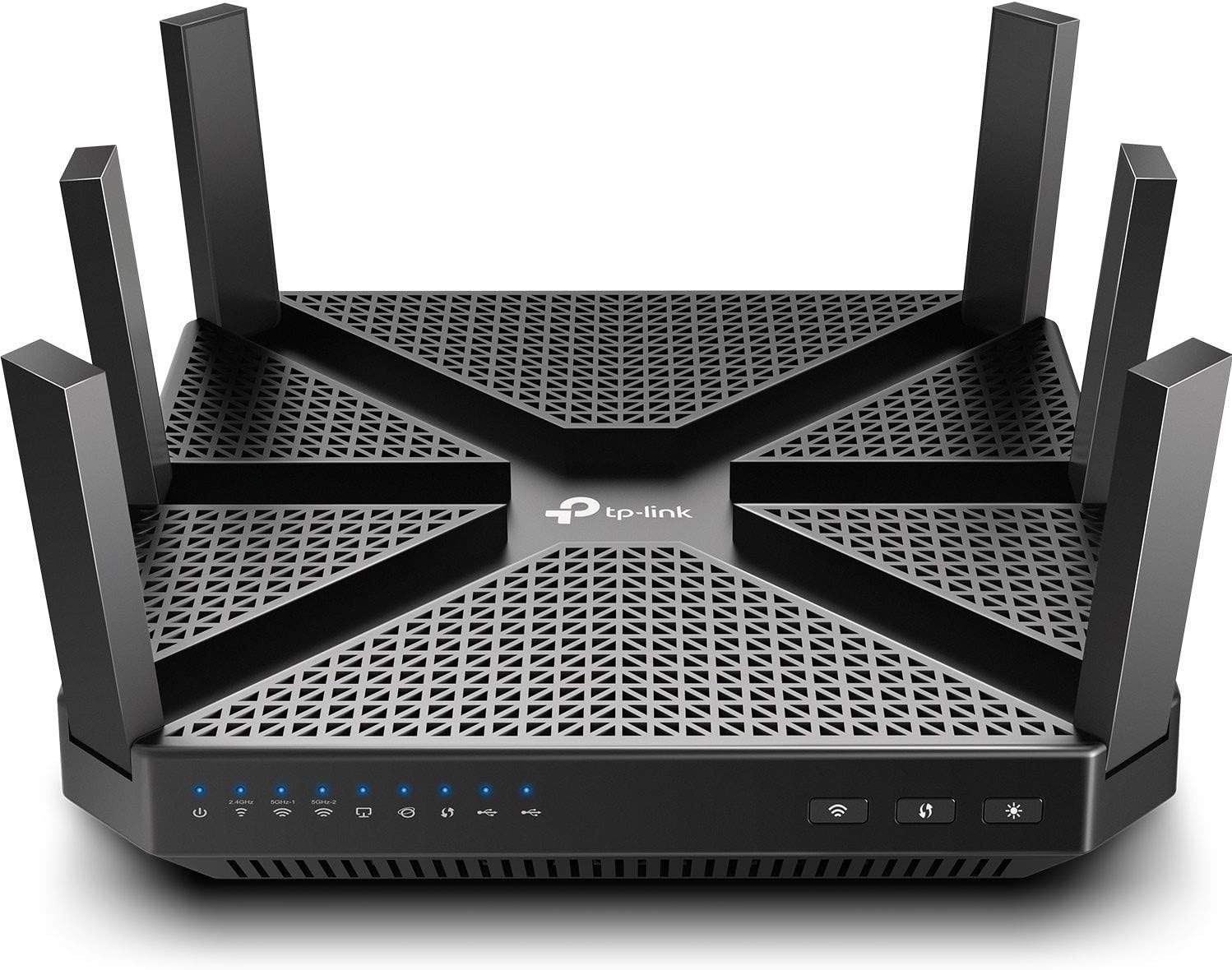
Сүрөт: Жогорку view of the TP-Link Archer A20 router with its antennas extended and blue LED indicators lit, signifying active connections.

3.2 Тез орнотуу аркылуу Web GUI
Роутериңизди колдонуп конфигурациялоо үчүн төмөнкү кадамдарды аткарыңыз web браузер:
- Түзмөгүңүздү туташтыруу: Connect your computer or mobile device to the router either via Ethernet cable (to any yellow LAN port) or wirelessly using the default SSID (Wi-Fi name) and password found on the label at the bottom of your router.
- кирүү web башкаруу баракчасы: ачуу а web браузер жана түрү http://tplinkwifi.net or http://192.168.0.1 дарек тилкесине.
- Create a password: You will be prompted to create a new administrator password for the router. This password will be used to log in to the management page in the future.
- Follow the Quick Setup Wizard:
- Убакыт алкагыңызды тандаңыз.
- Choose your Internet Connection Type (usually "Auto Detect" or "Dynamic IP" for most users).
- Customize your Wi-Fi Network Name (SSID) and Password for both 2.4GHz and 5GHz bands.
- Review the summary and save your settings.
- Reconnect to your new Wi-Fi network: After saving, your router will apply the new Wi-Fi settings. You will need to reconnect your devices using the new SSID and password you just created.
3.3 Видео орнотуу боюнча колдонмо
For a visual walkthrough of the installation process, please refer to the official TP-Link quick setup video below:
Video: A step-by-step guide on how to quickly set up a TP-Link wireless router, covering physical connections and initial web интерфейс конфигурациясы.
4. Роутериңизди иштетүү
4.1 Зымсыз байланыштын иштеши
The Archer A20 is a Tri-Band router, meaning it operates on one 2.4GHz band and two separate 5GHz bands, allowing for more devices to connect simultaneously without sacrificing performance. This is ideal for 4K video streaming, online gaming, and other bandwidth-intensive activities.
MU-MIMO технологиясы: This feature allows the router to communicate with multiple devices simultaneously, improving overall network efficiency and reducing buffering.
Image: Diagram illustrating how the Archer A20 router with MU-MIMO handles multiple devices simultaneously compared to standard AC routers.

RangeBoost & Beamforming: These technologies work together to extend Wi-Fi coverage and focus the signal directly to your connected devices, ensuring a strong and reliable connection throughout your home.
Image: Visual representation of RangeBoost and Beamforming extending Wi-Fi coverage throughout a house, showing the difference between Archer A20's enhanced range and average range.

High-Speed Processing: Equipped with a 1.8 GHz 64-bit CPU, the Archer A20 can smoothly process multiple requests and accelerate loading times, ensuring a responsive network experience.
Image: Graphic illustrating the high-speed capabilities of the Archer A20, highlighting NitroQAM, MU-MIMO, and Tri-Band speeds (1625Mbps, 1625Mbps, 750Mbps).

4.2 Зымдуу байланыштар
The router includes one WAN Gigabit port and four LAN Gigabit ports. For devices requiring maximum speed and stability, such as gaming consoles or desktop computers, a wired Ethernet connection is recommended.
Шилтемелерди бириктирүү: This feature allows you to combine two LAN ports to double the connection speed to a single device, achieving up to 2 Gbps for compatible devices.
Image: Diagram showing two Ethernet cables connecting from the router's LAN ports to a device, illustrating Link Aggregation to double connection speeds.

4.3 Өркүндөтүлгөн функциялар
- TP-Link үй камкордугу: Provides comprehensive security features including QoS (Quality of Service), robust Parental Controls, and Built-In Antivirus to protect your network from malicious attacks and manage network access.
- VPN сервери: The router supports VPN server functionality, allowing you to securely access your home network and connected devices from anywhere.
- USB порттору: Features USB 3.0 and USB 2.0 ports for sharing files and media across your network or setting up a personal cloud storage.
5. Техникалык тейлөө
5.1 Микропрограмма жаңыртуулары
Regularly check for and install firmware updates to ensure optimal performance, security, and access to new features. Firmware updates can typically be found on the TP-Link official webсайт же роутер аркылуу web башкаруу интерфейси.
5.2 Маршрутизаторду жайгаштыруу
For the best Wi-Fi coverage and signal strength, place your router in a central location in your home, away from obstructions like thick walls, metal objects, and other electronic devices that may cause interference.
5.3 Роутерди баштапкы абалга келтирүү
If you encounter persistent issues, you may need to reset the router. There are two types of resets:
- Жумшак баштапкы абалга келтирүү (кайра жүктөө): Simply power off the router, wait a few seconds, and then power it back on. This can resolve minor glitches.
- Заводдун баштапкы абалга келтирүү: With the router powered on, use a pin to press and hold the Reset button on the back of the router for about 10 seconds until the LEDs flash. This will restore the router to its factory default settings, requiring you to reconfigure it.
6. Кыйынчылыктарды
- Интернетке кирүү жок:
- Модем менен роутердин ортосундагы бардык кабелдик туташууларды текшериңиз.
- Модемиңизди да, роутериңизди да өчүрүп-күйгүзүңүз.
- Verify your Internet Connection Type settings in the router's web башкаруу барагы.
- Contact your Internet Service Provider (ISP) to ensure your service is active.
- Wi-Fi сигналы начар:
- Маршрутизаторду бир кыйла борбордук жерге көчүрүңүз.
- Avoid placing the router near large metal objects, concrete walls, or other electronics.
- Ensure router antennas are properly oriented.
- Кирүү мүмкүн эмес Web Башкаруу баракчасы:
- Түзмөгүңүз роутерге туура туташкандыгын текшериңиз (зымдуу же зымсыз).
- Туура даректи колдонуп жатканыңызды текшериңиз (http://tplinkwifi.net or http://192.168.0.1).
- Браузериңиздин кэшин тазалап көрүңүз же башка браузерди колдонуп көрүңүз.
7. Техникалык шарттар
| Өзгөчөлүк | Деталь |
|---|---|
| Бренд | TP-Link |
| Модель аты | Жаачы A20 |
| Зымсыз түрү | 802.11a, 802.11ac, 802.11b, 802.11g, 802.11n |
| Жыштык тилкесинин классы | Tri-Band |
| Байланыш технологиясы | Ethernet, USB, Wi-Fi |
| Элемент Салмагы | 3.54 фунт |
| Продукциянын өлчөмдөрү | 7.87 x 7.87 x 1.54 дюйм |
| Операциялык системаны колдоо | OS Independent Up to Windows 10, Mac OS 10.12 and Linux |
| Өзгөчөлүктөр | QoS, WPS, MU-MIMO, Beamforming, Link Aggregation, Parental Control, VPN Server, Built-in Antivirus |
| Камтылган компоненттер | Network Cable, Power Supply, QIG |
| Сунушталган Колдонуулар | Gaming, 4K Video Streaming |
8. Кепилдик жана колдоо
The TP-Link AC4000 Smart WiFi Router (Archer A20) comes with an industry-leading 2-year warranty.
For technical assistance, TP-Link offers 24/7 technical support. You can find contact information and additional resources on the official TP-Link webсайт: www.tp-link.com.