
1. Киришүү
The Autel MaxiLink ML519 is an advanced OBDII/EOBD scanner designed to assist in diagnosing vehicle issues. This tool provides comprehensive diagnostic functions, including reading and clearing trouble codes, viewing live data, performing I/M readiness tests, and more. It is compatible with most OBDII-compliant vehicles manufactured from 1996 onwards in the US, and from 2000 for EU-based and Asian cars.
2. Продукт бүтүп калдыview
2.1 Негизги өзгөчөлүктөрү
- Reads and clears generic (P0, P2, P3, U0) and manufacturer-specific (P1, P3, U1) codes, and pending codes.
- Check Engine жарыгын (MIL) өчүрөт, коддорду тазалайт жана мониторлорду баштапкы абалга келтирет.
- Patented One-Click I/M Readiness Status Key for quick emissions readiness check.
- Views кадр маалыматтарын тоңдуруу.
- Displays live PCM data stream in text and graphing formats.
- Performs O2 Monitor Test, On-Board Monitor Test (Mode 6), and Component Test.
- Retrieves vehicle identification information (VIN, CALID, and CVN).
- Built-in DTC lookup library for code definitions.
- Memory backup for off-vehicle data review жана талдоо.
- Internet updatable for software and language.
- Prints data via Windows-based PC.
2.2 Пакеттин мазмуну
The Autel MaxiLink ML519 package typically includes the following items:
- MaxiLink ML519 Unit
- OBD II Connector Cable
- USB Data Line
- Quick колдонмо
- Сактоочу баштык

Image: Contents of the Autel MaxiLink ML519 package, including the scanner unit, cables, quick guide, and storage bag.
3. Орнотуу
3.1 Connecting the Scanner to the Vehicle
- Turn the vehicle's ignition off.
- Locate the vehicle's 16-pin Data Link Connector (DLC). The DLC is usually located under the dashboard on the driver's side.
- Connect the OBD II connector cable from the ML519 scanner to the vehicle's DLC. Ensure a secure connection.
- Turn the vehicle's ignition to the ON position (engine off). The scanner will automatically power on.
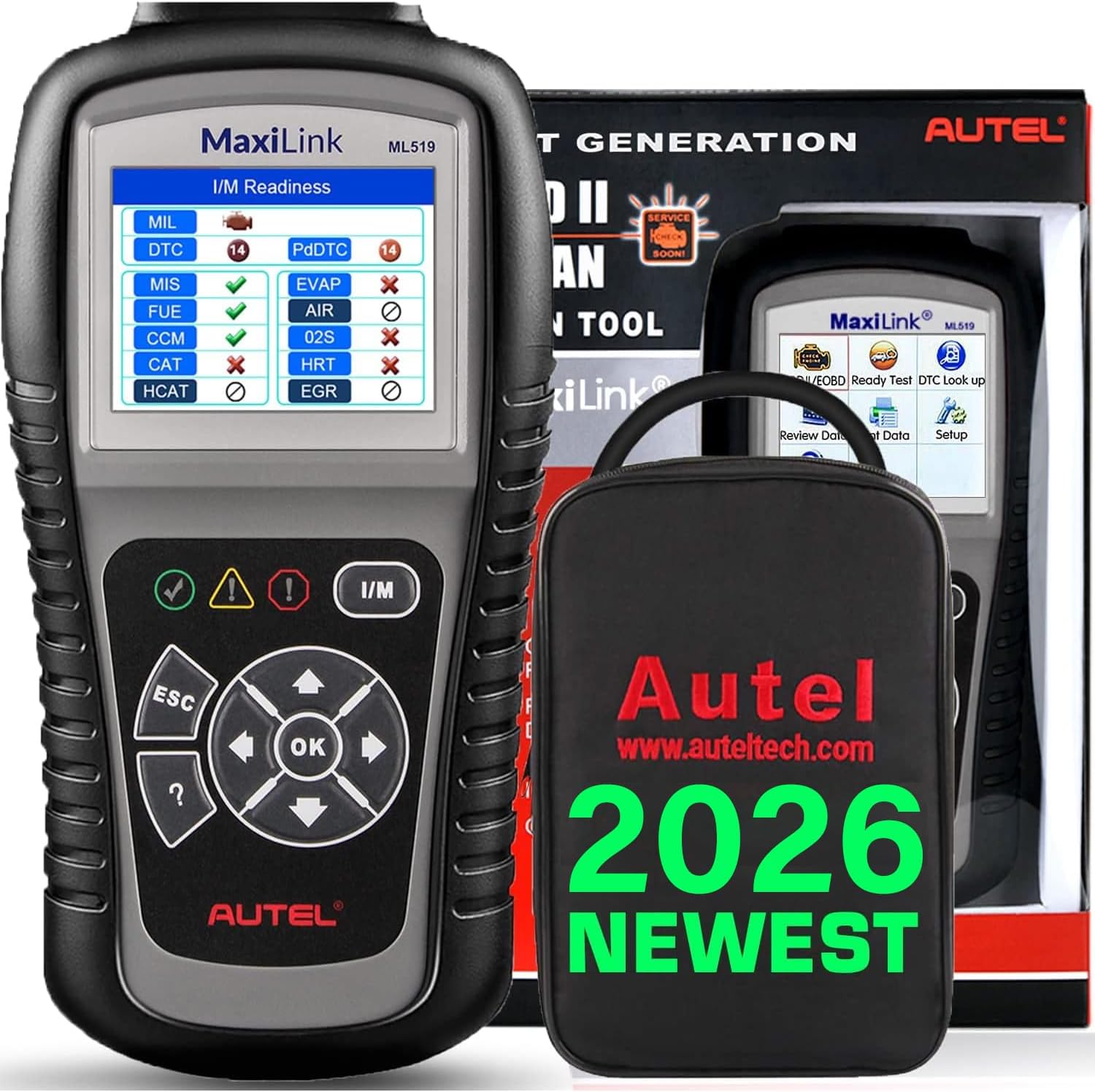
Image: The Autel MaxiLink ML519 scanner connected to a vehicle's OBD-II port, displaying its main menu.
4. Иштөө нускамалары
4.1 Full OBDII Scan Tool Functions
The ML519 supports all 10 modes of OBD II operation, providing comprehensive diagnostic capabilities.

Сүрөт: An overview of the Autel MaxiLink ML519's full OBDII scan tool functions, including erase codes, DTC definition, live data, and more.
4.2 Диагностикалык көйгөй коддорун (DTC) окуу жана тазалоо
To read DTCs:
- Негизги менюдан тандаңыз 'Read Codes'.
- The scanner will display any stored or pending DTCs.
To clear DTCs:
- Негизги менюдан тандаңыз 'Erase Codes'.
- Confirm the action when prompted. This will turn off the Check Engine Light (MIL) and reset monitors.
4.3 One-Click I/M Readiness (Ready Test)
This function allows you to quickly check the readiness status of the vehicle's emission system, which is crucial for annual emission tests. The ML519 provides visual and audible indications.
- арналган баскычын басыңыз I/M даярдыгы button on the scanner.
- The screen will display the status of various monitors (e.g., Misfire, Fuel System, O2 Sensors, EVAP). A green checkmark indicates readiness, while an 'X' indicates not ready.

Image: The Autel MaxiLink ML519 displaying the I/M Readiness screen, showing the status of various emission monitors with checkmarks and 'X' symbols.
4.4 ViewLive Data
The ML519 can display real-time sensor data from the vehicle's Powertrain Control Module (PCM) in both text and graphical formats. This allows for detailed analysis of vehicle performance.
- Негизги менюдан тандаңыз "Тирүү маалыматтар".
- Choose between 'View Data' (text list) or 'Graph Data' (graphical representation).
- Use the navigation buttons to scroll through parameters or zoom in/out on graphs.

Image: The Autel MaxiLink ML519 displaying live data, showing RPM in a graphical format and a list of data parameters.
4.5 DTC Lookup Function
The built-in DTC lookup library provides detailed definitions for generic and manufacturer-specific trouble codes, helping you understand the cause of a fault.
- Негизги менюдан тандаңыз 'DTC Lookup'.
- Enter the DTC code using the scanner's buttons.
- Сканер киргизилген коддун аныктамасын көрсөтөт.

Image: The Autel MaxiLink ML519 displaying the DTC Lookup function, showing how to input a code and view анын аныктамасы.
4.6 Other Diagnostic Tests
- O2 монитор тести: Унаанын борттук компьютеринен эң акыркы аяктаган сыноолор үчүн O2 сенсорунун мониторунун сыноо натыйжаларын чыгарат.
- Борттогу мониторду сыноо (6-режим): Үзгүлтүксүз көзөмөлгө алынбаган эмиссияга байланыштуу электр өткөргүч компоненттери жана системалары үчүн сыноо натыйжаларын чыгарат.
- Компоненттик тест: Унаанын EVAP тутумунун агып кетүүсүн текшерүүнү баштоого мүмкүндүк берет.
- Унаа маалыматын алуу: Displays the Vehicle Identification Number (VIN), Calibration ID (CALID), and Calibration Verification Number (CVN).
4.7 Data Printing
The ML519 allows you to print diagnostic data via a Windows-based PC. Connect the scanner to your PC using the provided USB cable and use the Autel PC Suite software (available for download from the Autel website) to manage and print data.
5. Техникалык тейлөө
5.1 Жалпы кам көрүү
- Keep the scanner dry and clean. Avoid exposure to moisture or extreme temperatures.
- Do not use abrasive cleaners or solvents on the unit. Use a soft, damp тазалоо үчүн кездеме.
- Store the scanner in its protective storage bag when not in use to prevent damage.
6. Кыйынчылыктарды
6.1 Жалпы маселелер жана чечимдер
- Сканер күйбөйт: Ensure the OBD II cable is securely connected to the vehicle's DLC and the vehicle's ignition is in the ON position. Check the vehicle's battery voltage (must be 8.0 to 18.0 V).
- Link error: Verify the vehicle is OBDII compliant. Check the connection of the OBD II cable. Turn the ignition off, wait 10 seconds, then turn it back on.
- Унаа менен байланыш жок: Confirm the vehicle supports OBDII protocols. Try connecting to a different OBDII-compliant vehicle to rule out scanner issues.
- Screen freezes: Disconnect the scanner from the vehicle, then reconnect. If the issue persists, perform a software update.
7. Техникалык шарттар
| Спецификация | Нарк |
|---|---|
| Дисплей | TFT түстүү дисплей (320 x 240 dpi) |
| Иштөө температурасы | 0°Cден 60°Cге чейин (32°F—140°F) |
| Сактоо температурасы | -20°Cден 70°Cге чейин (-4°Fтен 158°Fге чейин) |
| Тышкы күч | 8.0 to 18.0 V via vehicle battery |
| Screen Size | 3.5 дюйм |
| Operating System (for PC connection) | Windows XP (or later for updates) |
| Элемент Салмагы | 300 грамм |
8. Программалык камсыздоону жаңыртуу
The Autel MaxiLink ML519 comes with lifetime free software updates. Regular updates ensure compatibility with newer vehicle models and provide enhanced features. To update the software:
- Download the Autel PC Suite software from the official Autel webсайт.
- Программалык камсыздоону Windows негизиндеги компьютерге орнотуңуз.
- Connect the ML519 scanner to your PC using the provided USB cable.
- Follow the on-screen instructions in the PC Suite to download and install the latest software updates to your device.
9. Кепилдик жана колдоо
9.1 Кепилдик маалыматы
The Autel MaxiLink ML519 is backed by a 12-month warranty against defects in materials and workmanship from the date of purchase. This warranty covers repair or replacement of the product under normal use conditions.
9.2 Кардарларды колдоо
For any questions, technical assistance, or warranty claims, please contact Autel customer service. Refer to the official Autel website for the most current contact information or use the email provided in your product documentation.