
Introduction
The WeChip G20 is a versatile 2.4GHz wireless air mouse remote control with voice input and a built-in 6-axis gyroscope. It is designed to enhance your control experience for various devices, including Nvidia Shield (versions before 2019), PCs, Android TV Boxes, and Smart TVs. This manual provides comprehensive instructions for its setup, operation, and maintenance.

Image: The WeChip G20 Voice Air Remote Control, showcasing its ergonomic design and key buttons.
Пакеттин мазмуну
- WeChip G20 Voice Air Remote Control
- USB кабыл алгыч
- Колдонуучунун Колдонмосу (бул документ)
Жайгашуу
1. Батареяны орнотуу
- Алыстан башкаруу пультунун артындагы батарея бөлүмүнүн капкагын ачыңыз.
- Insert two (2) AAA batteries, ensuring correct polarity (+/-). Batteries are not included.
- Батарея уясынын капкагын бекем жабыңыз.
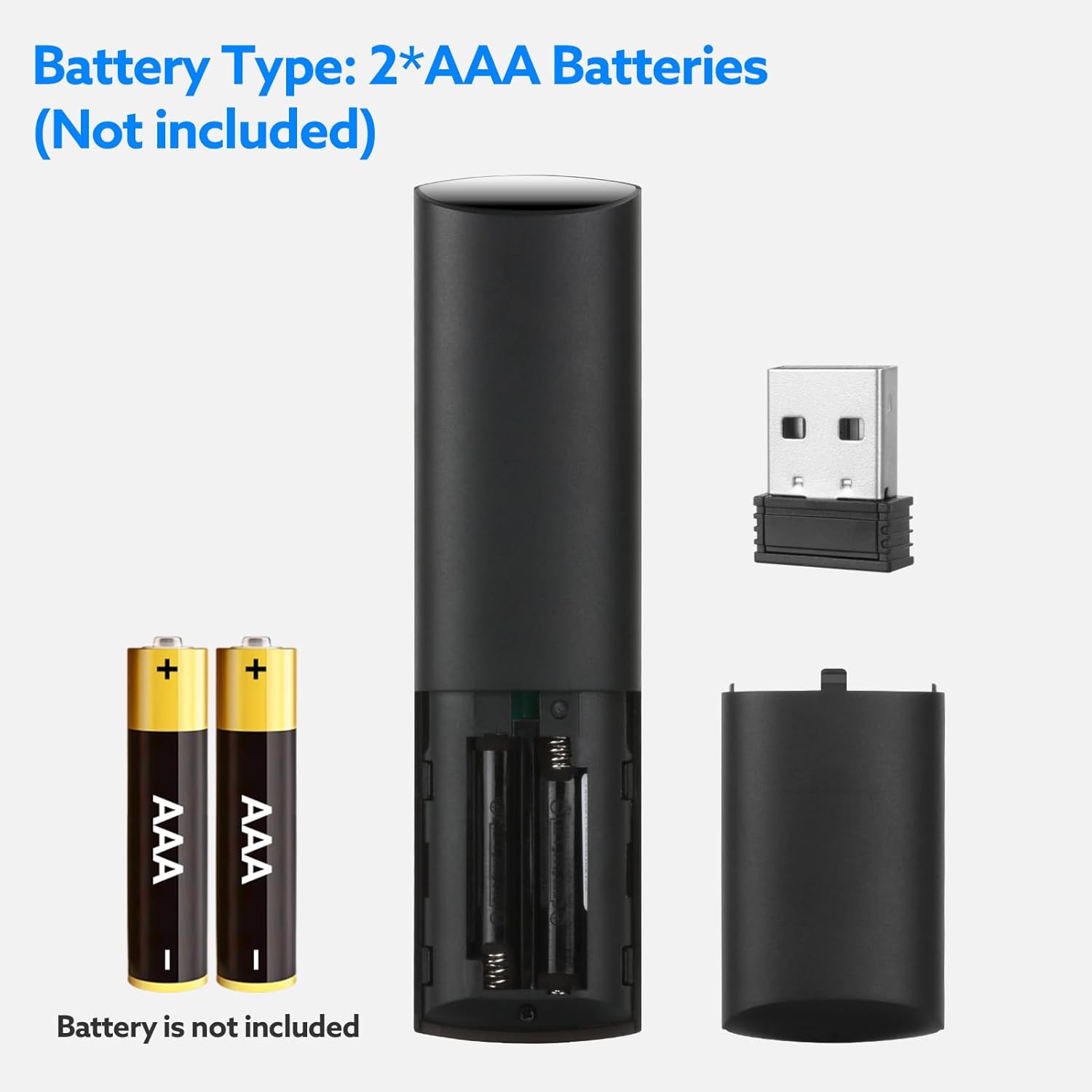
Image: Diagram illustrating the battery compartment and correct insertion of two AAA batteries.
2. USB кабылдагычты туташтыруу
- Locate an available USB port on your device (e.g., Smart TV, Android TV Box, PC, Nvidia Shield).
- USB ресиверди USB портуна сайыңыз.
- The system will automatically detect and install the necessary drivers. No manual driver installation is typically required.
- Once the receiver is recognized, the remote control is ready for use.

Image: The WeChip G20 remote control alongside its compact USB receiver, ready for connection.
Иштөө нускамалары
Баскычтар бүттүview

Image: Detailed diagram of the WeChip G20 remote control, labeling each button and its primary function.
- Кубат баскычы: Аппаратты күйгүзөт/өчүрөт.
- Үнсүз баскычы: Аудионун үнүн басуу/ачуу.
- ӨЧҮРҮҮ баскычы: Функцияны жок кылуу.
- Mouse Toggle Button: Activates/deactivates the air mouse function.
- Меню баскычы: Меню параметрлерине кирет.
- Багыттоочу панель (өйдө, ылдый, сол, оң): Навигация.
- OK баскычы: Тандоолорду ырастайт.
- Кайтаруу баскычы: Мурунку экранга кайтат.
- Үй баскычы: Башкы экранга кайтып келет.
- Көлөмү - / Көлөмү +: Аудионун үнүн тууралайт.
- Voice Button (Microphone icon): Activates voice control. Press and hold to speak.
- Rewind / Play/Pause / Fast Forward: Медиа ойнотууну башкаруу.
Үн менен башкаруу функциясы
The G20 remote features a voice control function for convenient navigation and search. To use it:
- басып, кармап туруңуз Үн баскычы (микрофондун сүрөтчөсү).
- Speak your command or search query clearly into the remote's microphone.
- Сүйлөп бүткөндөн кийин баскычты коё бериңиз.
This feature allows you to search for content, open applications, or issue commands hands-free. Note: Voice control functionality may vary depending on the host device and application support.

Image: A user holding the WeChip G20 remote, pressing the voice button to activate voice search on a TV screen.
Air Mouse (Gyroscope) Function
The built-in 6-axis gyroscope allows you to control a cursor on your screen by moving the remote in the air. This provides an intuitive way to navigate interfaces that benefit from mouse input.
- басыңыз Mouse Toggle Button (cursor icon) to activate the air mouse function. A cursor will appear on your screen.
- Move the remote in the air to control the cursor's movement.
- басыңыз OK баскычы to click.
- басыңыз Mouse Toggle Button again to deactivate the air mouse and return to directional pad navigation.

Image: A hand demonstrating the air mouse function of the WeChip G20 remote, with a cursor visible on a TV screen.
IR Learning Function (for Power Button)
The G20 remote supports IR learning for its power button, allowing it to control the power of another device (e.g., your TV) using infrared signals.
- басыңыз Кубат баскычы on the G20 remote. The LED indicator will flash slowly, indicating it has entered IR learning mode.
- Point your original device's remote control (e.g., TV remote) directly at the G20 remote's IR transmitter (located at the top).
- басыңыз Кубат баскычы on your original remote. The G20's LED will flash quickly three times and then slowly, confirming the code has been successfully received.
- The G20 remote will automatically save the learned data and exit learning mode.
- To clear the learned code, press and hold the OK баскычы жана DEL Button бир эле убакта.

Image: Illustration demonstrating the IR learning process for the WeChip G20 remote's power button, showing how to align it with another remote.
Шайкештик
The WeChip G20 remote control is compatible with a wide range of operating systems and devices:
- Операциялык системалар: Linux, Android 2.x, Android 4.x, Win 2000, Win Vista, Win7 (32/64-bit), Win8 (32/64-bit), MAC OS X.
- Шайкеш түзмөктөр: Smart TV, Android TV Box, Mini PC, HTPC, Projector, Nvidia Shield (versions before 2019).
Note: This remote is generally incompatible with most LG, TCL, Roku, Sony, and Samsung Smart TVs that do not support standard USB HID devices or require proprietary remote protocols.
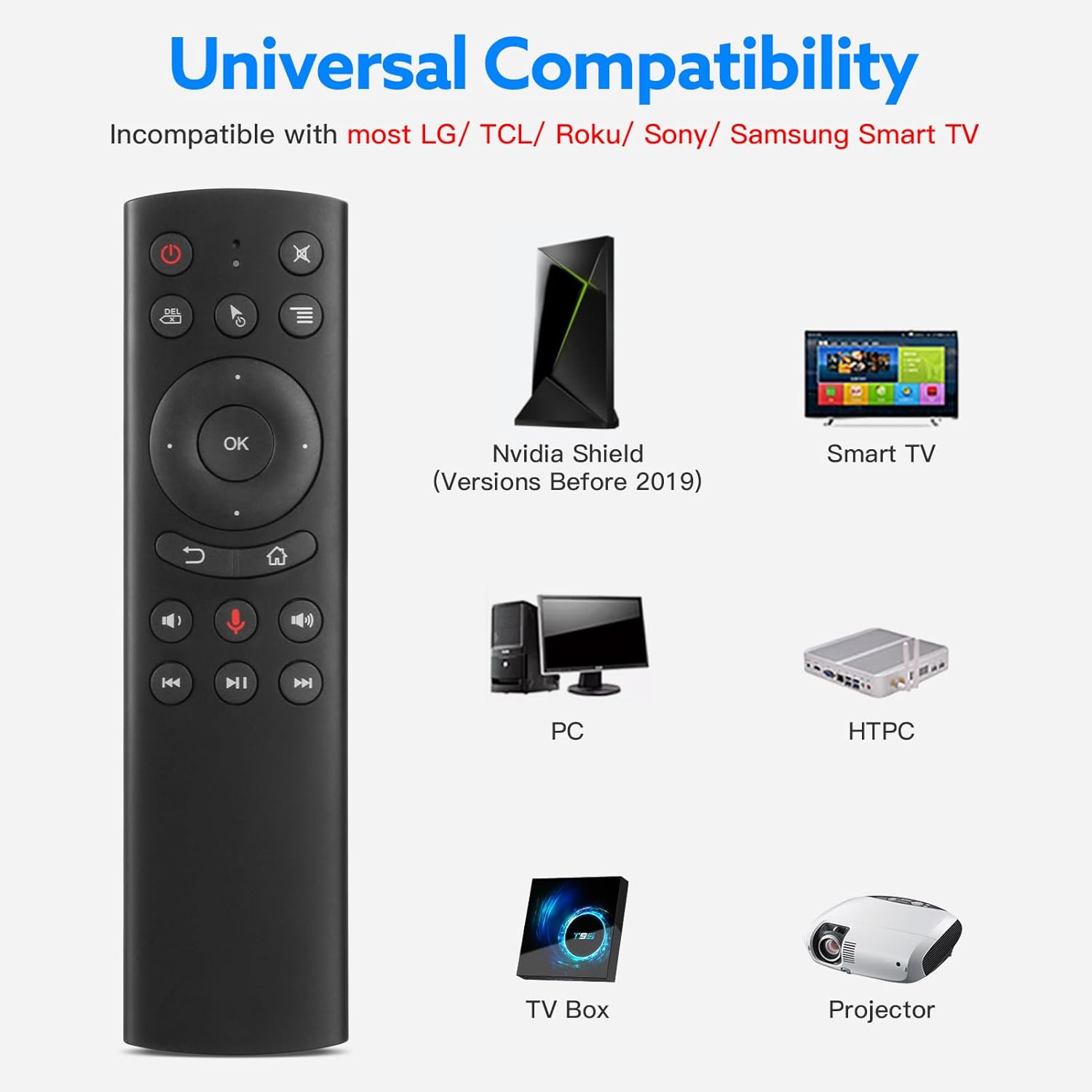
Image: Visual representation of devices compatible with the WeChip G20 remote, including Nvidia Shield (pre-2019), Smart TV, PC, HTPC, TV Box, and Projector.
Техникалык тейлөө
Батареяны алмаштыруу
When the remote's performance degrades or the LED indicator does not light up, it is time to replace the batteries. Follow the battery installation steps outlined in the Setup section.
Тазалоо
To clean the remote, use a soft, dry cloth. Avoid using liquid cleaners or abrasive materials, as these can damage the remote's surface or internal components.
Проблемаларды чечүү
- Пульт жооп бербей жатат:
- Батареялардын туура орнотулганын жана жетиштүү заряды бар экенин текшериңиз. Керек болсо алмаштырыңыз.
- USB кабыл алгыч түзмөккө бекем сайылганын текшериңиз.
- Try plugging the USB receiver into a different USB port on your device.
- Пульт менен USB кабыл алгычтын ортосунда эч кандай тоскоолдуктар жок экенин текшериңиз.
- Air mouse cursor is erratic or not moving smoothly:
- Calibrate the gyroscope by placing the remote on a flat surface for a few seconds.
- Ensure you are holding the remote steadily and not shaking it excessively.
- Үн менен башкаруу иштебей жатат:
- Ensure you are pressing and holding the Voice Button while speaking.
- Check if your device and the application you are using support voice input via a USB microphone.
- Verify that the remote's microphone is not obstructed.
- IR learning for power button failed:
- Ensure the original remote's batteries are working and it is transmitting a strong IR signal.
- Maintain a close distance (1-3 cm) and direct alignment between the two remotes during the learning process.
- Repeat the IR learning steps carefully.
Техникалык шарттар
| Өзгөчөлүк | Деталь |
|---|---|
| Модел | WeChip G20 |
| Байланыш | 2.4 ГГц зымсыз (USB кабыл алгыч аркылуу) |
| Башкаруу ыкмасы | Air Mouse (6-axis Gyroscope), Voice Control, Button Control |
| Операциялык аралык | 10 метрге чейин (32.8 фут) |
| Power Source | 2 x AAA Батареялар (киргизилген эмес) |
| Продукциянын өлчөмдөрү | 5.12 x 1.57 x 0.78 дюйм (130 x 40 x 20 мм) |
| Элемент Салмагы | 2.11 унция (60 грамм) |
| Материал | Туруктуу ABS пластик |
| Өзгөчөлүктөр | Voice Input, Air Mouse, IR Learning (Power Key) |
Кепилдик жана колдоо
WeChip products are designed for reliability and performance. For specific warranty details, please refer to the warranty card included with your purchase or contact your retailer. For technical support or further assistance, please visit the official WeChip webсайтка же кардарларды тейлөө бөлүмүнө кайрылыңыз.
Көбүрөөк маалымат жана колдоо булактарын таба аласыз WeChip Store on Amazon.