
1. Киришүү
This manual provides detailed instructions for the setup, operation, maintenance, and troubleshooting of your UNISHEEN UC3200H 1080P60 HDMI Video Capture Card. Please read this manual thoroughly before using the device to ensure optimal performance and longevity.
2. Пакеттин мазмуну
Пакетиңизде бардык буюмдар бар экенин текшериңиз:
- UNISHEEN UC3200H HDMI Video Capture Card
- USB 3.0 Кабель
- Installation Guide (as indicated in product information)
Эгерде кандайдыр бир нерселер жок болсо же бузулса, кардарларды колдоо менен байланышыңыз.
3. Продукт бүтүп калдыview
The UNISHEEN UC3200H is a high-definition HDMI video capture device designed for game recording, live streaming, and broadcasting. It supports 1080p at 60 frames per second (fps) and features USB 3.0 connectivity for high-speed data transfer and low latency.

Сүрөт 3.1: Алдыңкы view of the UNISHEEN UC3200H HDMI Video Capture Card with its USB 3.0 cable.
Негизги өзгөчөлүктөрү:
- 1080P/60fps Full HD Capture: Supports BT.709 color space and is compliant with UAC and UVC standards.
- USB 3.0 туташуусу: High-speed data transfer with low latency, compatible with USB 2.0.
- HDMI укурук чыгуусу: Allows real-time gameplay monitoring without lag.
- Plug and Play: No drivers or external power supply required for most operating systems.
- Кеңири шайкештик: Supports Windows, Mac, Linux, and Android operating systems, and various streaming software.

Image 3.2: Visual representation of the 1080p HD quality capture at 60 frames per second supported by the device.
4. Орнотуу нускамалары
Follow these steps to set up your UNISHEEN UC3200H video capture card:
- HDMI киргизүүсүн туташтырыңыз: Connect your HDMI source device (e.g., game console, camera, DVD player) to the "HDMI IN" port on the capture card using an HDMI cable.
- Connect USB Output: Connect the USB 3.0 cable from the capture card's USB 3.0 port to an available USB 3.0 port on your computer (laptop, desktop, or all-in-one PC).
- (Optional) HDMI Loop-out: If you wish to monitor your video source in real-time without latency, connect an HDMI cable from the capture card's "HDMI OUT" port to an external display (e.g., TV, monitor).
- Күйгүзүү: The device is powered via the USB connection. Ensure your computer is on. The capture card should be automatically recognized as a video and audio input device.

Image 4.1: Connection diagram illustrating HDMI input from various devices (drone, game console, camcorder, TV box) to the capture card, and USB 3.0 output to a laptop, desktop, or all-in-one PC.

Image 4.2: A camera connected to a laptop through the UNISHEEN UC3200H capture card, demonstrating a typical plug-and-play live streaming setup.
5. Иштөө нускамалары
Once connected, the capture card functions as a standard webcam or video input device on your computer. You can use various software applications to record or stream your content.
Using with Streaming/Recording Software:
- Open your preferred streaming or recording software (e.g., OBS Studio, VLC, Potplayer, Wirecast, XSplit).
- In the software's settings, locate the video input/source options.
- Select the UNISHEEN UC3200H (or similar name) as your video input device.
- Similarly, select the UNISHEEN UC3200H as your audio input device if you wish to capture audio from the HDMI source.
- Configure your desired resolution, frame rate, and other settings within the software.
- Жаздырып же агылтууну баштаңыз.
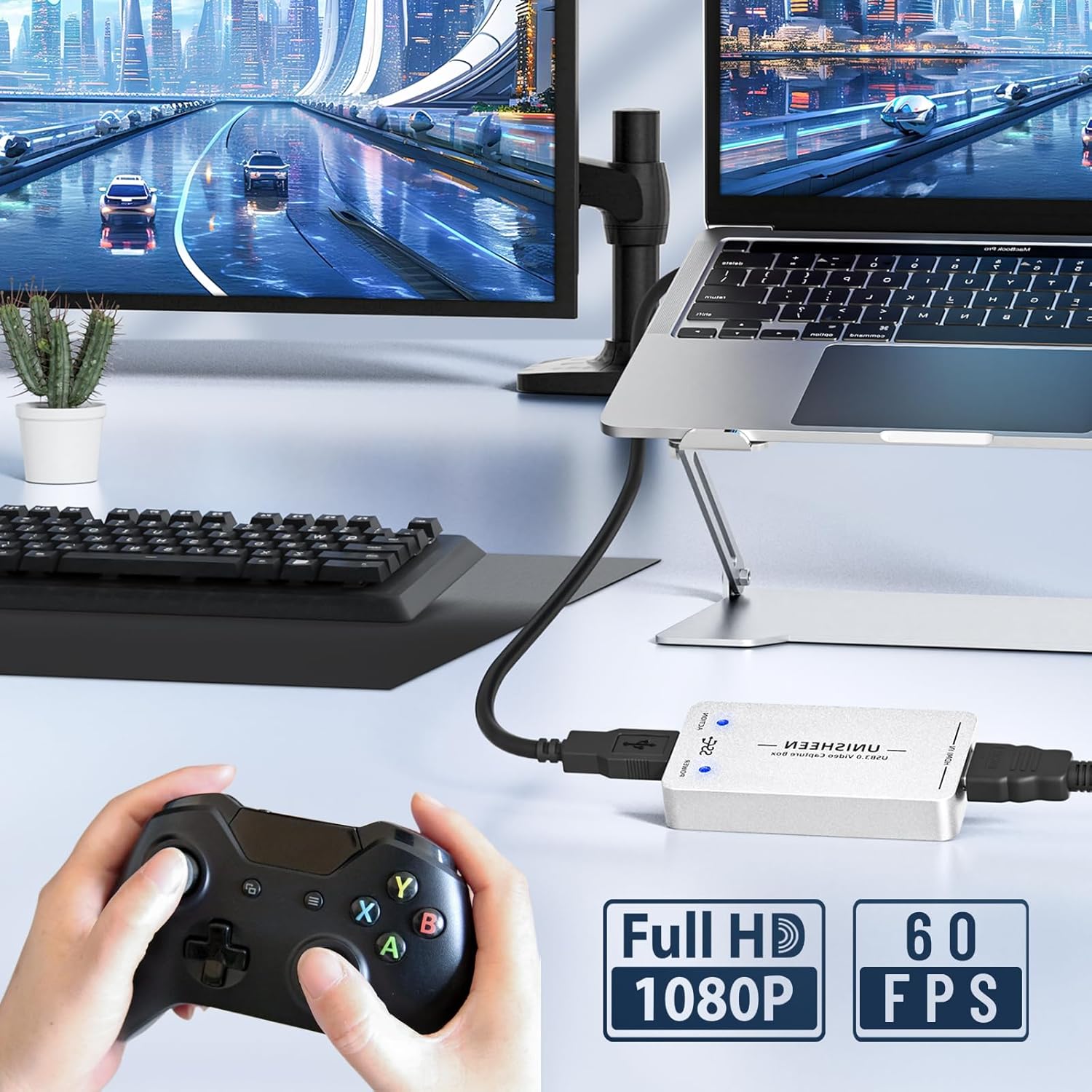
Image 5.1: A gaming setup demonstrating the UNISHEEN UC3200H capture card connected to a game console and a laptop, enabling full HD 1080p 60fps game capture.

Сүрөт 5.2: Мисamples of common applications for the capture card, including live streaming, creating instructional videos, game capture, and video conferencing.
6. Шайкештик
The UNISHEEN UC3200H is designed for broad compatibility with various operating systems and software applications.
Колдоого алынган операциялык системалар:
- Windows (7, 8, 8.1, 10, 11)
- Linux (kernel version 2.6.38 and above)
- OS X (10.8 and above) / macOS
- Android
Compatible Software/Platforms:
- OBS Studio
- Vmix
- Wirecast
- Xsplit
- VLC
- Potplayer
- Twitch
- YouTube
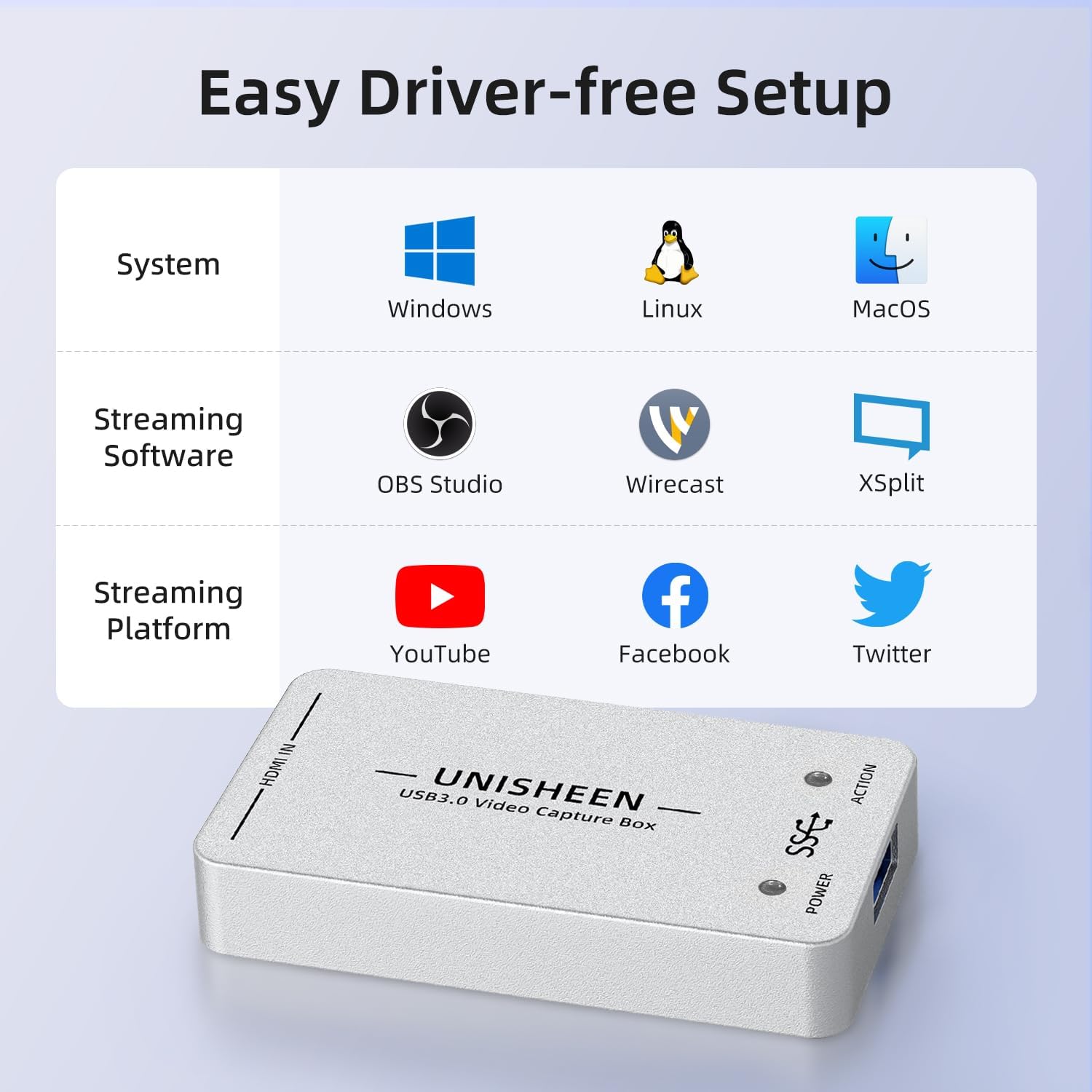
Image 6.1: A visual guide to the UNISHEEN UC3200H's compatibility with major operating systems (Windows, Linux, MacOS) and popular streaming/capture software (OBS Studio, Wirecast, XSplit, VLC, Potplayer, WOWZA) and platforms (YouTube, Facebook, Twitter).
7. Кыйынчылыктарды
If you encounter issues with your UNISHEEN UC3200H, please refer to the following common troubleshooting steps:
- Сигнал жок/Кара экран:
- Бардык HDMI жана USB кабелдеринин бекем туташтырылганын текшериңиз.
- Verify that your HDMI source device is powered on and outputting a signal.
- Check your streaming/recording software settings to ensure the correct video input device (UNISHEEN UC3200H) is selected.
- Confirm that your HDMI source is outputting a resolution and frame rate supported by the capture card (up to 1080p60).
- Аудио жок:
- Ensure the correct audio input device (UNISHEEN UC3200H) is selected in your software's audio settings.
- Check the audio output settings of your HDMI source device.
- Flickering/Lagging Video:
- Ensure you are using a USB 3.0 port on your computer for optimal performance.
- Close unnecessary applications on your computer to free up system resources.
- Check your computer's CPU and GPU usage during capture/streaming. High usage can cause performance issues.
- Verify that your HDMI cables are of good quality and not excessively long.
- Түзмөк таанылган жок:
- Түзмөктү компьютериңиздеги башка USB портуна туташтырып көрүңүз.
- Компьютериңизди өчүрүп күйгүзүңүз.
- Иштөө тутумуңуз жаңыртылганын текшериңиз.
For further assistance, please refer to the 'Warranty & Support' section.
8. Техникалык шарттар
| Бренд | UNISHEEN |
| Модель номери | UC3200H |
| Аппараттык интерфейс | HDMI, USB 2.0, USB 3.0 |
| Видео тартуунун резолюциясы | 1080p (up to 60fps) |
| Операциялык системаны колдоо | Windows (7, 8, 8.1, 10, 11), Linux (kernel 2.6.38+), OS X (10.8+) |
| Сунушталган Колдонуулар | Видео жаздыруу, түз агым |
| Элемент Салмагы | 8.8 унция |
| Продукциянын өлчөмдөрү (LxWxH) | 3.94 x 2.76 x 0.94 дюйм |
| Түс | Ак |
9. Техникалык тейлөө
To ensure the longevity and proper functioning of your UNISHEEN UC3200H video capture card, follow these maintenance guidelines:
- Тазалоо: Түзмөктүн сыртын тазалоо үчүн жумшак, кургак чүпүрөктү колдонуңуз. Суюк тазалоочу каражаттарды же эриткичтерди колдонуудан алыс болуңуз, анткени алар капталына же ички компоненттерине зыян келтириши мүмкүн.
- Сактагыч: Колдонулбаганда, аспапты түз күн нурунан жана өтө температурадан алыс салкын, кургак жерде сактаңыз.
- Колдонуу: Аппаратты этияттык менен колдонуңуз. Аны түшүрүүдөн же катуу таасирлерден сактаныңыз.
- Вентиляция: Ensure the device has adequate ventilation during operation to prevent overheating. Do not cover ventilation openings.
10. Кепилдик жана колдоо
UNISHEEN is committed to providing quality products and customer satisfaction. If you encounter any quality problems or require further assistance with your UC3200H video capture card, please contact our support team.
Колдоо кызматы менен байланышуу:
To contact customer support, please follow these steps:
- Locate your order details.
- Click the "Contact Seller" button associated with your purchase.
Our team aims to resolve your problem within 24 hours.
Damaged Products:
If you receive a damaged product, it may be due to transit issues. You can apply for an exchange through the Amazon platform within 30 days of receipt.