
1. Киришүү
Thank you for choosing the Targus W620 Wireless Optical Mouse. This manual provides detailed instructions for setting up, operating, and maintaining your mouse to ensure optimal performance and longevity. The Targus W620 offers reliable 2.4 GHz wireless connectivity, a precise 1600 DPI optical sensor, and a compact design suitable for both office and mobile use.
2. Пакеттин мазмуну
Сураныч, пакетте төмөнкү нерселерди текшериңиз:
- Targus W620 Wireless Optical Mouse
- USB кабыл алгыч
- 2 x AAA батареялары
3. Продукт бүтүп калдыview
Familiarize yourself with the components of your Targus W620 Wireless Optical Mouse.
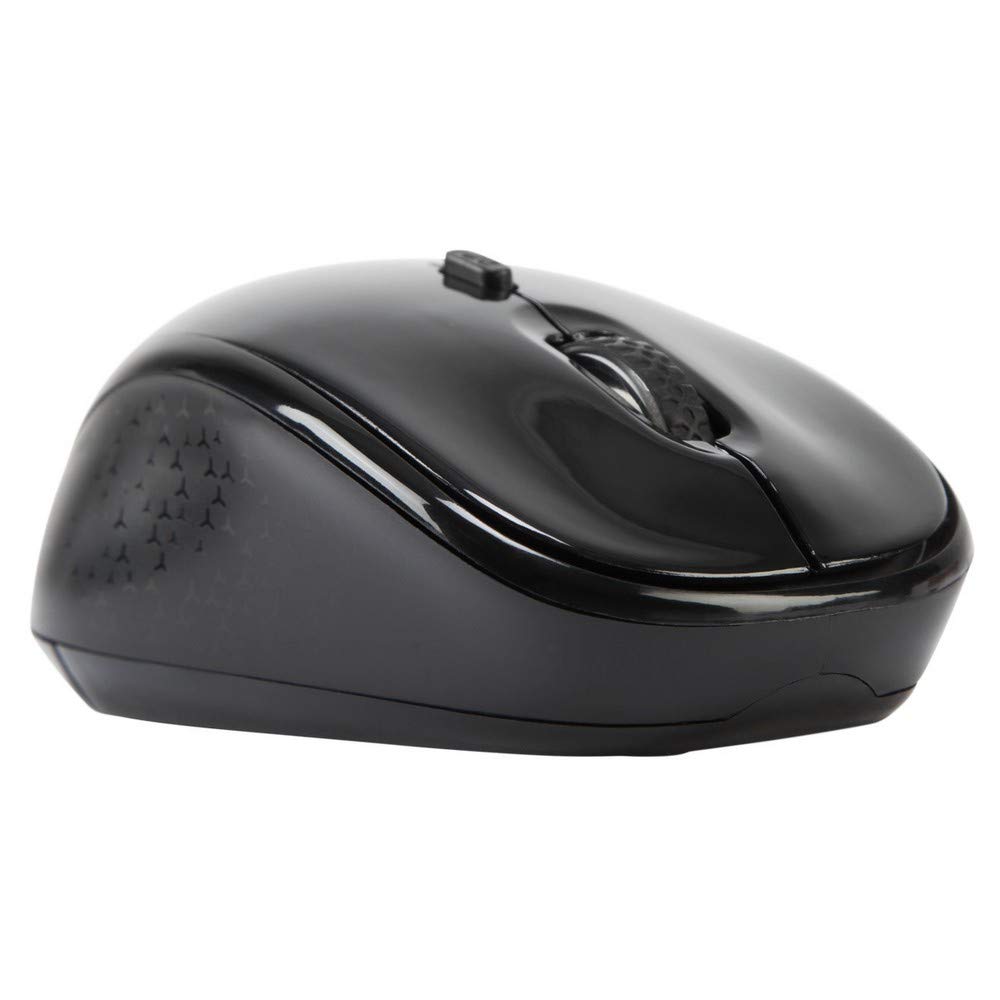
Сүрөт 3.1: Жогорку view of the Targus W620 Wireless Optical Mouse. This image displays the primary buttons and scroll wheel.
- Сол чыкылдатуу баскычы: Стандарттык негизги чыкылдатуу функциясы.
- Оң баскычты чыкылдатуу: Стандарттык кошумча чыкылдатуу функциясы.
- Жылдыруу дөңгөлөгү: Вертикалдуу сыдыруу жана орто баскычты чыкылдатуу функциясы үчүн.
- DPI баскычы: Чычкандын сезгичтигин (DPI) тууралайт.
- Оптикалык сенсор: Located on the bottom, detects mouse movement.
- Батарея бөлүмү: Located on the bottom, holds two AAA batteries.
- USB кабылдагычтын сактагычы: A dedicated slot on the bottom for storing the USB receiver when not in use.

Сүрөт 3.2: Төмөнкү view of the mouse, highlighting the battery compartment and optical sensor.
4. Орнотуу нускамалары
Follow these steps to set up your Targus W620 Wireless Optical Mouse:
- Батареяны орнотуу:
- Чычкандын астыңкы жагынан батарея бөлүмүнүн капкагын табыңыз.
- Капкакты жылдырыңыз.
- Туура полярдуулукту (+/-) камсыз кылуу менен эки AAA батарейкасын салыңыз.
- Батарея уясынын капкагын бекем жабыңыз.
- USB кабылдагычты туташтыруу:
- The USB receiver is typically stored in a slot on the bottom of the mouse for transport. Gently remove it.
- USB ресиверди компьютериңиздеги жеткиликтүү USB портуна сайыңыз.

Сүрөт 4.1: The mouse with its USB receiver, ready for connection.
- Күйгүзүү:
- There is no explicit power switch on this model; the mouse activates upon movement and connection.
- Компьютериңиз керектүү драйверлерди автоматтык түрдө таап, орнотуп алышы керек. Бул бир нече мүнөткө созулушу мүмкүн.
- Once drivers are installed, the mouse is ready for use.
5. Иштөө нускамалары
The Targus W620 Wireless Optical Mouse is designed for intuitive use. Here are its primary functions:
- Негизги навигация: Экрандагы курсорду башкаруу үчүн чычканды тегиз жерге жылдырыңыз.
- Сол чыкылдатуу: Буюмдарды тандоо, ачуу үчүн колдонуңуз fileс, же функцияларды активдештирүү.
- Оң чыкылдатуу: Use for accessing context menus or secondary functions.
- Жылдыруу дөңгөлөгү: Rotate the wheel to scroll vertically through documents and web pages. Press the scroll wheel for a middle-click function, often used for opening links in new tabs or auto-scrolling.
- DPI жөндөө: Press the DPI button (located behind the scroll wheel) to cycle through the available DPI settings (800, 1200, 1600 DPI). This changes the sensitivity of the mouse cursor. A higher DPI means the cursor moves further with less physical mouse movement.
6. Техникалык тейлөө
Proper maintenance ensures the longevity and performance of your mouse.
- Тазалоо: Чычкандын сыртын тазалоо үчүн жумшак, кургак, мамыксыз чүпүрөктү колдонуңуз. Өжөр кир үчүн, бир азampчүпүрөктү суу менен. Катуу химиялык заттарды же абразивдүү тазалагычтарды колдонуудан алыс болуңуз.
- Оптикалык сенсор: Так көзөмөлдөөнү камсыз кылуу үчүн чычкандын түбүндөгү оптикалык сенсор аймагын таза жана чаңдан же таштандылардан таза кармаңыз.
- Батареяны алмаштыруу: When the mouse performance degrades or stops responding, it is likely time to replace the batteries. Follow the steps in Section 4.1 to replace the two AAA batteries.
- Сактагыч: When transporting or storing the mouse, always place the USB receiver back into its dedicated storage slot on the bottom of the mouse to prevent loss.
7. Кыйынчылыктарды
If you encounter issues with your Targus W620 mouse, try the following solutions:
| Көйгөй | Мүмкүн чечим |
|---|---|
| Mouse not responding or cursor not moving. |
|
| Курсордун кыймылы туруксуз же секирик. |
|
| DPI button not changing sensitivity. |
|
| Зымсыз байланыш көйгөйлөрү. |
|
8. Техникалык шарттар
| Бренд | Таргус |
| Модель номери | AMW620AP |
| Байланыш технологиясы | 2.4 GHz Wireless (Radio Frequency) |
| Кыймылды аныктоо технологиясы | Optical (BlueTrace Technology) |
| DPI деңгээли | 800 / 1200 / 1600 DPI (Жөнгө салынуучу) |
| баскычтардын саны | 4 (Left, Right, Scroll Wheel, DPI) |
| Колдун багыты | Right (Comfortable for ambidextrous use) |
| Power Source | 2 x AAA батарейкалары (кошулган) |
| Элемент Салмагы | 26 грамм |
| Операциялык системанын шайкештиги | Linux, Windows XP (Compatible with modern Windows and macOS) |
| Аппараттык платформа | Mac, PC |
| Түс | Кара |
9. Кепилдик жана колдоо
Кепилдик маалыматы: The Targus W620 Wireless Optical Mouse comes with a 3 жылдык өндүрүүчүнүн кепилдиги сатып алынган күндөн тартып. Бул кепилдик нормалдуу колдонуудагы материалдардагы жана жасалгадагы кемчиликтерди камтыйт. Кепилдик дооматтары үчүн сатып алганыңыздын далилин сактап коюңуз.
Кардарларды колдоо: For technical assistance, troubleshooting beyond this manual, or warranty inquiries, please visit the official Targus website or contact their customer support service. Refer to the contact information provided with your product packaging or on the Targus official webсайт.