
1. Киришүү
The SoundSwitch Micro DMX Interface is a compact USB to DMX XLR interface designed for controlling lighting with SoundSwitch software. It enables users to create and synchronize lighting shows with audio files, suitable for live DJ performances and other events. This device supports one DMX universe and offers various features for dynamic lighting control.
Видео: Бүттүview of SoundSwitch, explaining its purpose and functionality in synchronizing lighting with music.
2. Продукт бүтүп калдыview
The SoundSwitch Micro DMX Interface is an ultra-compact device designed for portability and ease of use. It features a dedicated USB to DMX XLR connection and includes a blue LED indicator for connection status. The interface is compatible with SoundSwitch lighting software, allowing for comprehensive control over DMX lighting fixtures.

Image: The SoundSwitch Micro DMX Interface, showcasing its USB and XLR connectors.
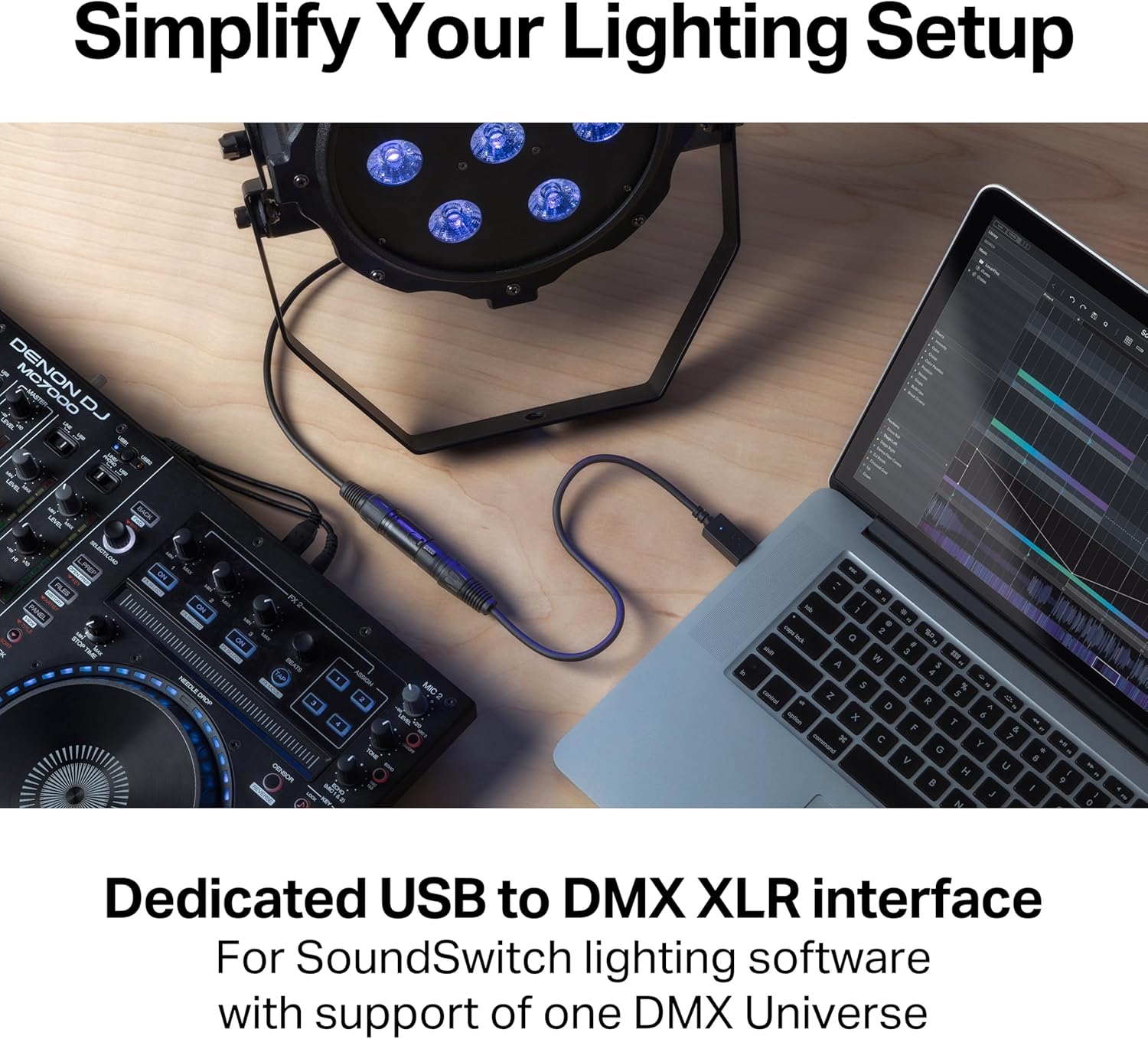
Image: The compact SoundSwitch Micro DMX Interface connected to a laptop and a DMX-controlled light fixture, demonstrating its small form factor and connectivity.
3. Орнотуу
3.1 Физикалык байланыш
- Connect the USB end of the SoundSwitch Micro DMX Interface to an available USB port on your computer.
- Connect the 3-pin XLR end of the interface to the DMX input of your first lighting fixture.
- For multiple DMX fixtures, daisy-chain them by connecting the DMX output of one fixture to the DMX input of the next.
- Ensure all DMX fixtures are powered on.
3.2 Программалык камсыздоону орнотуу
The SoundSwitch Micro DMX Interface requires the SoundSwitch software to function. A 3-month subscription to SoundSwitch software is included with your purchase. Download and install the latest version of the SoundSwitch desktop application from the official SoundSwitch website. Follow the on-screen instructions for software installation and driver setup.

Image: A DJ setup illustrating the compatibility of SoundSwitch with leading DJ software and hardware, including Engine DJ, Serato DJ, Virtual DJ, and Ableton LINK.
4. Operating the SoundSwitch Software
SoundSwitch software allows for comprehensive control over your DMX lighting setup. It offers features for creating custom lighting displays, automating shows, and synchronizing lights with various music sources.
4.1 Creating Lighting Displays
You can design unique lighting displays using the Digital Lighting Workstation (DLW) within the SoundSwitch software. Alternatively, utilize the software's automation features or select from pre-built lighting scenes for quick setup.

Image: A DJ setup featuring a laptop running SoundSwitch software, demonstrating the ability to create custom lighting displays effortlessly.
4.2 Music Source Synchronization
The software supports live audio BPM detection, enabling the light show to synchronize with external audio sources such as live bands or any Digital Audio Workstation (DAW) or DJ software. This can be achieved using your computer's internal microphone, USB audio input, or other live input sources.
Video: Demonstration of SoundSwitch's BPM detection feature, showing how lighting synchronizes with music tempo.
4.3 Expanded Features
SoundSwitch Desktop version 2.9 and later includes expanded features such as autoloops on scripted tracks, increased capacity from 32 to 128, extended repeat options, and an enhanced Edit Mode. A status indicator and source selector are also included for improved usability.

Image: A DJ setup demonstrating DMX and Philips HUE lighting support, highlighting the versatility of the SoundSwitch system.
5. Техникалык тейлөө
To ensure the longevity and optimal performance of your SoundSwitch Micro DMX Interface, follow these maintenance guidelines:
- Тазалоо: Use a soft, dry cloth to clean the exterior of the interface. Avoid using liquid cleaners or solvents.
- Сактагыч: Аппаратты колдонбогондо түз күн тийбеген жана өтө температурадан алыс салкын, кургак жерде сактаңыз.
- Программалык камсыздоо жаңыртуулары: Regularly check for and install the latest SoundSwitch software updates to benefit from new features, performance improvements, and bug fixes.
- Кабельге кам көрүү: Avoid bending or kinking the USB and XLR cables excessively to prevent internal damage.
6. Кыйынчылыктарды
If you encounter issues with your SoundSwitch Micro DMX Interface, consider the following troubleshooting steps:
- Байланыш жок: Ensure the USB cable is securely connected to both the interface and your computer. Check if the blue LED connection status indicator on the interface is active.
- Программа түзмөктү тааныбай жатат: Verify that the SoundSwitch software is up to date and that the necessary drivers are installed. Try restarting the software and your computer.
- Жарыктар жооп бербейт: Confirm that all DMX cables are correctly connected in the daisy chain and that DMX addresses are properly configured in the SoundSwitch software for each fixture. Check the DMX input/output settings within the software.
- Үзгүлтүктүү башкаруу: Ensure there are no other applications interfering with the USB port or DMX signal. Try using a different USB port on your computer.
7. Техникалык шарттар
| Өзгөчөлүк | Деталь |
|---|---|
| Элемент Салмагы | 0.704 унция |
| Продукциянын өлчөмдөрү | 16.65 x 0.79 x 0.87 дюйм |
| Элемент моделинин номери | DMXMICROINTERFACE |
| Шайкеш түзмөктөр | Персоналдык компьютер |
| Колдоого алынган программалык камсыздоо | Serato DJ Pro, Virtual DJ, Ableton LINK, SoundSwitch |
| Операция системасы | Windows, macOS |
8. Кутуда эмне бар
- SoundSwitch Micro DMX Interface
- Welcome Note
- Чаптама
9. Кепилдик жана колдоо
The SoundSwitch Micro DMX Interface comes with a manufacturer's warranty. Please refer to the warranty information provided with your product packaging for details on coverage and duration. For technical support, software assistance, or any product-related inquiries, please visit the official SoundSwitch webсайтка же кардарларды колдоо тобуна кайрылыңыз.