
1. Продукт бүтүп калдыview
The ProCase Keyboard Case is designed for Microsoft Surface Pro 7 Plus (2021), Surface Pro 7 (2019), Surface Pro 6 (2018), Surface Pro 5th Gen (2017), and Surface Pro 4 (2015) 12.3-Inch Tablets. This product combines a protective case with a functional, laptop-style detachable wireless keyboard, enhancing the usability of your tablet.
Key features include a magnetically detachable wireless keyboard, multiple adjustable viewing angles, and comprehensive protection for your device. The case also supports the Surface Pen's magnetic attachment feature and the tablet's auto Sleep/Wake function when the keyboard is not attached.

Image 1: ProCase Keyboard Case with a Microsoft Surface Pro tablet, showcasing the detachable keyboard and stand functionality.
2. Пакеттин мазмуну
Пакетти ачканда, бардык компоненттер бар экенин текшериңиз:
- Магниттик ажыратылуучу зымсыз клавиатура
- Tablet Case (with integrated stand)
- Micro-USB заряддоо кабели
- Instruction Manual / Thanks Card
Видео 1: кутудан чыгаруу жана андан ашыкview of the ProCase Keyboard Case components, including the keyboard, case, and charging cable.
3. Орнотуу жана орнотуу
3.1 Installing the Tablet into the Case
- Align your Microsoft Surface Pro tablet with the hard shell case.
- Gently press the tablet into the case, ensuring all edges are securely fitted.
- Confirm that all ports, buttons, and the camera are accessible through the precise cutouts.

Image 2: Compatibility chart showing the ProCase Keyboard Case fits Surface Pro 7 Plus / 7 / 6 / 5 / 4 (12.3 inch) tablets.
3.2 Pairing the Wireless Keyboard
- Ensure the keyboard is charged (refer to Section 3.3 for charging instructions).
- Slide the power button on the keyboard to the 'ON' position. The blue status light will illuminate briefly and then turn off.
- Press the 'Connect' button on the keyboard. The blue Bluetooth indicator light will blink, indicating it is in pairing mode.
- On your Microsoft Surface Pro, navigate to Settings > Devices > Bluetooth & other devices. Ensure Bluetooth is turned 'On'.
- Select 'Bluetooth 3.0 Keyboard' from the list of available devices.
- If prompted, enter the displayed code on the keyboard and press 'Enter'.
- Once connected, the blue Bluetooth indicator light on the keyboard will turn off.
3.3 Баскычтопту заряддоо
To charge the keyboard, connect the provided Micro-USB charging cable to the keyboard's charging port and a suitable USB power source. The Battery status light will be red while charging. Charge the keyboard for 1 to 3 hours, or until the Battery status light turns off, indicating a full charge.
4. Иштөө нускамалары
4.1 Орнотулган стендди колдонуу
The case features three dents that allow you to prop up your tablet at different viewing angles in landscape mode. Adjust the tablet's position in the case to achieve your desired viewбурч.
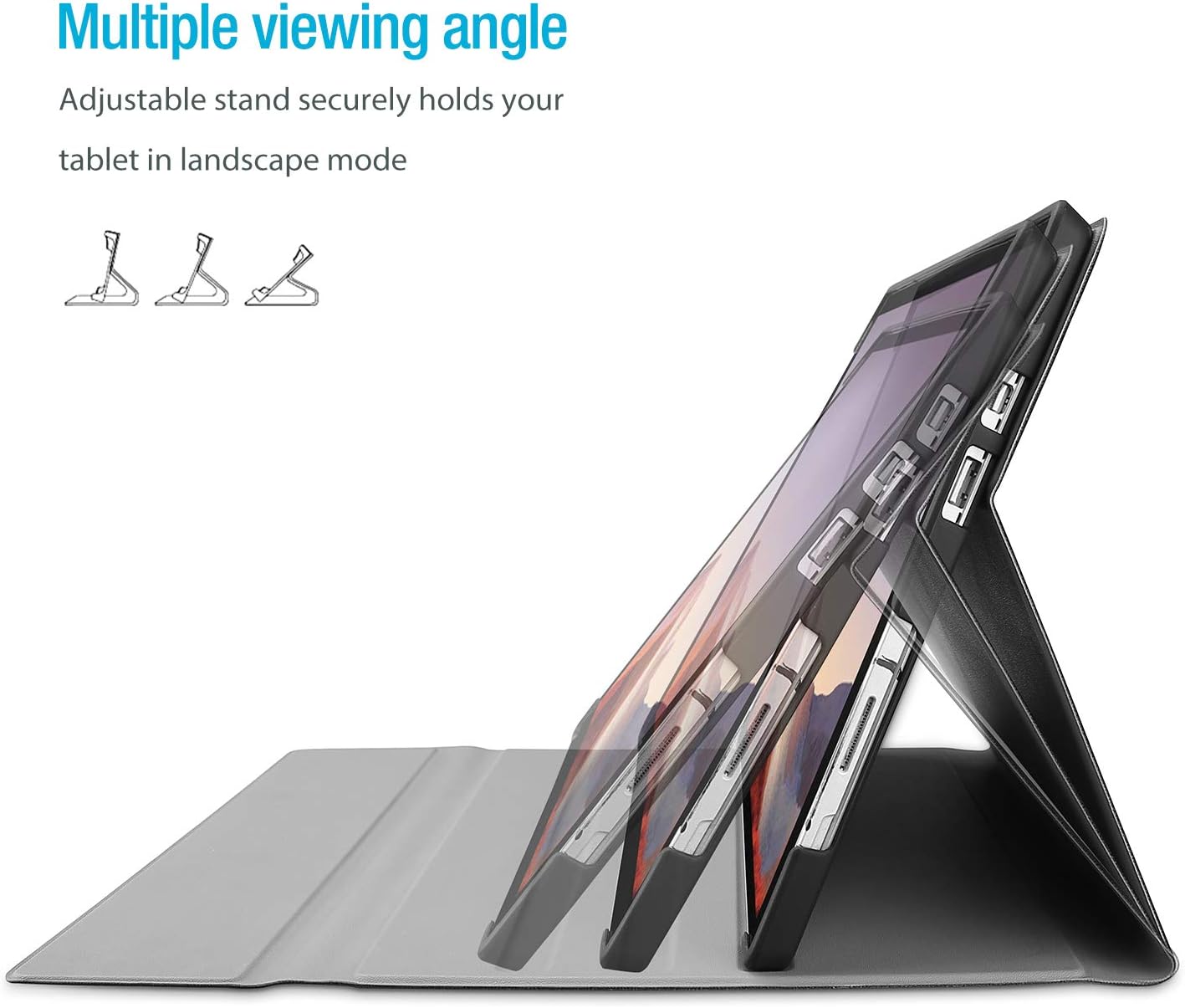
Image 3: The case's design allows for multiple viewing angles, providing flexibility for various tasks.
4.2 Detachable Keyboard Functionality
The wireless keyboard is magnetically detachable, allowing you to use the tablet independently or position the keyboard for optimal typing comfort. The laptop-style keys with a spring mechanism offer a tactile typing experience.
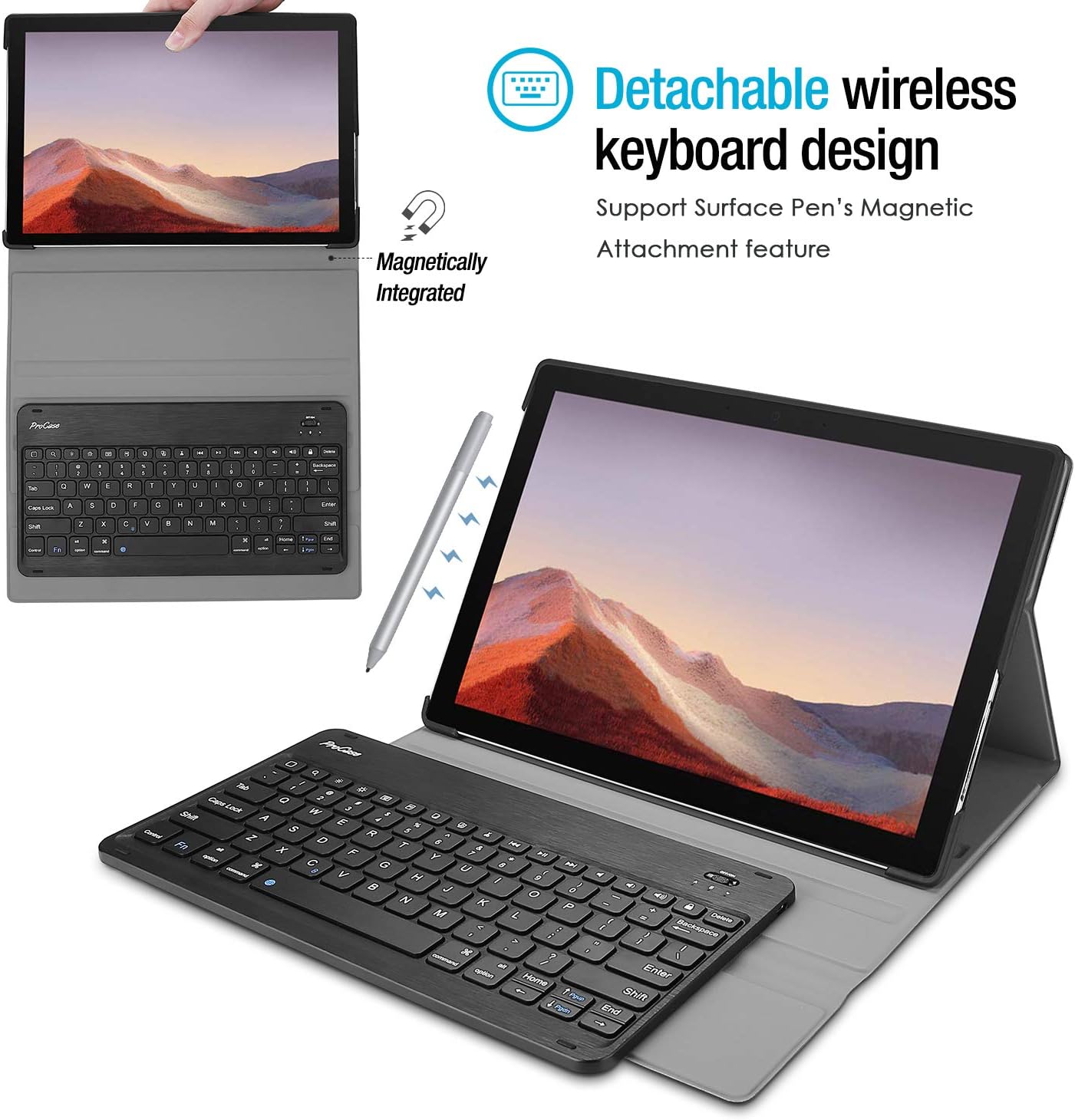
Image 4: The keyboard is magnetically integrated and supports the Surface Pen's magnetic attachment feature.
4.3 Авто уйку/ойгонуу функциясы
The case supports the auto Sleep/Wake function of your tablet. This feature works only when the keyboard is not attached to the case. Closing the cover will put your tablet to sleep, and opening it will wake it up.
4.4 Changing Keyboard Language Settings
To change the input language of the keyboard on your tablet, navigate to Settings > General > Keyboard > Keyboards > Add New Keyboard. Select your desired language from the list. For iOS devices, you can typically switch between languages by pressing the 'Control' and 'Space' keys simultaneously.
5. Техникалык тейлөө жана кам көрүү
- Keep the keyboard and case away from sharp objects to prevent scratches or damage.
- Avoid placing heavy objects on the keyboard or case.
- Do not expose the product to microwave items.
- Do not force or distort the keyboard or the case.
- Keep the keyboard and case away from water, oil, chemical substances, or other organic liquids.
- If a key falls off, it can typically be reassembled by pressing it back into place until you hear a click.
- Clean the case and keyboard with a soft, dry cloth. Avoid abrasive cleaners.
6. Кыйынчылыктарды
6.1 Клавиатура туташпай/жооп бербей жатат
- Күчтү текшерүү: Ensure the keyboard is turned 'ON' and has sufficient battery charge.
- Түзмөктү кайра жупташтыруу: Go to your tablet's Bluetooth settings, forget the 'Bluetooth 3.0 Keyboard' device, and then repeat the pairing process (Section 3.2).
- Түзмөктөрдү кайра иштетүү: Планшетиңизди да, клавиатураңызды да өчүрүп-күйгүзүңүз.
- Интерференция: Тоскоолдукка алып келиши мүмкүн болгон башка зымсыз түзмөктөрдөн алыс болуңуз.
6.2 Баскычтар туура иштебейт
- Тил жөндөөлөрүн текшерүү: Ensure the correct keyboard language is selected on your tablet (Section 4.4). Incorrect settings can cause keys to produce unexpected characters.
- Таза клавиатура: Dust or debris under the keys can affect functionality. Gently clean around the affected keys.
- Кайра жупташтыруу: Try re-pairing the keyboard as described in Section 6.1.
7. Техникалык шарттар
| Бренд | ProCase |
| Модель номери | PC-08362125 |
| Шайкеш түзмөктөр | Surface Pro 7 Plus (2021), Surface Pro 7 (2019), Surface Pro 6 (2018), Surface Pro 5th Gen (2017), Surface Pro 4 (2015) 12.3 inch Tablet |
| Байланыш технологиясы | Зымсыз |
| Keyboard Description | Зымсыз |
| Өзгөчө өзгөчөлүк | Магниттик |
| Түс | Кара |
| Материал | Acrylonitrile бутадиен Styrene |
| Элемент Салмагы | 10 унция |
| Продукциянын өлчөмдөрү | 11.5 x 7.9 x 0.29 дюйм |
| Power Source | Заряддалуучу батарея |
8. Кепилдик жана колдоо
8.1 Кепилдик маалыматы
Warranty details for your ProCase Keyboard Case are typically included with the product packaging or can be found on the official ProCase webсайт. Кепилдик дооматтары үчүн сатып алганыңыздын далилин сактап коюңуз.
8.2 Кардарларды колдоо
For technical assistance, troubleshooting, or any inquiries regarding your ProCase Keyboard Case, please contact ProCase customer support through their official webсайт же продукт документациясында көрсөтүлгөн байланыш маалыматы.