
1. Киришүү
The HUAWEI MateDock 3 is a compact and versatile docking station designed to expand the connectivity options of your compatible devices. It provides multiple ports including HDMI, VGA, USB-A, USB-C, an integrated microSD card reader, and a LAN (RJ45) connection. This manual provides instructions for setting up, operating, and maintaining your MateDock 3.

Сүрөт 1.1: Жогорку view of the HUAWEI MateDock 3, showcasing анын компакт дизайны жана интегралдык USB-C кабели.
2. Пакеттин мазмуну
Пакетте бардык буюмдар бар экенин текшериңиз:
- HUAWEI MateDock 3 Multi-Port Docking Station
- Колдонуучунун Колдонмосу (бул документ)
3. Продукт бүтүп калдыview
The MateDock 3 features a range of ports to enhance your device's connectivity. Familiarize yourself with the port layout:

Image 3.1: Detailed diagram of the HUAWEI MateDock 3 ports, including LAN, USB-A, HDMI, VGA, microSD, and USB-C.
- USB-C Input Cable: Connects to your host device (laptop, tablet, smartphone).
- HDMI порту: Connects to an external display for video and audio output.
- VGA порту: Connects to an external display for video output.
- USB-A порту: Connects to USB peripherals such as keyboards, mice, or external storage.
- USB-C порту: For power delivery to the host device or connecting other USB-C peripherals.
- LAN (RJ45) порту: Provides wired Ethernet network connectivity.
- microSD картаны окугуч: For reading and writing data to microSD cards.
4. Орнотуу жана орнотуу
The HUAWEI MateDock 3 is designed for plug-and-play functionality, requiring no driver installation for most operating systems.
- Хост түзмөккө туташуу: Plug the integrated USB-C cable of the MateDock 3 into an available USB-C port on your laptop, tablet, or smartphone.
- Кубат туташуу (кошумча): If your host device requires charging or if you are connecting power-intensive peripherals, connect a USB-C power adapter to the USB-C port on the MateDock 3.
- Перифериялык түзүлүштөрдү туташтыруу: Connect your desired external devices (monitor, keyboard, mouse, Ethernet cable, microSD card) to the corresponding ports on the MateDock 3.
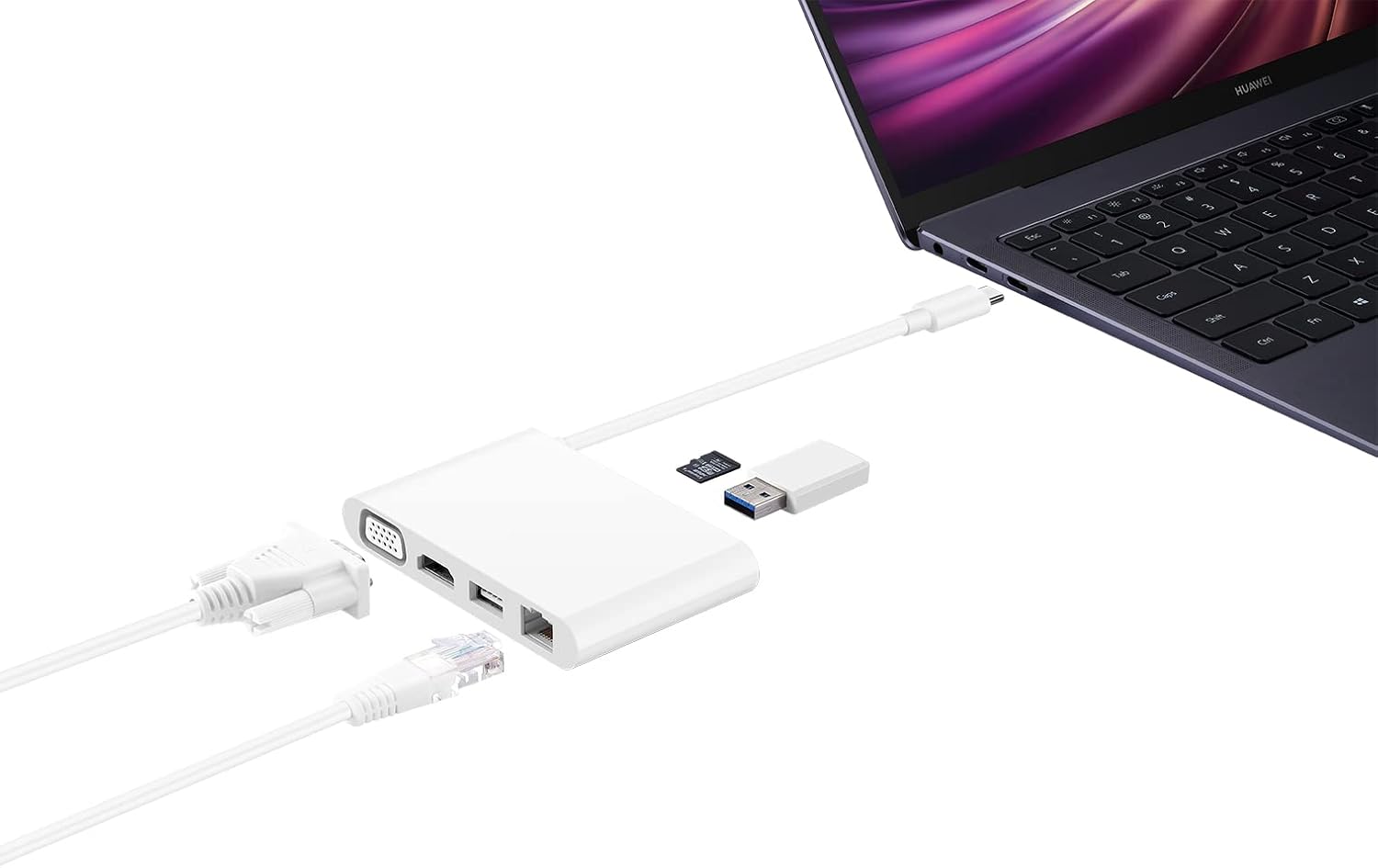
Image 4.1: The MateDock 3 in use, connected to a laptop, demonstrating connections for a monitor, Ethernet, and USB devices.
5. Иштөө нускамалары
5.1. Video Output (HDMI / VGA)
- Connect an HDMI cable from your monitor/TV to the HDMI port on the MateDock 3.
- Alternatively, connect a VGA cable from your monitor/projector to the VGA port on the MateDock 3.
- Your host device should automatically detect the external display. You may need to adjust display settings (e.g., mirror, extend) in your operating system.
- Эскертүү: Бир убакта бир гана видео чыгарууну (HDMI же VGA) колдонууга болот.
5.2. USB Peripherals (USB-A / USB-C)
- Plug your USB-A devices (e.g., mouse, keyboard, USB flash drive) into the USB-A port.
- The USB-C port on the dock can be used for power delivery to your host device or for connecting other USB-C peripherals.
5.3. Network Connection (LAN)
- Connect an Ethernet cable from your router or network switch to the LAN (RJ45) port on the MateDock 3.
- Your host device will establish a wired network connection.
5.4. microSD картаны окугуч
- Insert a microSD card into the designated slot on the MateDock 3.
- The card will appear as a removable drive on your host device, allowing you to access its contents.
6. Техникалык тейлөө жана кам көрүү
- Keep the MateDock 3 clean and dry. Avoid exposure to liquids or excessive humidity.
- Аппаратты экстремалдуу температурага дуушар кылбаңыз.
- Сыртын жумшак, кургак чүпүрөк менен тазалаңыз. Абразивдүү тазалоочу каражаттардан алыс болуңуз.
- Handle the integrated USB-C cable with care to prevent damage.
7. Кыйынчылыктарды
- Дисплей чыгышы жок:
- Ensure the MateDock 3's USB-C cable is securely connected to your host device.
- Verify that the HDMI or VGA cable is firmly connected to both the dock and the display.
- Check your host device's display settings to ensure the external monitor is detected and configured correctly.
- Try connecting only one video output (HDMI or VGA) at a time.
- USB түзмөктөрү иштебейт:
- Ensure the USB device is properly inserted into the USB-A or USB-C port.
- If the device requires external power, ensure the MateDock 3 is connected to a power source via its USB-C port.
- Test the USB device directly with your host device to rule out device-specific issues.
- Тармак туташуусу жок:
- Verify that the Ethernet cable is securely connected to both the MateDock 3 and your router/switch.
- Check your host device's network settings.
- Роутериңиз/коммутаторуңуз туура иштеп жатканын текшериңиз.
- microSD Card Not Detected:
- Ensure the microSD card is fully inserted into the slot.
- Check if the card is formatted correctly and readable by your host device.
8. Техникалык шарттар
| Өзгөчөлүк | Деталь |
|---|---|
| Модель номери | 55031424 |
| Өлчөмдөрү (L x W x Y) | 9.4 x 5.9 x 1.4 см |
| Салмагы | 86 г |
| Аппараттык интерфейс | HDMI, VGA, USB-A, USB-C, LAN (RJ45), microSD |
| Порттардын саны | 5 (excluding input USB-C cable and microSD slot) |
| Шайкеш түзмөктөр | Devices with USB-C ports supporting video output and power delivery |
| Түс | Ак |
9. Кепилдик маалыматы
For detailed warranty information, please refer to the warranty card included with your product packaging or visit the official Huawei webсайт. Сатып алуу квитанциясын кепилдик дооматтары үчүн сатып алуунун далили катары сактаңыз.
10. Кардарларды колдоо кызматы
If you encounter any issues or have questions not covered in this manual, please contact Huawei customer support through their official webсайт же продукт документациясында көрсөтүлгөн байланыш маалыматы.