
1. Киришүү
This manual provides detailed instructions for the NETUM C750 QR Code Reader. The C750 is a compact, versatile barcode scanner designed for efficient data collection. It supports various 1D, 2D, and QR codes from both digital screens and printed materials. With multiple connection options, it integrates seamlessly into diverse environments such as retail, inventory management, and office settings.
2. Продукт бүтүп калдыview
Негизги өзгөчөлүктөрү
- Өркүндөтүлгөн CMOS сенсору: Capable of reading 1D, 2D, and QR codes from both digital displays and printed labels.
- Компакт жана портативдик дизайн: Miniature size for easy handling and mobility.
- Эки жолу маалымат жүктөө режимдери: Supports instant upload for real-time data transfer and storage mode for offline scanning (up to 50,000 barcodes).
- Triple Connection Modes: Offers flexible connectivity via Bluetooth, 2.4GHz wireless, and USB 2.0 wired connections.
- Кеңири шайкештик: Works with POS systems, iOS, Android, Windows, Mac OS, and Linux devices, including smartphones and tablets.
- Бир нече сканерлөө режимдери: Features Trigger Mode, Continuous Scan Mode, and Auto-sensing Mode for various operational needs.
Пакеттин мазмуну
- NETUM C750 штрих-код сканери
- USB заряддоо/дата кабели
- 2.4G зымсыз USB донгл
- Lanyard
- Колдонуучунун Колдонмосу (бул документ)
3. Орнотуу
Сканерди заряддоо
Before initial use, fully charge the scanner. Connect the scanner to a USB power source using the provided USB cable. The charging indicator light will show the charging status. A full charge typically takes a few hours.
Байланыш режимдери
The NETUM C750 offers three ways to connect to your host device:
3.1. Bluetooth туташуусу
To connect via Bluetooth, ensure your host device (smartphone, tablet, computer) has Bluetooth enabled. Scan the Bluetooth pairing barcode in the quick setup guide (usually provided with the product) or refer to the scanner's internal settings for Bluetooth mode. Издөө available devices on your host device; the scanner may appear as "C barcode scanner" or "Netum Bluetooth". Select it to pair.

Image: Bluetooth connection range. The scanner can transmit data up to 10 meters (33 feet) in environments with obstacles and up to 50 meters (164 feet) in clear environments.
3.2. 2.4 ГГц зымсыз туташуу
For 2.4GHz wireless connection, plug the provided USB dongle into an available USB port on your computer. The scanner should automatically connect to the dongle. If not, scan the pairing barcode for 2.4G wireless mode (refer to the quick setup guide).

Image: 2.4GHz wireless connection setup with USB dongle. The scanner can transmit data up to 30 meters (99 feet) in environments with obstacles and up to 100 meters (330 feet) in clear environments.
3.3. USB зымдуу туташуу
Connect the scanner directly to your computer using the USB cable. This mode is plug-and-play and allows the scanner to operate while charging. It is compatible with various operating systems without requiring additional drivers.

Image: USB wired connection for the NETUM C750 scanner.
4. Иштөө нускамалары
4.1. Штрихкоддорду сканерлөө
To scan a barcode, point the scanner's window at the barcode and press the trigger button. A successful scan will be indicated by a vibration and/or an audible beep (if enabled). Ensure the barcode is within the scanner's field of view and properly illuminated.

Image: Demonstrates scanning a QR code with the NETUM C750, highlighting the vibration notification upon successful read.
4.2. Сканерлөө режимдери
The scanner supports three distinct scanning modes, configurable by scanning specific setup barcodes (refer to your quick setup guide):
- Триггер режими: The scanner reads a barcode only when the trigger button is pressed.
- Үзгүлтүксүз сканерлөө режими: The scanner continuously emits a scan beam and reads any barcode it detects.
- Автоматтык сезүү режими: The scanner automatically activates its scan beam and reads a barcode when it detects an object in its field of view.

Image: Visual representation of the three scanning modes: Trigger, Sensor (Auto-sensing), and Continuous.
4.3. Маалыматтарды жүктөө режимдери
The C750 offers two methods for uploading scanned data:
- Ыкчам жүктөө режими: Scanned data is immediately transmitted to the connected host device. This is ideal for real-time inventory updates or POS transactions.
- Сактоо режими: The scanner stores up to 50,000 barcodes internally. Data can be uploaded to the host device in a batch when needed. This mode is useful for mobile operations where a continuous connection is not feasible.
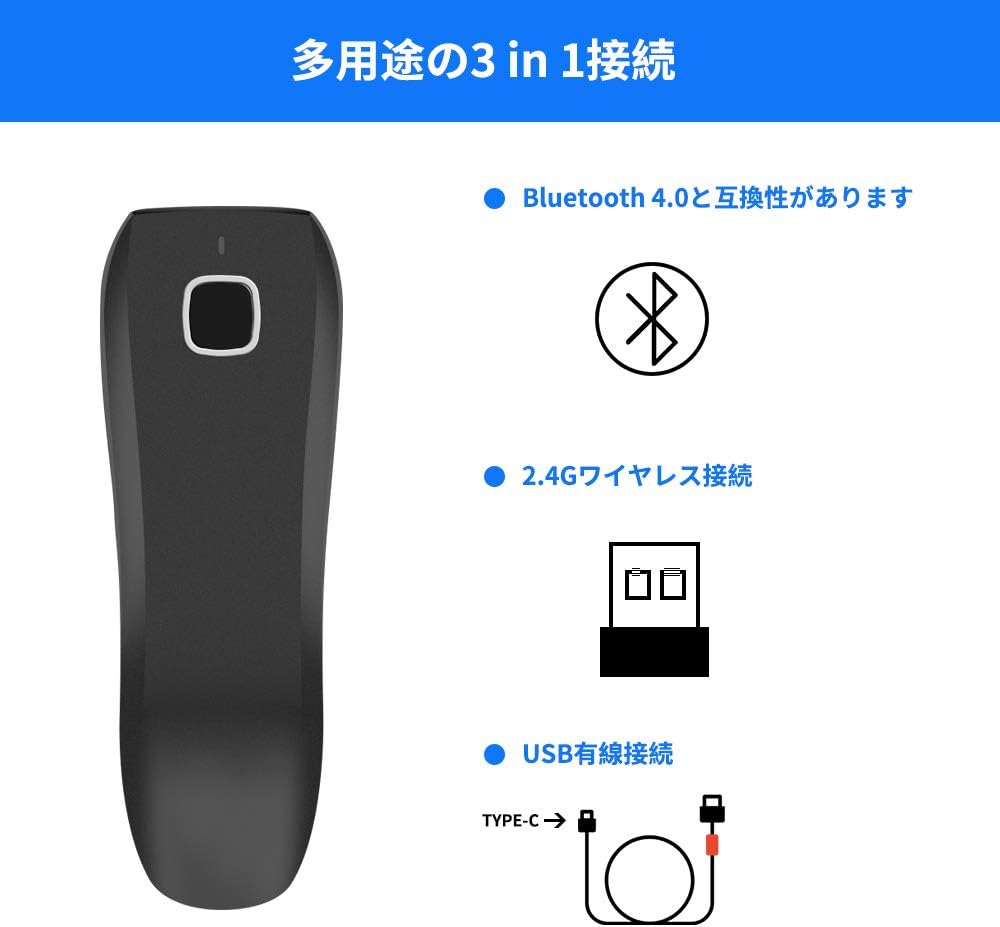
Image: Explanation of the two data upload modes: Storage Upload Mode (saving up to 50,000 barcodes internally) and Instant Upload Mode (real-time data transfer).
4.4. Колдоого алынган штрих-код түрлөрү
The NETUM C750 is designed to read a wide range of barcode symbologies:
- 1D штрих коддору: Codabar, Code 11, Code 93, MSI, Code 128, UCC / EAN-128, Code 39, EAN-8, EAN-13, UPC-A, ISBN, Industrial 25, Interleaved 25, Standard 25, 2/5 Matrix.
- 2D штрих коддору: QR Code, PDF417, Data Matrix, Aztec Code, Maxi Code.

Image: The scanner is compatible with PC, smartphones, tablets, and POS systems, supporting Windows XP/7/8/10, Mac OS, Linux, iOS, and Android.
5. Техникалык тейлөө
To ensure optimal performance and longevity of your NETUM C750 scanner, follow these maintenance guidelines:
- Тазалоо: Use a soft, dry, lint-free cloth to clean the scanner's exterior and scan window. Avoid abrasive cleaners, solvents, or excessive moisture.
- Батареяга кам көрүү: For the best battery life, avoid fully discharging the battery frequently. Charge the scanner regularly, even if not in constant use. Store the scanner in a cool, dry place away from extreme temperatures.
- Сактагыч: When not in use for extended periods, store the scanner in its original packaging or a protective case to prevent damage.
6. Кыйынчылыктарды
If you encounter issues with your NETUM C750 scanner, refer to the following common problems and solutions:
| Көйгөй | Мүмкүн себеп | Чечим |
|---|---|---|
| Сканер күйбөйт. | Батарея аз же түгөнүп калган. | Connect the scanner to a power source using the USB cable and allow it to charge for at least 30 minutes before attempting to turn it on. |
| Сканер штрих-коддорду окубайт. | Incorrect scanning mode, dirty scan window, or unsupported barcode type. | Ensure the scanner is in the correct scanning mode. Clean the scan window with a soft cloth. Verify the barcode symbology is supported by the C750. |
| No data transmission to host device. | Connection issue (Bluetooth, 2.4G, USB), incorrect data upload mode. | For Bluetooth/2.4G, ensure the scanner is paired and within range. For USB, check cable connection. Verify the scanner is in Instant Upload Mode if real-time data is expected. Re-pair if necessary. |
| No charging notification light. | This model may not have a dedicated charging indicator light. | Refer to the quick start guide for specific indicator behavior. If the scanner powers on after charging, it is likely charging correctly. |
| Cannot scan Japanese characters wirelessly. | Keyboard layout mismatch or limitation in wireless mode. | Ensure the host device's keyboard layout matches the scanner's output settings. Some advanced character sets may require USB wired connection or specific software configuration. |
7. Техникалык шарттар
| Өзгөчөлүк | Деталь |
|---|---|
| Бренд | NETUM |
| Модел | C750 |
| Байланыш технологиясы | Bluetooth, 2.4GHz Wireless, USB 2.0 Wired |
| Сенсор түрү | CMOS |
| Колдоого алынган 1D штрих-коддор | Codabar, Code 11, Code 93, MSI, Code 128, UCC / EAN-128, Code 39, EAN-8, EAN-13, UPC-A, ISBN, Industrial 25, Interleaved 25, Standard 25, 2/5 Matrix |
| Колдоого алынган 2D штрих-коддор | QR Code, PDF417, Data Matrix, Aztec Code, Maxi Code |
| Батарея түрү | 1 Литий Полимердик батарейка (кошулган) |
| Operating Voltage | 5 вольт |
| Шайкештик | Smartphones, Tablets, POS, iOS, Android, Windows, Mac OS, Linux |
| GTIN | 649615769027 |
| Сертификаттар | CE |
| Origin | Кытай |
8. Кепилдик жана колдоо
The NETUM C750 QR Code Reader comes with a 1 жылдык кепилдик сатып алынган күндөн тартып. Бул кепилдик өндүрүштүк кемчиликтерди жана нормалдуу колдонуудагы бузулууларды камтыйт.
For technical support, warranty claims, or any questions regarding the product, please contact your retailer or the manufacturer directly. Refer to the contact information provided with your purchase documentation or visit the official NETUM webколдоо булактары үчүн сайт.