
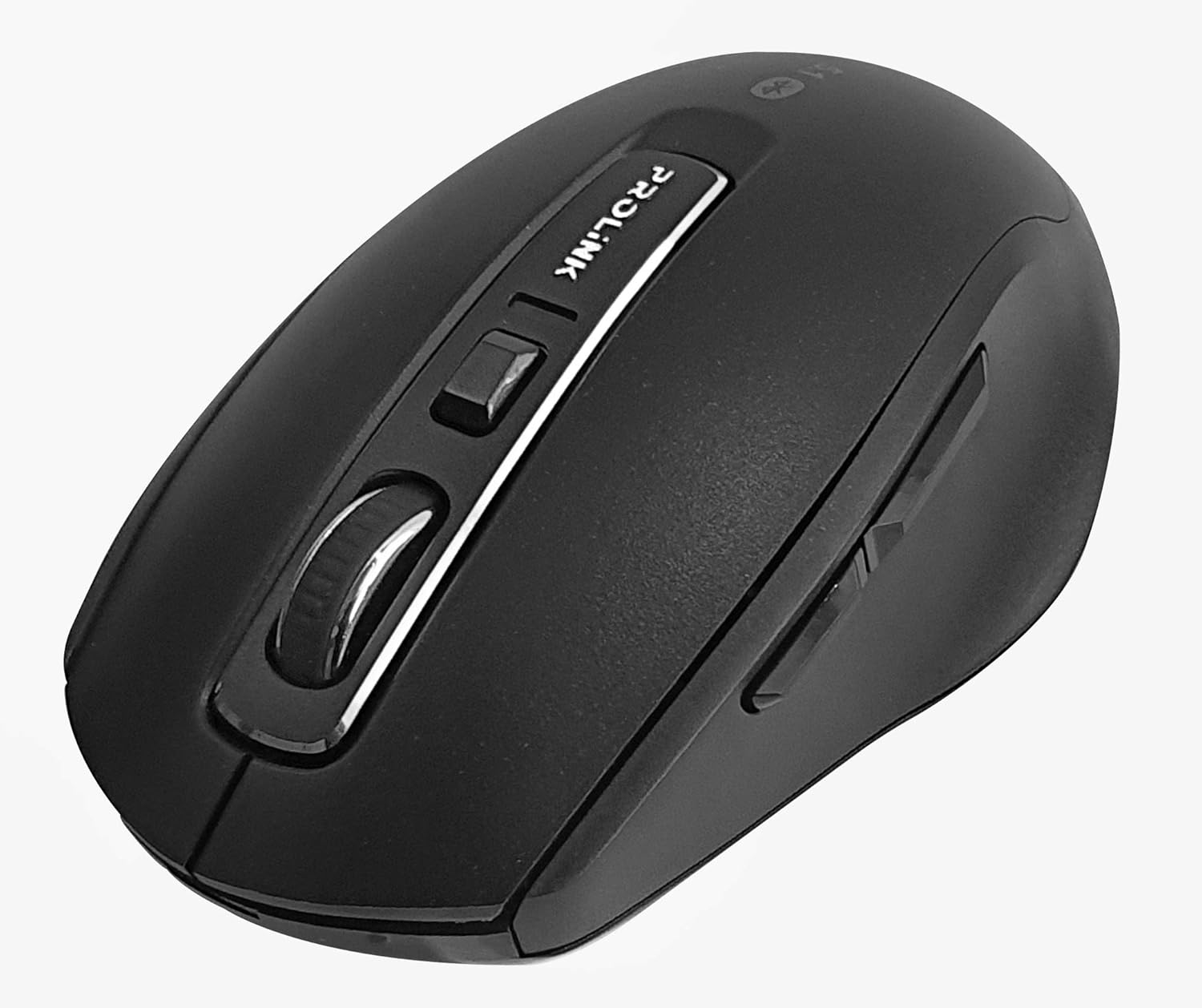
Сүрөт: жогорудан төмөнгө view of the Prolink PMB8502 Bluetooth Wireless Optical Mouse.
1. Introduction and Overview
The Prolink PMB8502 Bluetooth Mouse is designed for seamless wireless control of your desktop, laptop, or tablet. It features Bluetooth 5.2 connectivity, an ergonomic design, and adjustable DPI settings for personalized comfort and precision. This manual provides detailed instructions for setup, operation, maintenance, and troubleshooting.
Негизги өзгөчөлүктөрү:
- Bluetooth 5.2 connectivity (backward compatible with 5.1/5.0/4.2/4.1/4.0)
- Up to 27 months battery life (based on supplied batteries)
- Жөнгө салынуучу DPI: 800/1200/1600
- 6-button design including back and forward buttons
- Ыңгайлуу колдонуу үчүн эргономикалык дизайн
- Operating range of up to 10 meters

Image: Prolink PMB8502 mouse highlighting its Bluetooth 5.2, battery life, DPI, and range features.
2. Пакеттин мазмуну
- Prolink PMB8502 Bluetooth Wireless Optical Mouse
- 1 x AA батарейкасы (алдын ала орнотулган же өзүнчө кошулган)
- Колдонуучунун Колдонмосу (бул документ)
3. Орнотуу нускамалары
3.1. Батареяны орнотуу
- Чычкандын астыңкы бетинен батарея бөлүмүнүн капкагын табыңыз.
- Бөлүмдү ачуу үчүн капкакты акырын жылдырыңыз же көтөрүңүз.
- Оң (+) жана терс (-) терминалдары бөлүмдүн ичиндеги белгилер менен туура дал келишин камсыз кылып, бир AA батарейкасын салыңыз.
- Батарея бөлүкчөсүнүн капкагын бекем чыккыча ордуна коюңуз.
3.2. Bluetooth Жупташтыруу
Before pairing, ensure your device (computer, laptop, tablet) has Bluetooth enabled.
- Төмөнкү жагында жайгашкан күйгүзүү/өчүрүү баскычын колдонуп, чычканды күйгүзүңүз.
- Press and hold the Bluetooth 'Connect' button (usually located near the On/Off switch or within the battery compartment) for 3-5 seconds until the LED indicator on the mouse begins to flash, indicating it is in pairing mode.
- Түзмөгүңүздө Bluetooth жөндөөлөрүнө өтүңүз.
- Издөө new devices. The mouse should appear as "Prolink PMB8502" or similar.
- Select the mouse from the list to complete the pairing process. The LED indicator on the mouse will stop flashing and remain solid for a few seconds, then turn off, indicating a successful connection.

Сүрөт: алдыңкы view of the Prolink PMB8502 mouse, showing its ergonomic shape.
4. Иштөө нускамалары
4.1. Баскыч функциялары
- Сол чыкылдатуу баскычы: Стандарттык тандоо жана активдештирүү.
- Оң баскычты чыкылдатуу: Контексттик менюларга жетет.
- Жылдыруу дөңгөлөгү: Документтерди жылдырат жана web барактар тигинен жайгаштырылган. Ортоңку чыкылдатуу функциясы үчүн да басууга болот.
- DPI жөндөө баскычы: Located below the scroll wheel. Press to cycle through DPI settings (800/1200/1600).
- Алга баскычы: Алга карай жылдырат web браузерлер же file изилдөөчүлөр.
- Артка баскычы: Артка карай багыт алат web браузерлер же file изилдөөчүлөр.
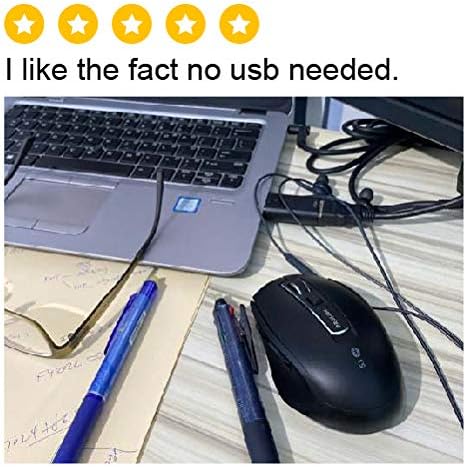
Сүрөт: каптал view of the Prolink PMB8502 mouse, illustrating the placement of the back and forward navigation buttons.
4.2. DPI тууралоо
The mouse offers three DPI (Dots Per Inch) settings: 800, 1200, and 1600. Press the DPI button located below the scroll wheel to switch between these sensitivities. A higher DPI setting results in faster cursor movement across the screen.
4.3. Электр энергиясын башкаруу
- Күйгүзүү/өчүрүү: To conserve battery life, turn off the mouse using the switch on its underside when not in use for extended periods.
- Автоматтык уйку режими: The mouse automatically enters a sleep mode after more than 10 minutes of inactivity. To wake it up, simply move the mouse or click any button.
5. Техникалык тейлөө
5.1. Тазалоо
Чычканды тазалоо үчүн жумшак, кургак, мамыксыз чүпүрөктү колдонуңуз. Өжөр кир үчүн бир азampen the cloth with water or a mild cleaning solution. Avoid using harsh chemicals, abrasive cleaners, or spraying liquids directly onto the mouse.
5.2. Батареяны алмаштыруу
When the mouse performance degrades or the LED indicator suggests low battery, replace the AA battery following the steps in Section 3.1. Dispose of used batteries responsibly according to local regulations.
6. Кыйынчылыктарды
- Mouse not connecting or erratic movement:
- Чычкан күйгүзүлгөнүн текшериңиз.
- Батареянын деңгээлин текшериңиз жана керек болсо алмаштырыңыз.
- Түзмөгүңүздө Bluetooth иштетилгенин текшериңиз.
- Try re-pairing the mouse with your device (refer to Section 3.2).
- Move the mouse closer to your device to rule out range issues.
- Bluetooth байланышына тоскоол болгон башка күчтүү зымсыз сигналдар жок экенин текшериңиз.
- Cursor not moving smoothly:
- Чычкандын астындагы оптикалык сенсорду тазалаңыз.
- Чычканды таза, чагылдырылбаган бетке колдонуңуз.
- DPI жөндөөсүн өзүңүзгө ылайыктуу деңгээлге тууралаңыз.
- Баскычтар жооп бербейт:
- Батареянын деңгээлин текшериңиз.
- Ensure the mouse is properly connected via Bluetooth.
- Компьютериңизди же түзмөгүңүздү өчүрүп күйгүзүңүз.
7. Техникалык шарттар
| Өзгөчөлүк | Деталь |
|---|---|
| Buttons | 6 |
| Сенсор | Оптикалык |
| DPI токтому | 800 / 1200 / 1600 DPI |
| Интерфейс | Bluetooth 5.2 (backward compatible with Bluetooth 5.1/5.0/4.2/4.1/4.0) |
| USB Report Rate | 125Hz |
| FPS | 2400 эсе/сек |
| Иштөө нымдуулугу | 30%RH - 95%RH |
| Иштөө температурасы | -20°C - +60°C |
| Операция системасы | Windows 7 / 10 / 11, Mac OS 10.2 above |
| Өлчөмдөрү (L x W x Y) | 108 мм x 66.7 мм x 40.2 мм |
| Салмагы | 69.2g (product only) |
| Батарея түрү | 1 x AA Батарея |

Image: Graphic displaying the technical specifications of the Prolink PMB8502 mouse.
8. Кепилдик жана колдоо
The Prolink PMB8502 Bluetooth Wireless Optical Mouse typically comes with a 3 жылдык кепилдик from the date of purchase. Please refer to your purchase receipt or the official Prolink webсиздин аймагыңызда колдонулуучу кепилдиктин белгилүү бир шарттары жана жоболору менен таанышуу үчүн сайтка кириңиз.
For technical support, troubleshooting assistance, or warranty claims, please visit the official Prolink website or contact their customer service department. Contact information can usually be found on the product packaging or the Prolink official webсайт.
Онлайн ресурстар:

Image: Prolink PMB8502 mouse with a "3 Year Warranty" label, indicating product assurance.