
1. Продукт бүтүп калдыview
The TP-Link Archer TX50E is a high-performance AX3000 Wi-Fi 6 Bluetooth 5.3 PCIe Adapter designed for desktop PCs. It leverages the latest Wi-Fi 6 standard to deliver extreme speeds, ultra-low latency, and uninterrupted connectivity, making it suitable for demanding applications like immersive gaming and VR. The adapter features a customized heat sink and gold-plated contactors for enhanced stability and longevity.
Негизги өзгөчөлүктөрү:
- Wi-Fi 6 иштеши: Delivers speeds up to 2.4 Gbps (2402 Mbps on 5 GHz + 574 Mbps on 2.4 GHz) with 1024-QAM and 160 MHz bandwidth.
- Ультра төмөн кечигүү: Revolutionary OFDMA and MU-MIMO technologies reduce lag for responsive gaming and VR experiences.
- Bluetooth 5.3: Achieves 2× faster speeds and 4× broader coverage than Bluetooth 4.2, enabling seamless connection with various peripherals.
- Кеңири камтуу: Equipped with two high-gain antennas to extend Wi-Fi range.
- Premium Build: Features a customized heat sink for efficient thermal dissipation and gold-plated contactors for improved stability and oxidation resistance.
- Өркүндөтүлгөн коопсуздук: Тармакты коргоону күчөтүү үчүн эң акыркы тармактык коопсуздук стандарты WPA3 колдойт.
2. Пакеттин мазмуну
Пакетиңизде бардык буюмдар бар экенин текшериңиз:

Image: TP-Link Archer TX50E retail box showing the adapter and included accessories.
- TP-Link Archer TX50E Wi-Fi 6 Bluetooth 5.3 PCIe Adapter
- Эки жогорку күчөткүчтүү антенна
- Bluetooth USB кабели
- Ресурстук CD
- Ыкчам орнотуу колдонмосу
- Low-Profile кашаа
3. Аппараттык камсыздоону орнотуу
Баштоодон мурун:
- Компьютериңиздин өчүрүлгөнүн жана кубат булагынан суурулганын текшериңиз.
- Ground yourself to discharge any static electricity before handling components.
- Refer to your computer's manual for specific instructions on opening the case.
Этап-этабы менен орнотуу:
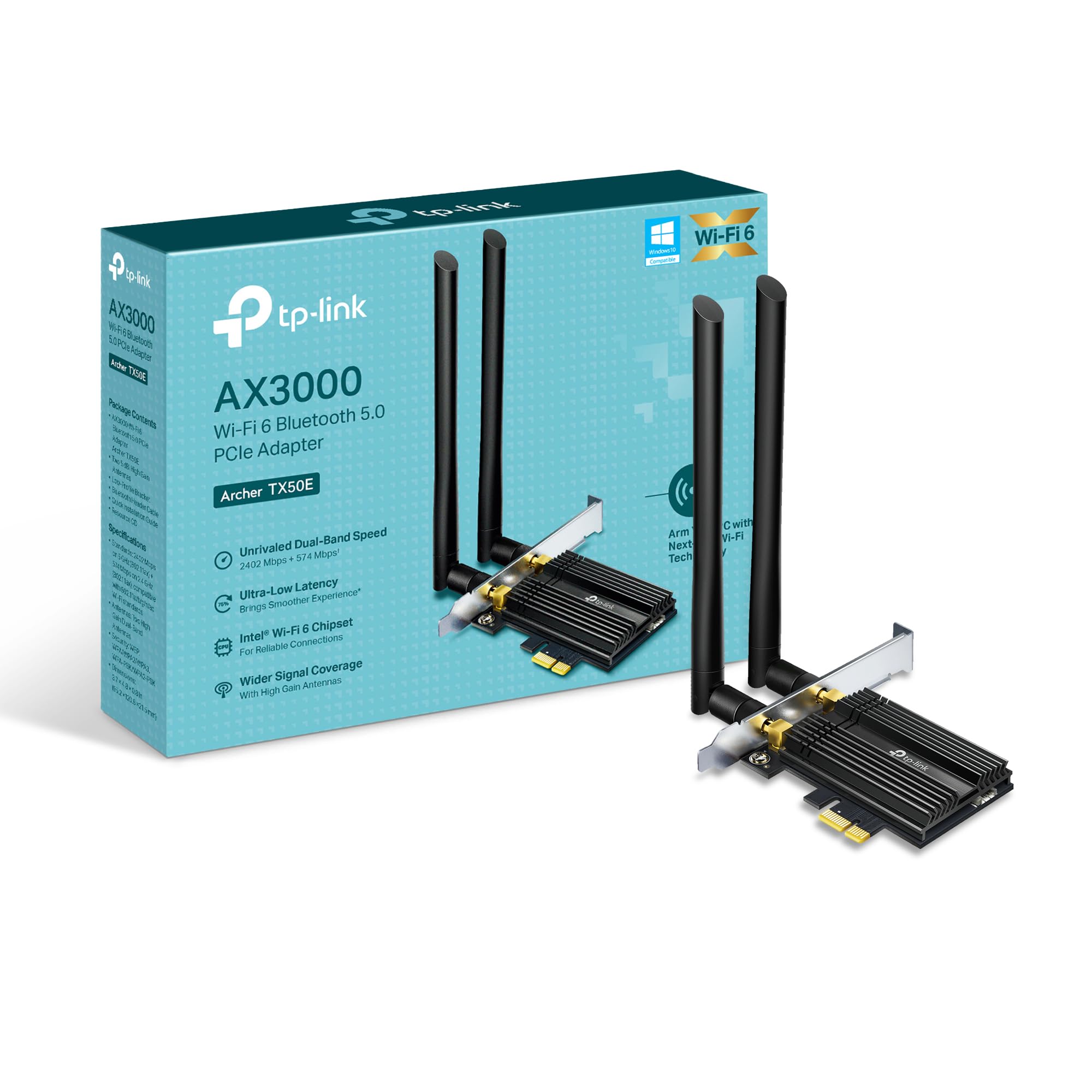
Сүрөт: алдыңкы view of the TP-Link Archer TX50E adapter with antennas.
- Электрди өчүрүү жана розеткадан ажыратыңыз: Компьютериңизди өчүрүп, кубат кабелин розеткадан сууруп алыңыз.
- Ачык PC Case: Эне платага кирүү үчүн компьютериңиздин каптал панелин алып салыңыз.
- Bluetooth USB кабелин туташтырыңыз: Connect the provided Bluetooth USB cable to the adapter's Bluetooth header.
- Уячаларды табыңыз: Identify an available PCI Express X1 slot on your motherboard and an F_USB connector (usually labeled USB910 or similar).
- Адаптерди киргизүү: Carefully insert the Archer TX50E adapter into the chosen PCIe X1 slot. Ensure it is seated firmly.
- USB кабелин туташтыруу: Connect the other end of the Bluetooth USB cable to the F_USB connector on your motherboard. This connection is essential for Bluetooth functionality.
- Secure Adapter and Antennas: Secure the adapter with a screw to the computer case. Then, connect the two high-gain antennas to the adapter's connectors. Adjust their position for optimal signal reception.
- Компьютердин корпусун жабуу: Компьютериңиздин каптал панелин алмаштырыңыз.
- Күйгүзүү: Plug the power cable back into the wall outlet and turn on your computer.
Визуалдык орнотуу боюнча көрсөтмө:
Video: A step-by-step guide demonstrating the physical installation of the TP-Link Archer TX50E PCIe adapter into a desktop computer.
4. Драйверди орнотуу
After hardware installation, you need to install the Wi-Fi and Bluetooth drivers for the adapter to function correctly. Эскертүү: Bluetooth жана Wi-Fi драйвер орнотуучуларын бир эле учурда иштетпеңиз.
Step-by-Step Driver Installation:
- Insert CD or Download Drivers: Insert the provided resource CD into your computer's CD/DVD drive. If your computer does not have a CD/DVD drive, download the latest drivers from the official TP-Link website (search for Archer TX50E).
- Run Autorun: Once the CD is inserted, an Autorun window should appear. Click to run `Autorun.exe`. If it doesn't appear, navigate to 'This PC' or 'My Computer', open your CD/DVD drive, and manually run `Autorun.exe`.
- Install Wi-Fi Drivers: In the TP-Link driver installation utility, select the option to install the Wi-Fi drivers. Follow the on-screen instructions to complete the installation. You may need to restart your computer after this step.
- Install Bluetooth Drivers: After the Wi-Fi drivers are installed and your computer has restarted (if prompted), run the `Autorun.exe` again or manually launch the Bluetooth driver installer. Follow the on-screen instructions to complete the Bluetooth driver installation. Another restart may be required.
For a visual guide on driver installation, please refer to the setup video provided in the Hardware Installation section.
5. Иштөө нускамалары
Wi-Fi'га туташууда:
- After successful driver installation, click the Wi-Fi icon in your system tray (usually in the bottom-right corner of your screen).
- Жеткиликтүү зымсыз тармактардын тизмеси пайда болот. Каалаган тармагыңызды тандаңыз.
- "Туташуу" баскычын чыкылдатып, суралса, тармактын коопсуздук ачкычын (сырсөздү) киргизиңиз.
- Эми сиздин компьютериңиз Wi-Fi тармагына туташып турушу керек.
Bluetooth түзмөктөрүн жупташтыруу:
- Bluetooth түзмөгүңүз жупташтыруу режиминде экенин текшериңиз (түзмөгүңүздүн колдонмосун караңыз).
- On your computer, go to 'Settings' > 'Devices' > 'Bluetooth & other devices'.
- Turn on Bluetooth if it's not already enabled.
- "Bluetooth же башка түзмөк кошуу" баскычын чыкылдатып, "Bluetooth" тандаңыз.
- Тизмеден түзмөгүңүздү тандап, жупташтыруу процессин аяктоо үчүн экрандагы көрсөтмөлөрдү аткарыңыз.
6. Кыйынчылыктарды
If you encounter issues with your Archer TX50E adapter, try the following common troubleshooting steps:
- Wi-Fi туташуусу жок:
- Адаптердин PCIe уячасына туура орнотулганын текшериңиз.
- Verify that the antennas are securely connected.
- Check Device Manager to ensure Wi-Fi drivers are installed and the device is recognized without errors.
- Try updating or reinstalling the Wi-Fi drivers.
- Компьютериңизди жана зымсыз роутериңизди өчүрүп-күйгүзүңүз.
- Bluetooth иштебей жатат:
- Confirm the Bluetooth USB cable is properly connected to both the adapter and the motherboard's F_USB header.
- Check Device Manager to ensure Bluetooth drivers are installed and the device is recognized without errors.
- Verify that Bluetooth is enabled in your computer's settings.
- Try updating or reinstalling the Bluetooth drivers.
- Slow Speeds or Intermittent Connection:
- Оптималдуу иштеши үчүн роутериңиз Wi-Fi 6 (802.11ax) колдой турганын текшериңиз.
- Adjust the position of the antennas for better signal reception.
- Move your computer closer to the router or reduce obstacles between them.
- Башка электрондук шаймандардын кийлигишүүсүн текшериңиз.
- Роутериңиздин микропрограммасын жаңыртыңыз.
If these steps do not resolve your issue, please contact TP-Link Technical Support.
7. Техникалык шарттар
| Өзгөчөлүк | Спецификация |
|---|---|
| Модел | Жаачы TX50E |
| Зымсыз стандарт | Wi-Fi 6 (802.11ax/ac/b/g/n) |
| Bluetooth версиясы | Bluetooth 5.3 |
| Интерфейс | PCI Express |
| Маалыматтарды өткөрүү ылдамдыгы | Up to 2402 Mbps (5 GHz), 574 Mbps (2.4 GHz) |
| Операциялык системаны колдоо | Windows 11, 10 (64-bit) |
| Коопсуздук | WPA3 |
| Өлчөмдөрү (L x W x Y) | 9.53 x 12.09 x 2.16 см |
| Элемент Салмагы | 90.72 г (0.2 фунт) |
| Аппараттык интерфейс | Bluetooth |
| Шайкеш түзмөктөр | Иш такта, ноутбук |
8. Кепилдик жана техникалык колдоо
TP-Link сунуштайт 2 жылдык кепилдик for this product. Additionally, free 24/7 техникалык колдоо сизге туш болушу мүмкүн болгон ар кандай суроолор же көйгөйлөр боюнча жардам берүүгө даяр.
Кошумча жардам алуу үчүн расмий TP-Link колдоо бөлүмүнө кайрылыңыз webсайтка же түздөн-түз кардарларды тейлөөгө кайрылыңыз.