
1. Киришүү
The FORTINET FortiWiFi-61F is a compact, all-in-one network security appliance designed to provide comprehensive threat protection and secure Wi-Fi connectivity for small to medium-sized businesses and remote offices. This device integrates multiple security functions, including firewall, VPN, intrusion prevention, and web filtering, along with high-performance wireless capabilities. This manual provides essential information for the proper installation, configuration, and maintenance of your FortiWiFi-61F appliance.
2. Коопсуздук маалыматы
- Кубат булагы: Use only the power adapter supplied with the device. Ensure the power outlet meets the device's voltagд талаптар.
- Вентиляция: Желдетүү тешиктерин жаппаңыз. Ашыкча ысып кетүүнүн алдын алуу үчүн түзмөктүн айланасында жетиштүү аба айланышын камсыз кылыңыз.
- Курчап турган чөйрө: Operate the device in a dry, well-ventilated area, away from direct sunlight, heat sources, and excessive moisture.
- Жайгашкан жери: Place the device on a stable, flat surface. Avoid placing it near strong electromagnetic fields.
- Тейлөө: Аппаратты өзүңүз ачууга же оңдоого аракет кылбаңыз. Бардык тейлөөлөрдү квалификациялуу кызматкерлерге тапшырыңыз.
3. Пакеттин мазмуну
Пакетиңизде төмөнкү заттар бар экенин текшериңиз:
- FORTINET FortiWiFi-61F Network Security Appliance
- Кубаттуу адаптер
- Ethernet кабели
- Ыкчам баштоо колдонмосу (эгер камтылган болсо)
4. Техникалык жабдыктар бүттүview
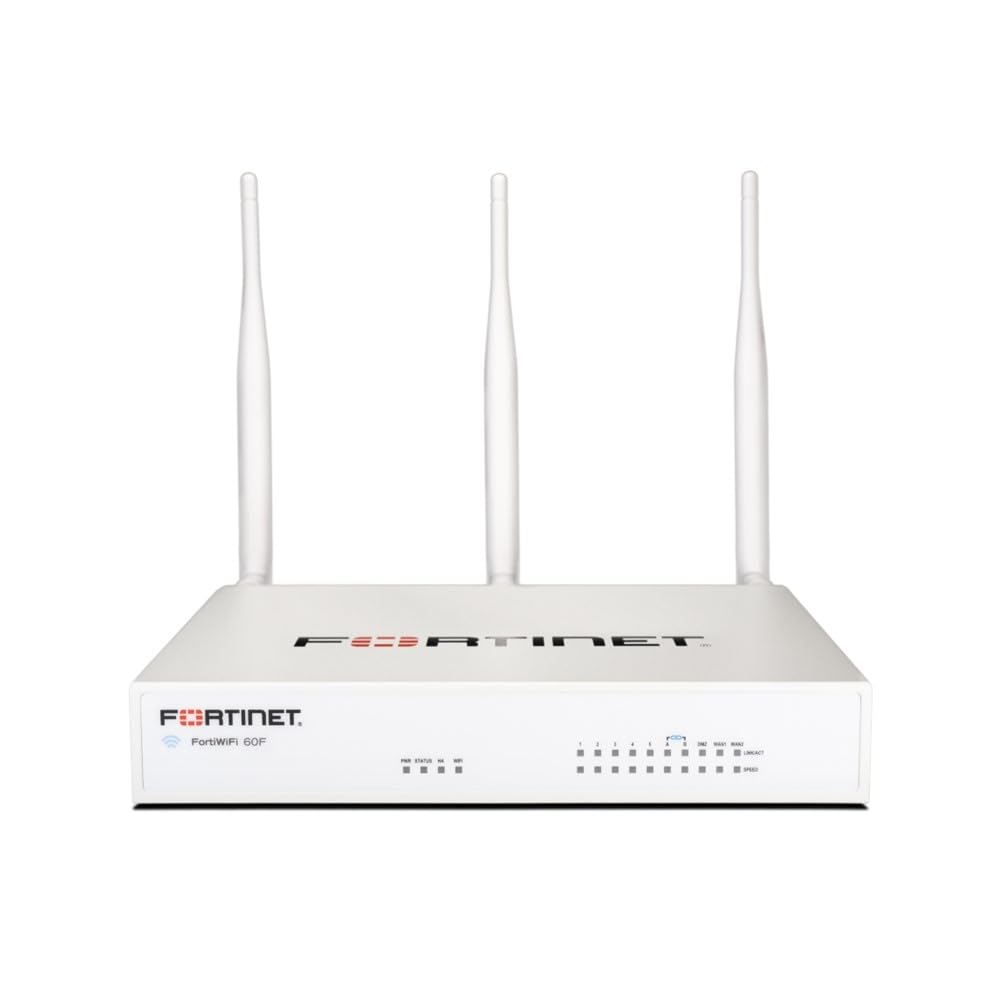
Сүрөт: алдыңкы view of the FortiWiFi-61F appliance, illustrating its compact design and front panel indicators.
Алдыңкы панелдин көрсөткүчтөрү
- Power LED: Кубаттын абалын көрсөтөт.
- Статус LED: Системанын иштөө абалын көрсөтөт.
- WAN/LAN LEDs: Indicate link activity and speed for respective ports.
- Wi-Fi LED: Зымсыз тармак аракетин көрсөтөт.
Арткы панелдин порттору жана баскычтары
- Кубат киргизүү: Берилген кубат адаптерине туташат.
- WAN порттору: Connect to your Internet service provider's modem.
- LAN порттору: Connect to local network devices (computers, switches).
- USB порттору: For connecting external devices (e.g., 3G/4G modem, storage).
- Консол порту: Түз буйрук сабынын интерфейсине кирүү үчүн.
- Калыбына келтирүү баскычы: Used to restore factory default settings (requires a paperclip or similar tool).
5. Орнотуу
5.1 Физикалык байланыш
- Кубатка туташуу: Plug the power adapter into the FortiWiFi-61F's power input and then into a power outlet. The Power LED should illuminate.
- Интернетке туташуу: Connect an Ethernet cable from your ISP's modem to the WAN port on the FortiWiFi-61F.
- Connect to Local Network: Connect an Ethernet cable from one of the LAN ports on the FortiWiFi-61F to your computer or a network switch.
5.2 Баштапкы конфигурацияга кирүү
кирүү үчүн web- негизделген башкаруу интерфейси:
- Компьютериңиз IP дарегин автоматтык түрдө алууга (DHCP) конфигурацияланганын текшериңиз.
- ачуу а web браузер жана демейки IP дарегин киргизиңиз:
192.168.1.99(or as specified in your Quick Start Guide). - Log in using the default username
adminand no password (leave blank). You will be prompted to create a new password immediately.
5.3 Негизги тармак конфигурациясы
Баштапкы орнотуу үчүн экрандагы жардамчыны аткарыңыз, ал адатта төмөнкүлөрдү камтыйт:
- Демейки администратордун сырсөзүн өзгөртүү.
- Configuring WAN interface settings (DHCP, Static IP, PPPoE).
- Setting up basic Wi-Fi network (SSID, security key).
6. Operating the FortiWiFi-61F
Once configured, the FortiWiFi-61F operates as your network's security gateway and wireless access point. You can manage its features through the web-негизделген интерфейс.
6.1 Web-негизделген башкаруу интерфейси
The FortiWiFi-61F's web interface provides access to all configuration and monitoring options. Key areas include:
- Куралдар тактасы: Бүттүview of system status, network activity, and security events.
- Тармак: Configuration for interfaces, routing, DHCP, and DNS.
- Policy & Objects: Firewall policies, virtual IPs, and security profiles.
- Security Profiles: Antivirus, web filtering, application control, and intrusion prevention.
- WiFi & Switch Controller: Management of wireless networks and switch ports.
- Система: Firmware updates, administrators, logging, and system settings.
6.2 Зымсыз тармак (Wi-Fi)
The FortiWiFi-61F supports 802.11ac dual-band wireless connectivity. You can configure multiple SSIDs (Wi-Fi networks) with different security settings and VLANs to segment wireless traffic.
7. Техникалык тейлөө
- Программалык камсыздоонун жаңыртуулары: Regularly check for and install the latest firmware from the Fortinet support portal to ensure optimal performance and security.
- Конфигурациянын камдык көчүрмөсү: Periodically back up your device configuration. This allows for quick restoration in case of issues or device replacement.
- Физикалык тазалоо: Keep the device free from dust. Use a soft, dry cloth to clean the exterior. Do not use liquid cleaners.
- Мониторинг: Дайыма кайраview system logs and security reports within the web interface to identify potential issues or threats.
8. Кыйынчылыктарды
8.1 Күч жок
- Кубат адаптери аспапка да, иштеген электр розеткасына да бекем туташып турганын текшериңиз.
- Башка аспапка сайып, розетка иштеп жатканын текшериңиз.
- Электр адаптеринде көрүнгөн зыяндын бар-жоктугун текшериңиз.
8.2 Интернетке кирүү жок
- Check if your ISP modem is working correctly.
- Ensure the Ethernet cable from the modem is connected to the correct WAN port on the FortiWiFi-61F.
- Verify WAN interface settings in the web interface (e.g., DHCP client receiving an IP address).
- Restart both the modem and the FortiWiFi-61F.
8.3 Wi-Fi туташуу маселелери
- Ensure the Wi-Fi LED on the device is active.
- Verify the SSID and password on your wireless devices match the configuration on the FortiWiFi-61F.
- Check wireless settings in the web interface, including channel and power levels.
- Try moving closer to the device to rule out signal strength issues.
8.4 Заводдук жөндөөлөрдү калыбына келтирүү
If you encounter persistent issues or forget your password, you can restore the device to its factory default settings:
- With the device powered on, use a paperclip or similar pointed object to press and hold the Reset button for approximately 10 seconds.
- Release the button. The device will reboot with factory default settings.
- You will need to reconfigure the device from scratch after a factory reset.
9. Техникалык шарттар
| Өзгөчөлүк | Description |
|---|---|
| Бренд | FORTINET |
| Модель аты | FWF-61F |
| Сериялар | FWF-61F |
| Зымсыз түрү | 802.11ac |
| Жыштык тилкесинин классы | Кош тилкелүү |
| Байланыш технологиясы | Wi-Fi |
| Антенна түрү | Ички |
| Операция системасы | Proprietary Fortinet Operating System |
| Өзгөчө өзгөчөлүк | WPS |
| Сунушталган Колдонуулар | Коопсуздук |
| Шайкеш түзмөктөр | Персоналдык компьютер |
10. Кепилдик жана колдоо
For detailed warranty information, please refer to the warranty card included with your product or visit the official FORTINET website. Technical support and additional resources, including updated documentation and firmware, are available through the FORTINET support portal. Please have your product serial number ready when contacting support.
FORTINET Official Webсайт: www.fortinet.com